> ## Documentation Index
> Fetch the complete documentation index at: https://guides.koinx.com/llms.txt
> Use this file to discover all available pages before exploring further.

# Steps to Integrate a Wallet Using an API Key

> Learn how to connect your crypto exchange accounts to KoinX Books using secure API integration.

With KoinX Books, you can securely connect your exchange wallet using an API. The integration process is simple and secure. KoinX Books will automatically import your historical and ongoing transactions, saving you from the hassle of constant manual updates.

Follow the steps below to securely connect your exchange wallet to KoinX Books using API integration:

<Steps>
  <Step titleSize="h3" title="Navigate to Data Sources">
    Log in to your KoinX Books account and go to the **Data Sources** section from the main menu.
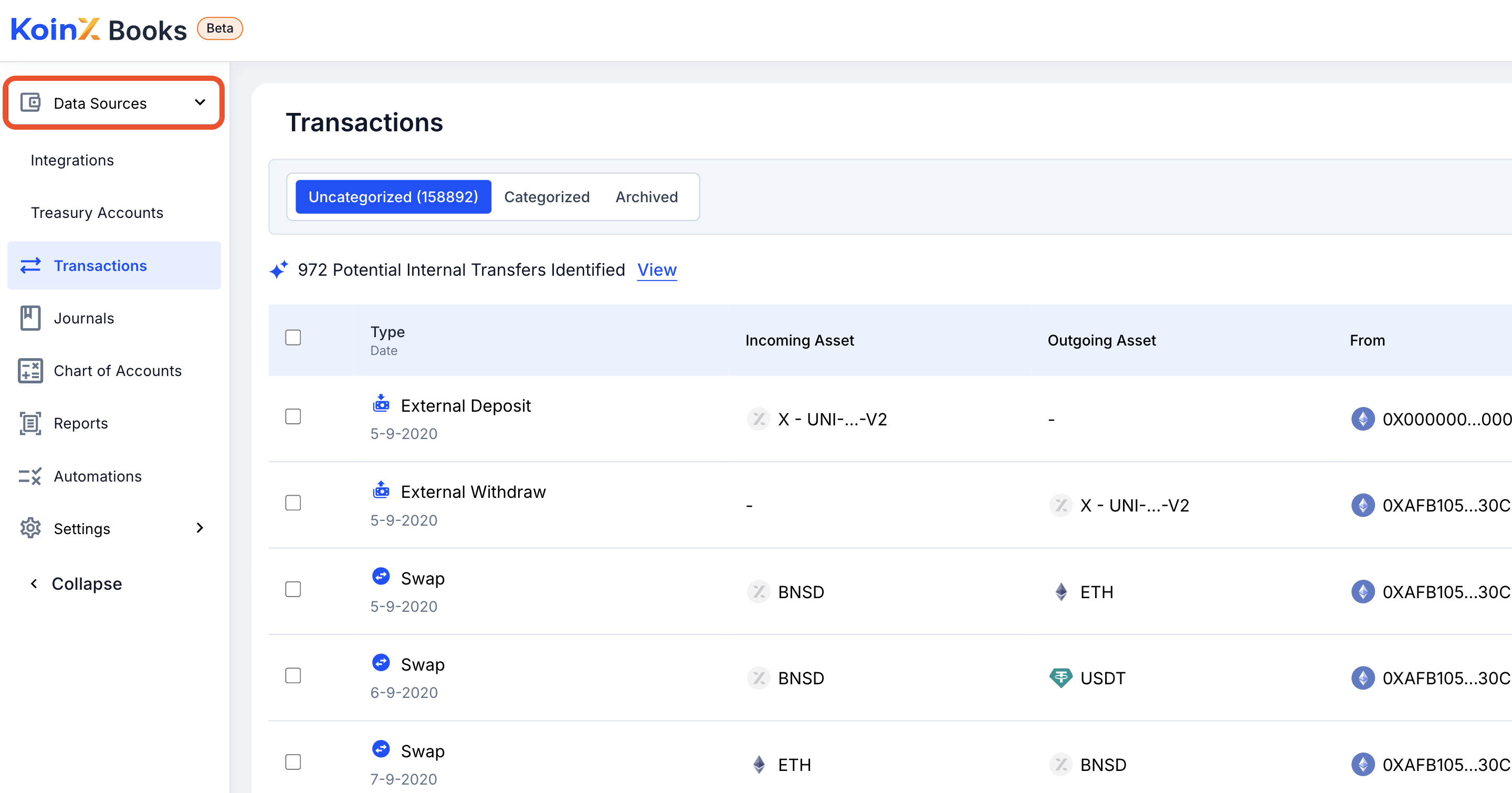
    ![Data\_Sources](https://koinx-statics.s3.ap-south-1.amazonaws.com/guides/accounting/integrations/exchange-integration-api-koinx-books/step-1.png)
  </Step>

  <Step titleSize="h3" title="Open Integrations">
    Click on the **Integrations** tab to view available connection options.
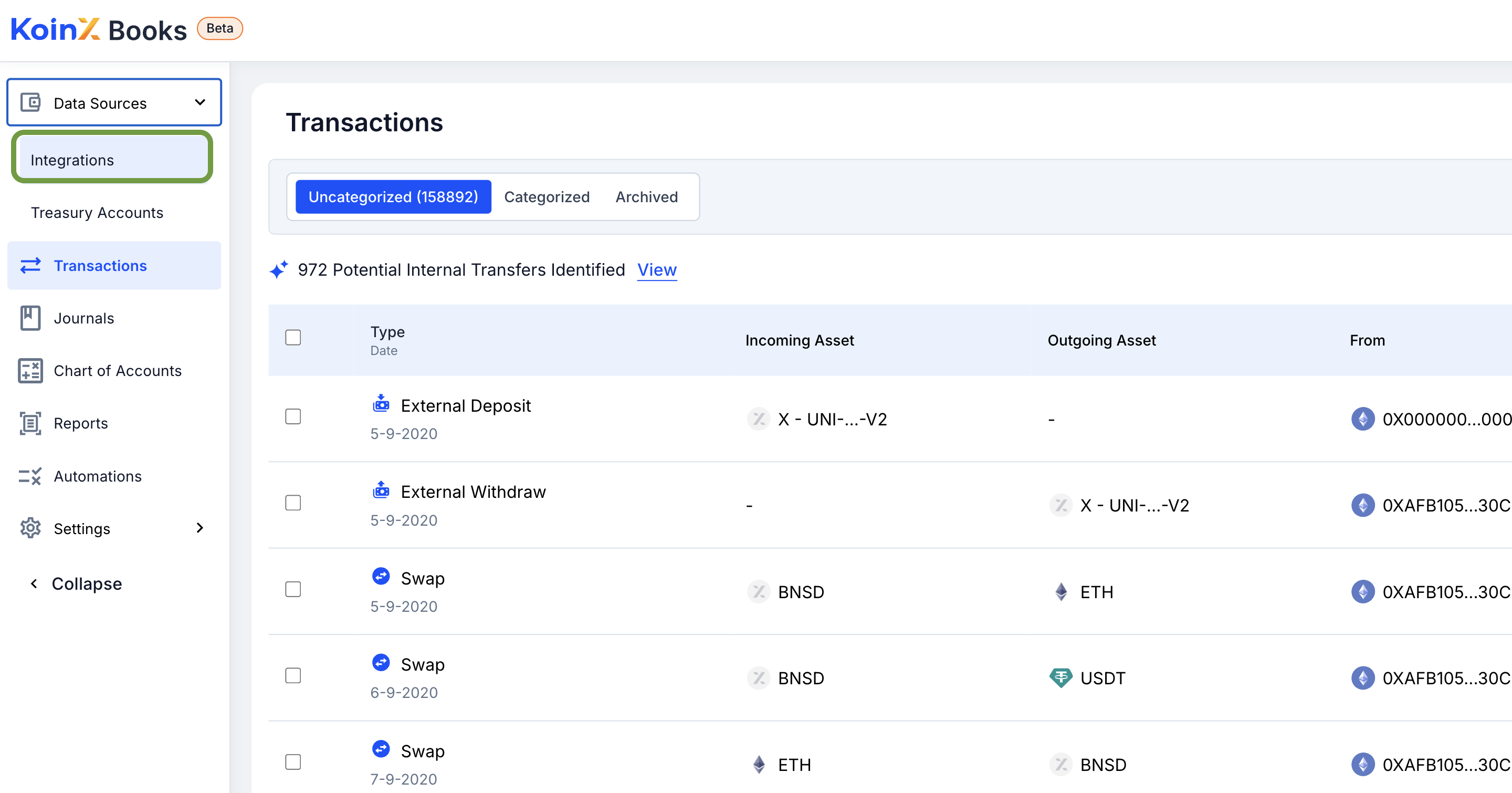
    ![Integrations](https://koinx-statics.s3.ap-south-1.amazonaws.com/guides/accounting/integrations/exchange-integration-api-koinx-books/step-2.png)
  </Step>

  <Step titleSize="h3" title="Add Integration">
    Click the **Add Integration** button to begin setting up a new connection.
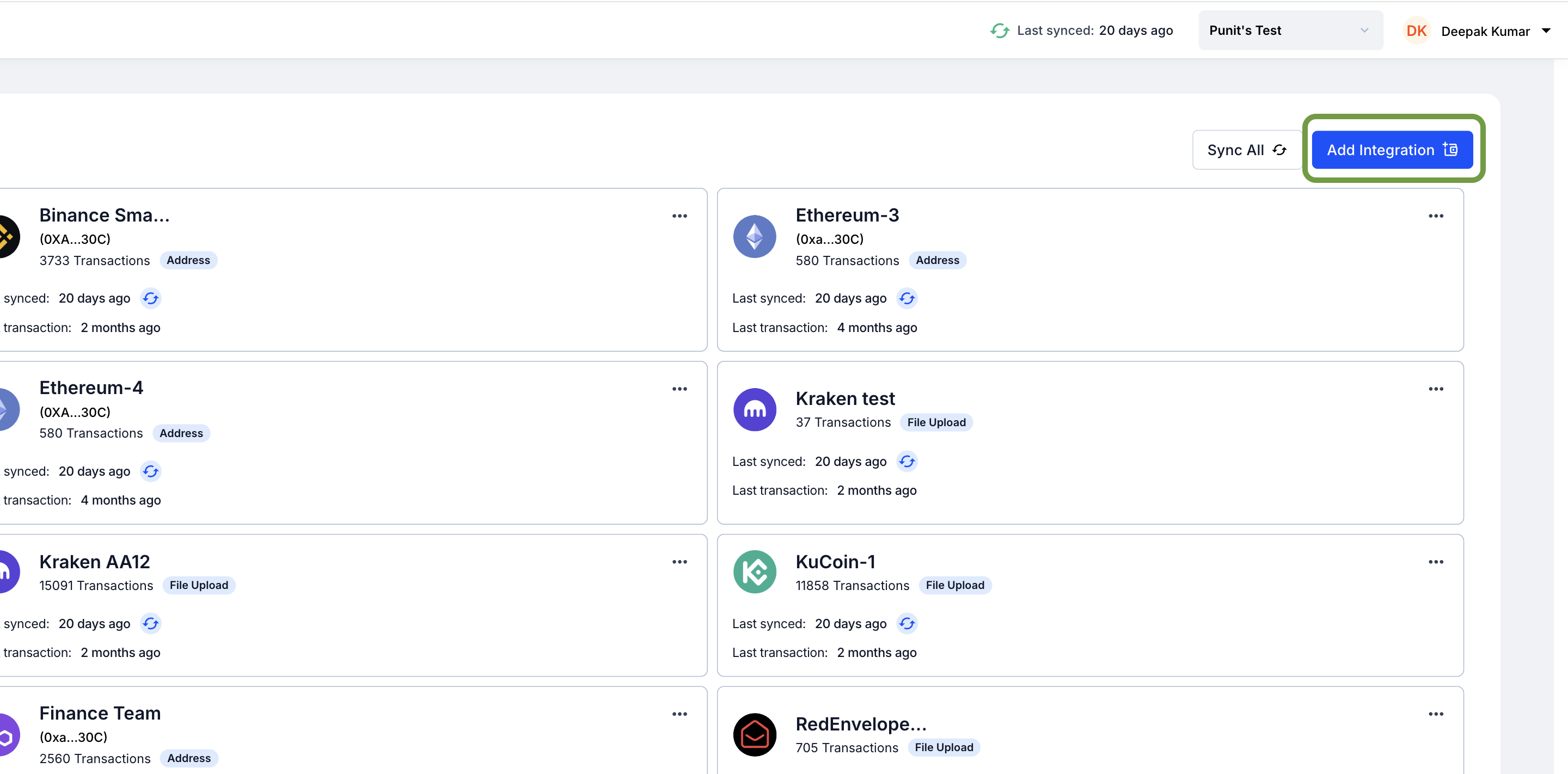
    ![Add\_Integration](https://koinx-statics.s3.ap-south-1.amazonaws.com/guides/accounting/integrations/exchange-integration-api-koinx-books/step-3.png)
  </Step>

  <Step titleSize="h3" title="Select Your Exchange">
    Search for your exchange using the search bar or select it directly from the list of supported exchanges.
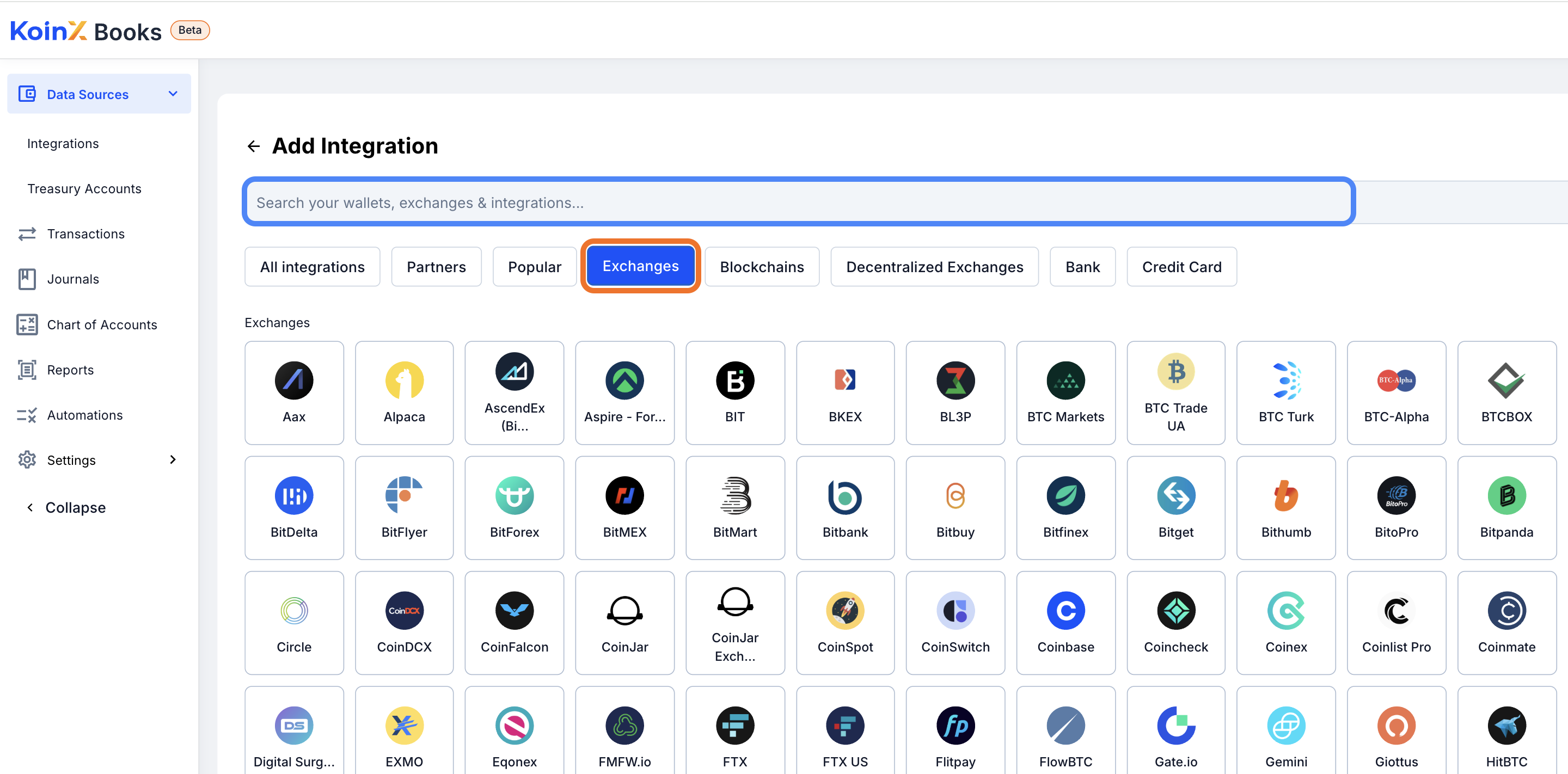
    ![Exchange\_Selection](https://koinx-statics.s3.ap-south-1.amazonaws.com/guides/accounting/integrations/exchange-integration-api-koinx-books/step-4.png)
  </Step>

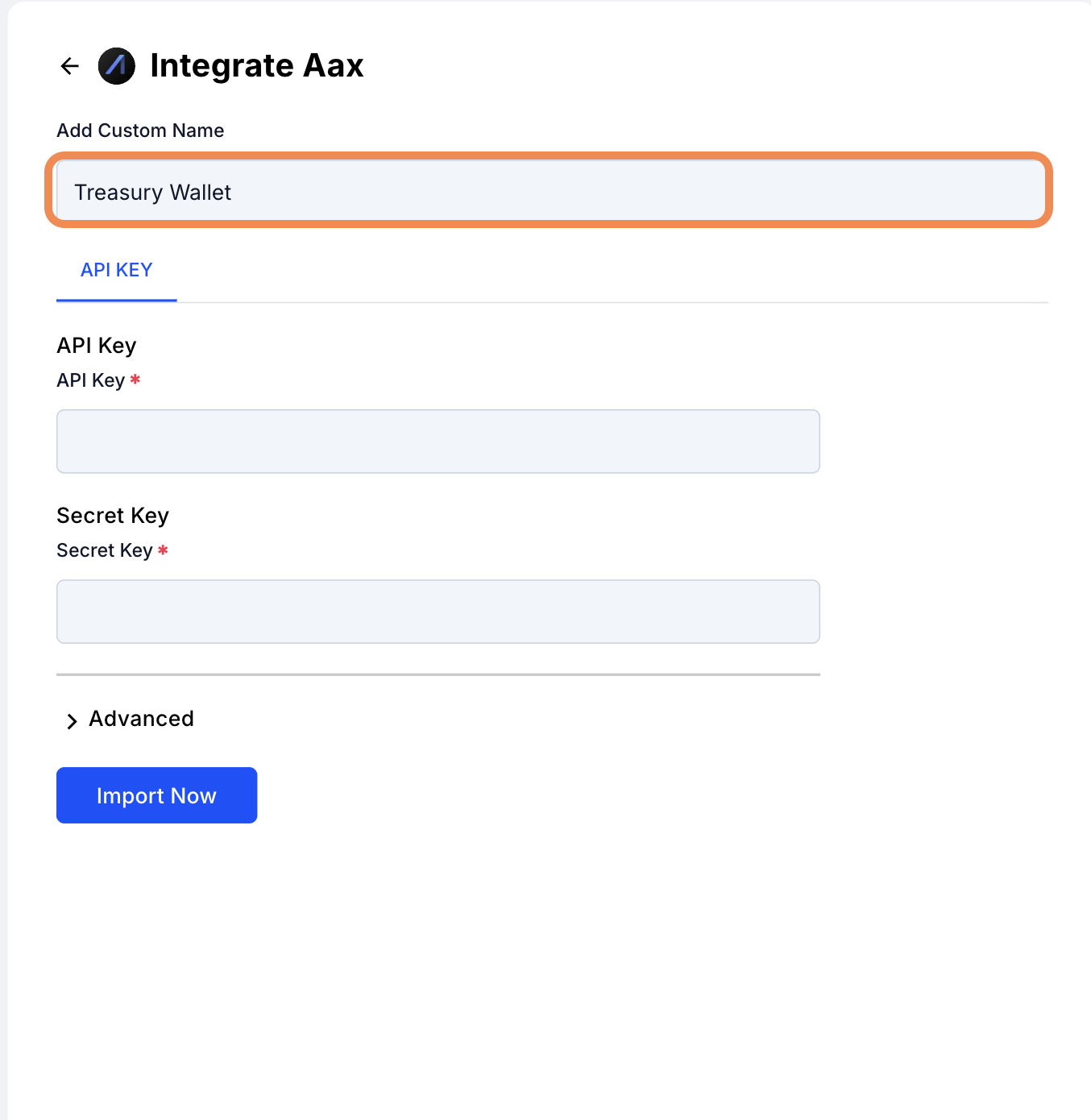
  <Step titleSize="h3" title="Name the Integration">
    Provide a custom name for this integration to help you identify it later.
    ![Integration\_Name](https://koinx-statics.s3.ap-south-1.amazonaws.com/guides/accounting/integrations/exchange-integration-api-koinx-books/step-5.png)
  </Step>

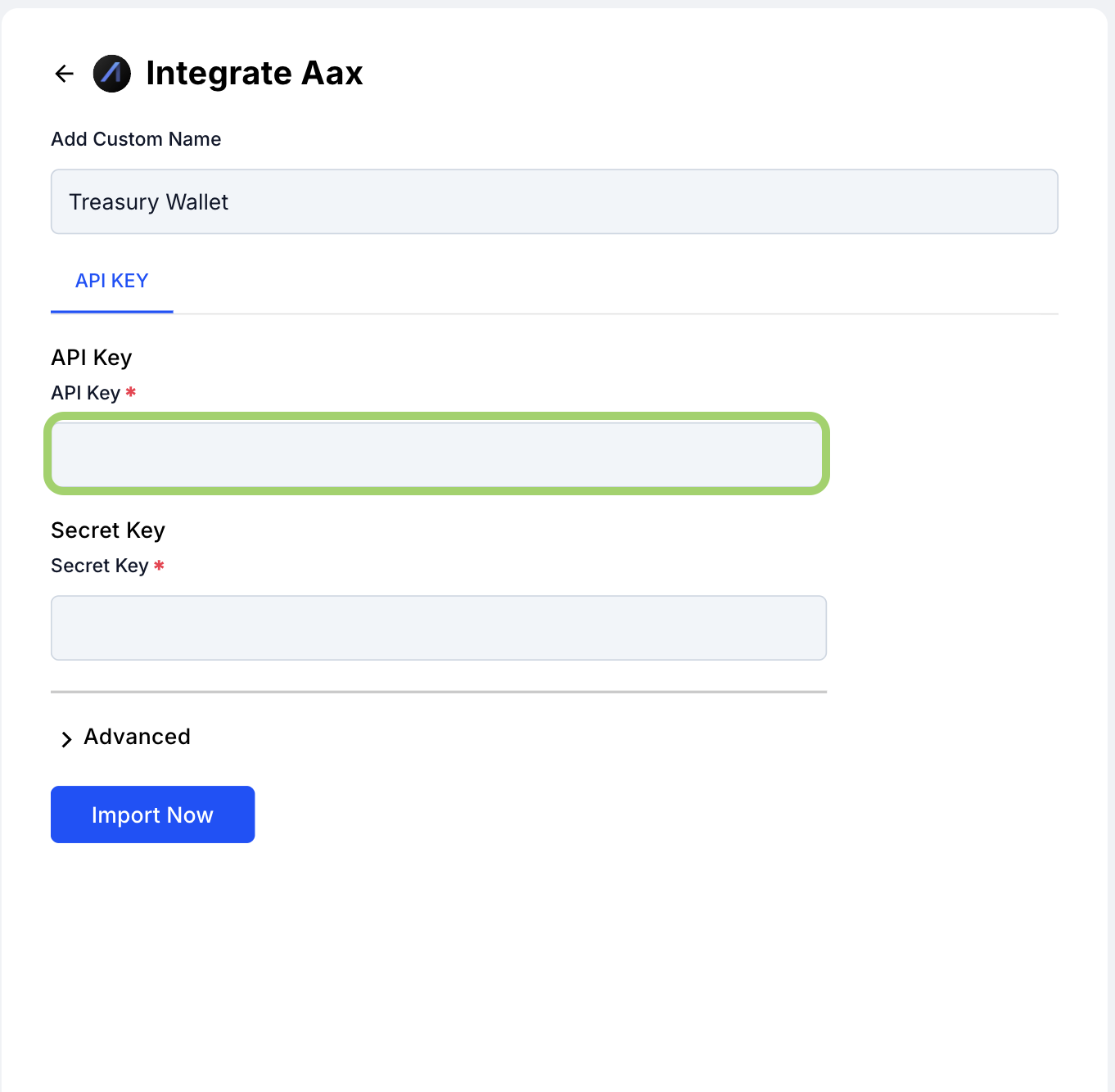
  <Step titleSize="h3" title="Enter API Key">
    Copy the **API Key** from your exchange account and paste it into the API Key field in KoinX Books.
    ![API\_Key](https://koinx-statics.s3.ap-south-1.amazonaws.com/guides/accounting/integrations/exchange-integration-api-koinx-books/step-6.png)
  </Step>

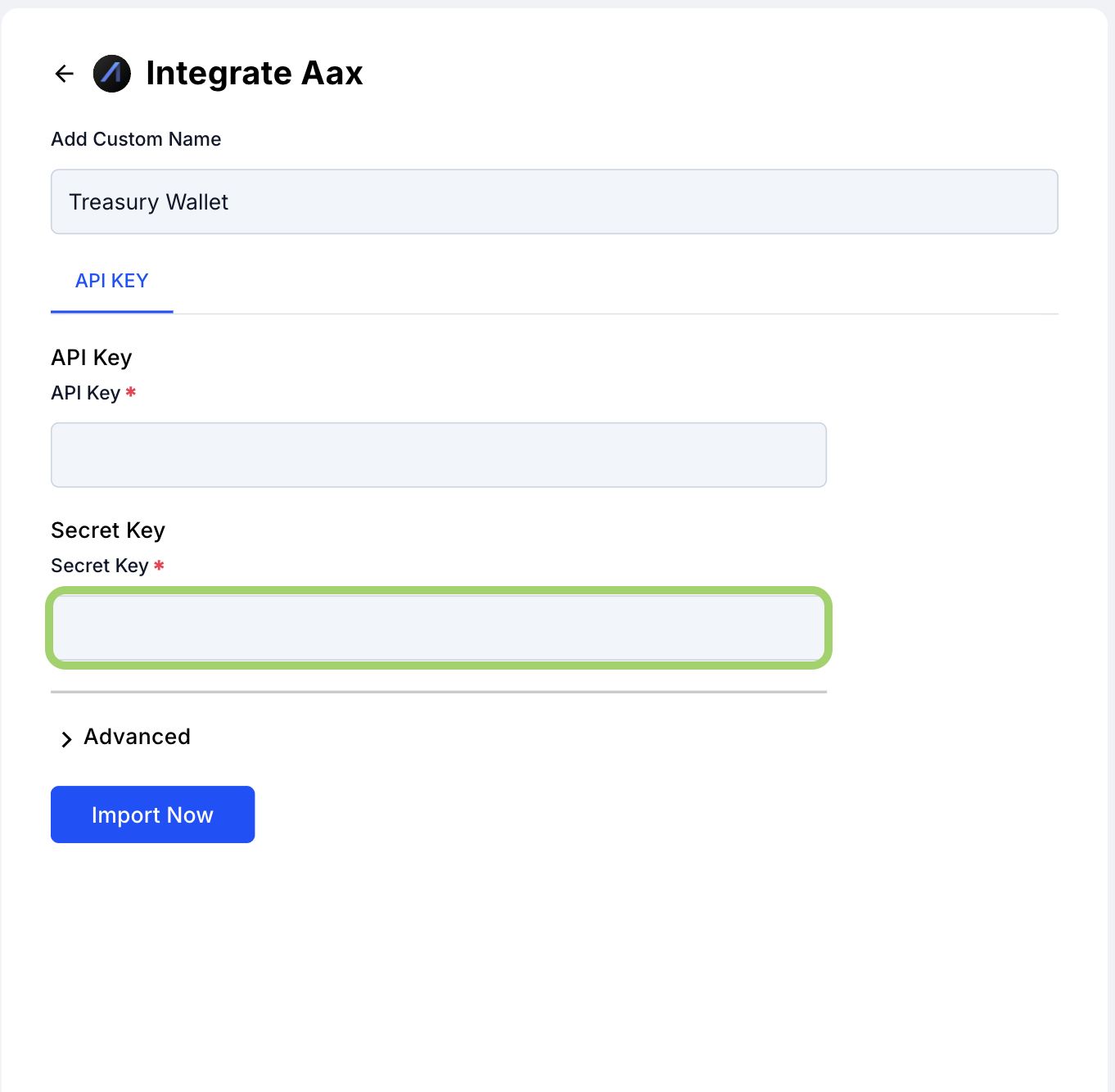
  <Step titleSize="h3" title="Enter Secret Key">
    Paste the corresponding **Secret Key** securely into the designated field.
    ![Secret\_Key](https://koinx-statics.s3.ap-south-1.amazonaws.com/guides/accounting/integrations/exchange-integration-api-koinx-books/step-7.png)
  </Step>

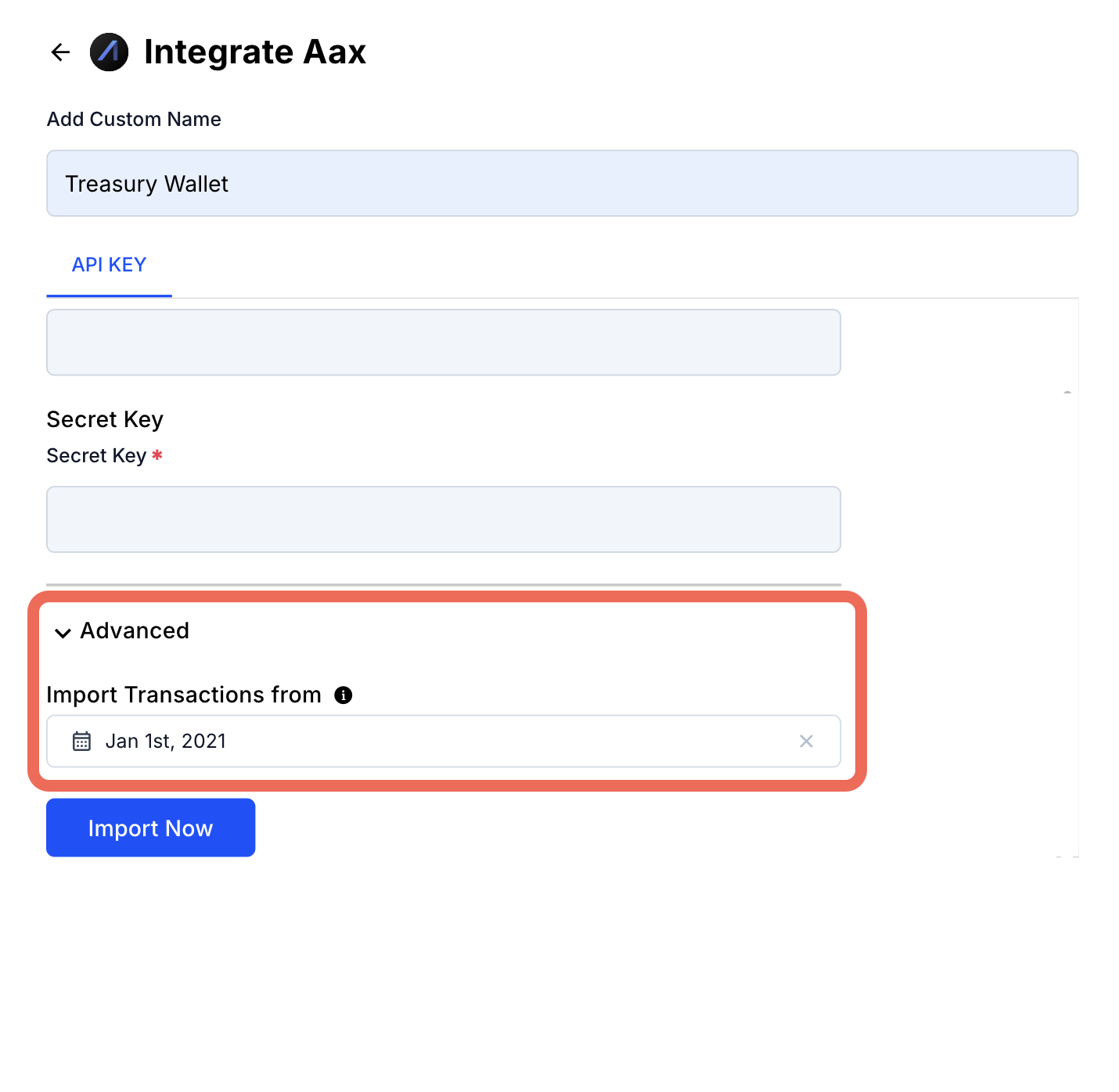
  <Step titleSize="h3" title="Choose Import Start Date">
    Select the date from which you’d like to import your transaction history.
    ![Import\_Start\_Date](https://koinx-statics.s3.ap-south-1.amazonaws.com/guides/accounting/integrations/exchange-integration-api-koinx-books/step-8.png)
  </Step>

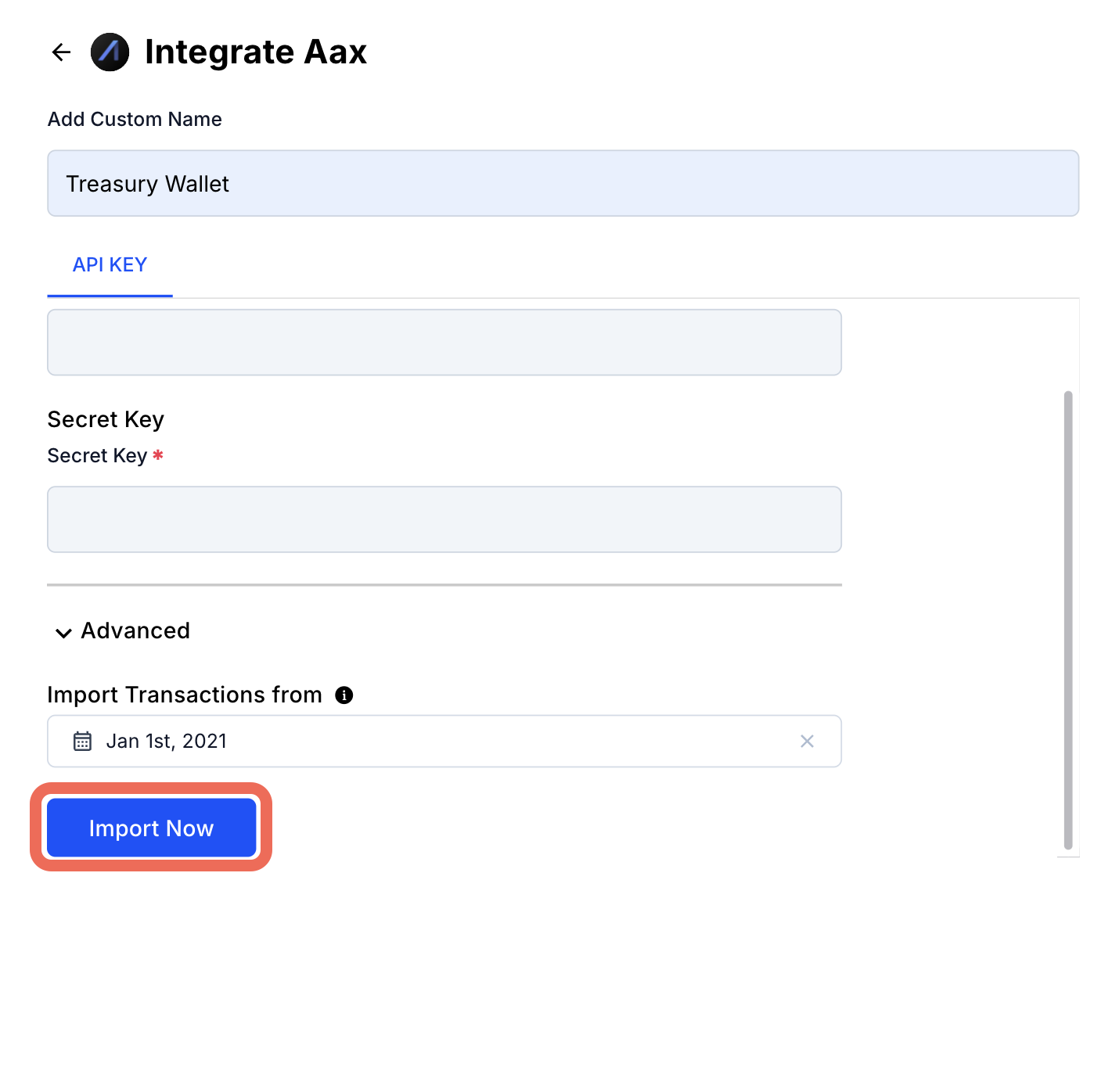
  <Step titleSize="h3" title="Click 'Import Now'">
    Click the **Import Now** button to initiate the connection and begin importing your transactions.
    ![Import\_Now](https://koinx-statics.s3.ap-south-1.amazonaws.com/guides/accounting/integrations/exchange-integration-api-koinx-books/step-9.png)
  </Step>
</Steps>

<Tip>
  Once the integration is complete, KoinX Books will automatically fetch and organize your transaction history from the connected exchange. You can review and manage these transactions from the **Transactions** tab.
</Tip>

<Tip>
  To obtain your API Key and Secret Key, log in to your respective exchange account. On the dashboard, look for the option to **"Generate API Keys"** and follow the provided instructions. Once generated, copy both keys and paste them into the appropriate input fields on this page. Click **"Submit"** to complete the integration. Your exchange account (e.g., AAX) will then be successfully connected, and transactions will start syncing to your KoinX account.
</Tip>

## Related Articles

<Card icon="wallet" horizontal href="https://koinx.com/guides/accounting/getting-started/supported-wallets-exchanges-koinx-books" title="KoinX Books - List of Integrations" />
