> ## Documentation Index
> Fetch the complete documentation index at: https://guides.koinx.com/llms.txt
> Use this file to discover all available pages before exploring further.
# Downloading, Accessing & Managing Reports
> Learn how to generate, download and re-download your KoinX crypto tax reports, access previously generated files, and fix common delivery or access issues.
* After purchasing a plan, the Complete Tax Report is automatically sent to your registered email address
* Additional reports can be generated from the Tax Reports section and are also sent via email
* All generated reports are stored on the platform in Previously Generated Reports for download any time
* Email download links are valid for 7 days, but reports remain permanently accessible from the platform
* If your transaction count later exceeds your plan limit, you can upgrade by paying only the difference amount
You've reviewed your transactions, everything looks clean, and now you're ready to get your hands on the tax reports. This guide covers the full workflow: generating reports, downloading them, finding reports you've already created, and what to do when something goes wrong with delivery.
***
## How to Generate and Download a Tax Report
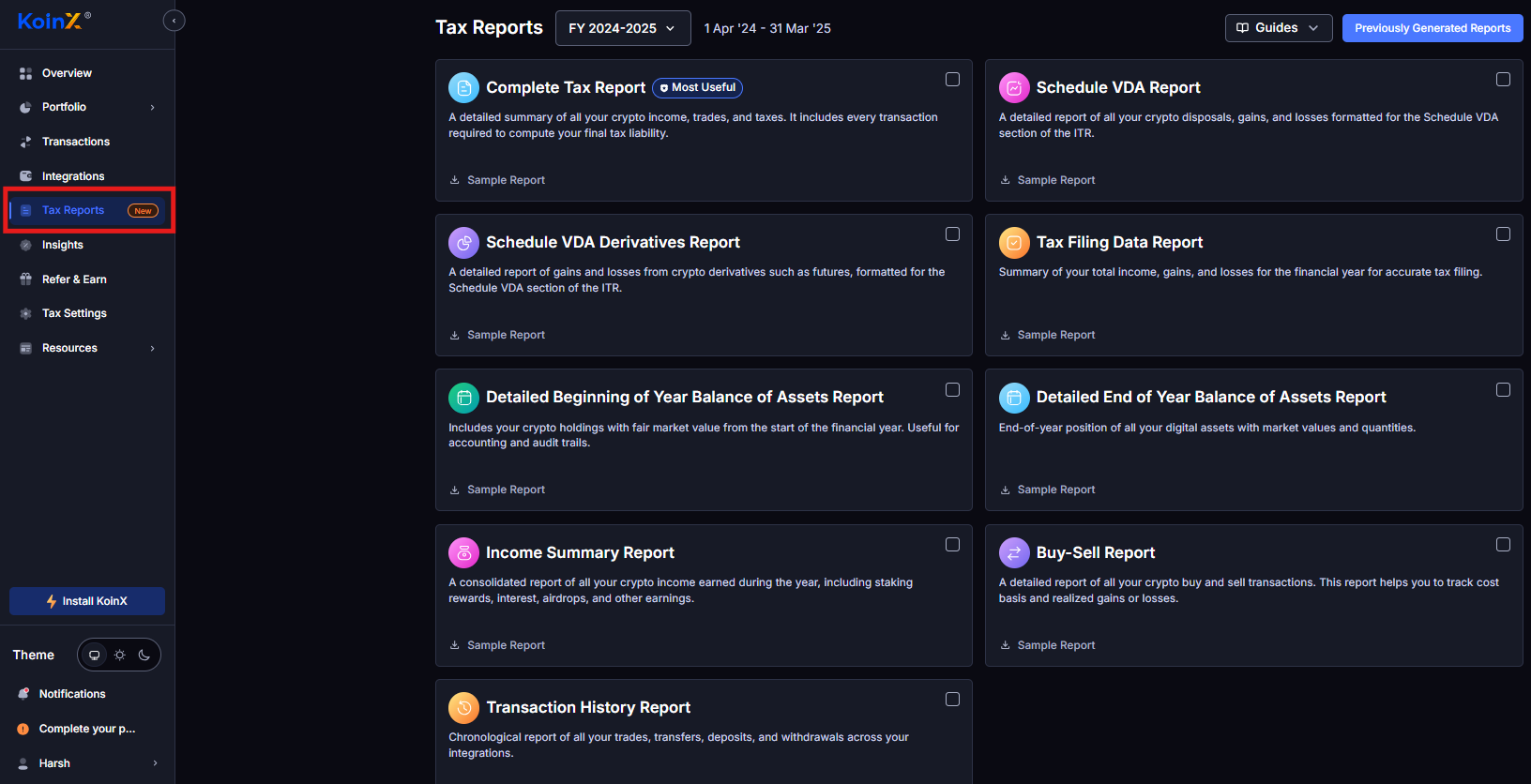
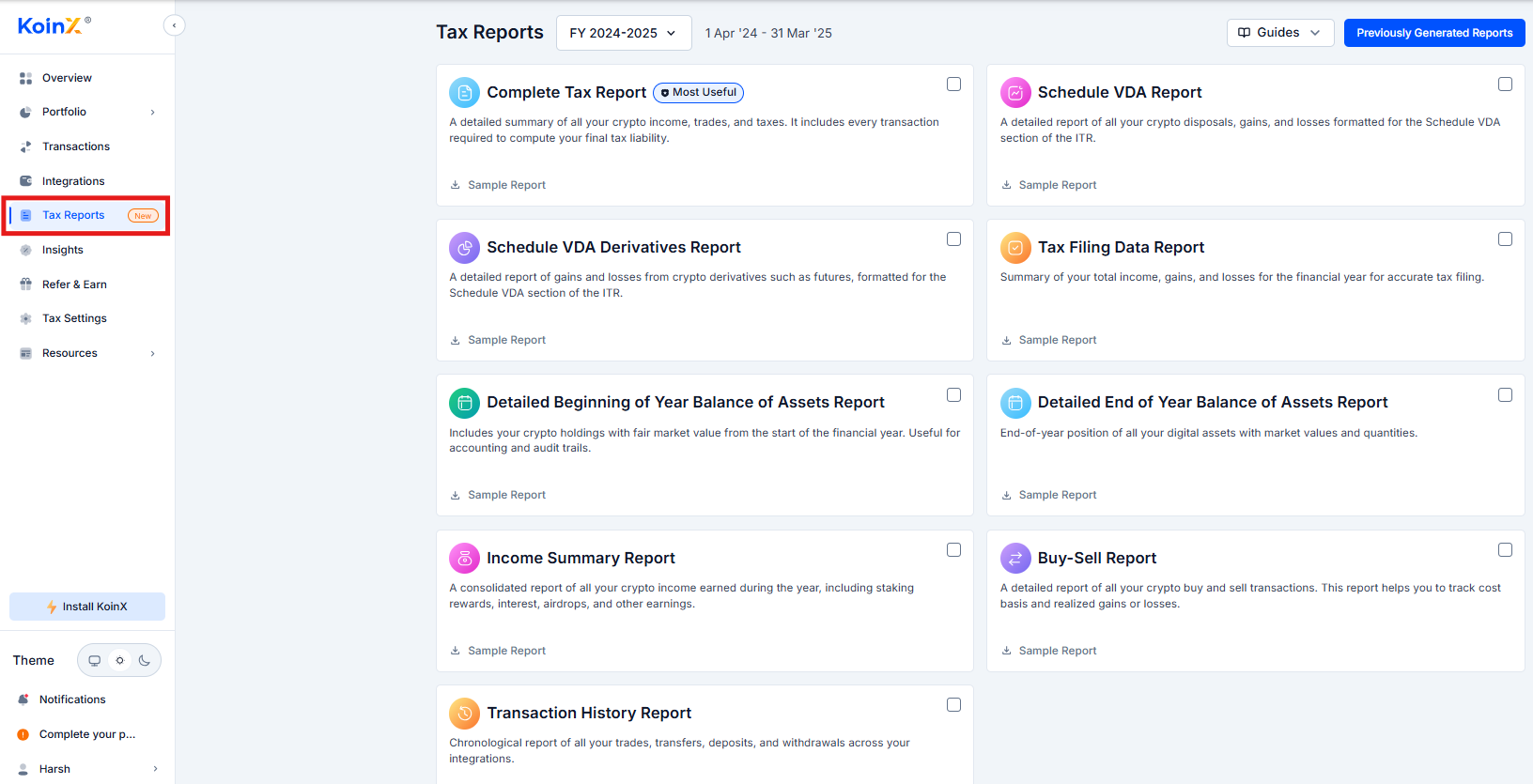
Click **Tax Reports** in the left sidebar.
 Use the dropdown at the top to select the correct financial year (e.g., FY 2025-26).
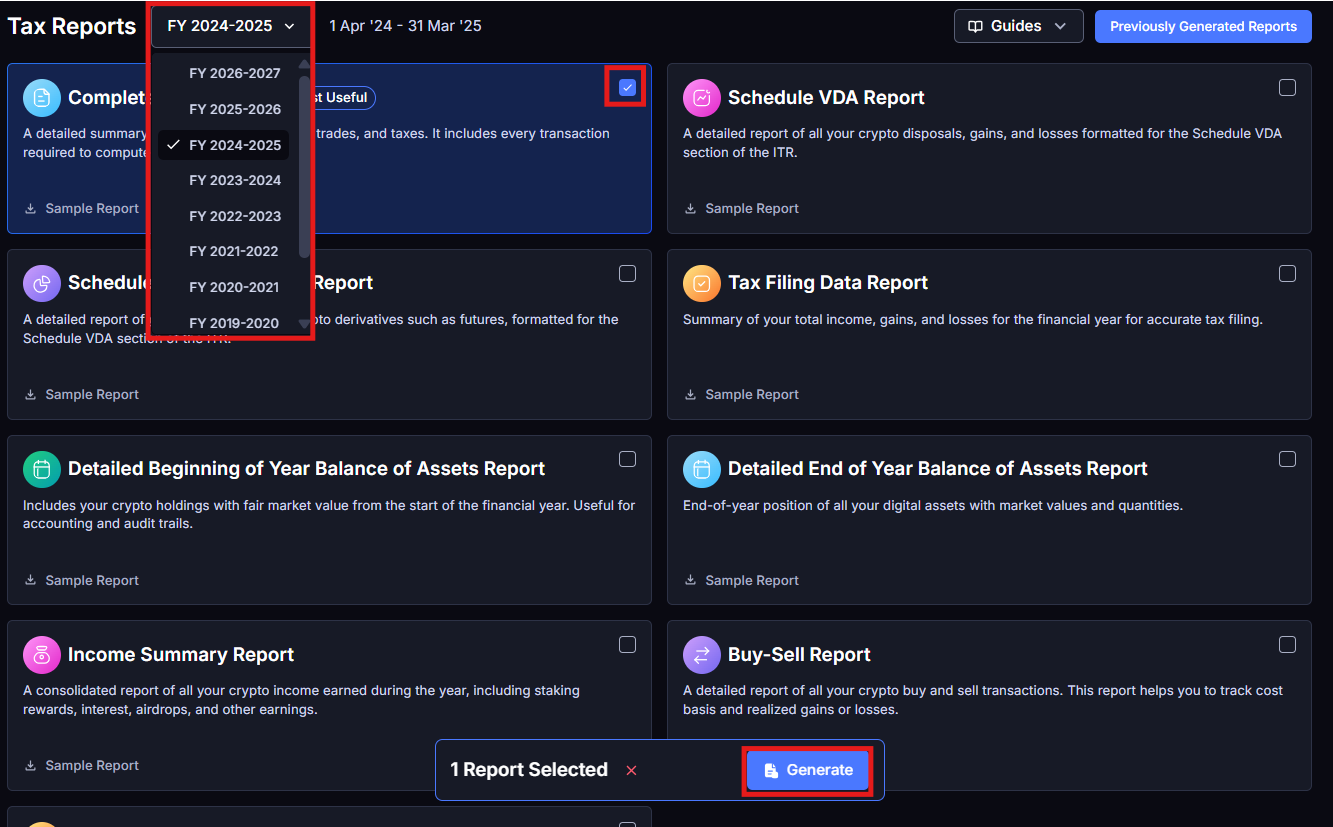
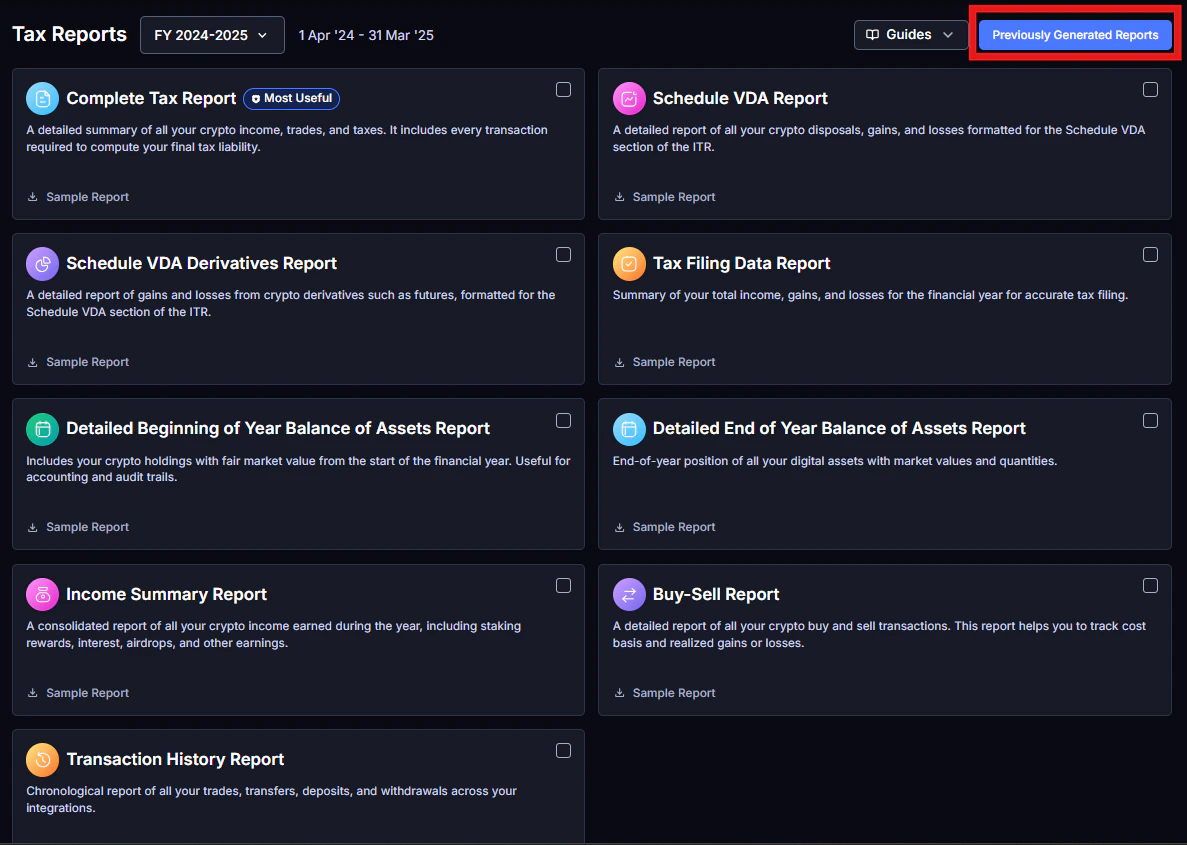
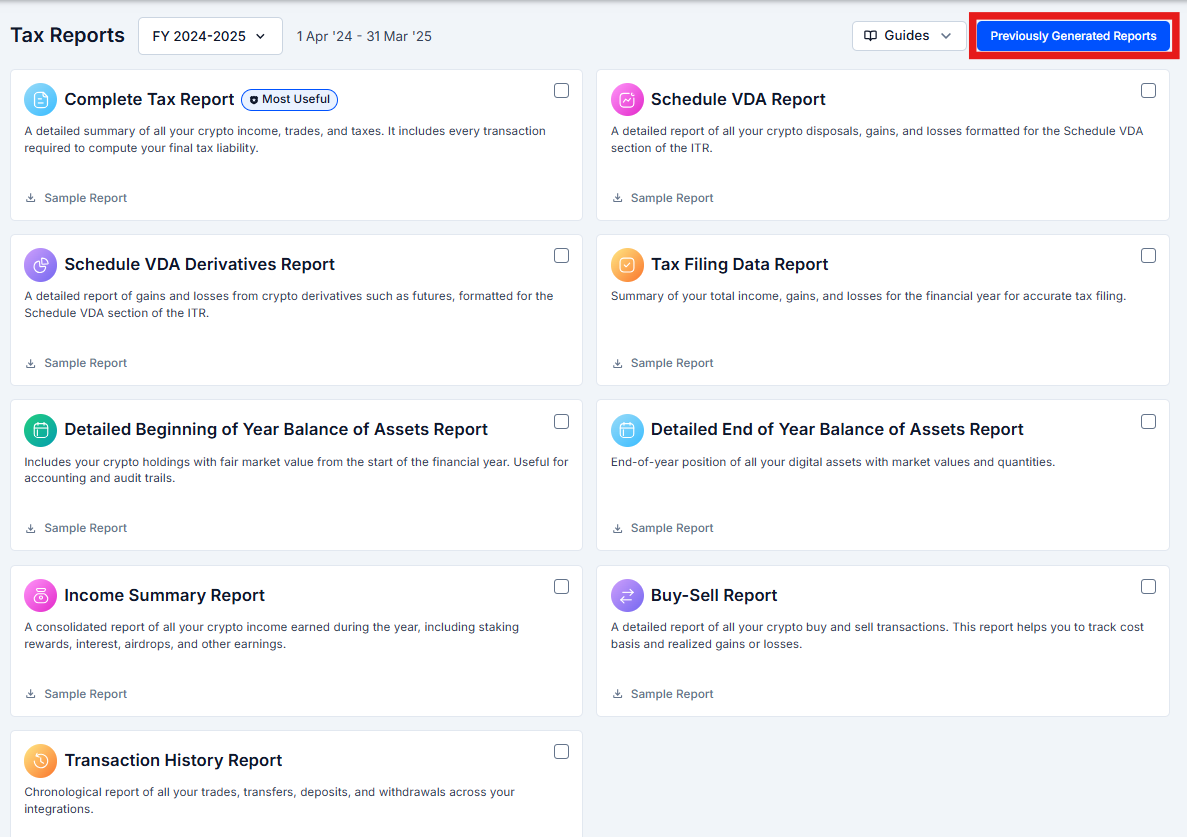
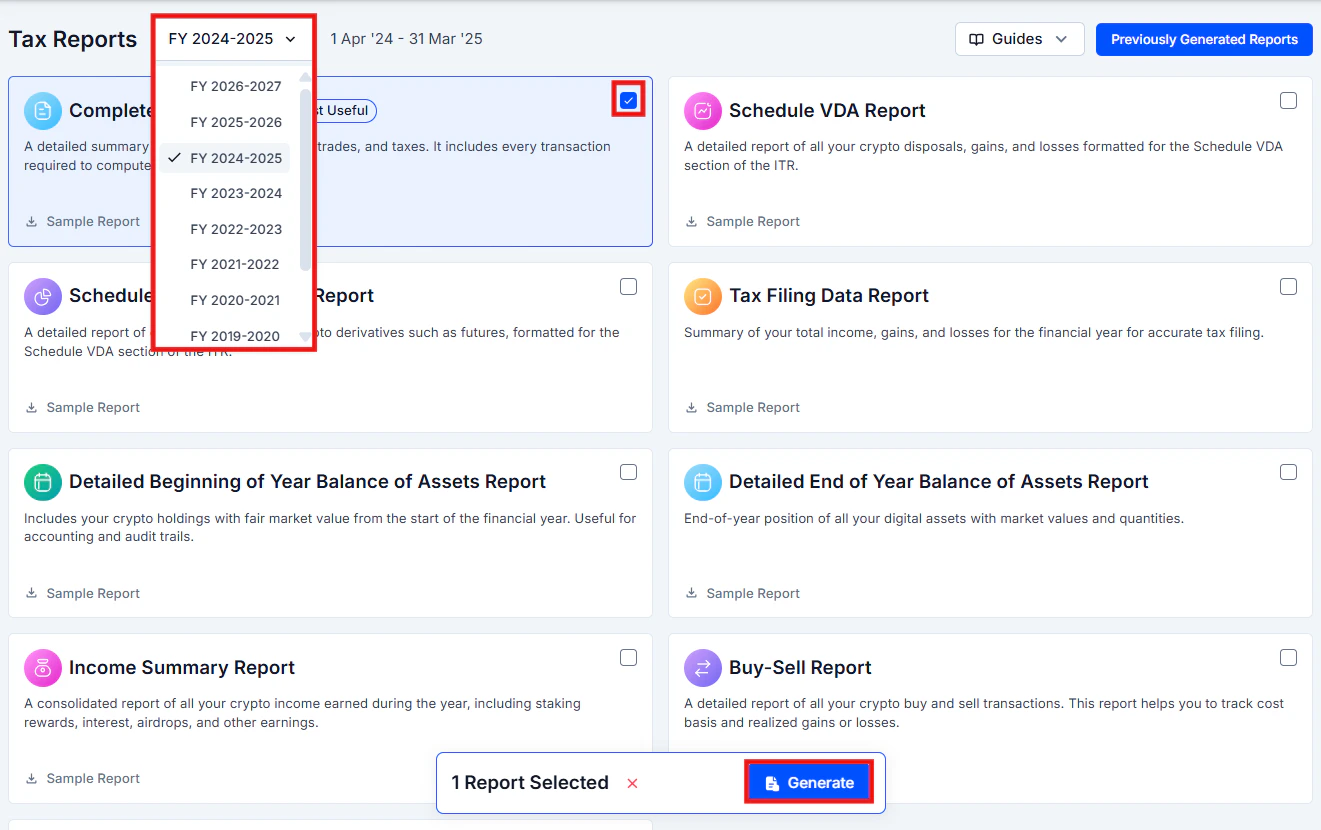 You will see a list of available reports with checkboxes. Each card shows a brief description and a **Sample Report** link. Select the checkbox next to each report you want to generate.
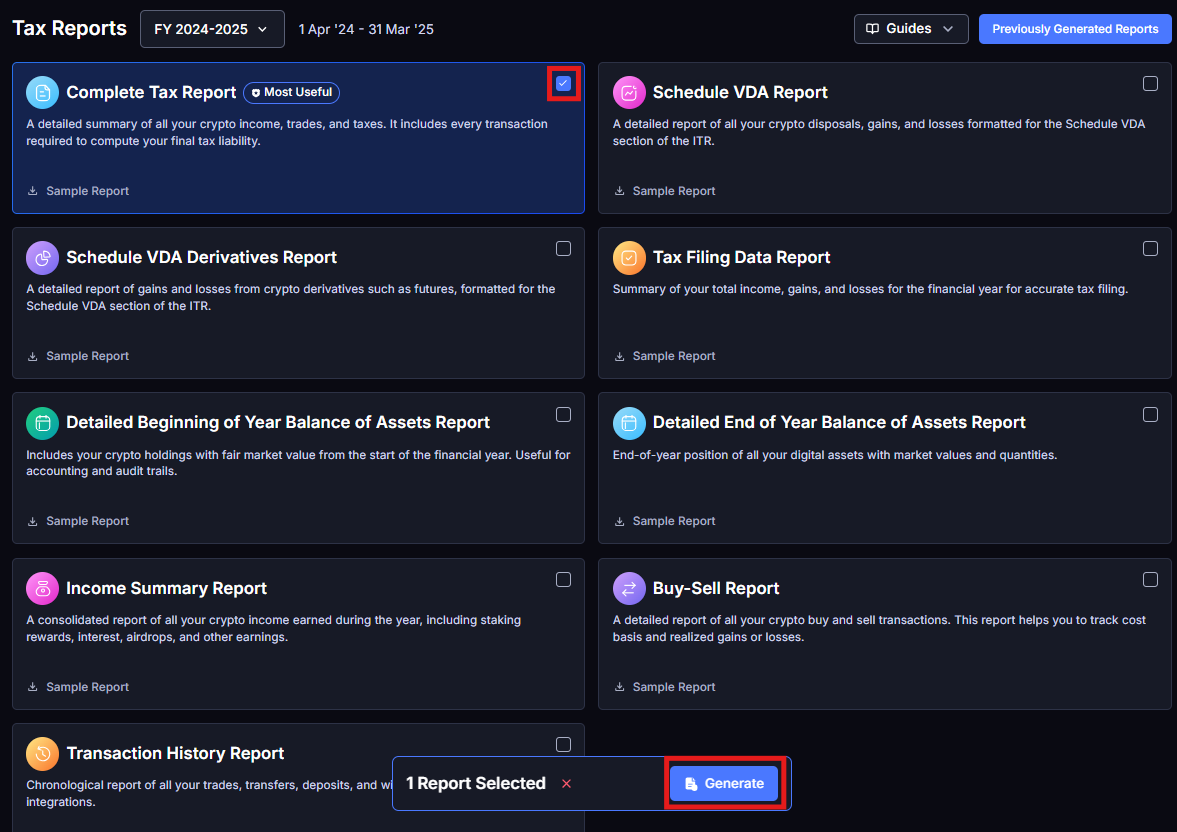
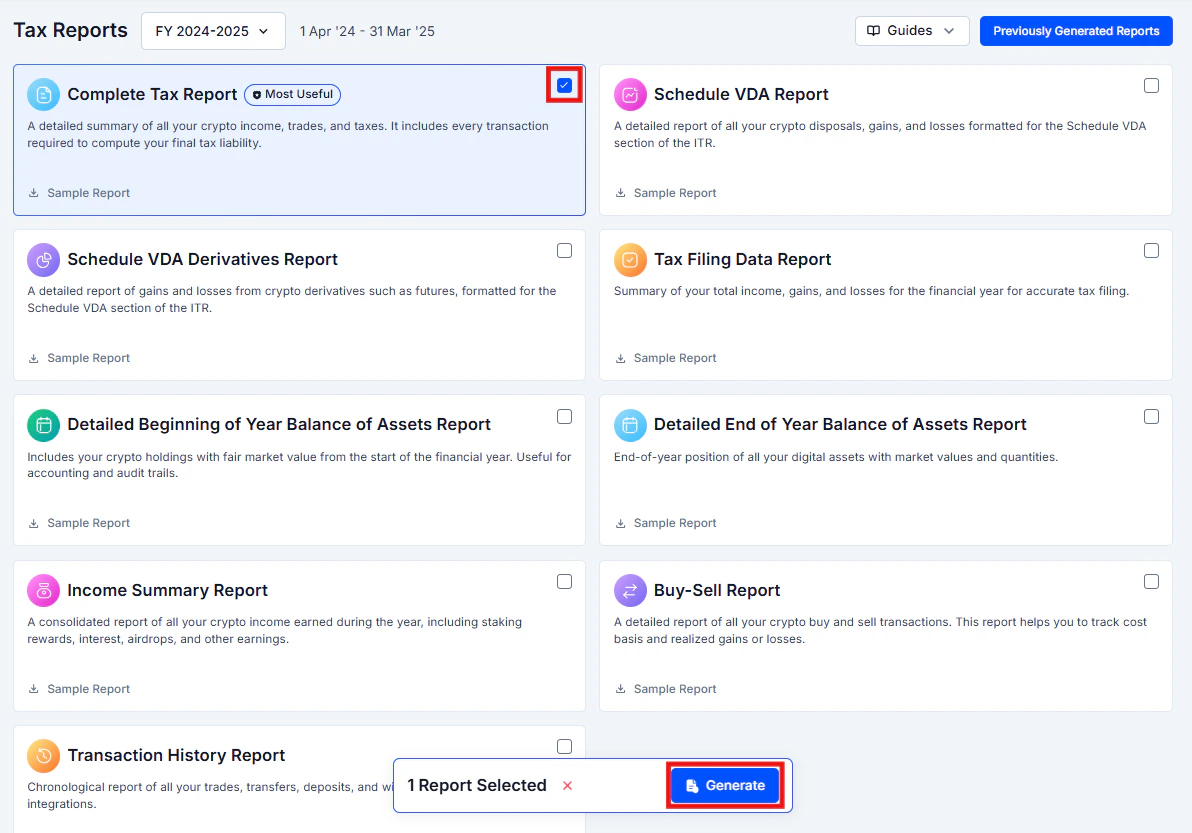 Click **Generate Report**. KoinX processes your transactions and creates the report. This usually takes a few seconds to a couple of minutes depending on transaction volume.
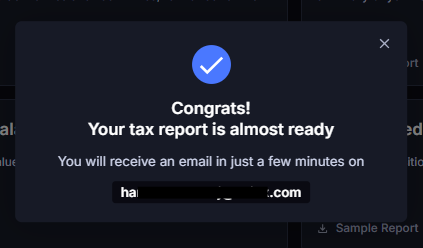
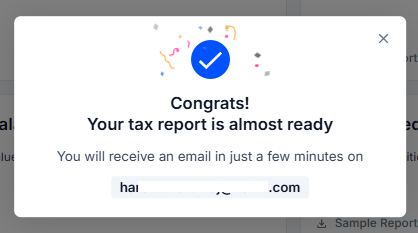 Once generated, the report is sent to your registered email address and saved in Previously Generated Reports for download from the platform.
You can generate multiple reports at once by selecting several checkboxes before clicking Generate.
***
## Available Report Formats
Most reports download as PDF and Excel, ready to share with your CA or upload to a tax portal.
| Report | Formats Available |
| ------------------------------- | -------------------------------- |
| Complete Tax Report | PDF, Excel |
| Schedule VDA (India) | PDF, Excel |
| Form 8949 (USA) | PDF, CSV |
| TurboTax Gain-Loss (USA) | CSV (for direct TurboTax import) |
| Transaction History | PDF, Excel |
| Buy-Sell Report | PDF, Excel |
| Income Summary | PDF, Excel |
| Tax Filing Data | PDF, Excel |
| Beginning / End of Year Balance | PDF, Excel |
For TurboTax users, make sure you are downloading the TurboTax-specific report. It is formatted for direct import into TurboTax and differs from the standard Complete Tax Report.
***
## Finding Previously Generated Reports
Every report you generate is saved automatically. To access them:
Click **Tax Reports** in the left sidebar.
Click the **Previously Generated Reports** button in the top-right corner of the page.
Once generated, the report is sent to your registered email address and saved in Previously Generated Reports for download from the platform.
You can generate multiple reports at once by selecting several checkboxes before clicking Generate.
***
## Available Report Formats
Most reports download as PDF and Excel, ready to share with your CA or upload to a tax portal.
| Report | Formats Available |
| ------------------------------- | -------------------------------- |
| Complete Tax Report | PDF, Excel |
| Schedule VDA (India) | PDF, Excel |
| Form 8949 (USA) | PDF, CSV |
| TurboTax Gain-Loss (USA) | CSV (for direct TurboTax import) |
| Transaction History | PDF, Excel |
| Buy-Sell Report | PDF, Excel |
| Income Summary | PDF, Excel |
| Tax Filing Data | PDF, Excel |
| Beginning / End of Year Balance | PDF, Excel |
For TurboTax users, make sure you are downloading the TurboTax-specific report. It is formatted for direct import into TurboTax and differs from the standard Complete Tax Report.
***
## Finding Previously Generated Reports
Every report you generate is saved automatically. To access them:
Click **Tax Reports** in the left sidebar.
Click the **Previously Generated Reports** button in the top-right corner of the page.
 You will see all reports you have generated, sorted by date. Each entry shows the report name, financial year, and generation date.
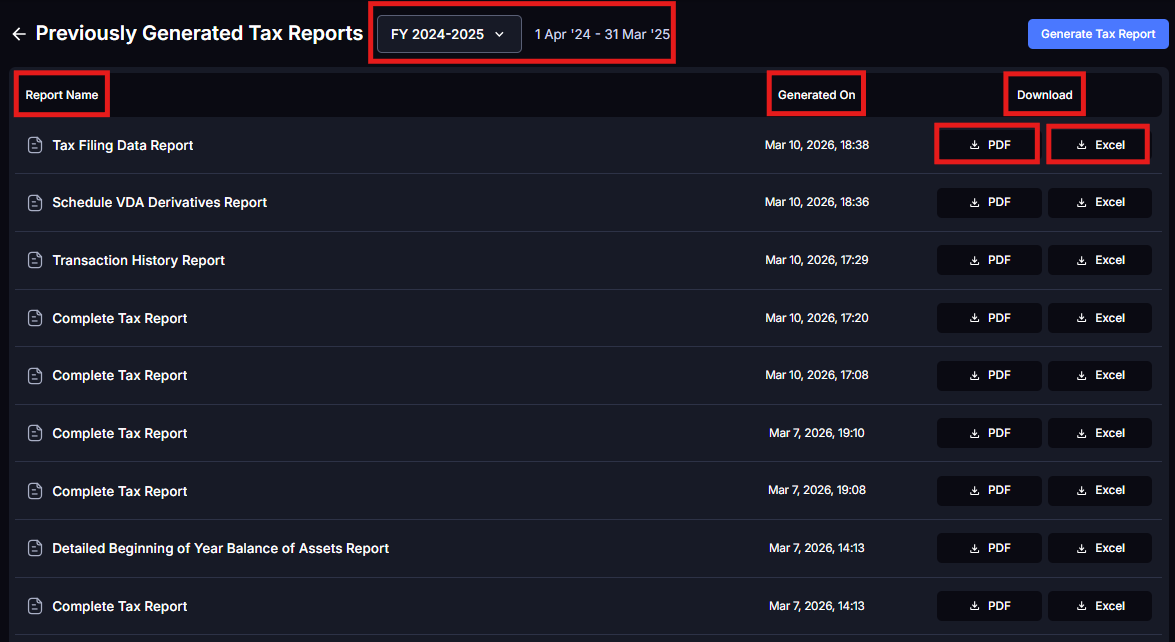
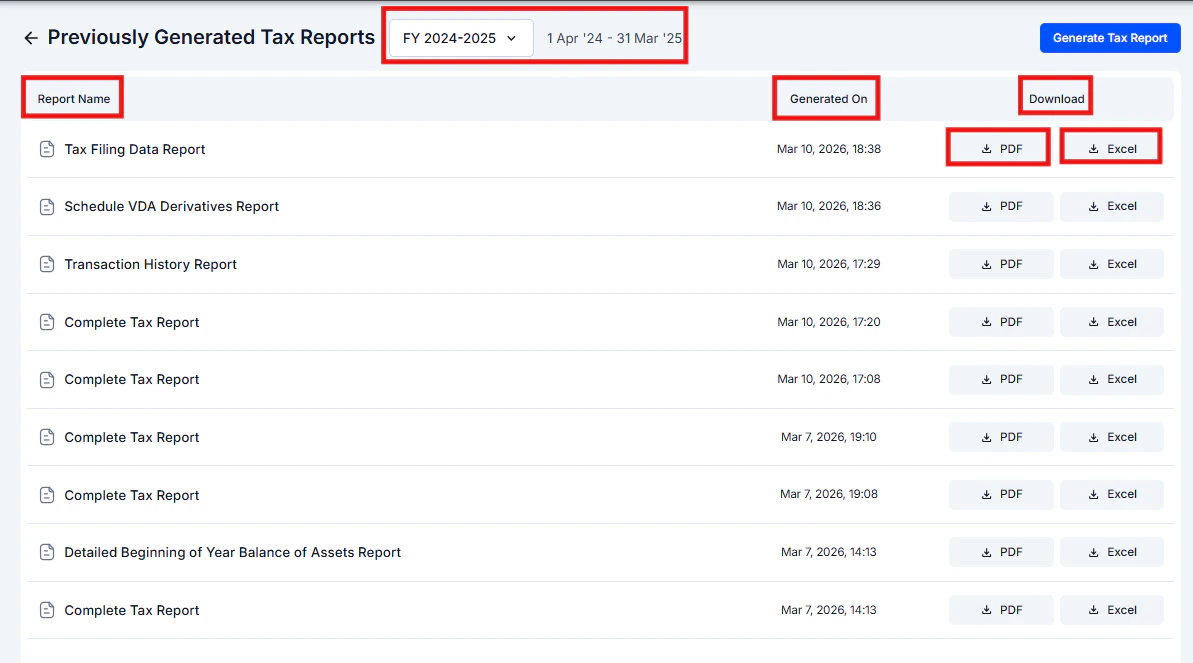 Click the download icon next to any report to re-download it.
If you regenerated a report after editing transactions, multiple versions may appear. Check the timestamp to download the most recent one.
***
## Report Delivery: Email and Platform Access
### After purchase
Once you purchase a plan, the **Complete Tax Report is automatically generated and sent to your registered email address**. You do not need to manually generate it for the first time.
### Additional reports
All other reports you generate (Transaction History, Income Summary, Buy-Sell, Schedule VDA, Balance Reports) are also sent to your registered email after generation, in addition to being saved on the platform.
### Accessing from the platform
Go to **Tax Reports → Previously Generated Reports** at any time to view, download, or compare all reports you have generated, including older versions.
***
## What If My Email Link Expired?
Download links sent via email are valid for **7 days**. If the link has expired, your report is not lost.
**Option 1: Download from the platform**
Go to Tax Reports, click Previously Generated Reports, find the report, and click the download icon.
**Option 2: Regenerate the report**
Generate the report again from the Tax Reports page. This is free and unlimited with an active plan. Regenerating also sends a new download link to your email.
***
## Unable to Generate Reports After Purchasing?
Click the download icon next to any report to re-download it.
If you regenerated a report after editing transactions, multiple versions may appear. Check the timestamp to download the most recent one.
***
## Report Delivery: Email and Platform Access
### After purchase
Once you purchase a plan, the **Complete Tax Report is automatically generated and sent to your registered email address**. You do not need to manually generate it for the first time.
### Additional reports
All other reports you generate (Transaction History, Income Summary, Buy-Sell, Schedule VDA, Balance Reports) are also sent to your registered email after generation, in addition to being saved on the platform.
### Accessing from the platform
Go to **Tax Reports → Previously Generated Reports** at any time to view, download, or compare all reports you have generated, including older versions.
***
## What If My Email Link Expired?
Download links sent via email are valid for **7 days**. If the link has expired, your report is not lost.
**Option 1: Download from the platform**
Go to Tax Reports, click Previously Generated Reports, find the report, and click the download icon.
**Option 2: Regenerate the report**
Generate the report again from the Tax Reports page. This is free and unlimited with an active plan. Regenerating also sends a new download link to your email.
***
## Unable to Generate Reports After Purchasing?
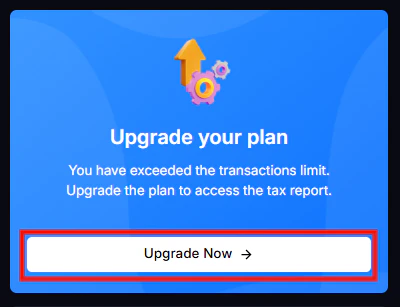
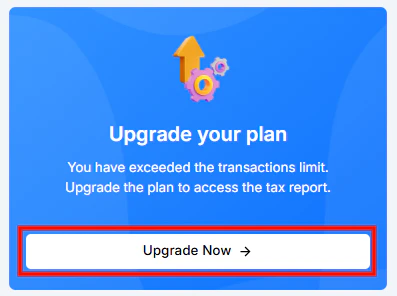 KoinX plans are based on the number of transactions in the selected financial year. If your transaction count increases after you purchased (for example, because you connected an additional exchange), your total may now exceed your current plan limit.
In this case, you will be prompted to upgrade your plan. You do not pay the full price again. KoinX calculates the difference between your current tier and the next tier, and you pay only that amount.
***
## Troubleshooting Report Downloads
Large transaction volumes can take a few minutes to process. If it has been more than 5 minutes, refresh the page and try generating again. If the issue persists, contact support.
Try downloading again since network issues can cause incomplete downloads. For PDF files, ensure you have a PDF reader installed. For Excel files, open with Microsoft Excel or Google Sheets.
Verify you selected the correct financial year. Check that your integrations are synced and transactions exist within that year. If all your transactions are outside the selected date range, the report will be empty.
Your plan may be for a different financial year than the one selected. Refresh the page and try again. If the issue persists after 15 minutes, contact support with your payment confirmation.
***
## Frequently Asked Questions
Usually a few seconds to 2 minutes depending on your transaction volume. Accounts with very high transaction counts may take slightly longer.
You can generate multiple reports together by selecting several checkboxes, but each report downloads as a separate file.
Purchasing a plan unlocks the ability to generate reports. Reports are not all automatically generated at the time of purchase. The only exception is the Complete Tax Report, which is automatically generated and sent via email. All other reports need to be generated manually from the Tax Reports page.
Yes. Once you have upgraded for a financial year, you can regenerate reports as many times as needed at no extra charge.
No. Reports are point-in-time snapshots. If you add or edit transactions after generating a report, you need to regenerate it to reflect the updated data.
KoinX plans are based on the number of transactions in the selected financial year. If your transaction count increases after you purchased (for example, because you connected an additional exchange), your total may now exceed your current plan limit.
In this case, you will be prompted to upgrade your plan. You do not pay the full price again. KoinX calculates the difference between your current tier and the next tier, and you pay only that amount.
***
## Troubleshooting Report Downloads
Large transaction volumes can take a few minutes to process. If it has been more than 5 minutes, refresh the page and try generating again. If the issue persists, contact support.
Try downloading again since network issues can cause incomplete downloads. For PDF files, ensure you have a PDF reader installed. For Excel files, open with Microsoft Excel or Google Sheets.
Verify you selected the correct financial year. Check that your integrations are synced and transactions exist within that year. If all your transactions are outside the selected date range, the report will be empty.
Your plan may be for a different financial year than the one selected. Refresh the page and try again. If the issue persists after 15 minutes, contact support with your payment confirmation.
***
## Frequently Asked Questions
Usually a few seconds to 2 minutes depending on your transaction volume. Accounts with very high transaction counts may take slightly longer.
You can generate multiple reports together by selecting several checkboxes, but each report downloads as a separate file.
Purchasing a plan unlocks the ability to generate reports. Reports are not all automatically generated at the time of purchase. The only exception is the Complete Tax Report, which is automatically generated and sent via email. All other reports need to be generated manually from the Tax Reports page.
Yes. Once you have upgraded for a financial year, you can regenerate reports as many times as needed at no extra charge.
No. Reports are point-in-time snapshots. If you add or edit transactions after generating a report, you need to regenerate it to reflect the updated data.