> ## Documentation Index
> Fetch the complete documentation index at: https://guides.koinx.com/llms.txt
> Use this file to discover all available pages before exploring further.
# Customising Your Reports
> Customise KoinX crypto tax reports by changing accounting methods, transaction settings and financial years, and understand how each setting affects your calculations.
* Change the financial year from the dropdown on the Tax Reports page
* Your accounting method (FIFO, LIFO, HIFO, or Average Cost) determines how cost basis is calculated
* Tax behaviour settings determine how transactions like airdrops, rewards, or loan repayments are classified
* Internal Transfer Settings help KoinX automatically detect transfers between your wallets
* Changing settings will change the numbers in your reports, always regenerate after changing
* Each financial year requires a separate plan purchase
Your tax reports are not one-size-fits-all. Depending on your situation, you may need to change the financial year, adjust your accounting method, or modify how certain transactions are treated. This guide explains every available setting and how it affects your reports.
***
## Changing the Financial Year
The financial year selector appears at the top of the Tax Reports page.
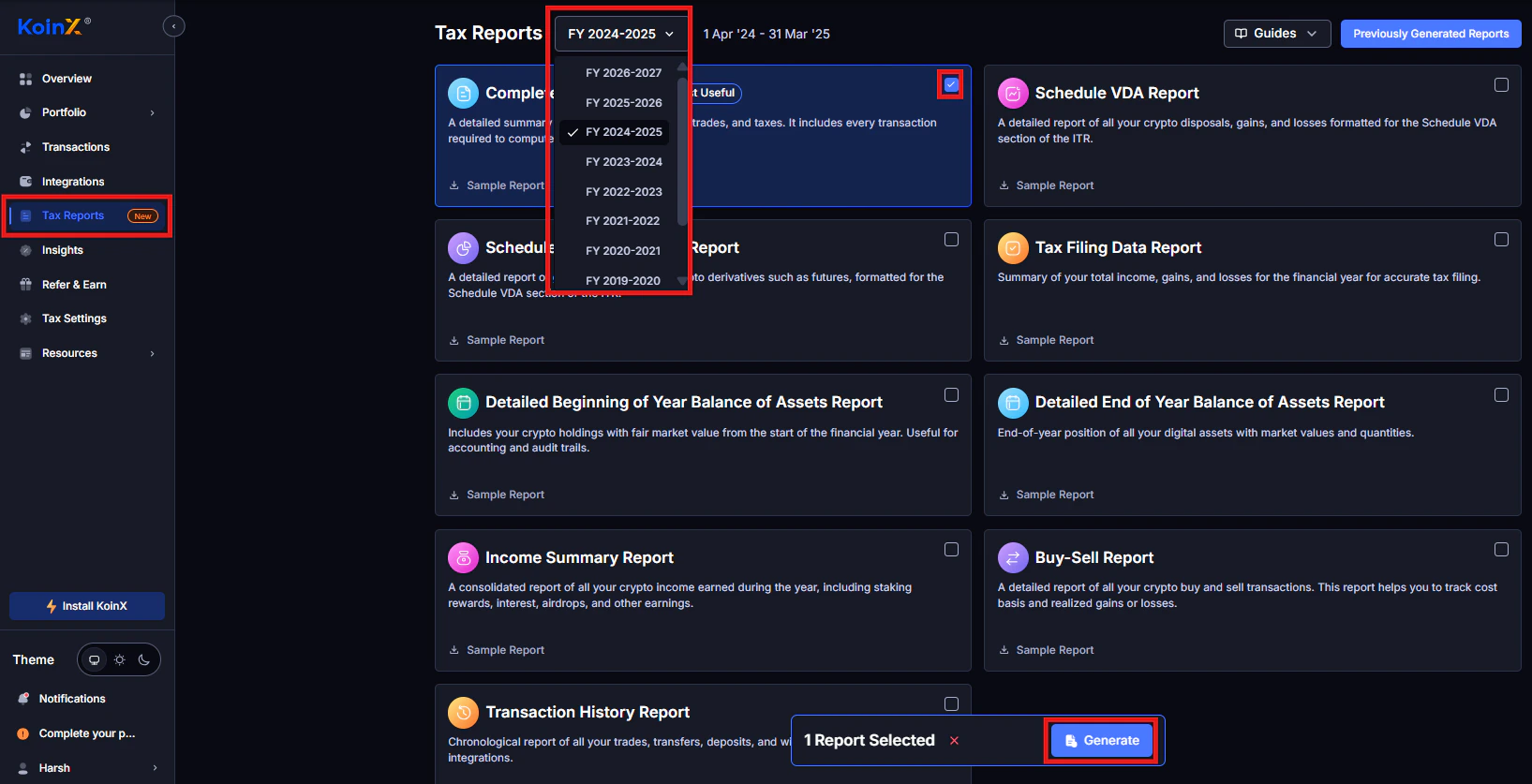
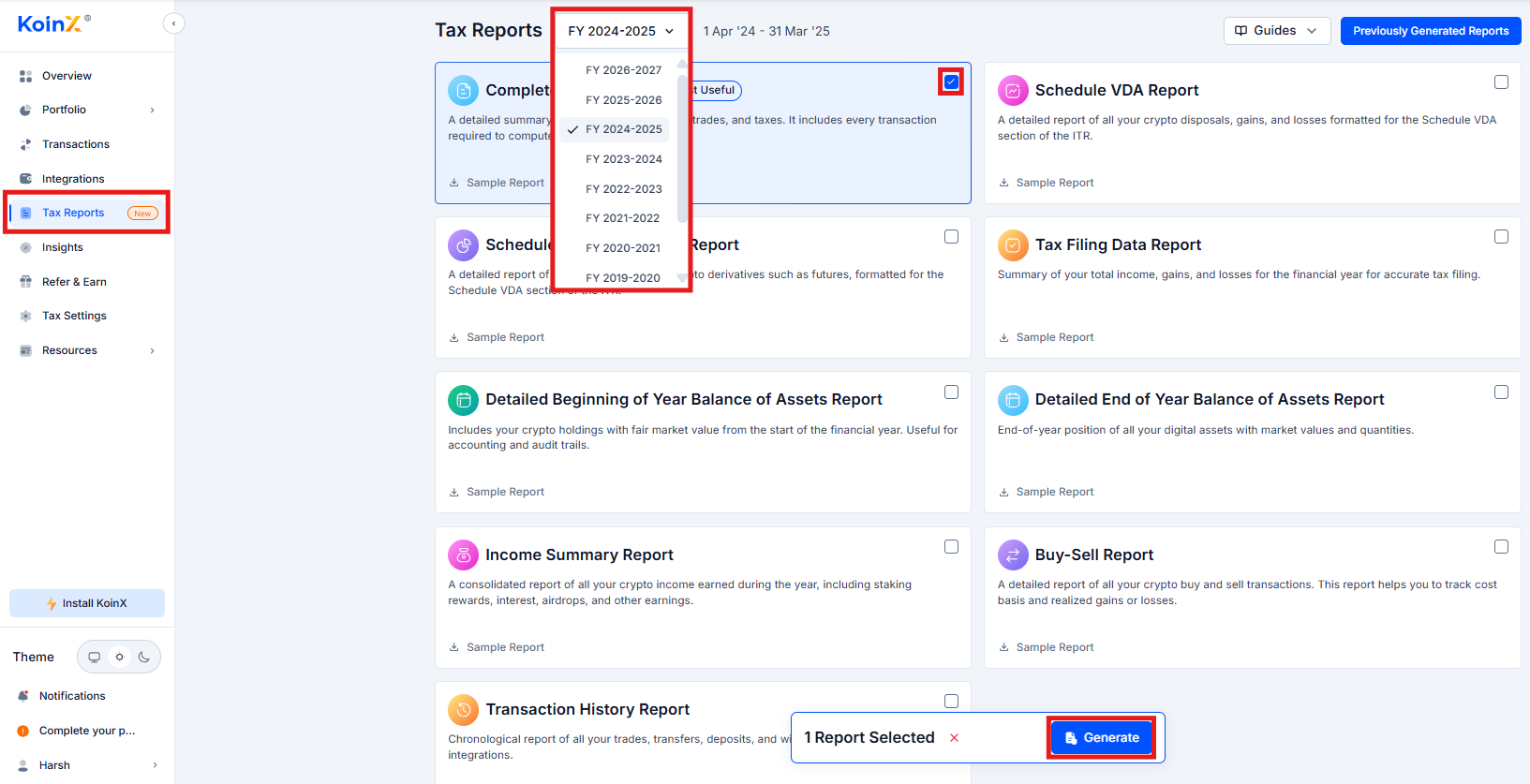 Click Tax Reports in the left sidebar.
Click the Financial Year dropdown and select the year you need.
Generate the reports for that year.
| Country | Financial Year |
| --------------- | ------------------------------------------------- |
| India | April 1 to March 31 |
| USA | January 1 to December 31 |
| Other countries | Determined automatically based on country setting |
Each financial year requires a separate plan purchase. Once purchased, reports for that year can be regenerated unlimited times.
***
## Changing Your Accounting Method
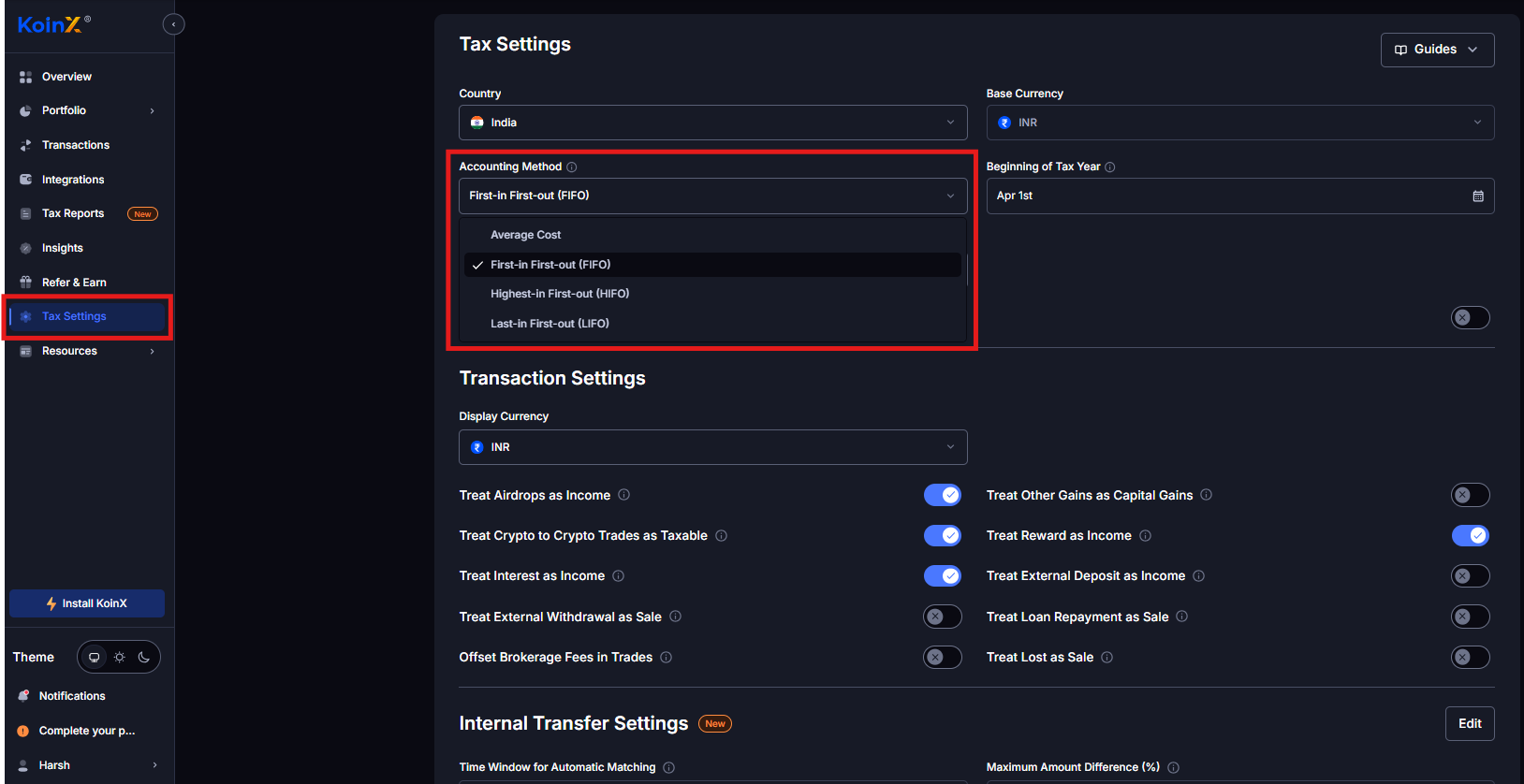
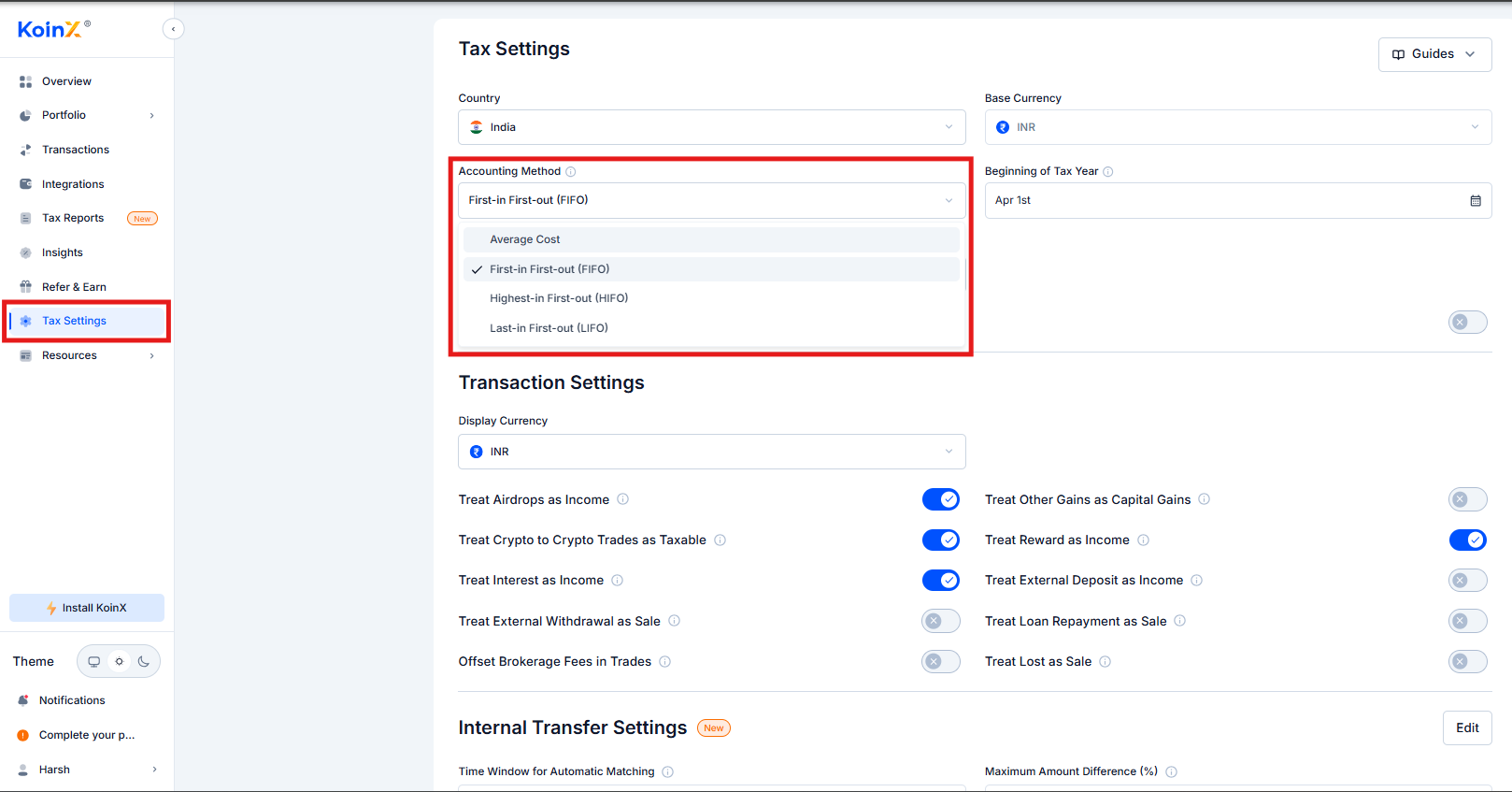
Your accounting method determines how KoinX calculates cost basis when crypto is sold, which directly affects your capital gains calculation.
Click Tax Reports in the left sidebar.
Click the Financial Year dropdown and select the year you need.
Generate the reports for that year.
| Country | Financial Year |
| --------------- | ------------------------------------------------- |
| India | April 1 to March 31 |
| USA | January 1 to December 31 |
| Other countries | Determined automatically based on country setting |
Each financial year requires a separate plan purchase. Once purchased, reports for that year can be regenerated unlimited times.
***
## Changing Your Accounting Method
Your accounting method determines how KoinX calculates cost basis when crypto is sold, which directly affects your capital gains calculation.
 | Method | How It Works | Notes |
| --------------------------- | --------------------------------------------------- | ------------------------------------- |
| FIFO (First-In First-Out) | Oldest assets sold first | Default in most jurisdictions |
| LIFO (Last-In First-Out) | Most recently purchased assets sold first | May reduce gains in rising markets |
| HIFO (Highest-In First-Out) | Highest-cost assets sold first | Minimises capital gains where allowed |
| Average Cost | Weighted average purchase price across all holdings | Required in some jurisdictions |
[Deep dive: how each method affects your cost basis calculation](/guides/tax-settings/cost-basis-accounting-methods)
Open Tax Settings from the left sidebar.
Locate the Accounting Method dropdown.
Choose FIFO, LIFO, HIFO, or Average Cost.
Save and regenerate your reports to apply the new calculation.
Changing the accounting method can significantly change your tax liability. Confirm with your CA before switching, especially if you have already filed for a previous year using a different method.
***
## VDA Income Classification (India)
Indian users can classify crypto gains as Capital Gains or Business Income. Both are taxed at 30% under current Indian VDA rules. The difference is how the income appears in your ITR:
| Classification | How It Appears in ITR |
| --------------- | --------------------------------------------- |
| Capital Gains | Reported under Schedule VDA in ITR 2 or ITR 3 |
| Business Income | Reported as business income in ITR 3 |
Most individual investors use Capital Gains. Business Income applies if you file under ITR 3 and your CA advises reporting crypto activity as business income.
Consult your CA before changing this setting. It affects where income is categorised in your ITR, not the tax rate itself.
***
## Transaction Settings That Affect Reports
These toggles in Tax Settings control how specific transaction types are classified in your reports. Changing them will affect your calculations after you regenerate.
| Method | How It Works | Notes |
| --------------------------- | --------------------------------------------------- | ------------------------------------- |
| FIFO (First-In First-Out) | Oldest assets sold first | Default in most jurisdictions |
| LIFO (Last-In First-Out) | Most recently purchased assets sold first | May reduce gains in rising markets |
| HIFO (Highest-In First-Out) | Highest-cost assets sold first | Minimises capital gains where allowed |
| Average Cost | Weighted average purchase price across all holdings | Required in some jurisdictions |
[Deep dive: how each method affects your cost basis calculation](/guides/tax-settings/cost-basis-accounting-methods)
Open Tax Settings from the left sidebar.
Locate the Accounting Method dropdown.
Choose FIFO, LIFO, HIFO, or Average Cost.
Save and regenerate your reports to apply the new calculation.
Changing the accounting method can significantly change your tax liability. Confirm with your CA before switching, especially if you have already filed for a previous year using a different method.
***
## VDA Income Classification (India)
Indian users can classify crypto gains as Capital Gains or Business Income. Both are taxed at 30% under current Indian VDA rules. The difference is how the income appears in your ITR:
| Classification | How It Appears in ITR |
| --------------- | --------------------------------------------- |
| Capital Gains | Reported under Schedule VDA in ITR 2 or ITR 3 |
| Business Income | Reported as business income in ITR 3 |
Most individual investors use Capital Gains. Business Income applies if you file under ITR 3 and your CA advises reporting crypto activity as business income.
Consult your CA before changing this setting. It affects where income is categorised in your ITR, not the tax rate itself.
***
## Transaction Settings That Affect Reports
These toggles in Tax Settings control how specific transaction types are classified in your reports. Changing them will affect your calculations after you regenerate.
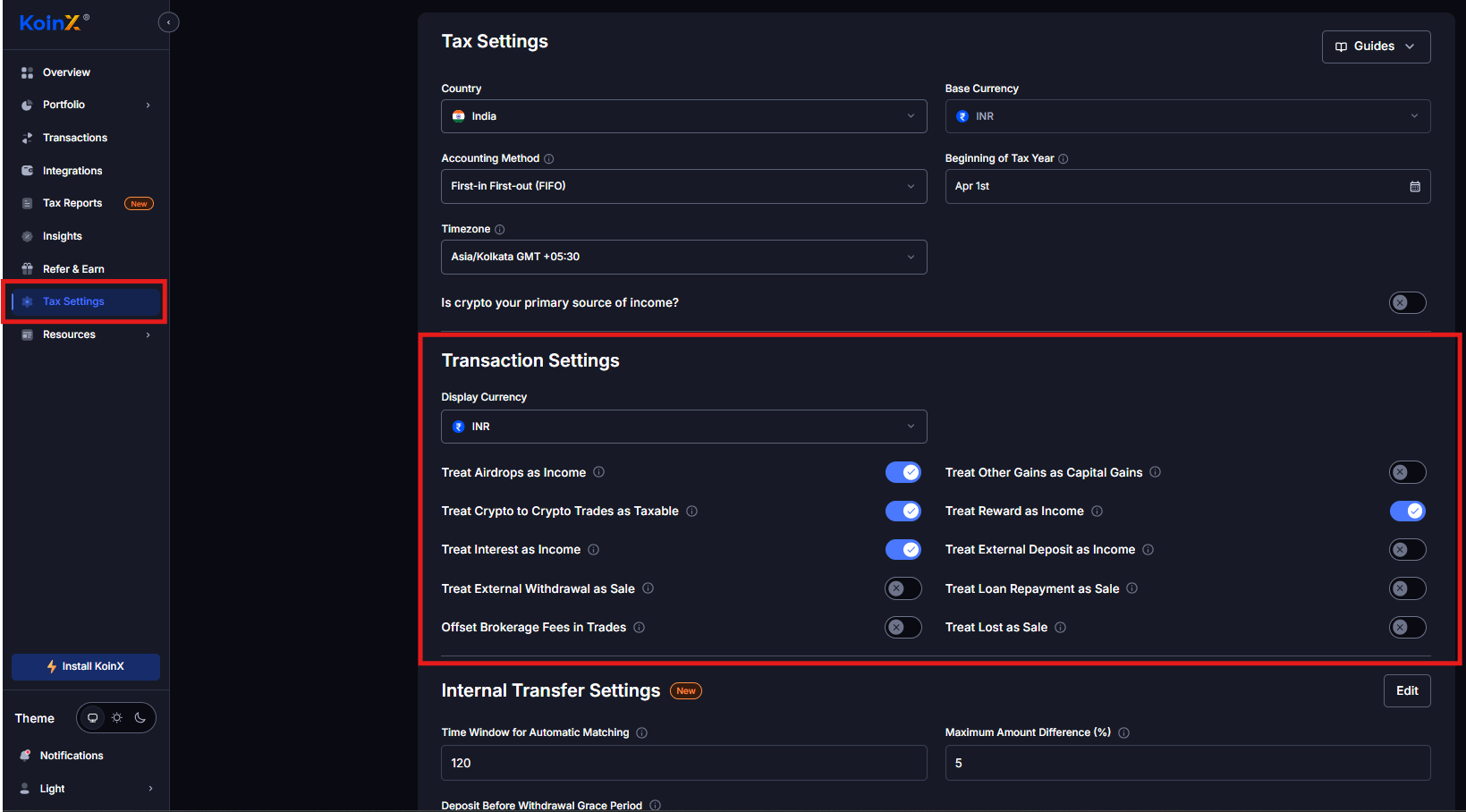
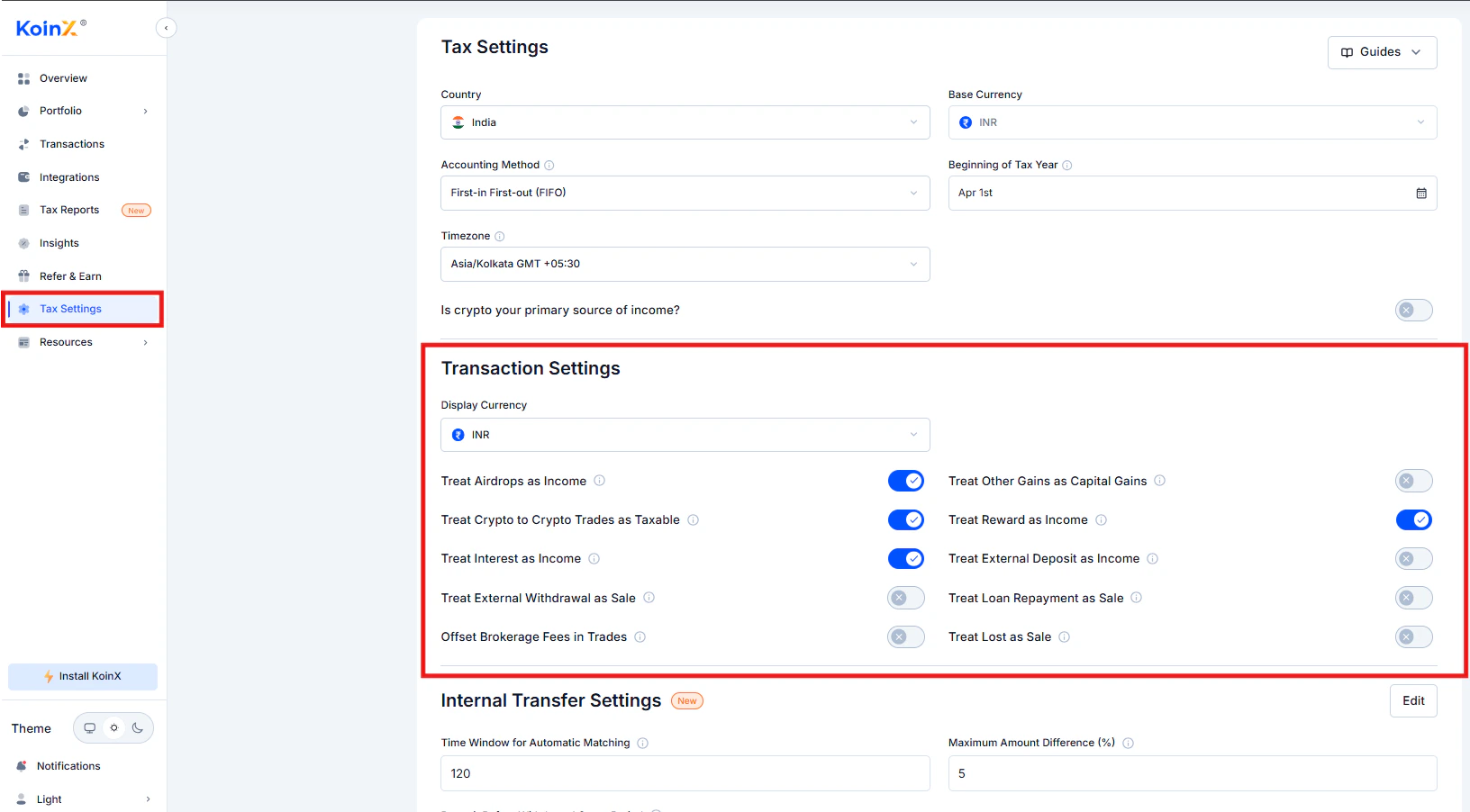 | Setting | What It Does | Default |
| ---------------------------------------- | -------------------------------------------------------------------------- | ------- |
| Treat Airdrops as Income | Airdrops recorded as income at fair market value when received | On |
| Treat Crypto-to-Crypto Trades as Taxable | Swapping one crypto for another treated as a taxable disposal | On |
| Treat Interest as Income | Interest from lending or savings programs treated as income | On |
| Treat Reward as Income | Rewards from staking or referral programs treated as income | On |
| Treat External Deposit as Income | Deposits from unknown external sources classified as income | Off |
| Treat External Withdrawal as Sale | Withdrawals to external wallets treated as asset disposals | Off |
| Treat Loan Repayment as Sale | On: loan repayments appear as capital gains. Off: recorded as Other Income | Off |
| Treat Lost as Sale | On: lost assets recorded as capital loss. Off: recorded as Other Expense | Off |
| Offset Brokerage Fees in Trades | Trading fees included in cost basis calculations | Off |
| Treat Other Gains as Capital Gains | On: airdrops/rewards appear as capital gains. Off: appear as Other Income | Off |
[Full explanation of each Transaction Settings toggle](/guides/tax-settings/transaction-settings-income-classification)
These settings exist because tax treatment varies by jurisdiction and individual circumstances. The defaults are broadly aligned with Indian VDA rules but you can adjust them based on your CA's guidance.
***
## Internal Transfer Settings
These settings help KoinX correctly classify movements between your own wallets and exchanges as internal transfers rather than taxable events.
| Setting | What It Does | Default |
| ---------------------------------------- | -------------------------------------------------------------------------- | ------- |
| Treat Airdrops as Income | Airdrops recorded as income at fair market value when received | On |
| Treat Crypto-to-Crypto Trades as Taxable | Swapping one crypto for another treated as a taxable disposal | On |
| Treat Interest as Income | Interest from lending or savings programs treated as income | On |
| Treat Reward as Income | Rewards from staking or referral programs treated as income | On |
| Treat External Deposit as Income | Deposits from unknown external sources classified as income | Off |
| Treat External Withdrawal as Sale | Withdrawals to external wallets treated as asset disposals | Off |
| Treat Loan Repayment as Sale | On: loan repayments appear as capital gains. Off: recorded as Other Income | Off |
| Treat Lost as Sale | On: lost assets recorded as capital loss. Off: recorded as Other Expense | Off |
| Offset Brokerage Fees in Trades | Trading fees included in cost basis calculations | Off |
| Treat Other Gains as Capital Gains | On: airdrops/rewards appear as capital gains. Off: appear as Other Income | Off |
[Full explanation of each Transaction Settings toggle](/guides/tax-settings/transaction-settings-income-classification)
These settings exist because tax treatment varies by jurisdiction and individual circumstances. The defaults are broadly aligned with Indian VDA rules but you can adjust them based on your CA's guidance.
***
## Internal Transfer Settings
These settings help KoinX correctly classify movements between your own wallets and exchanges as internal transfers rather than taxable events.
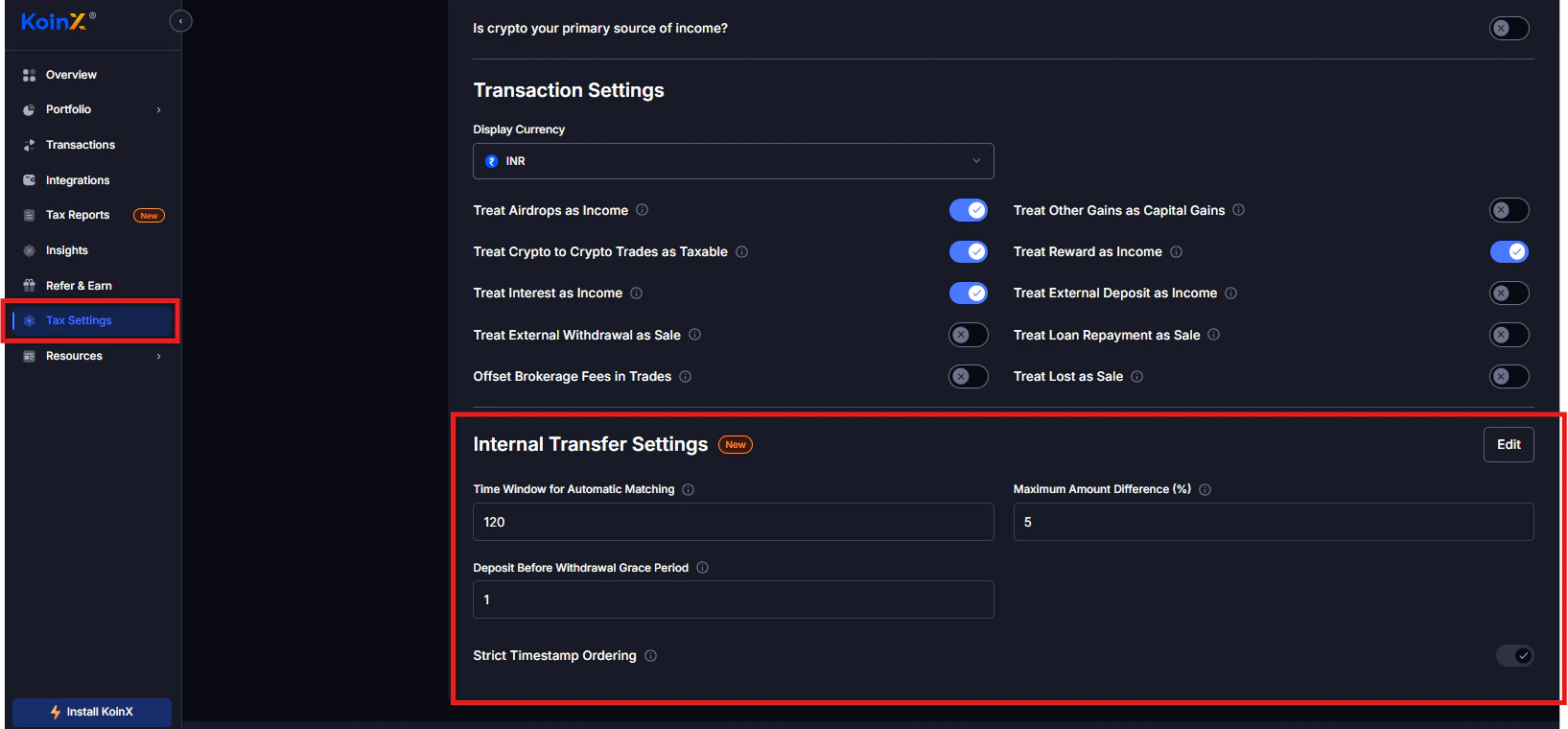
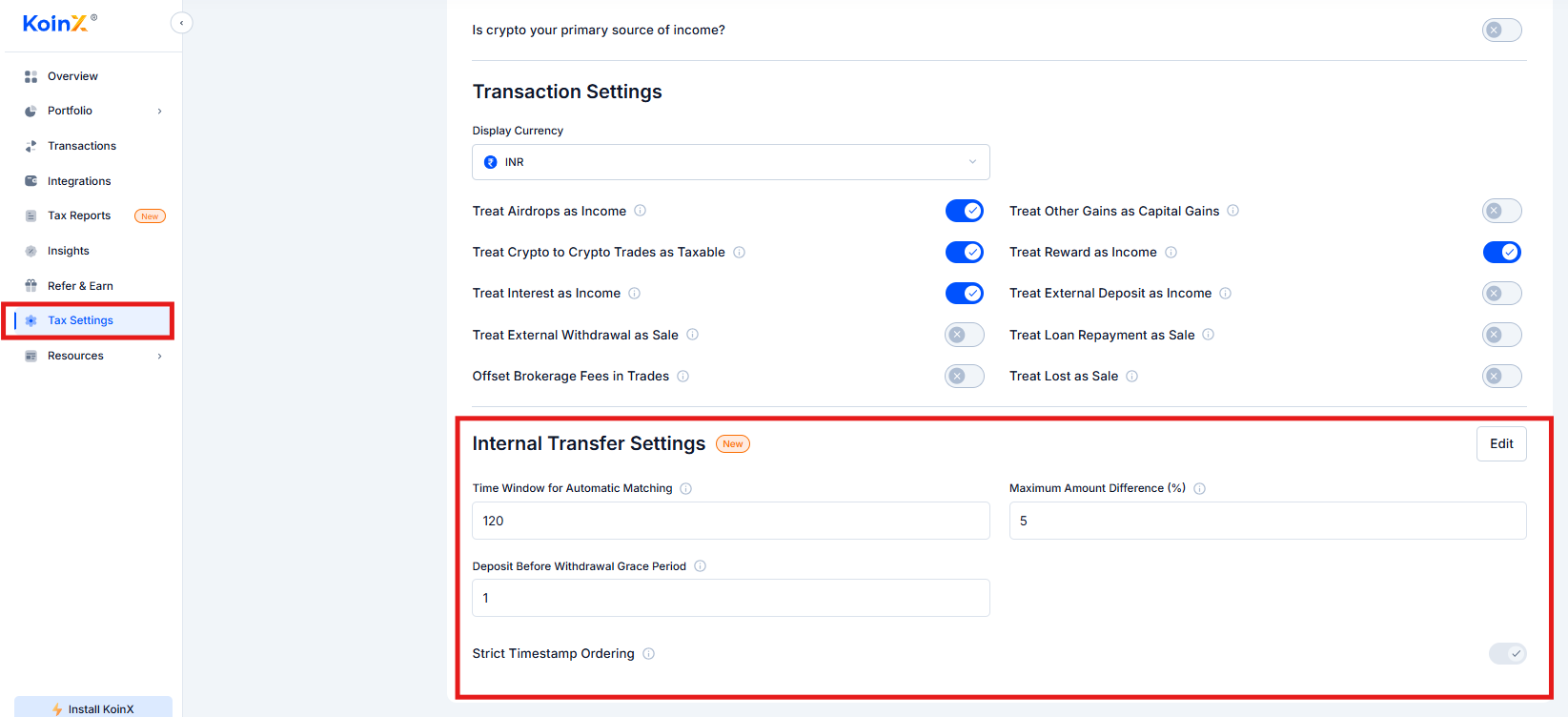 ### Time Window for Automatic Matching
The maximum time difference in minutes between a withdrawal and a deposit for them to be automatically matched as an internal transfer. Default: 120 minutes.
**Example:** You withdraw BTC from Binance and deposit to Coinbase within 120 minutes. KoinX automatically marks this as an internal transfer. Transactions outside the window may need manual review.
### Maximum Amount Difference (%)
The maximum percentage difference allowed between withdrawal and deposit amounts. Default: 5%.
This accounts for network fees and exchange deductions. For example, withdrawing 1 BTC and receiving 0.995 BTC (a 0.5% difference) would still be matched as a transfer.
### Deposit Before Withdrawal Grace Period
The maximum time in minutes that a deposit timestamp can appear before the withdrawal timestamp and still be matched as a transfer. Default: 1 minute.
This handles small timestamp discrepancies between exchanges and blockchains.
### Strict Timestamp Ordering
When enabled, the withdrawal must occur before the deposit for them to be matched as an internal transfer. When disabled, deposits that appear slightly before the withdrawal (within the grace period) are still eligible for matching.
***
## What Does "Changed from Default" Mean?
If you see "Changed from Default" in your reports, it means one or more Tax Settings were modified from the default configuration. This is not an error. It simply informs your CA that custom settings were applied when generating the report.
***
## Can I Change My Country to Get a Different Report?
Technically yes, but not recommended. Your country determines the tax rules applied, the report format, and the capital gains calculations. Changing from India to USA, for example, would give you Form 8949 instead of Schedule VDA, which is not usable for Indian ITR filing.
Only change your country if your actual tax residency has changed.
***
## Frequently Asked Questions
Yes. Use the financial year dropdown to switch between years and generate reports for each. Each financial year requires a separate plan purchase.
It indicates that one or more Tax Settings were modified from their default values. It is not an error. It simply notes that custom settings were used for that report generation.
No. You need to enable Offset Brokerage Fees in Trades in Tax Settings. It is disabled by default.
Technically yes, but it is not recommended unless your tax residency has actually changed. Changing country changes the report format and tax calculation logic, which may produce a report that does not comply with your actual jurisdiction's requirements.
No. Once you have purchased a plan for a financial year, you can change settings and regenerate reports unlimited times at no additional cost.
### Time Window for Automatic Matching
The maximum time difference in minutes between a withdrawal and a deposit for them to be automatically matched as an internal transfer. Default: 120 minutes.
**Example:** You withdraw BTC from Binance and deposit to Coinbase within 120 minutes. KoinX automatically marks this as an internal transfer. Transactions outside the window may need manual review.
### Maximum Amount Difference (%)
The maximum percentage difference allowed between withdrawal and deposit amounts. Default: 5%.
This accounts for network fees and exchange deductions. For example, withdrawing 1 BTC and receiving 0.995 BTC (a 0.5% difference) would still be matched as a transfer.
### Deposit Before Withdrawal Grace Period
The maximum time in minutes that a deposit timestamp can appear before the withdrawal timestamp and still be matched as a transfer. Default: 1 minute.
This handles small timestamp discrepancies between exchanges and blockchains.
### Strict Timestamp Ordering
When enabled, the withdrawal must occur before the deposit for them to be matched as an internal transfer. When disabled, deposits that appear slightly before the withdrawal (within the grace period) are still eligible for matching.
***
## What Does "Changed from Default" Mean?
If you see "Changed from Default" in your reports, it means one or more Tax Settings were modified from the default configuration. This is not an error. It simply informs your CA that custom settings were applied when generating the report.
***
## Can I Change My Country to Get a Different Report?
Technically yes, but not recommended. Your country determines the tax rules applied, the report format, and the capital gains calculations. Changing from India to USA, for example, would give you Form 8949 instead of Schedule VDA, which is not usable for Indian ITR filing.
Only change your country if your actual tax residency has changed.
***
## Frequently Asked Questions
Yes. Use the financial year dropdown to switch between years and generate reports for each. Each financial year requires a separate plan purchase.
It indicates that one or more Tax Settings were modified from their default values. It is not an error. It simply notes that custom settings were used for that report generation.
No. You need to enable Offset Brokerage Fees in Trades in Tax Settings. It is disabled by default.
Technically yes, but it is not recommended unless your tax residency has actually changed. Changing country changes the report format and tax calculation logic, which may produce a report that does not comply with your actual jurisdiction's requirements.
No. Once you have purchased a plan for a financial year, you can change settings and regenerate reports unlimited times at no additional cost.