> ## Documentation Index
> Fetch the complete documentation index at: https://guides.koinx.com/llms.txt
> Use this file to discover all available pages before exploring further.
# Why Some Data Shows as Percentages & What It Means
> Seeing percentages instead of actual numbers on your Insights page? Here's exactly why that happens — and how to unlock the real figures.
You open the Insights page, ready to see your gains and losses — and everything's in percentages. No rupees, no dollars, just ratios. Not exactly what you came for. Here's what's going on and how to fix it.
## Why Percentages?
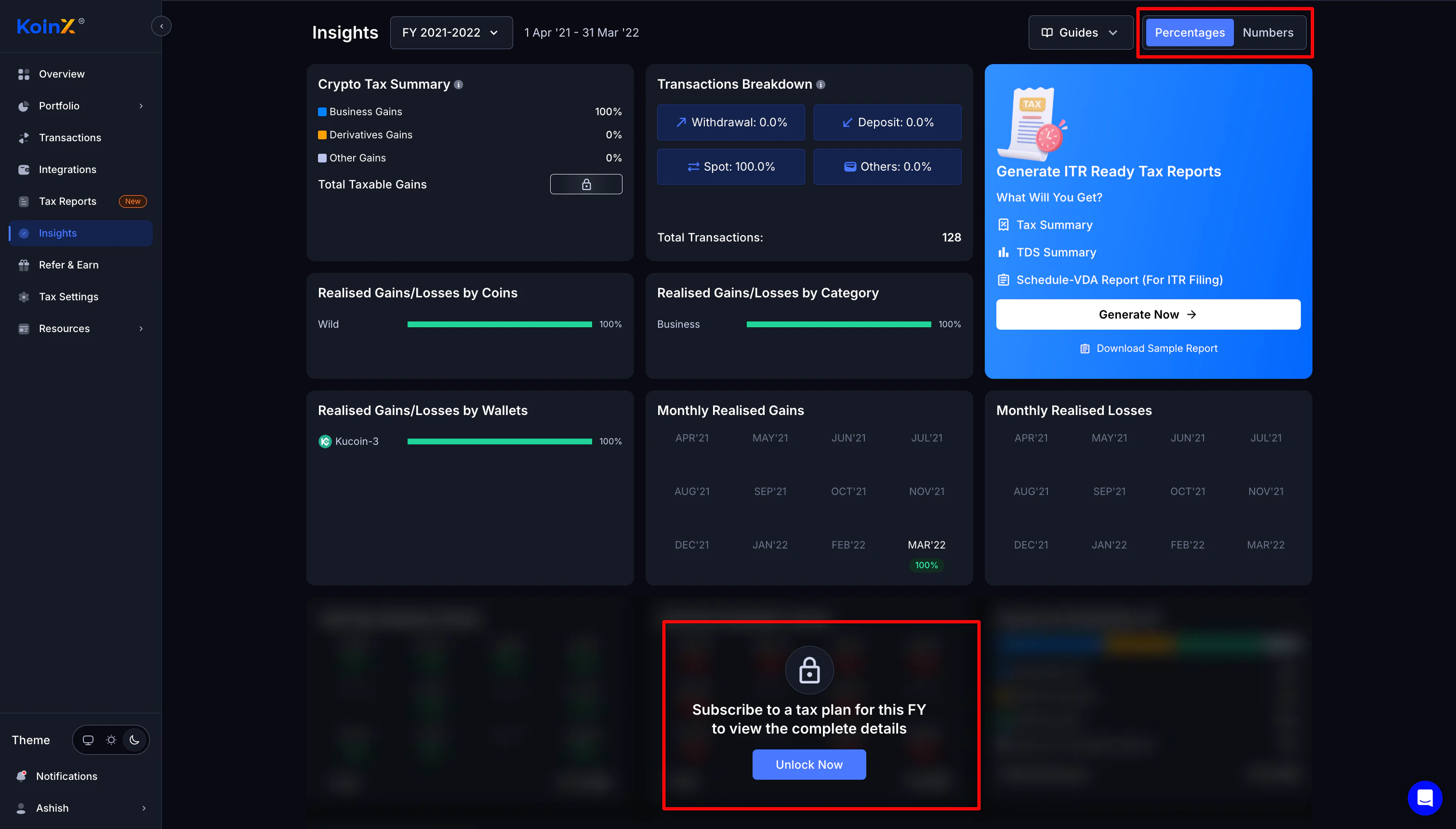
KoinX shows data in **percentage format by default** on the Insights page. This gives every user — including free users — a proportional view of their tax situation without requiring a plan.
### What you can see for free
* Percentage breakdown of gains vs. losses
* Relative distribution by coin
* Proportional view of income types
* Comparative breakdown by category
### What requires a plan
* Exact numerical values in fiat
* Downloadable tax reports
* TDS summary with actual figures (if applicable)
-1.png?fit=max&auto=format&n=i_0FLR3BPkRKmu_n&q=85&s=134ee0a9d6e3030fda64e4dd97244043 "Image(1) 1") ***
## How to View Numbers Instead of Percentages
Already on a paid plan? Switching to number view takes about three seconds.
Find **Insights** in the left sidebar and click it.
Look for the **Numbers / Percentages** toggle in the upper right corner of the page.
Hit **Numbers** and every value on the page switches from percentages to actual fiat amounts. Done.
***
## How to View Numbers Instead of Percentages
Already on a paid plan? Switching to number view takes about three seconds.
Find **Insights** in the left sidebar and click it.
Look for the **Numbers / Percentages** toggle in the upper right corner of the page.
Hit **Numbers** and every value on the page switches from percentages to actual fiat amounts. Done.
-1.png?fit=max&auto=format&n=i_0FLR3BPkRKmu_n&q=85&s=85845efda666c1e258b28cb28d728f61 "Image(1) 2")
-2.png?fit=max&auto=format&n=i_0FLR3BPkRKmu_n&q=85&s=e17bffb4eb78e161119f13429a3994cd "Image(1) 2") The toggle only appears — and only works — if you have an active plan for the financial year you're currently viewing. If you can't see it, check your FY selector first.
***
## I Purchased a Plan but Values Are Still Locked
Paid but still seeing percentages? Run through these checks before contacting support.
Plans are **FY-specific**. If you purchased for FY 2024-25 but you're viewing FY 2023-24, those values will still be locked.
**Fix:** Look at the FY selector at the top of the page and make sure it matches the year you paid for.
* Check your email for a payment confirmation from KoinX
* Check your bank statement for the debit
* Go to **Billing & Invoices** to verify your active plan
If the payment didn't complete, the plan won't activate.
Sometimes the unlock takes a moment to reflect on the UI. Try:
* Hard refresh: **Ctrl+Shift+R** (Windows) or **Cmd+Shift+R** (Mac)
* Log out and log back in
* Clear your browser cache
This fixes it 90% of the time.
If everything above checks out and values are still locked, reach out to KoinX support:
* Have your **transaction ID or payment confirmation** ready
* Attach a screenshot showing the locked state
* The team can verify and manually unlock if there's a system issue on the backend
***
## What the Insights Page Actually Shows You
Here's a breakdown of every section on the Insights page and what it contains.
The toggle only appears — and only works — if you have an active plan for the financial year you're currently viewing. If you can't see it, check your FY selector first.
***
## I Purchased a Plan but Values Are Still Locked
Paid but still seeing percentages? Run through these checks before contacting support.
Plans are **FY-specific**. If you purchased for FY 2024-25 but you're viewing FY 2023-24, those values will still be locked.
**Fix:** Look at the FY selector at the top of the page and make sure it matches the year you paid for.
* Check your email for a payment confirmation from KoinX
* Check your bank statement for the debit
* Go to **Billing & Invoices** to verify your active plan
If the payment didn't complete, the plan won't activate.
Sometimes the unlock takes a moment to reflect on the UI. Try:
* Hard refresh: **Ctrl+Shift+R** (Windows) or **Cmd+Shift+R** (Mac)
* Log out and log back in
* Clear your browser cache
This fixes it 90% of the time.
If everything above checks out and values are still locked, reach out to KoinX support:
* Have your **transaction ID or payment confirmation** ready
* Attach a screenshot showing the locked state
* The team can verify and manually unlock if there's a system issue on the backend
***
## What the Insights Page Actually Shows You
Here's a breakdown of every section on the Insights page and what it contains.
.png?fit=max&auto=format&n=i_0FLR3BPkRKmu_n&q=85&s=140c178f28f4f9d2602ddfed5a943cc3 "Image(5)")
.png?fit=max&auto=format&n=i_0FLR3BPkRKmu_n&q=85&s=7da68ac1b61fcdf8fc070c6346b95c5a "Image(5)") Shows the breakdown of your taxable events for the selected FY:
* Capital Gains %
* Derivatives Gains %
* Other Gains %
* **Total Taxable Gains** — locked until plan purchase
A proportional view of your activity:
* Withdrawal %
* Deposit %
* Spot %
* Others %
* Total transaction count (visible for free)
Charts showing your realised P\&L broken down by:
* Coins
* Category
* Wallets
* Monthly timeline
Free users see proportions. Paid users see actual values.
For Indian users, this section tracks **TDS deducted on your crypto transactions** during the selected FY.
It shows:
* Exchange or integration where TDS was deducted
* Total TDS amount deducted
* Total sale value on which TDS was applied
* Monthly chart of when deductions occurred
This is handy when reconciling with your Form 26Q or AIS during ITR filing. Cross-check the TDS figures here against what your exchanges have reported.
***
## Older FY Visible but Locked?
If you see an older financial year in the dropdown but the data is locked, here's what's happening.
| Reason | Explanation |
| -------------------- | ----------------------------------------------------------------------------------------- |
| **Why it's visible** | You have transaction data from that year — KoinX always shows years where activity exists |
| **Why it's locked** | You haven't purchased a plan for that specific FY |
| **How to unlock** | Select that FY → click the upgrade prompt → purchase a plan for that year |
Plans are not retroactive across years. Purchasing a plan for FY 2024-25 does **not** unlock FY 2023-24 or any other year. Each financial year requires its own plan.
***
## Free vs. Paid: Full Comparison
| Feature | Free | With Plan |
| ----------------------------- | ---- | --------- |
| Integrate exchanges & wallets | ✅ | ✅ |
| View transactions | ✅ | ✅ |
| See percentage insights | ✅ | ✅ |
| See actual fiat values | ❌ | ✅ |
| Download tax reports | ❌ | ✅ |
| TDS summary with figures | ❌ | ✅ |
| Generate ITR-ready reports | ❌ | ✅ |
***
## Frequently Asked Questions
Percentages are free for everyone. Actual fiat values require a paid plan for that financial year. Make sure the FY selector matches the year you've paid for.
Run through these checks in order:
1. Are you viewing the correct FY? Plans are year-specific.
2. Is payment still processing? Wait a few minutes.
3. Browser cache issue? Hard refresh or log out and back in.
If none of these fix it, contact support with your payment confirmation.
Once you have an active plan:
1. Go to the **Insights** page
2. Find the **Numbers / Percentages** toggle at the top right
3. Click **Numbers**
That's it — all values update immediately.
No. Plans are FY-specific. Purchasing a plan unlocks numerical insights and reports **only for that financial year**. You'll need a separate plan for each other year you want to unlock.
Percentage-based insights are free. Exact numerical values, downloadable reports, and TDS figures all require purchasing a plan for the relevant financial year.
***
## What's Next?
Now that you know what you're looking at, here's where most users head next:
Understand what each plan includes and which FY you're buying for.
Once your Insights look right, this is where you turn them into a CA-ready report.
Data issues can affect your insights. Fix them before generating your report.
A full breakdown of every report KoinX generates after purchase.
Shows the breakdown of your taxable events for the selected FY:
* Capital Gains %
* Derivatives Gains %
* Other Gains %
* **Total Taxable Gains** — locked until plan purchase
A proportional view of your activity:
* Withdrawal %
* Deposit %
* Spot %
* Others %
* Total transaction count (visible for free)
Charts showing your realised P\&L broken down by:
* Coins
* Category
* Wallets
* Monthly timeline
Free users see proportions. Paid users see actual values.
For Indian users, this section tracks **TDS deducted on your crypto transactions** during the selected FY.
It shows:
* Exchange or integration where TDS was deducted
* Total TDS amount deducted
* Total sale value on which TDS was applied
* Monthly chart of when deductions occurred
This is handy when reconciling with your Form 26Q or AIS during ITR filing. Cross-check the TDS figures here against what your exchanges have reported.
***
## Older FY Visible but Locked?
If you see an older financial year in the dropdown but the data is locked, here's what's happening.
| Reason | Explanation |
| -------------------- | ----------------------------------------------------------------------------------------- |
| **Why it's visible** | You have transaction data from that year — KoinX always shows years where activity exists |
| **Why it's locked** | You haven't purchased a plan for that specific FY |
| **How to unlock** | Select that FY → click the upgrade prompt → purchase a plan for that year |
Plans are not retroactive across years. Purchasing a plan for FY 2024-25 does **not** unlock FY 2023-24 or any other year. Each financial year requires its own plan.
***
## Free vs. Paid: Full Comparison
| Feature | Free | With Plan |
| ----------------------------- | ---- | --------- |
| Integrate exchanges & wallets | ✅ | ✅ |
| View transactions | ✅ | ✅ |
| See percentage insights | ✅ | ✅ |
| See actual fiat values | ❌ | ✅ |
| Download tax reports | ❌ | ✅ |
| TDS summary with figures | ❌ | ✅ |
| Generate ITR-ready reports | ❌ | ✅ |
***
## Frequently Asked Questions
Percentages are free for everyone. Actual fiat values require a paid plan for that financial year. Make sure the FY selector matches the year you've paid for.
Run through these checks in order:
1. Are you viewing the correct FY? Plans are year-specific.
2. Is payment still processing? Wait a few minutes.
3. Browser cache issue? Hard refresh or log out and back in.
If none of these fix it, contact support with your payment confirmation.
Once you have an active plan:
1. Go to the **Insights** page
2. Find the **Numbers / Percentages** toggle at the top right
3. Click **Numbers**
That's it — all values update immediately.
No. Plans are FY-specific. Purchasing a plan unlocks numerical insights and reports **only for that financial year**. You'll need a separate plan for each other year you want to unlock.
Percentage-based insights are free. Exact numerical values, downloadable reports, and TDS figures all require purchasing a plan for the relevant financial year.
***
## What's Next?
Now that you know what you're looking at, here's where most users head next:
Understand what each plan includes and which FY you're buying for.
Once your Insights look right, this is where you turn them into a CA-ready report.
Data issues can affect your insights. Fix them before generating your report.
A full breakdown of every report KoinX generates after purchase.