> ## Documentation Index
> Fetch the complete documentation index at: https://guides.koinx.com/llms.txt
> Use this file to discover all available pages before exploring further.
# Tax Settings: Country, Currency & Timezone
> Configure your KoinX tax settings — set your country, base currency, timezone, and accounting method to generate accurate local crypto tax reports.
Your Tax Settings in KoinX control how your taxes are calculated and what format your reports take. Here is how to configure country, currency, and timezone, and what happens when you change them.
## Finding Tax Settings
Click **Tax Settings** in the left sidebar.
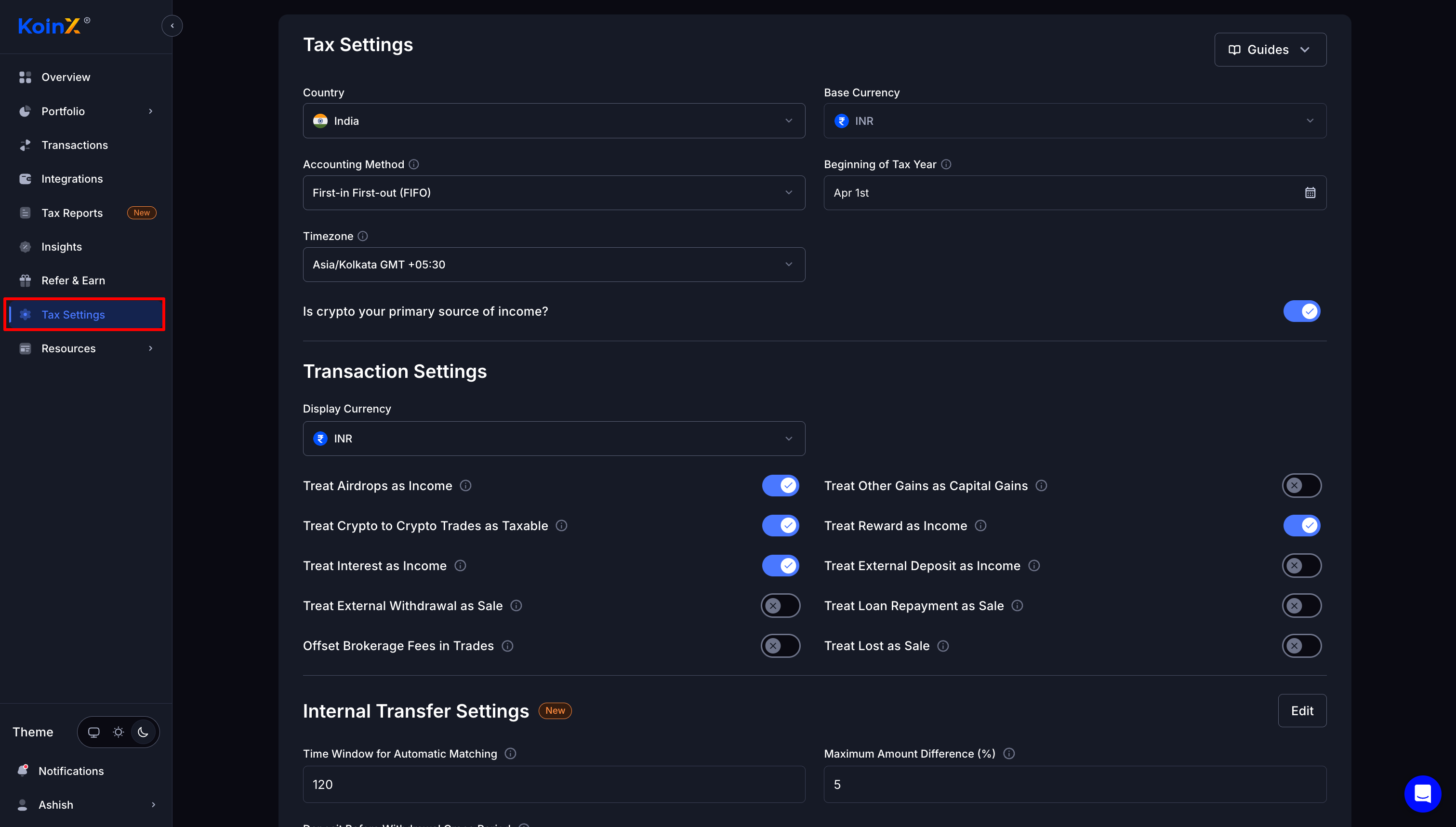
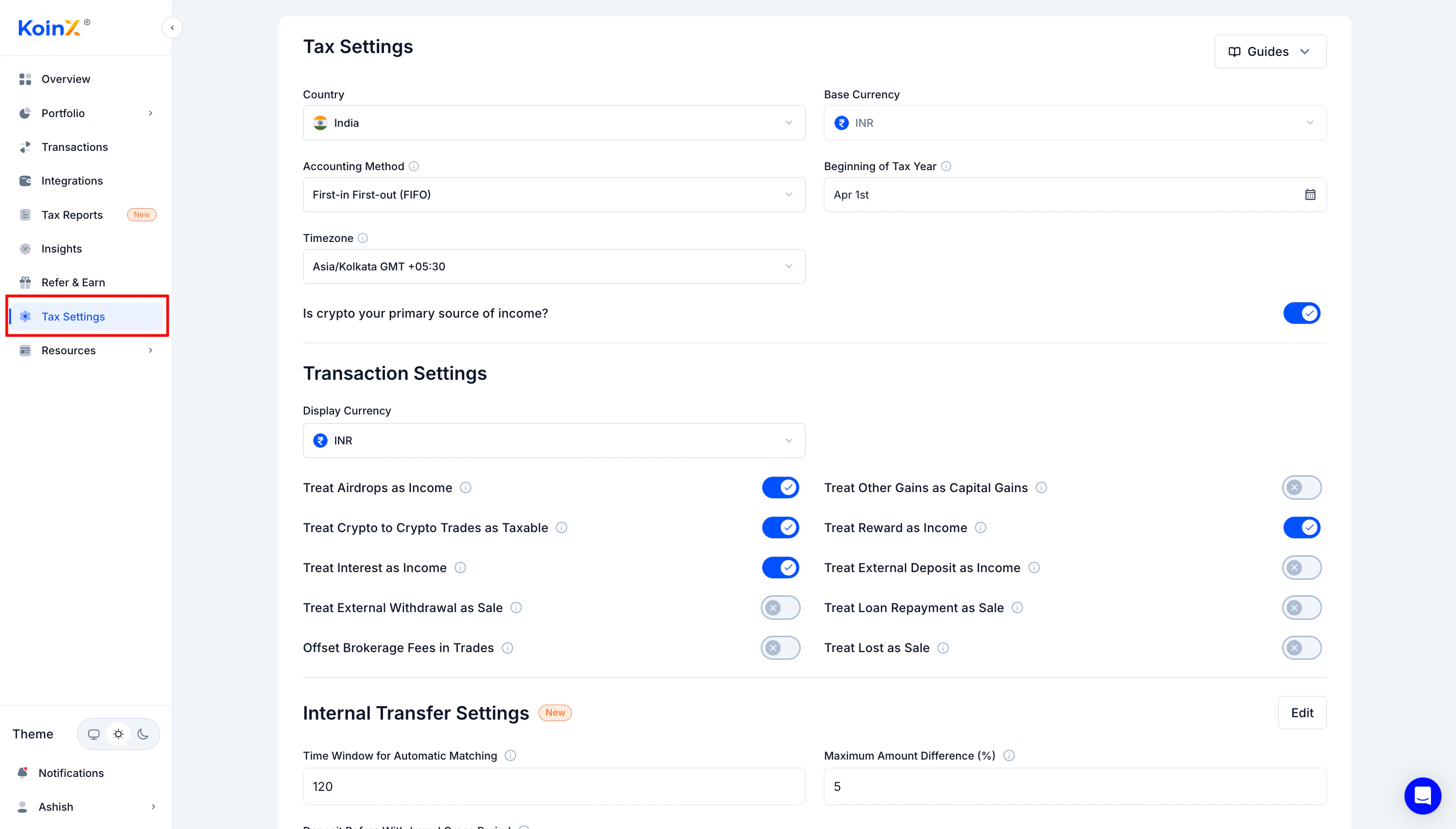 You will see sections for Country, Base Currency, Display Currency, Timezone, Accounting Method, and Transaction Settings.
***
## Country Setting
### What it controls
* Report format (Schedule VDA for India, Form 8949 for USA, etc.)
* Tax rules applied to calculations
* Field labels and structure of reports
* Beginning of tax year (April 1 for India, January 1 for USA)
### How to change
Open **Tax Settings** from the sidebar.
Find the **Country** dropdown and select your country.
You will see sections for Country, Base Currency, Display Currency, Timezone, Accounting Method, and Transaction Settings.
***
## Country Setting
### What it controls
* Report format (Schedule VDA for India, Form 8949 for USA, etc.)
* Tax rules applied to calculations
* Field labels and structure of reports
* Beginning of tax year (April 1 for India, January 1 for USA)
### How to change
Open **Tax Settings** from the sidebar.
Find the **Country** dropdown and select your country.
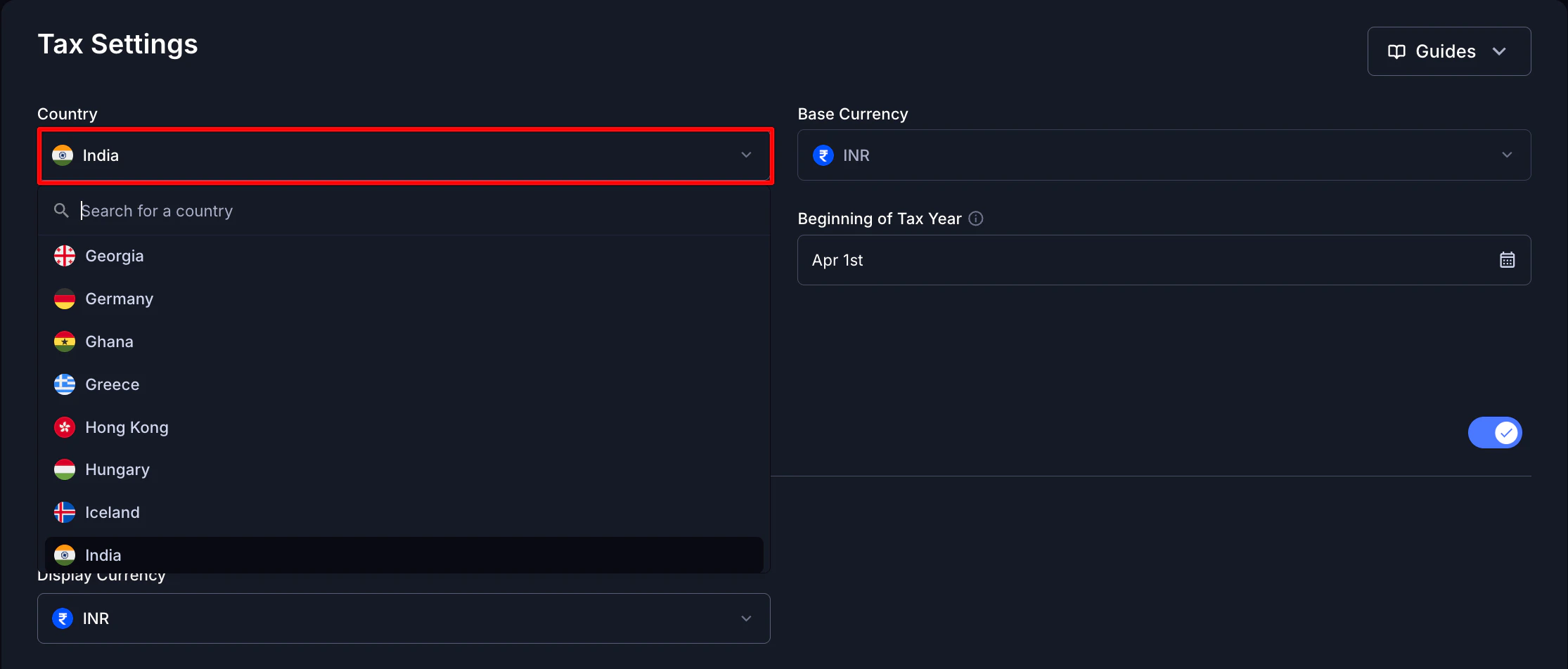
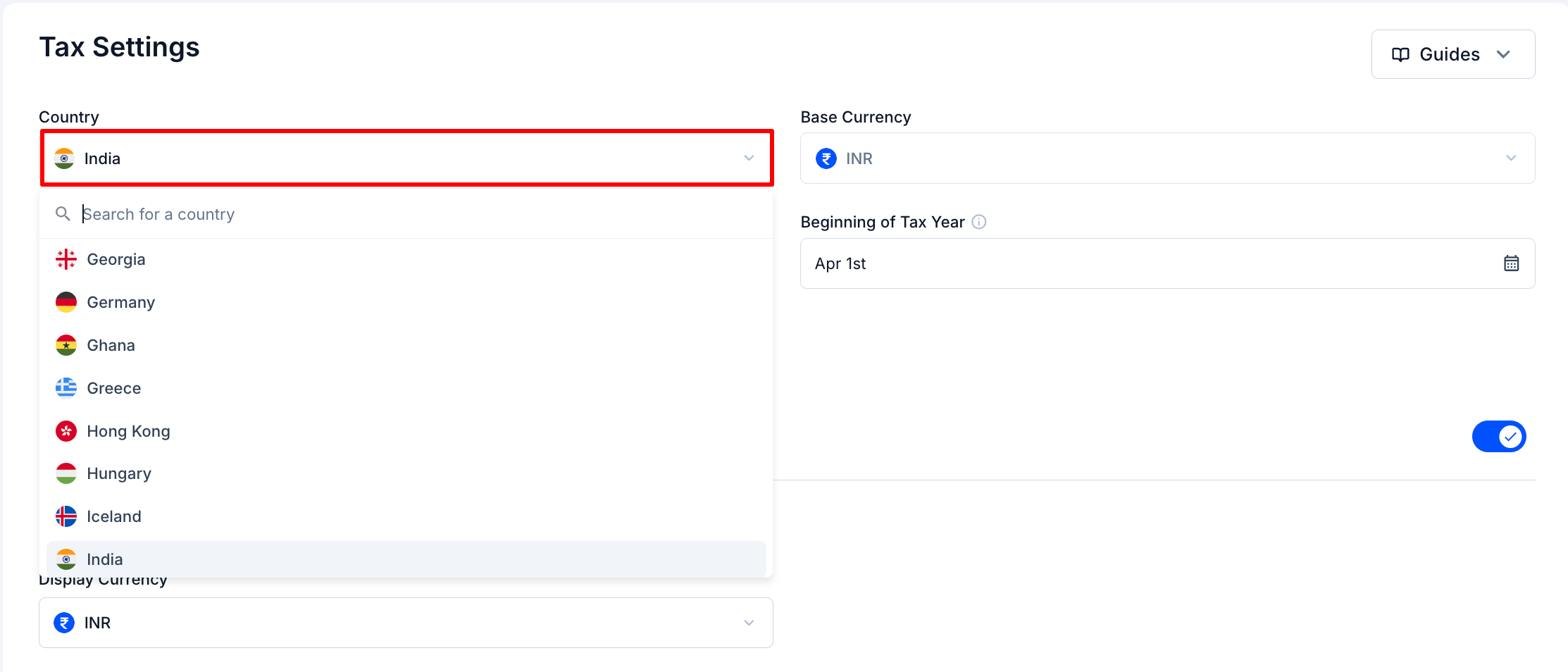 Save your changes.
### Available countries
India, USA, UK, Germany, Japan, Australia, Canada, Italy, and Default (for all other countries).
Changing your country changes your report format and calculation logic. If you have already generated reports, regenerate them after making this change.
***
## Base Currency
### What it is
The currency used for all tax calculations. This is automatically set by KoinX based on the country you select.
**Base currency cannot be changed.** KoinX sets it automatically when you select your country to ensure your reports remain compliant with your tax jurisdiction.
### What it controls
* Currency for cost basis calculations
* Currency for gain/loss computation
* Currency shown in tax reports
### Example
If you are filing taxes in India (base currency INR), all transactions are calculated in INR, with historical exchange rates used to convert values where needed.
Because base currency affects every calculation in your reports, it is tied to your country selection and cannot be changed independently.
***
## Display Currency
### What it is
A convenience setting that controls how values appear in the KoinX interface. It does not affect your tax calculations.
| | Base Currency | Display Currency |
| ------------------- | ---------------- | ---------------------- |
| Used for | Tax calculations | Interface display only |
| Affects tax numbers | Yes | No |
| Can be changed | No | Yes |
### Example
Base Currency = INR, Display Currency = USD: all calculations happen in INR, but the dashboard shows approximate USD values for convenience. Reports are still generated in INR.
### How to change
Open **Tax Settings** from the sidebar.
Find **Display Currency** and select your preference.
Save your changes.
For Indian users: keep both Base and Display Currency as INR. This ensures your reports are ready for ITR filing without any conversion confusion.
***
## Timezone Setting
### What it controls
The timezone setting determines which timestamp is used for tax calculations and report generation. It helps KoinX decide which transactions fall within your selected tax period.
### What it does not control
Changing this setting does not change the transaction times shown in the Transactions tab. Those are displayed based on your system or local time. The timezone setting is used only for tax reporting purposes.
### How to change
Open **Tax Settings** from the sidebar.
Find **Timezone** and select the appropriate option.
Save your changes.
### Why this matters
If the timezone is set incorrectly, transactions near the end or start of a financial year may fall into the wrong tax period, affecting your final calculations.
Use the timezone that matches your tax jurisdiction. If you are unsure, verify with your CA or tax advisor before generating reports.
***
## Beginning of Tax Year
The first day of your financial year. This is automatically set based on your country selection:
* **India:** April 1st
* **USA:** January 1st
* **UK:** April 6th
* **Others:** Varies by jurisdiction
This determines which transactions fall into which tax year when generating reports. It adjusts automatically when you change your country.
***
## What Happens When You Change Settings
| Setting Changed | What Happens |
| ---------------- | ------------------------------------------------------------------------ |
| Country | Report format changes, tax year boundaries change, base currency updates |
| Display Currency | Interface display changes only (calculations unchanged) |
| Timezone | Transactions near financial year boundaries may shift between tax years |
### Do I need to re-sync exchanges after changing settings?
No. Settings changes do not affect your imported transaction data. Just regenerate reports to apply the new settings.
### Will already generated reports change?
No. Reports you have already downloaded remain unchanged. To get updated reports, regenerate them after saving your new settings.
Set your Tax Settings correctly before generating reports for the first time. If you have already generated reports, regenerate after making any changes.
***
## Frequently Asked Questions
Go to Tax Settings, find the Country dropdown, select your country, and save. This updates your report format, tax year boundaries, and base currency.
No. Base currency is automatically set by KoinX based on the country you select and cannot be changed independently. This ensures your reports stay compliant with your tax jurisdiction.
Yes. Display Currency in Tax Settings lets you view values in a different currency without affecting your tax calculations or reports.
Base currency is used for all calculations (cost basis, gains, losses) and cannot be changed. Display currency only affects how values appear in the interface and has no impact on your tax reports.
All calculations still happen in INR. The interface shows approximate USD values for convenience. Reports are generated in INR, which is what you need for Indian tax filing. For most users, keeping both as INR is simplest.
Yes. Go to Tax Settings and select your timezone. This determines how transaction timestamps are interpreted when generating tax reports and ensures transactions fall into the correct financial year.
No. Timestamps shown in the Transactions tab are based on your system or local time and are not affected by the timezone setting. The timezone setting only applies to how KoinX places transactions within a tax year when generating reports.
No. Settings changes do not affect your imported data. You do not need to re-sync. Just regenerate reports to see the updated figures.
No. Already downloaded reports remain unchanged. To get reports reflecting your new settings, regenerate them after saving.
***
Save your changes.
### Available countries
India, USA, UK, Germany, Japan, Australia, Canada, Italy, and Default (for all other countries).
Changing your country changes your report format and calculation logic. If you have already generated reports, regenerate them after making this change.
***
## Base Currency
### What it is
The currency used for all tax calculations. This is automatically set by KoinX based on the country you select.
**Base currency cannot be changed.** KoinX sets it automatically when you select your country to ensure your reports remain compliant with your tax jurisdiction.
### What it controls
* Currency for cost basis calculations
* Currency for gain/loss computation
* Currency shown in tax reports
### Example
If you are filing taxes in India (base currency INR), all transactions are calculated in INR, with historical exchange rates used to convert values where needed.
Because base currency affects every calculation in your reports, it is tied to your country selection and cannot be changed independently.
***
## Display Currency
### What it is
A convenience setting that controls how values appear in the KoinX interface. It does not affect your tax calculations.
| | Base Currency | Display Currency |
| ------------------- | ---------------- | ---------------------- |
| Used for | Tax calculations | Interface display only |
| Affects tax numbers | Yes | No |
| Can be changed | No | Yes |
### Example
Base Currency = INR, Display Currency = USD: all calculations happen in INR, but the dashboard shows approximate USD values for convenience. Reports are still generated in INR.
### How to change
Open **Tax Settings** from the sidebar.
Find **Display Currency** and select your preference.
Save your changes.
For Indian users: keep both Base and Display Currency as INR. This ensures your reports are ready for ITR filing without any conversion confusion.
***
## Timezone Setting
### What it controls
The timezone setting determines which timestamp is used for tax calculations and report generation. It helps KoinX decide which transactions fall within your selected tax period.
### What it does not control
Changing this setting does not change the transaction times shown in the Transactions tab. Those are displayed based on your system or local time. The timezone setting is used only for tax reporting purposes.
### How to change
Open **Tax Settings** from the sidebar.
Find **Timezone** and select the appropriate option.
Save your changes.
### Why this matters
If the timezone is set incorrectly, transactions near the end or start of a financial year may fall into the wrong tax period, affecting your final calculations.
Use the timezone that matches your tax jurisdiction. If you are unsure, verify with your CA or tax advisor before generating reports.
***
## Beginning of Tax Year
The first day of your financial year. This is automatically set based on your country selection:
* **India:** April 1st
* **USA:** January 1st
* **UK:** April 6th
* **Others:** Varies by jurisdiction
This determines which transactions fall into which tax year when generating reports. It adjusts automatically when you change your country.
***
## What Happens When You Change Settings
| Setting Changed | What Happens |
| ---------------- | ------------------------------------------------------------------------ |
| Country | Report format changes, tax year boundaries change, base currency updates |
| Display Currency | Interface display changes only (calculations unchanged) |
| Timezone | Transactions near financial year boundaries may shift between tax years |
### Do I need to re-sync exchanges after changing settings?
No. Settings changes do not affect your imported transaction data. Just regenerate reports to apply the new settings.
### Will already generated reports change?
No. Reports you have already downloaded remain unchanged. To get updated reports, regenerate them after saving your new settings.
Set your Tax Settings correctly before generating reports for the first time. If you have already generated reports, regenerate after making any changes.
***
## Frequently Asked Questions
Go to Tax Settings, find the Country dropdown, select your country, and save. This updates your report format, tax year boundaries, and base currency.
No. Base currency is automatically set by KoinX based on the country you select and cannot be changed independently. This ensures your reports stay compliant with your tax jurisdiction.
Yes. Display Currency in Tax Settings lets you view values in a different currency without affecting your tax calculations or reports.
Base currency is used for all calculations (cost basis, gains, losses) and cannot be changed. Display currency only affects how values appear in the interface and has no impact on your tax reports.
All calculations still happen in INR. The interface shows approximate USD values for convenience. Reports are generated in INR, which is what you need for Indian tax filing. For most users, keeping both as INR is simplest.
Yes. Go to Tax Settings and select your timezone. This determines how transaction timestamps are interpreted when generating tax reports and ensures transactions fall into the correct financial year.
No. Timestamps shown in the Transactions tab are based on your system or local time and are not affected by the timezone setting. The timezone setting only applies to how KoinX places transactions within a tax year when generating reports.
No. Settings changes do not affect your imported data. You do not need to re-sync. Just regenerate reports to see the updated figures.
No. Already downloaded reports remain unchanged. To get reports reflecting your new settings, regenerate them after saving.
***