> ## Documentation Index
> Fetch the complete documentation index at: https://guides.koinx.com/llms.txt
> Use this file to discover all available pages before exploring further.
# Editing Transactions
> Understand how editing, splitting, migrating and deleting transactions in KoinX affects your balances so you can safely correct data before finalising crypto tax reports.
Not every transaction comes in perfectly. KoinX might have the wrong price for an obscure token. A DeFi interaction might have synced as one transaction when it was actually two separate events. Or a wave of duplicate entries slipped through from a CSV import.
KoinX gives you tools to fix all of this. But because every change you make affects your tax calculation, it's worth understanding exactly what each action does before you start editing.
This article covers the three main editing actions: changing a price, splitting a transaction, and bulk deleting. It also explains what you can and can't undo.
* You can **edit transactions, split them into multiple entries, migrate incorrect coins, bulk delete or add missing transactions** in KoinX
* Every edit directly affects your **portfolio balances and tax calculations**, so always double-check before saving
* **Split** helps when one imported transaction actually represents multiple events
* **Coin Migration** lets you replace incorrectly mapped coins across one or more transactions
* The **Edit Log tab** records every change made to a transaction for full transparency
***
## Editing a Transaction Price
### When you need this
Use **Edit Transaction** when a transaction exists but some of its details need correction.
Common examples include:
* Incorrect **received or sent amounts**
* Missing or incorrect **market price**
* Incorrect **fees or TDS values**
* Updating the **transaction label**
* Adding additional details like **transaction hash, wallet addresses, or description**
Editing updates the existing transaction without creating a new one.
### How to edit a transaction
The **Transaction Type cannot be changed when editing**. Only the details inside the transaction can be modified.
***
## Splitting a Transaction
### When you need this
Sometimes one imported transaction actually represents **multiple separate events**.
Examples include:
* A trade that should be **recorded as separate entries**
* A transaction where **fees need to be separated from the main trade**
In these cases, you can use **Split** to divide the original single transaction into multiple transactions.
### How to split a transaction
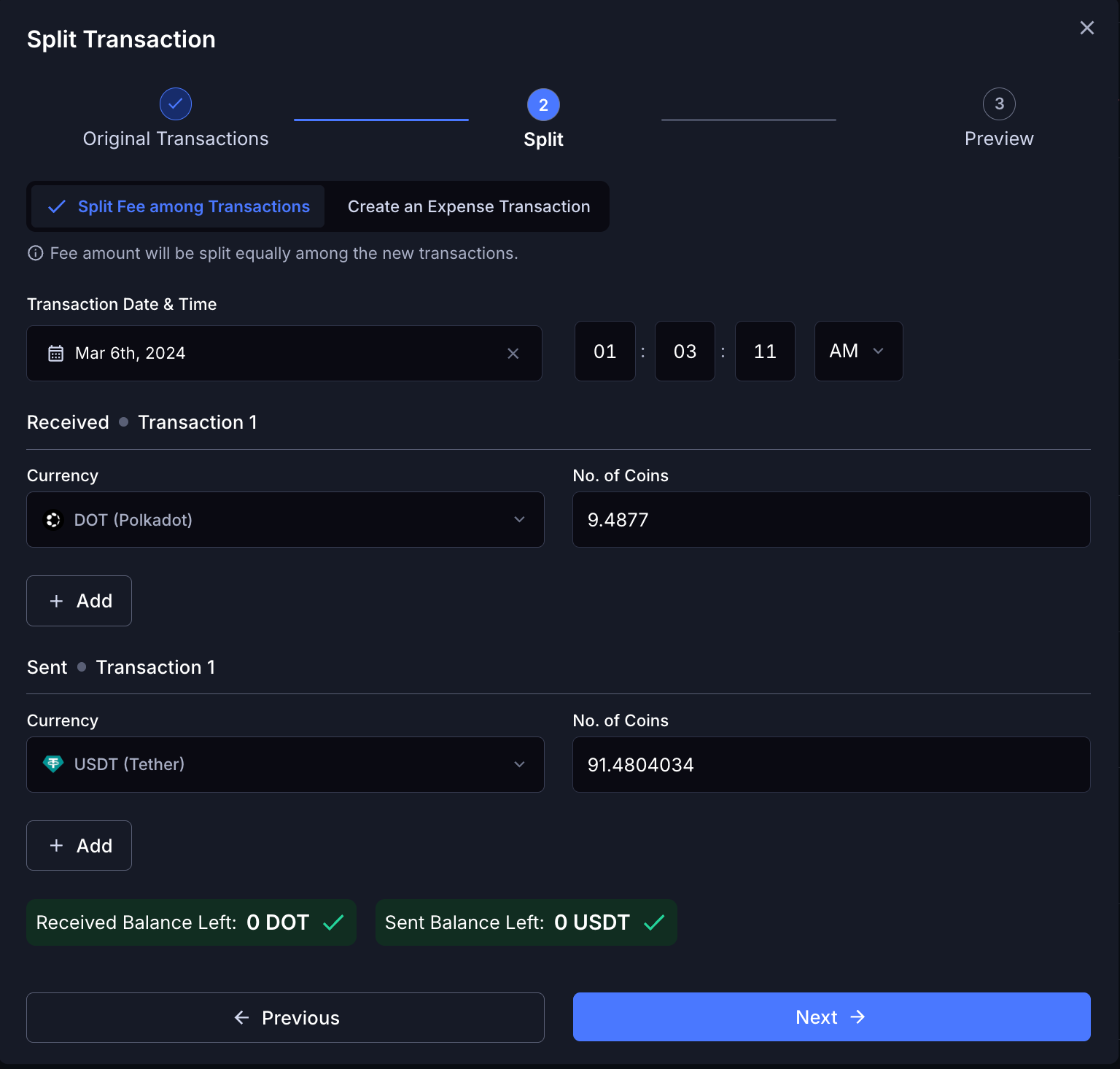
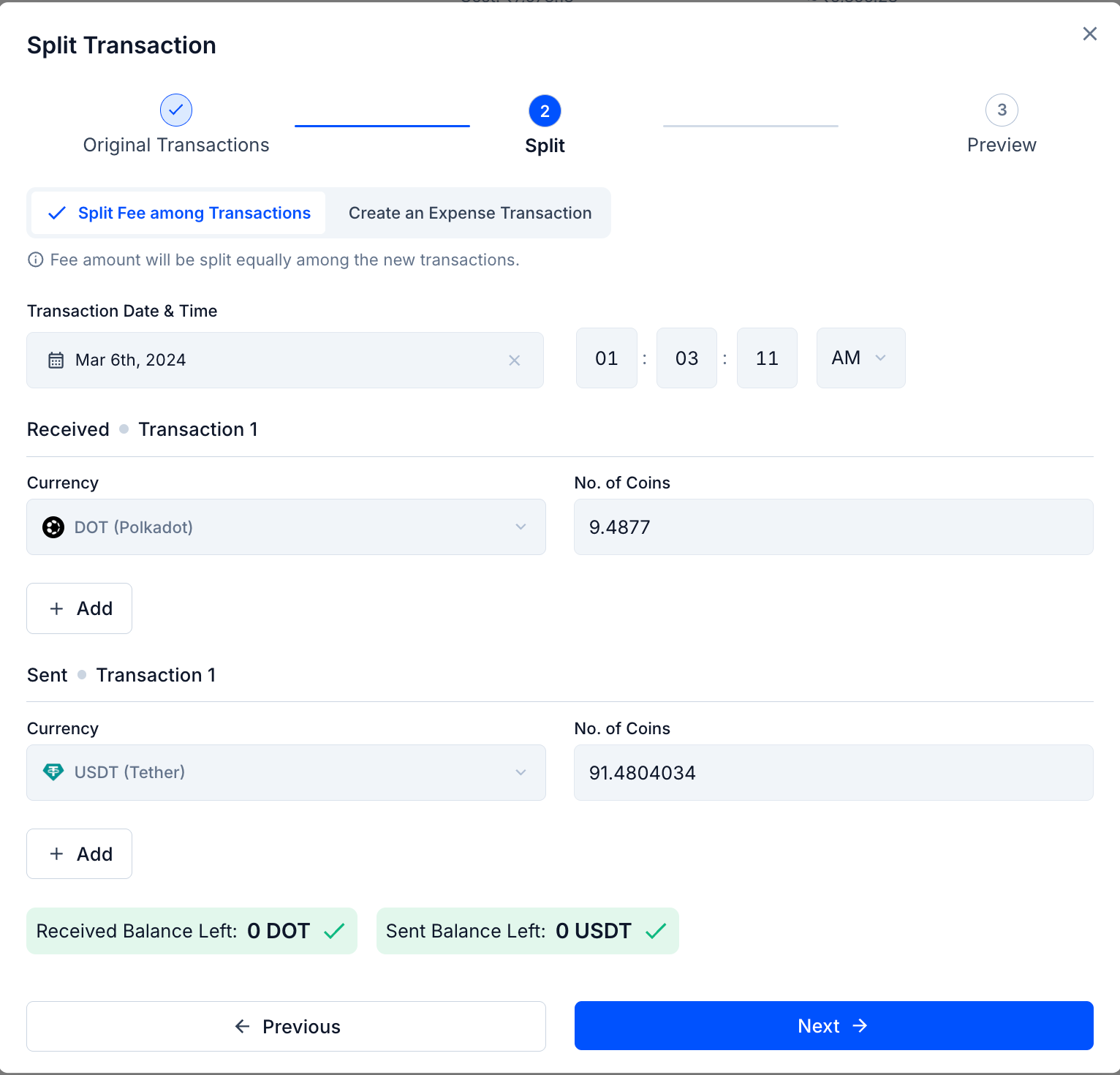 * Choose how fees should be handled: **Split Fee among Transactions** or **Create an Expense Transaction**
* **Split Fee among Transactions**: the fee is distributed across the resulting transactions
* **Create an Expense Transaction**: the fee is recorded as a separate expense entry
* Adjust the **Sent and Received amounts** by using **"+" Add** to create additional entries if needed
After splitting, the new entries are created and automatically tagged with **Split**. You can later locate them using **Transactions → Filters → Tags → Split**.
***
## Coin Migration
### When you need this
Use **Coin Migration** when a transaction shows the **wrong token or asset mapping**.
This can happen when:
* A token was **incorrectly mapped during import**
* A token **contract changed or migrated**
* A transaction displays the **wrong coin symbol**
Coin migration replaces the asset while keeping the rest of the transaction unchanged.
### How to migrate a coin
* Choose how fees should be handled: **Split Fee among Transactions** or **Create an Expense Transaction**
* **Split Fee among Transactions**: the fee is distributed across the resulting transactions
* **Create an Expense Transaction**: the fee is recorded as a separate expense entry
* Adjust the **Sent and Received amounts** by using **"+" Add** to create additional entries if needed
After splitting, the new entries are created and automatically tagged with **Split**. You can later locate them using **Transactions → Filters → Tags → Split**.
***
## Coin Migration
### When you need this
Use **Coin Migration** when a transaction shows the **wrong token or asset mapping**.
This can happen when:
* A token was **incorrectly mapped during import**
* A token **contract changed or migrated**
* A transaction displays the **wrong coin symbol**
Coin migration replaces the asset while keeping the rest of the transaction unchanged.
### How to migrate a coin
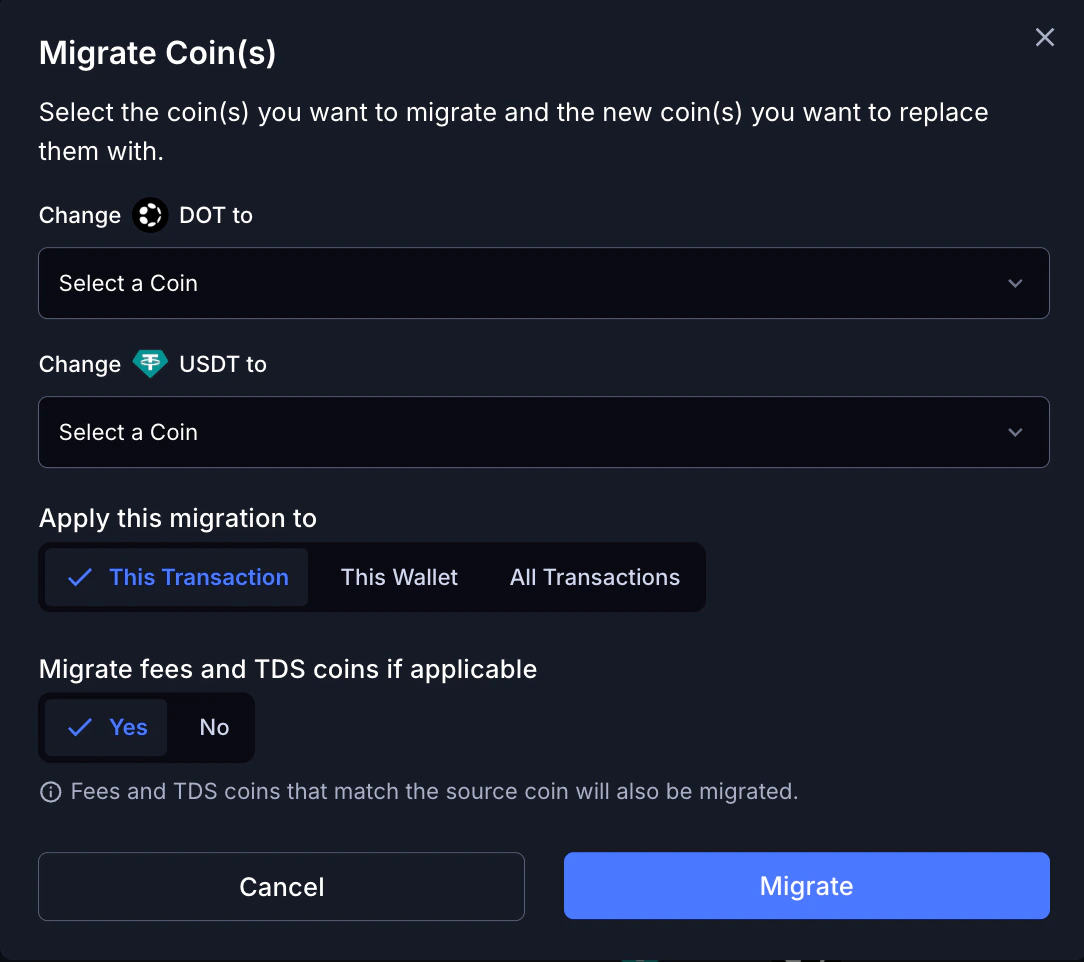
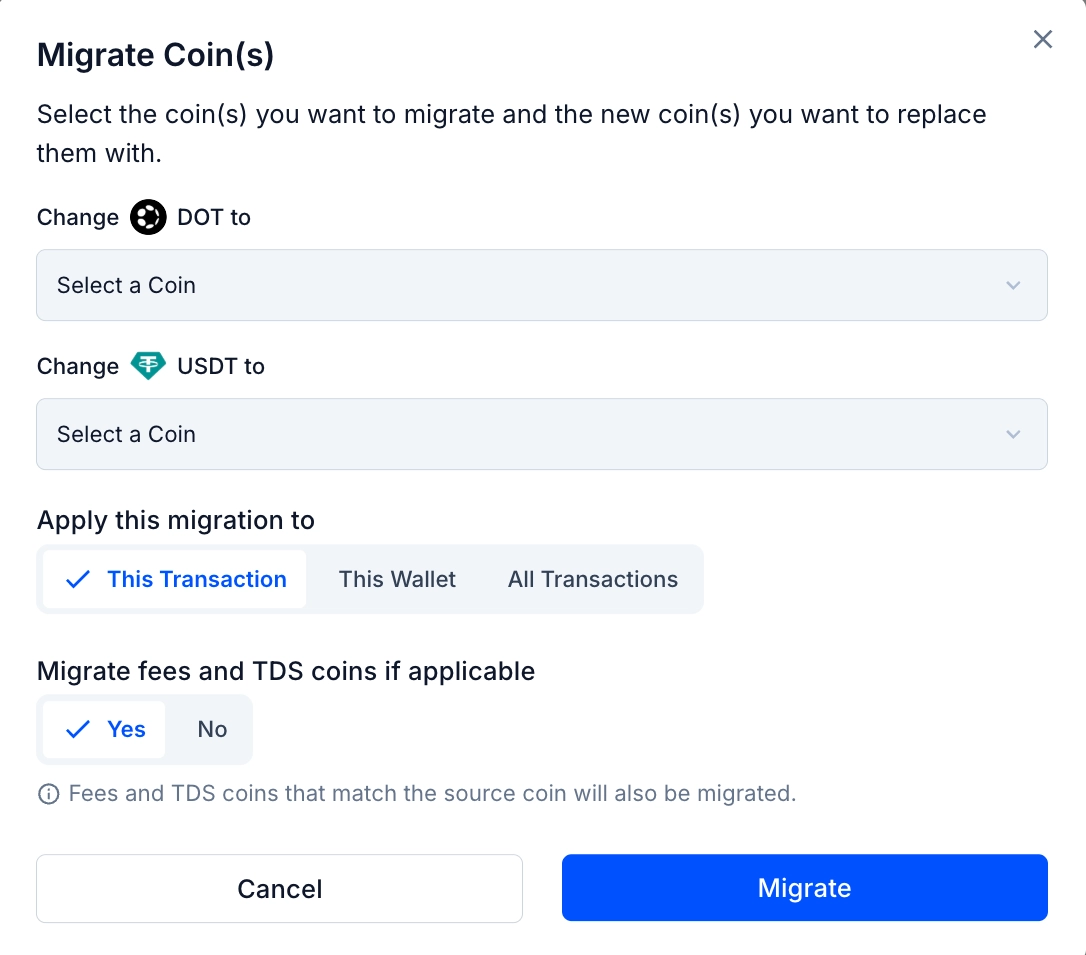 * **This Transaction**: only the selected transaction
* **This Wallet**: all matching transactions in the same wallet
* **All Transactions**: all transactions across your portfolio
Once completed, the system updates the transactions and refreshes your portfolio.
***
## Bulk Deleting Transactions
### When you need this
* You have dozens of spam token airdrop entries cluttering your list
* You imported a CSV and it created duplicates
* You want to remove a batch of incorrectly synced transactions to reimport them cleanly
### How to bulk delete
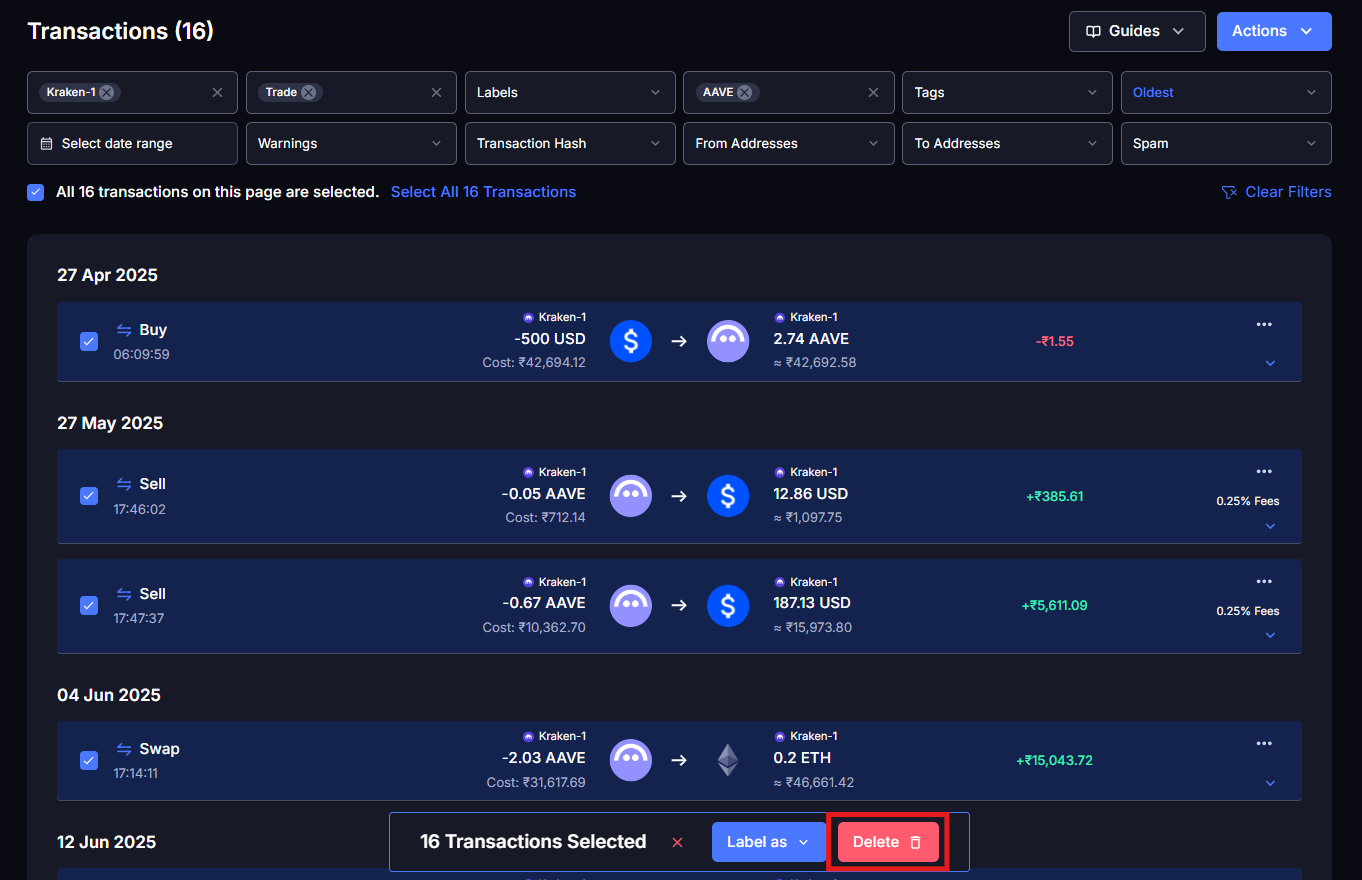
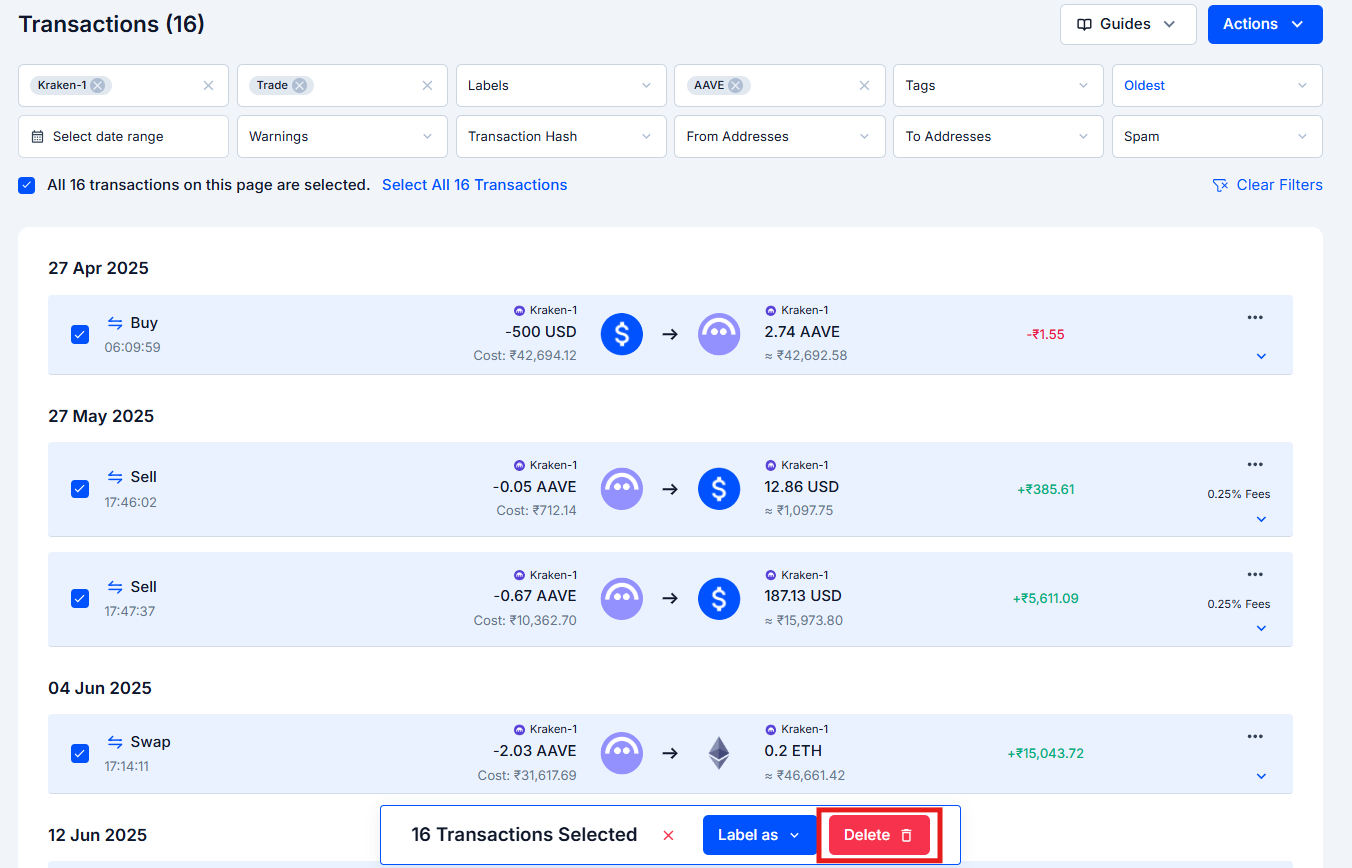
Use **Coins**, **Types**, **Date Range**, or **Spam** filter to isolate the right entries.
* **This Transaction**: only the selected transaction
* **This Wallet**: all matching transactions in the same wallet
* **All Transactions**: all transactions across your portfolio
Once completed, the system updates the transactions and refreshes your portfolio.
***
## Bulk Deleting Transactions
### When you need this
* You have dozens of spam token airdrop entries cluttering your list
* You imported a CSV and it created duplicates
* You want to remove a batch of incorrectly synced transactions to reimport them cleanly
### How to bulk delete
Use **Coins**, **Types**, **Date Range**, or **Spam** filter to isolate the right entries.
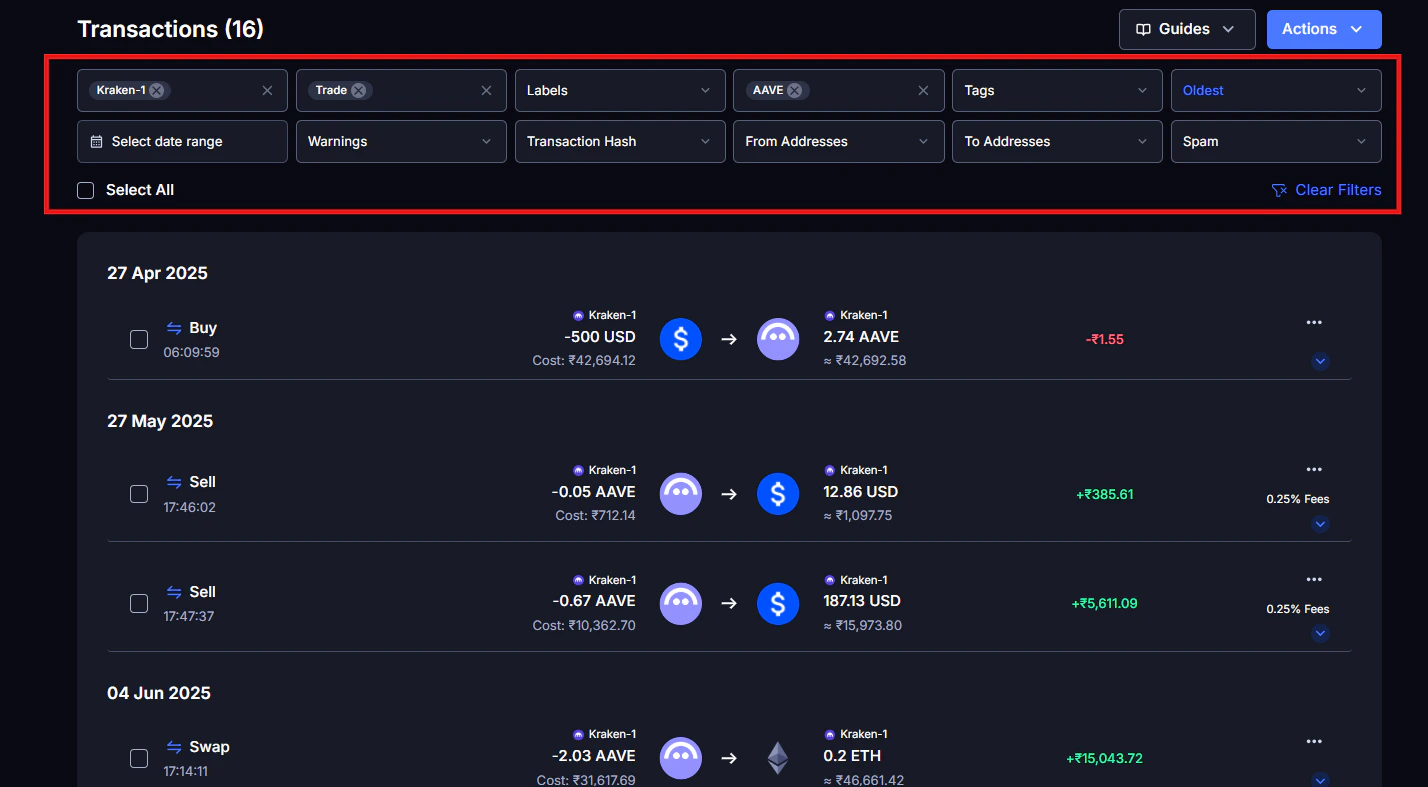
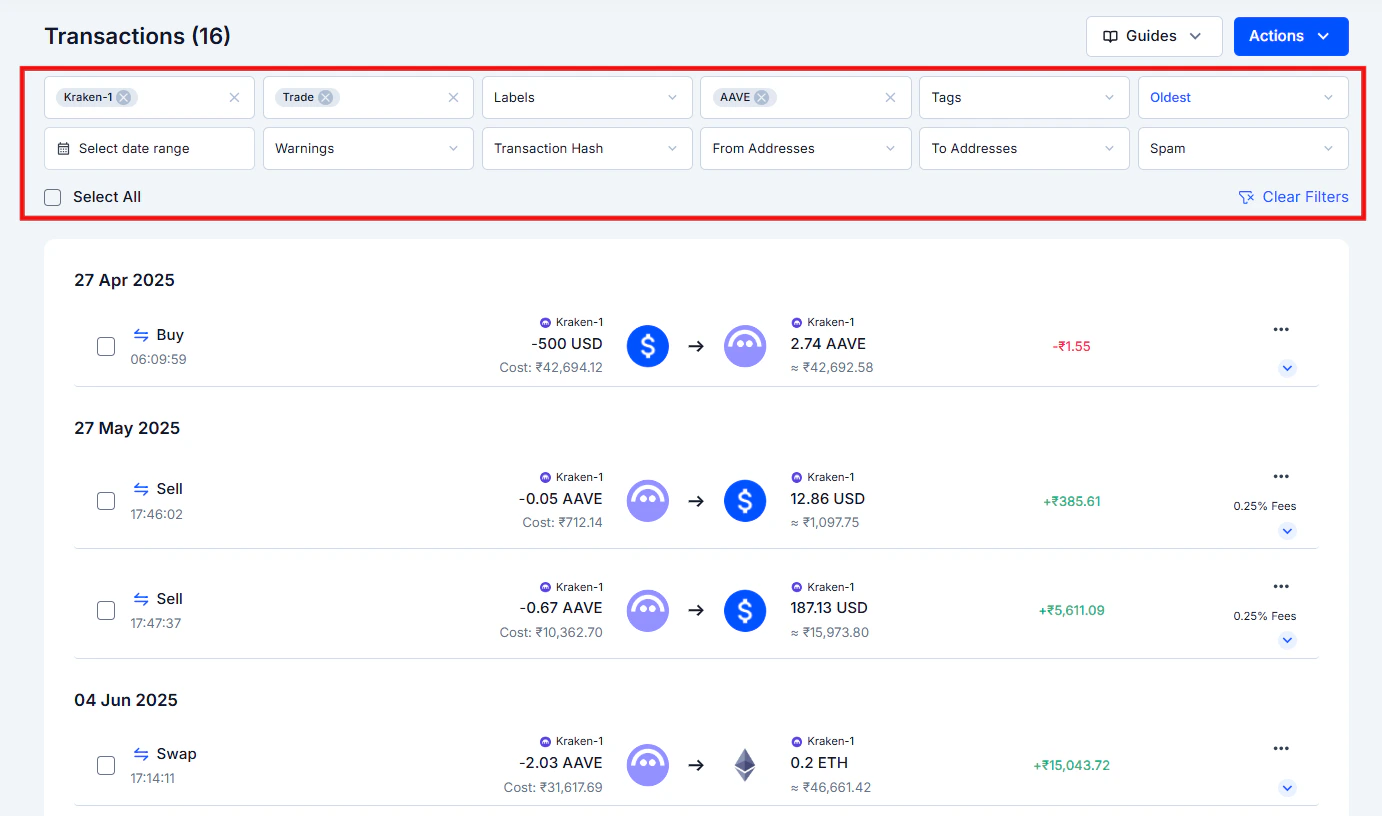 Use **Select All** at the top to grab all currently visible transactions.
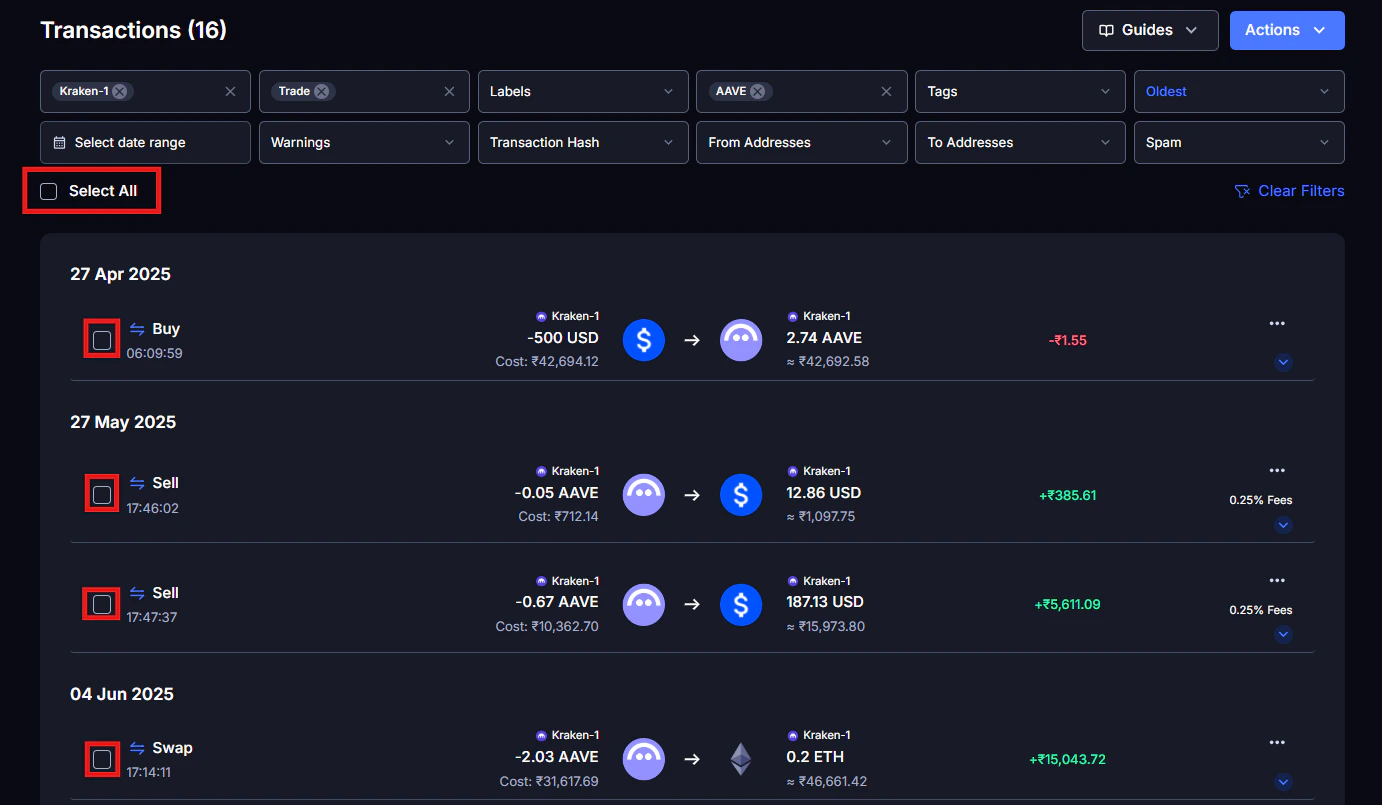
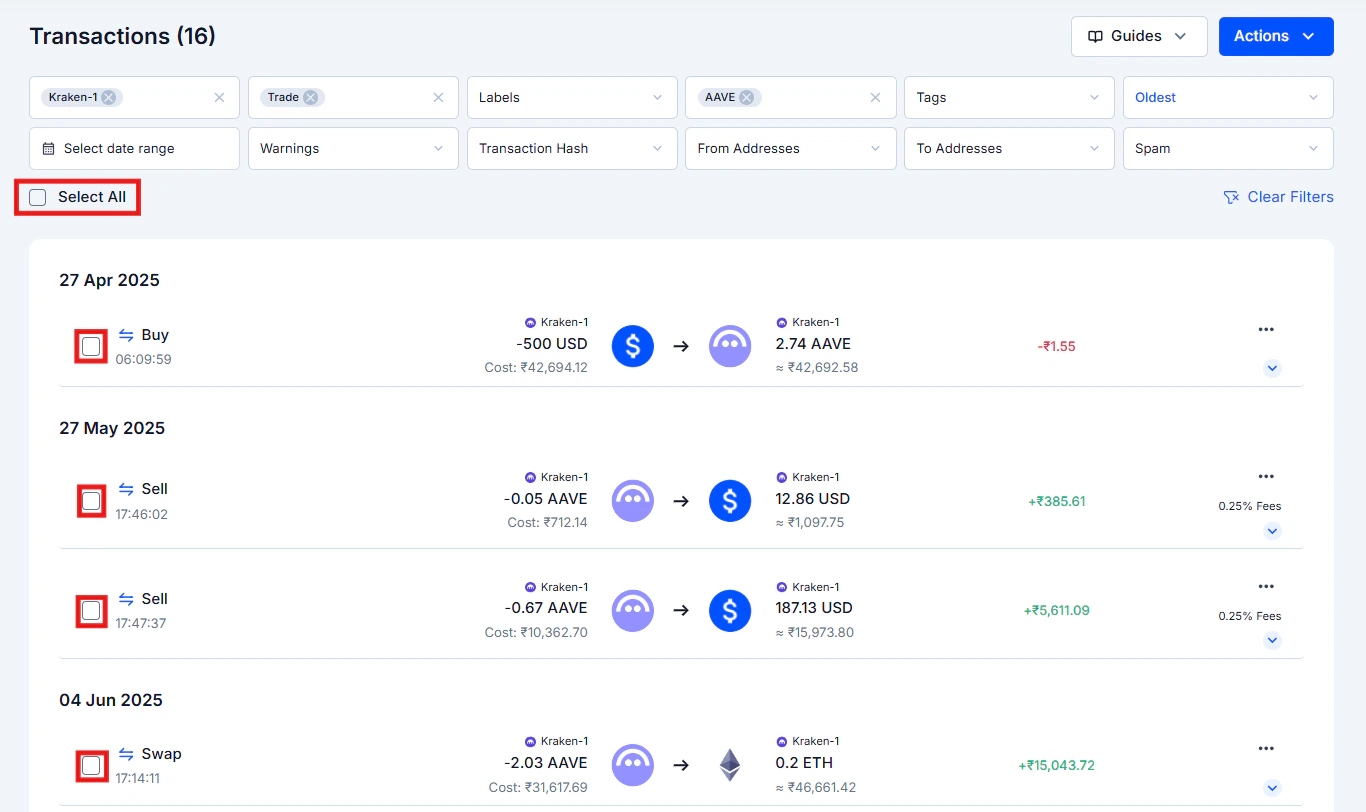
 ### Before you bulk delete, read this
Deleted transactions cannot be restored. If you delete an acquisition transaction, KoinX loses the cost basis for that asset. And your gains will be overstated for every future sale of that coin. Always double-check your filter before confirming a bulk delete.
Before any bulk delete, go to **Actions → Download CSV** to export a backup of your current transaction list. You'll have a record to re-import from if something goes wrong.
***
## What Can and Can't Be Undone
| Action | Undoable? | How |
| :-------------------------- | :-------- | :-------------------------------------------------------- |
| Edit a price or label | Yes | Edit again with the original value |
| Change a transaction label | Yes | Re-apply the correct label |
| Split a transaction | Partially | Delete the split results and re-add the original manually |
| Delete a single transaction | No | Must re-import from exchange or add manually |
| Bulk delete | No | Must re-import from exchange or restore from CSV backup |
The **Edit Log tab** inside any transaction shows a full history of every change made, including what the value was before and after. Open a transaction → click the **Edit Log** tab to review changes.
***
## Common Issues / Edge Cases
The gain/loss may depend on multiple transactions. Not just the one you edited. If the acquisition cost is now correct but the calculated gain still looks off, check whether there's a missing acquisition further back in your history for that same asset.
When splitting a transaction, the **total received and sent amounts must exactly match the original transaction values**. If the amounts entered during the split do not add up correctly, the system will prevent you from proceeding. Review the values entered for each split entry and ensure the totals match the original transaction before continuing.
Unfortunately, you can't restore it from within KoinX. Your options are: re-import from your exchange (via API re-sync or CSV), or manually re-add it using the **Actions → Add Transaction** option.
***
## Frequently Asked Questions
Go to **Transactions** → click **Edit** on the transaction → scroll to the bottom to the **Description** field → enter your note there and save. This is useful for adding context like "OTC trade, price agreed at ₹X per coin" or "received as a gift."
Open the transaction and click the **Edit Log** tab. Every change is recorded there with a timestamp. Find the entry before your edit to see the original value, or click the **Revert** option.
Not in any legitimate or safe way. Deleting a sale transaction removes a gain on paper, but it also creates a gap in your transaction history. Tax authorities can cross-reference blockchain records and exchange data. The right approach is to fix the transaction correctly using Edit, not delete it.
No, deletions are permanent. This is why exporting a CSV backup before bulk deleting is strongly recommended. Use **Actions → Download CSV** before you start.
### Before you bulk delete, read this
Deleted transactions cannot be restored. If you delete an acquisition transaction, KoinX loses the cost basis for that asset. And your gains will be overstated for every future sale of that coin. Always double-check your filter before confirming a bulk delete.
Before any bulk delete, go to **Actions → Download CSV** to export a backup of your current transaction list. You'll have a record to re-import from if something goes wrong.
***
## What Can and Can't Be Undone
| Action | Undoable? | How |
| :-------------------------- | :-------- | :-------------------------------------------------------- |
| Edit a price or label | Yes | Edit again with the original value |
| Change a transaction label | Yes | Re-apply the correct label |
| Split a transaction | Partially | Delete the split results and re-add the original manually |
| Delete a single transaction | No | Must re-import from exchange or add manually |
| Bulk delete | No | Must re-import from exchange or restore from CSV backup |
The **Edit Log tab** inside any transaction shows a full history of every change made, including what the value was before and after. Open a transaction → click the **Edit Log** tab to review changes.
***
## Common Issues / Edge Cases
The gain/loss may depend on multiple transactions. Not just the one you edited. If the acquisition cost is now correct but the calculated gain still looks off, check whether there's a missing acquisition further back in your history for that same asset.
When splitting a transaction, the **total received and sent amounts must exactly match the original transaction values**. If the amounts entered during the split do not add up correctly, the system will prevent you from proceeding. Review the values entered for each split entry and ensure the totals match the original transaction before continuing.
Unfortunately, you can't restore it from within KoinX. Your options are: re-import from your exchange (via API re-sync or CSV), or manually re-add it using the **Actions → Add Transaction** option.
***
## Frequently Asked Questions
Go to **Transactions** → click **Edit** on the transaction → scroll to the bottom to the **Description** field → enter your note there and save. This is useful for adding context like "OTC trade, price agreed at ₹X per coin" or "received as a gift."
Open the transaction and click the **Edit Log** tab. Every change is recorded there with a timestamp. Find the entry before your edit to see the original value, or click the **Revert** option.
Not in any legitimate or safe way. Deleting a sale transaction removes a gain on paper, but it also creates a gap in your transaction history. Tax authorities can cross-reference blockchain records and exchange data. The right approach is to fix the transaction correctly using Edit, not delete it.
No, deletions are permanent. This is why exporting a CSV backup before bulk deleting is strongly recommended. Use **Actions → Download CSV** before you start.