> ## Documentation Index
> Fetch the complete documentation index at: https://guides.koinx.com/llms.txt
> Use this file to discover all available pages before exploring further.
# Manually Adding Transactions
> Learn when and how to manually add missing trades, P2P deals and income into KoinX so your transaction history and crypto tax reports stay complete and accurate.
Some transactions will never appear in KoinX automatically. The exchange closed. You traded peer-to-peer. You received crypto as payment for freelance work three years ago. The API only goes back 180 days and your older buys are missing.
For all of these situations, you can add transactions manually. It takes a little preparation. You need the right details before you start, but it's straightforward once you're set up.
This article walks you through when to use manual entry, what information you need, and how to enter it correctly so it doesn't create problems in your tax report.
* Use manual entry when an exchange is unsupported, the API doesn't go back far enough, or you have P2P/gift/payment transactions with no exchange record
* You'll need the date, asset, amount, transaction type, and price at time of transaction before you start
* For 1–10 missing transactions, use Actions → Add Transaction
* For larger batches, the Custom File upload is faster and less error-prone
***
## When Should You Add Transactions Manually?
Manual entry makes sense in these situations:
* **Exchange is closed**: the platform shut down, was deactivated, or simply isn't supported by KoinX
* **API lookback limit**: your exchange's API only covers the last 90–180 days, and older transactions didn't come through
* **P2P trades**: you bought or sold crypto directly from another person with no exchange record
* **Crypto as payment**: you received crypto for freelance work, services, or a sale, and there's no exchange involved
* **Gifts received**: someone sent you crypto that doesn't appear in any connected account
Before you start entering manually, check your email. Trade confirmation receipts, withdrawal notifications, and P2P chat records are all valid records. Also check your bank statements for fiat deposits made to your exchange, they help you verify dates and amounts. Partial records are much better than guessing.
***
## What Information You Need Before You Start
Gather this before opening the Add Transaction form:
| Field | What to Find |
| :---------------------------- | :------------------------------------------------------------------------------------------------------------------------------------------------------------------------- |
| **Transaction type** | Trade, Deposit, Withdrawal, Expense, Future Trade, Margin Trade |
| **Transaction Label** | Depends on type, e.g., for Deposit: Airdrop, Reward, Staking Interest, Mining Income, etc.; for Withdrawal: Stake, Donation, Funding Fee, etc.; for Trade: Buy, Sell, Swap |
| **Choose A Wallet** | Choose the wallet where you want to add this transaction |
| **Currency** | Select the coin you want to add |
| **Number of Coins** | Add the quantity of those coins |
| **Market Price** | Add the price of that coin |
| **Amount** | Calculated automatically once you add the price |
| **TDS** | Optional, if TDS is deducted, add the coin name and quantity |
| **Fees** | Optional, add fee details if any fee was deducted during the transaction |
| **Transaction Date and Time** | The exact time and date when the transaction was made |
| **To Address** | The sent wallet address, optional |
| **From Address** | The receiving wallet address, optional |
| **Transaction Hash** | Unique identifier assigned to every blockchain transaction, optional |
| **Description** | A short note for your own reference, helps you remember context when reviewing later |
**Where to find historical prices:**
* [CoinGecko](https://www.coingecko.com/), search for the coin, go to the Historical Data tab, find the date
* [CoinMarketCap](https://www.coinmarketcap.com/), same process
* Block explorer, for on-chain transactions, the swap value in ETH or USDC can help you calculate an approximate price
***
## Step-by-Step: How to Add a Transaction Manually
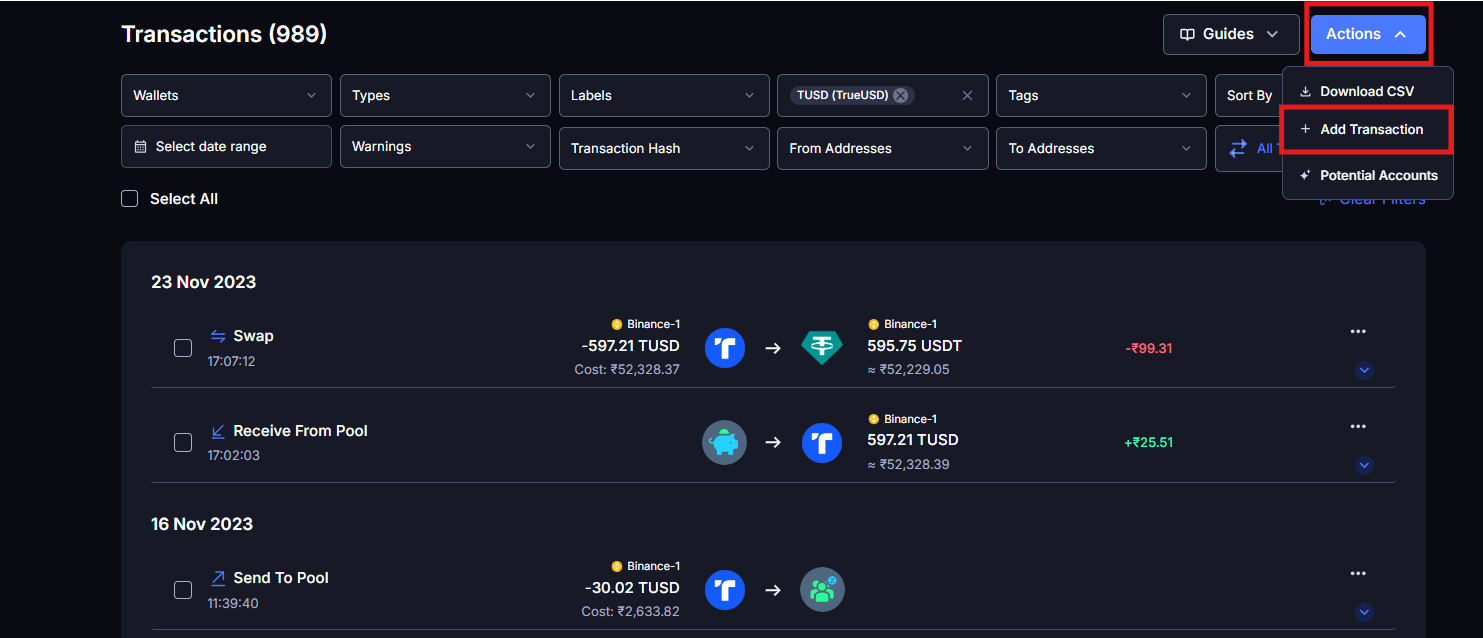
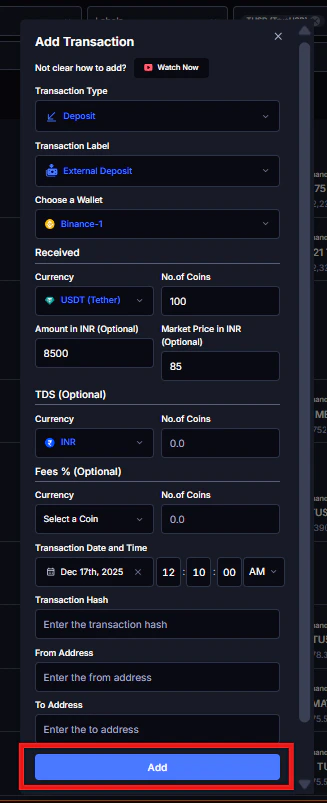
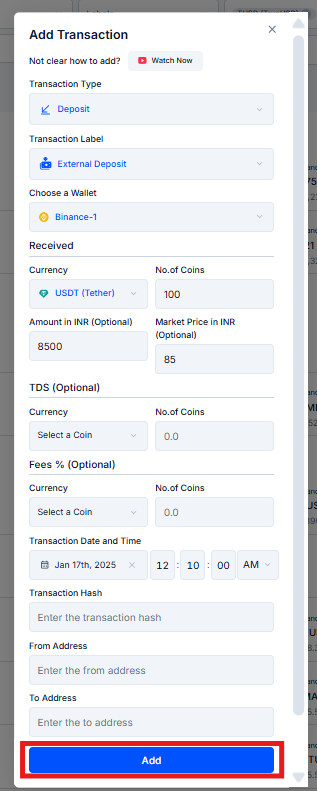
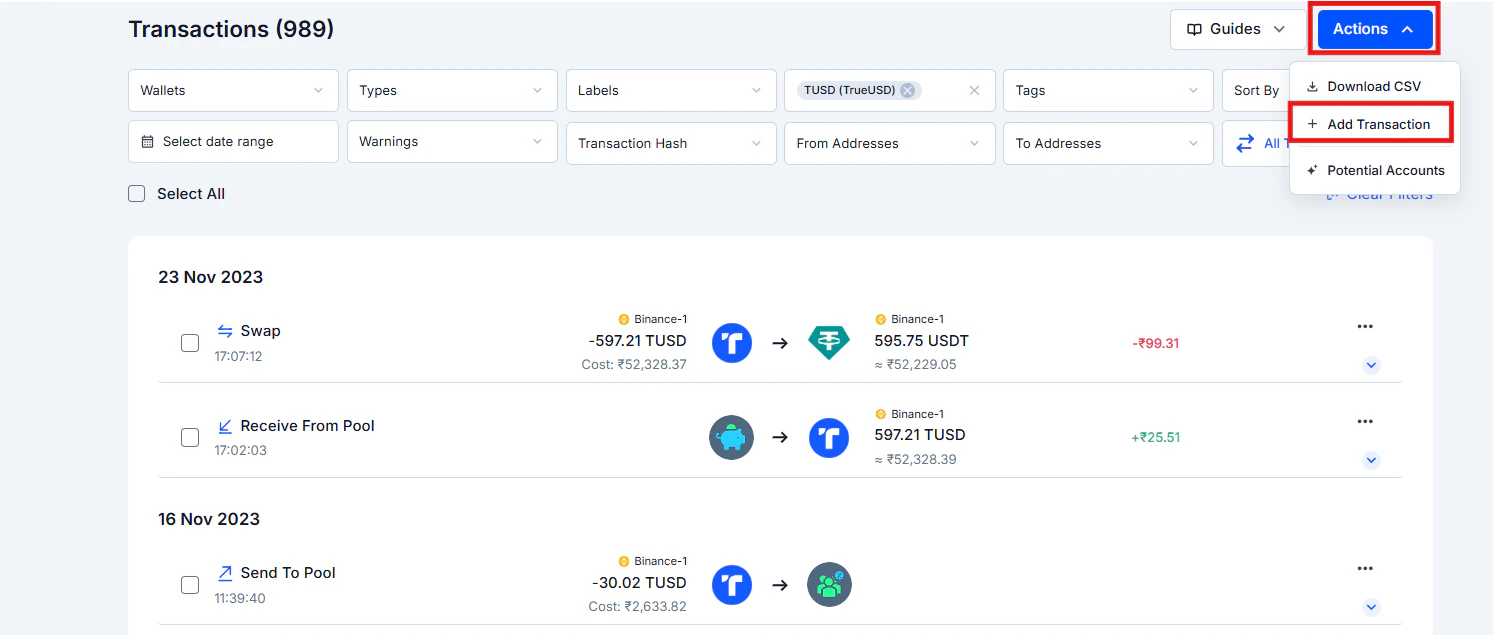 * Date and time
* Transaction type (Deposit, Withdrawal, Trade, Expense, Futures Trade, Margin Trade)
* Currency (search for the coin by name or ticker)
* Number of Coins
* Market Price
* Fee (if applicable)
* Optional: Transaction Hash, From Address, To Address, Description
Select an existing connected integration or create a new wallet/source directly from the tab, type a custom name like "WazirX Old" or "P2P Trade 2021" and save it as a new wallet. This helps you identify where a transaction came from when reviewing your report later.
* Date and time
* Transaction type (Deposit, Withdrawal, Trade, Expense, Futures Trade, Margin Trade)
* Currency (search for the coin by name or ticker)
* Number of Coins
* Market Price
* Fee (if applicable)
* Optional: Transaction Hash, From Address, To Address, Description
Select an existing connected integration or create a new wallet/source directly from the tab, type a custom name like "WazirX Old" or "P2P Trade 2021" and save it as a new wallet. This helps you identify where a transaction came from when reviewing your report later.
 A manually added acquisition sometimes triggers a warning if there's already a matching disposal in the system that it now needs to be linked to.
***
## Manual Entry vs. Custom File Upload, Which to Use
| | Manual Entry | Custom File Upload |
| :------------------ | :---------------------------------------------------- | :-------------------------------------------------------- |
| **Best for** | 1–10 missing transactions, one-off events, gifts, P2P | Large batches, backfilling a full year, defunct exchanges |
| **How to access** | Actions → Add Transaction | Integrations → Add Integration → Custom File |
| **Speed** | Fast for a few entries | Much faster for 50+ transactions |
| **Format required** | Enter fields directly | Download KoinX's CSV template, fill it in, upload |
**When to use Custom File:**
If you're importing a full year of trades from a closed exchange, or any situation where you have more than 10–15 transactions to add, the Custom File upload saves significant time. Go to **Integrations → Add Integration → Custom File**: there's a **Download Template** button on that screen. Fill in your transactions using the template format and upload the file. KoinX imports everything at once.
***
## Common Issues / Edge Cases
Search by the full coin name, not just the ticker, some newer or less common tokens may only appear under their full name. If the token genuinely isn't in the database, you may need to contact KoinX support to have it added.
Use the closest available time. The date is more important than the exact hour for most tax purposes. If you have any record of the event (email, screenshot, bank statement), use whatever timestamp it shows.
Double-check that the transaction type is correct. A "Transfer" won't generate a gain/loss. A "Deposit" creates a record but no gain. A "Trade" triggers a gain/loss calculation. If the type is wrong, the price being right won't matter.
Make sure the dates are correct and the asset names match exactly. KoinX uses the acquisition records to calculate cost basis for future sales, if the asset name or date doesn't align with what's already in the system, the link might not form automatically.
***
## Frequently Asked Questions
Don't enter ₹0 as the cost basis and move on, that inflates your taxable gains to 100% of proceeds. Before giving up:
* Log into the old exchange account, transaction history is sometimes still accessible even if trading is disabled
* Check your email inbox for order confirmation receipts
* Check your bank statements for fiat deposits that correspond to purchases
If records are genuinely unrecoverable, your CA can advise on the acceptable approach for your jurisdiction.
First, check whether the exchange published a data export option before closing. Some gave users a window to download their history. If you have any CSV, email receipts, or screenshots, use those as your source. Approximate prices based on historical market data (CoinGecko by date) are better than ₹0. If you're estimating, document your reasoning.
This depends on whether the token is in KoinX's database. If it's not found when you search, try variations of the name. If it genuinely isn't there, reach out to KoinX support.
The transaction is added to your history immediately. But your Tax Report needs to be regenerated to include the new data. After adding manual transactions, go to Tax Reports and generate a fresh report.
A manually added acquisition sometimes triggers a warning if there's already a matching disposal in the system that it now needs to be linked to.
***
## Manual Entry vs. Custom File Upload, Which to Use
| | Manual Entry | Custom File Upload |
| :------------------ | :---------------------------------------------------- | :-------------------------------------------------------- |
| **Best for** | 1–10 missing transactions, one-off events, gifts, P2P | Large batches, backfilling a full year, defunct exchanges |
| **How to access** | Actions → Add Transaction | Integrations → Add Integration → Custom File |
| **Speed** | Fast for a few entries | Much faster for 50+ transactions |
| **Format required** | Enter fields directly | Download KoinX's CSV template, fill it in, upload |
**When to use Custom File:**
If you're importing a full year of trades from a closed exchange, or any situation where you have more than 10–15 transactions to add, the Custom File upload saves significant time. Go to **Integrations → Add Integration → Custom File**: there's a **Download Template** button on that screen. Fill in your transactions using the template format and upload the file. KoinX imports everything at once.
***
## Common Issues / Edge Cases
Search by the full coin name, not just the ticker, some newer or less common tokens may only appear under their full name. If the token genuinely isn't in the database, you may need to contact KoinX support to have it added.
Use the closest available time. The date is more important than the exact hour for most tax purposes. If you have any record of the event (email, screenshot, bank statement), use whatever timestamp it shows.
Double-check that the transaction type is correct. A "Transfer" won't generate a gain/loss. A "Deposit" creates a record but no gain. A "Trade" triggers a gain/loss calculation. If the type is wrong, the price being right won't matter.
Make sure the dates are correct and the asset names match exactly. KoinX uses the acquisition records to calculate cost basis for future sales, if the asset name or date doesn't align with what's already in the system, the link might not form automatically.
***
## Frequently Asked Questions
Don't enter ₹0 as the cost basis and move on, that inflates your taxable gains to 100% of proceeds. Before giving up:
* Log into the old exchange account, transaction history is sometimes still accessible even if trading is disabled
* Check your email inbox for order confirmation receipts
* Check your bank statements for fiat deposits that correspond to purchases
If records are genuinely unrecoverable, your CA can advise on the acceptable approach for your jurisdiction.
First, check whether the exchange published a data export option before closing. Some gave users a window to download their history. If you have any CSV, email receipts, or screenshots, use those as your source. Approximate prices based on historical market data (CoinGecko by date) are better than ₹0. If you're estimating, document your reasoning.
This depends on whether the token is in KoinX's database. If it's not found when you search, try variations of the name. If it genuinely isn't there, reach out to KoinX support.
The transaction is added to your history immediately. But your Tax Report needs to be regenerated to include the new data. After adding manual transactions, go to Tax Reports and generate a fresh report.