> ## Documentation Index
> Fetch the complete documentation index at: https://guides.koinx.com/llms.txt
> Use this file to discover all available pages before exploring further.
# Transaction Warnings & Errors
> Understand and resolve KoinX transaction warnings—missing cost basis, unmatched transfers and price errors—before they inflate gains or distort your crypto tax reports.
That orange warning badge on a transaction isn't just a cosmetic flag. It's KoinX telling you: "I don't have enough information to calculate this correctly. And if you generate your report now, the numbers will be wrong."
Some warnings are minor. Others can inflate your tax bill by hundreds of thousands of rupees. The difference comes down to which type of warning you're dealing with and how much is riding on that specific transaction.
This article explains every warning type you might see, what each one does to your tax calculation, and the step-by-step fix for each one.
* Warnings in KoinX flag transactions with missing or incorrect data that will make your tax report inaccurate
* The most critical warning is "Can't find purchase transaction". It causes KoinX to treat your entire sale proceeds as taxable gain
* Always fix all warnings before generating your tax report, generating with unresolved warnings produces wrong numbers, not an error message
* Use the Warnings filter on the Transactions page to find every flagged entry in one view
***
## Do Warnings Actually Affect Your Tax Calculation?
Yes. And some of them significantly.
Here's the key thing most users don't realise: **KoinX will still generate a tax report even if you have unresolved warnings.** It doesn't stop or throw an error. It just produces a report with whatever data it has, which may include ₹0 cost bases, missing income entries, or incorrectly matched transfers.
The warnings are telling you where the gaps are. Fixing them before you generate is what makes the report accurate.
***
## How to Find All Your Warnings
You can select multiple warning types simultaneously to see all flagged transactions at once. This gives you a focused list of everything that needs attention, without scrolling through your entire transaction history.
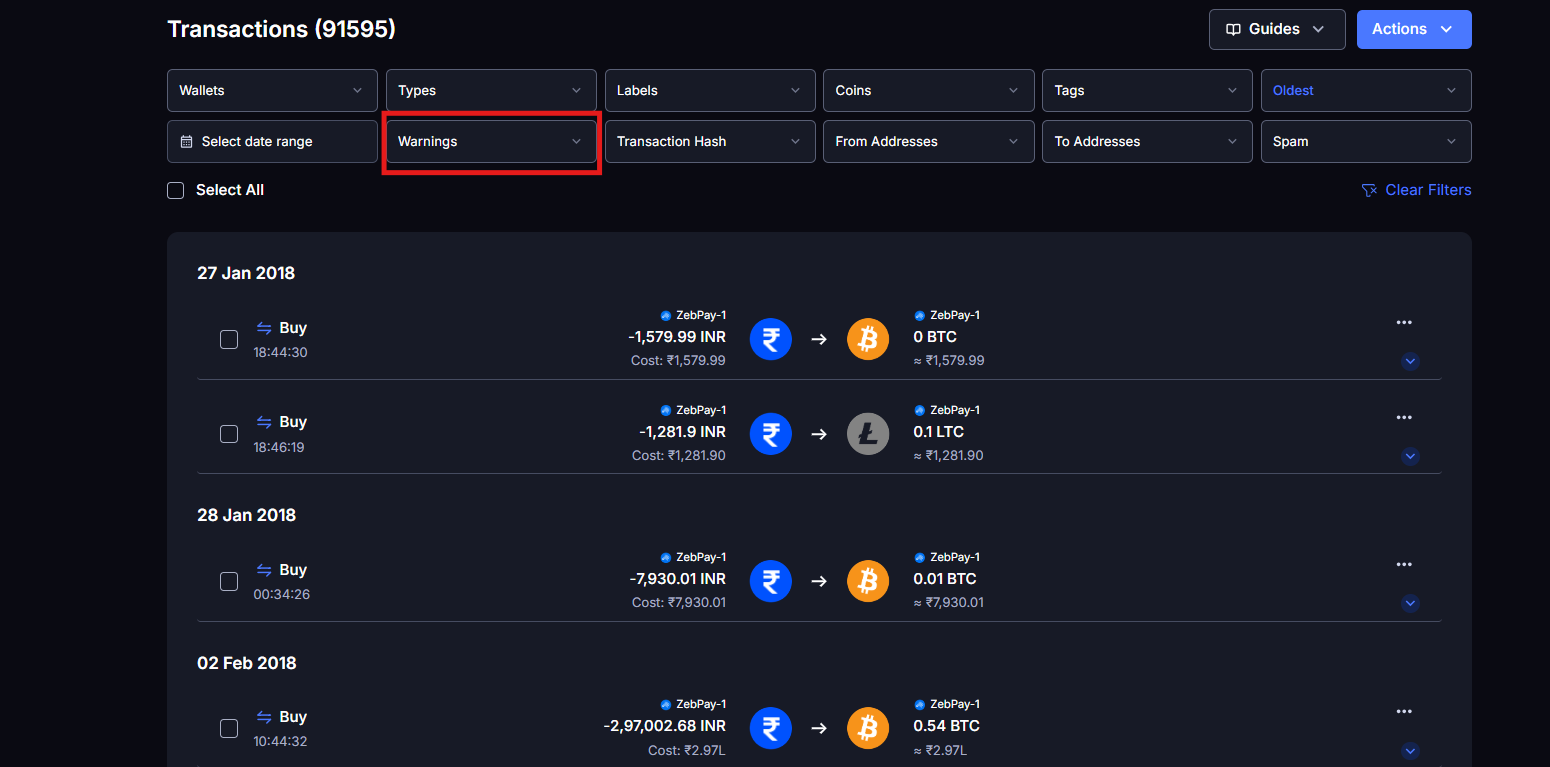
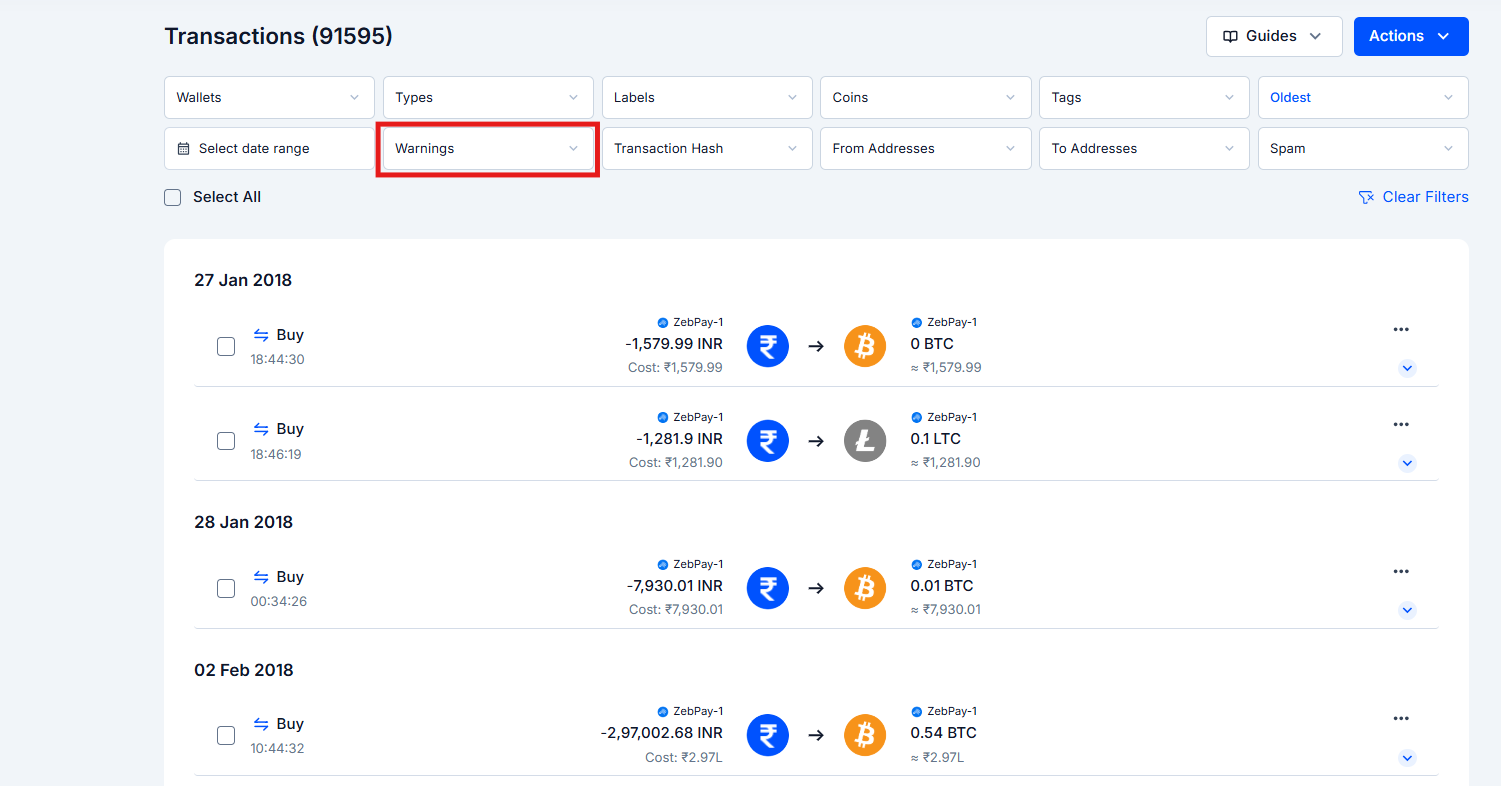 Do this at the start of every tax season review. Clearing warnings early means no surprises when you generate your report.
***
## Warning Type 1: Can't Find Purchase Transaction
### What it means
KoinX found a disposal event. You sold, traded, or transferred out an asset, but couldn't find the original purchase record for it within the data you've connected or uploaded.
You'll see this as **"Can't find purchase transaction"** in the warnings filter, and **"Portfolio: Acquisition history not found for \[asset]"** on the transaction card itself.
Do this at the start of every tax season review. Clearing warnings early means no surprises when you generate your report.
***
## Warning Type 1: Can't Find Purchase Transaction
### What it means
KoinX found a disposal event. You sold, traded, or transferred out an asset, but couldn't find the original purchase record for it within the data you've connected or uploaded.
You'll see this as **"Can't find purchase transaction"** in the warnings filter, and **"Portfolio: Acquisition history not found for \[asset]"** on the transaction card itself.
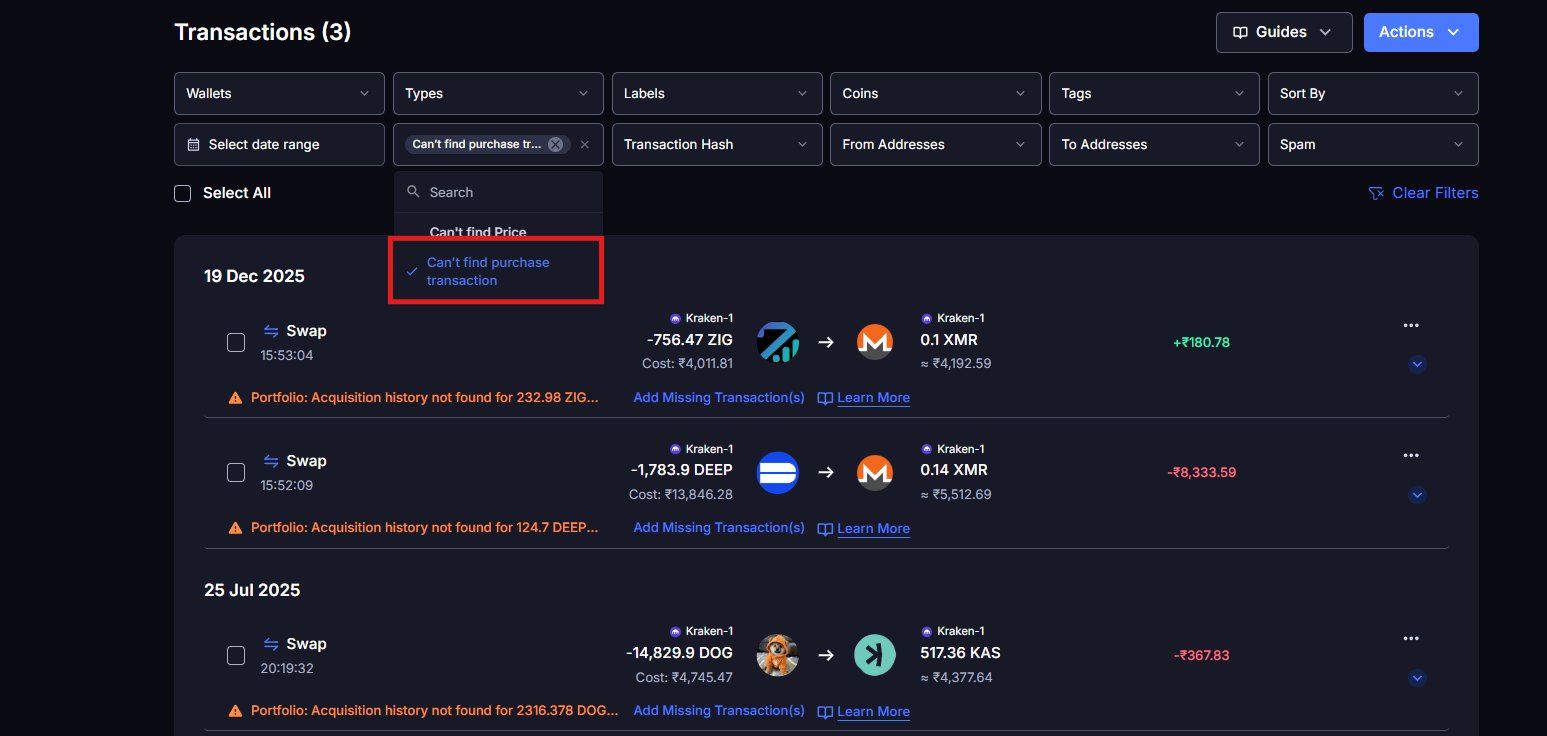
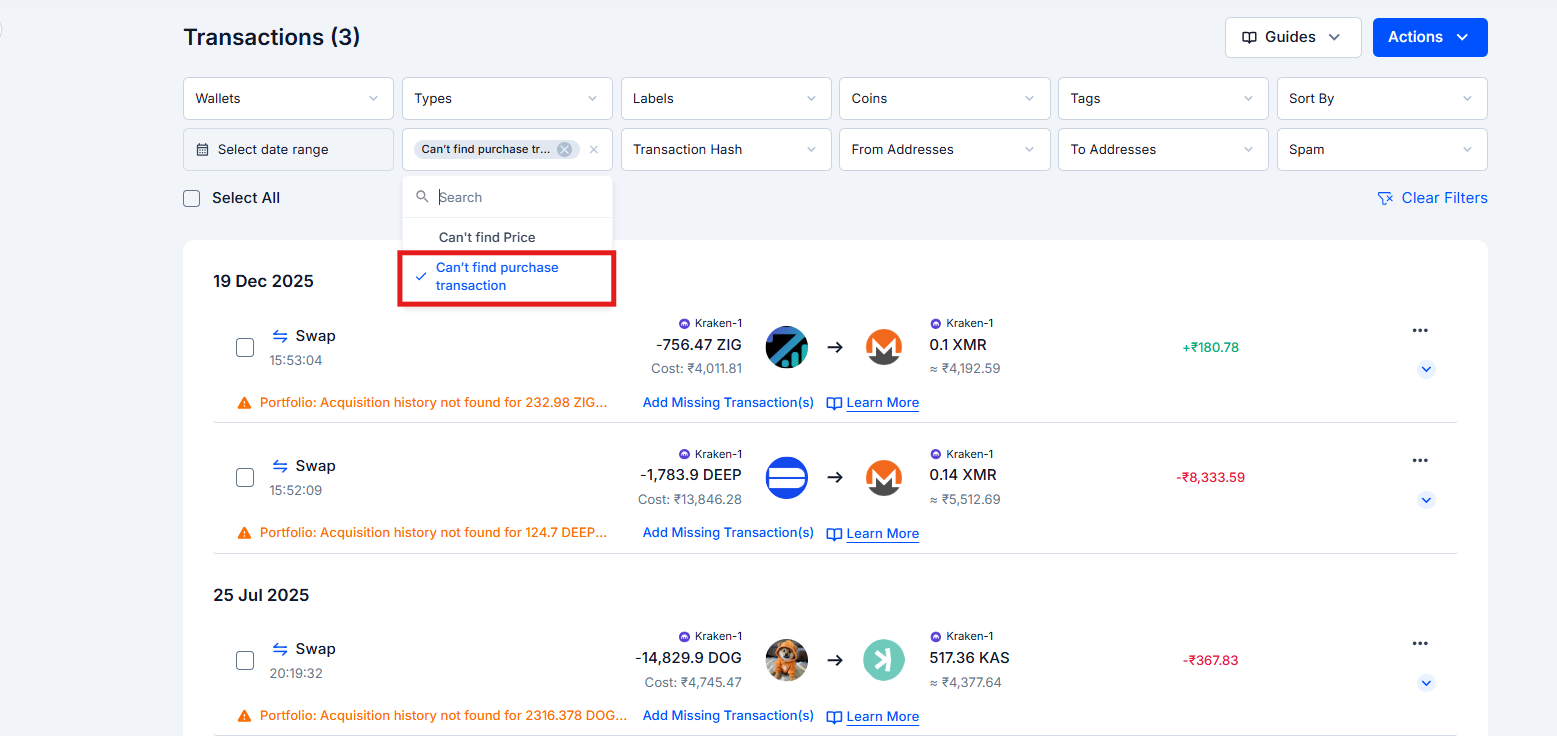 ### Why it matters
This is the most financially damaging warning. Without an acquisition record, KoinX assumes your cost basis is ₹0. That means when the cost basis or value shows ₹0, the **entire sale amount is treated as a Capital Gain**: inflating your taxable gains.
**Example:**
* You sold ETH worth ₹5,00,000
* KoinX can't find the original purchase history
* Calculated gain = ₹5,00,000 (instead of your actual gain, say ₹1,50,000)
* Result: you're taxed on ₹3,50,000 more than you should be
[How to fix a missing cost basis](/guides/transactions/fixing-transaction-issues)
[Understanding how cost basis is calculated](/guides/tax-settings/cost-basis-accounting-methods)
### Why this happens
* The asset was acquired in a financial year for which you have not integrated or uploaded transaction data
* The exchange API only provides the last 90–180 days and the purchase is older. The acquisition history is incomplete on that same exchange
### How to fix it
**Option A: Import historical data:**
Download your full transaction history from the exchange (going back as far as possible) and import it via **Integrations → \[Your Exchange] → Import CSV**. This backfills missing acquisition records in bulk.
**Option B: Add manually:**
If no import is available, go to **Actions → Add Transaction** and manually enter the acquisition with the correct date, asset, amount, and price paid.
***
## Warning Type 2: Could Not Fetch Price
### What it means
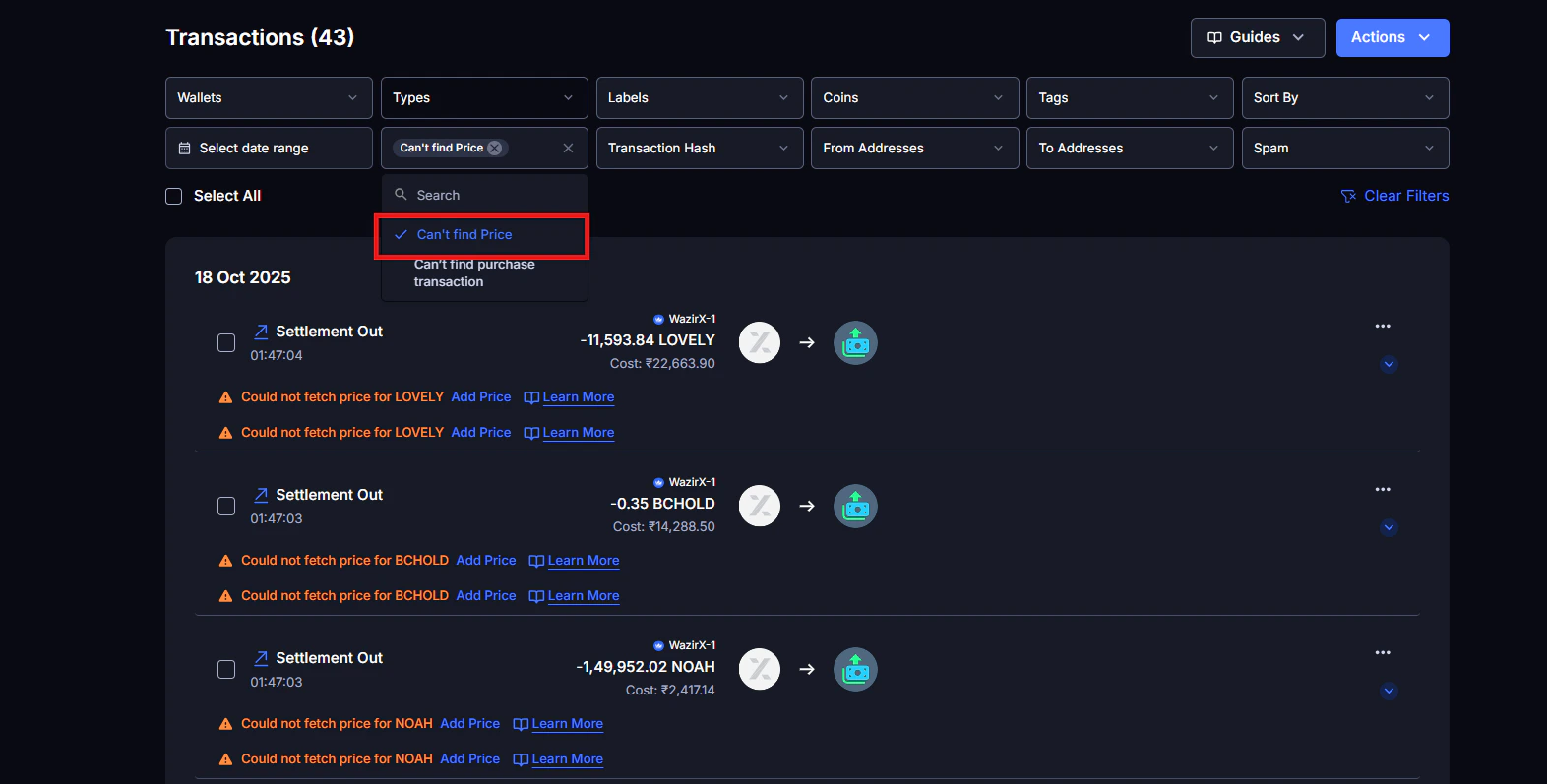
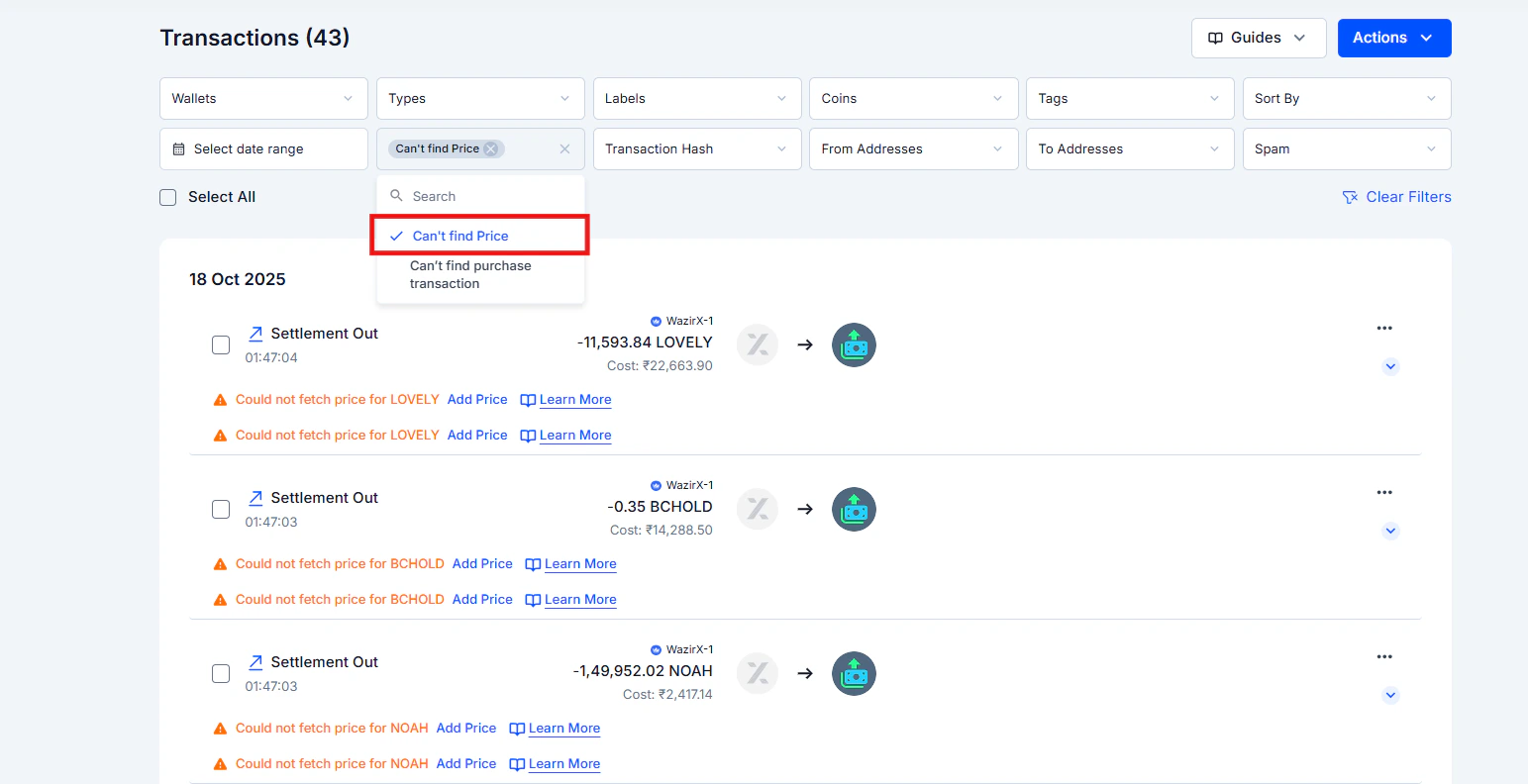
KoinX found the transaction and knows what happened, but couldn't retrieve a market price for that asset on that date.
### Why it matters
Without a price, the transaction shows ₹0 value. If it's a purchase, the cost basis is ₹0. If it's a sale, the proceeds are ₹0.
### Why it matters
This is the most financially damaging warning. Without an acquisition record, KoinX assumes your cost basis is ₹0. That means when the cost basis or value shows ₹0, the **entire sale amount is treated as a Capital Gain**: inflating your taxable gains.
**Example:**
* You sold ETH worth ₹5,00,000
* KoinX can't find the original purchase history
* Calculated gain = ₹5,00,000 (instead of your actual gain, say ₹1,50,000)
* Result: you're taxed on ₹3,50,000 more than you should be
[How to fix a missing cost basis](/guides/transactions/fixing-transaction-issues)
[Understanding how cost basis is calculated](/guides/tax-settings/cost-basis-accounting-methods)
### Why this happens
* The asset was acquired in a financial year for which you have not integrated or uploaded transaction data
* The exchange API only provides the last 90–180 days and the purchase is older. The acquisition history is incomplete on that same exchange
### How to fix it
**Option A: Import historical data:**
Download your full transaction history from the exchange (going back as far as possible) and import it via **Integrations → \[Your Exchange] → Import CSV**. This backfills missing acquisition records in bulk.
**Option B: Add manually:**
If no import is available, go to **Actions → Add Transaction** and manually enter the acquisition with the correct date, asset, amount, and price paid.
***
## Warning Type 2: Could Not Fetch Price
### What it means
KoinX found the transaction and knows what happened, but couldn't retrieve a market price for that asset on that date.
### Why it matters
Without a price, the transaction shows ₹0 value. If it's a purchase, the cost basis is ₹0. If it's a sale, the proceeds are ₹0.
 ### Why this happens
* Obscure or newly listed token with limited price history
* Token only trades on DEXes with no major aggregator listing
* Very old transactions where price data is sparse
* Token has since been deprecated or delisted
### How to fix it
KoinX automatically calculates the total transaction value based on the quantity. Enter the value in INR (or your local fiat currency based on your country setting).
**Where to find historical prices:**
* [CoinGecko](https://www.coingecko.com/) → search the coin → Historical Data tab → find the date
* [CoinMarketCap](https://www.coinmarketcap.com/) → same process
* Block explorer → for DEX swaps, the token equivalent value in ETH or USDC can help you estimate
The **Learn More** link next to Add Price opens a detailed step-by-step guide: How to Fix the "Missing Price" Error on KoinX.
***
## Step-by-Step: How to Clear All Warnings Before Generating Your Report
Follow this order for the most efficient cleanup:
Go to Transactions → open the Warnings filter → select all types to view every flagged transaction.
These have the biggest impact on your tax bill. Import historical CSVs or add transactions manually to fill the acquisition gaps.
Use the Add Price link on each flagged transaction. Enter the per unit market price. Koinx handles the math. Check CoinGecko or CoinMarketCap for historical prices by date.
Go to **Integrations** and confirm every connected exchange and wallet shows a recent successful sync. Re-sync anything showing an error.
Go to **Insights** and review the Crypto Tax Summary panel. If Capital Gains or Total Taxable Gains look significantly off compared to your expectations, there may still be unresolved issues. Go back to Transactions before generating.
Once warnings are cleared and your Insights numbers look reasonable, go to **Tax Reports** and generate.
***
## Common Issues / Edge Cases
Clearing a warning updates the transaction data. But the full tax calculation only runs when you regenerate the Tax Report. Go to Tax Reports and generate a fresh report to see the corrected numbers.
This can happen if your exchange API re-syncs and overwrites the manual changes. If KoinX keeps re-importing a transaction with ₹0 price after you've added it manually, the API may be pulling stale data. Try disconnecting and reconnecting the integration.
Start with "Can't find purchase transaction" warnings first, these have the biggest financial impact. Then work through price-missing entries.
Old transactions often have price-missing warnings because historical price data can be harder to retrieve for obscure tokens. Work through them with CoinGecko's historical data or block explorer records. Any warning involving a significant amount should be resolved before generating.
***
## Frequently Asked Questions
It means KoinX found the transaction but couldn't determine its value in your base currency at the time it happened. Yes, it affects your taxes, a missing price means ₹0 value, which causes the entire sale amount to be treated as Capital Gain. Fix it using the Add Price link directly on the transaction card, enter the per unit price and KoinX calculates the total.
Start by comparing the transaction count in KoinX against your exchange's own history page. Look at the date range too: if your exchange shows transactions going back further than what KoinX has, there's a gap to fill. Import a CSV covering the missing period to bring in the older data. Then use the Warnings filter in KoinX to catch any data quality issues within what's already been imported.
Yes. Generating a report captures your data at that point in time. Changes made after generation, including fixing warnings, are not automatically reflected. Generate a new report after resolving all warnings.
### Why this happens
* Obscure or newly listed token with limited price history
* Token only trades on DEXes with no major aggregator listing
* Very old transactions where price data is sparse
* Token has since been deprecated or delisted
### How to fix it
KoinX automatically calculates the total transaction value based on the quantity. Enter the value in INR (or your local fiat currency based on your country setting).
**Where to find historical prices:**
* [CoinGecko](https://www.coingecko.com/) → search the coin → Historical Data tab → find the date
* [CoinMarketCap](https://www.coinmarketcap.com/) → same process
* Block explorer → for DEX swaps, the token equivalent value in ETH or USDC can help you estimate
The **Learn More** link next to Add Price opens a detailed step-by-step guide: How to Fix the "Missing Price" Error on KoinX.
***
## Step-by-Step: How to Clear All Warnings Before Generating Your Report
Follow this order for the most efficient cleanup:
Go to Transactions → open the Warnings filter → select all types to view every flagged transaction.
These have the biggest impact on your tax bill. Import historical CSVs or add transactions manually to fill the acquisition gaps.
Use the Add Price link on each flagged transaction. Enter the per unit market price. Koinx handles the math. Check CoinGecko or CoinMarketCap for historical prices by date.
Go to **Integrations** and confirm every connected exchange and wallet shows a recent successful sync. Re-sync anything showing an error.
Go to **Insights** and review the Crypto Tax Summary panel. If Capital Gains or Total Taxable Gains look significantly off compared to your expectations, there may still be unresolved issues. Go back to Transactions before generating.
Once warnings are cleared and your Insights numbers look reasonable, go to **Tax Reports** and generate.
***
## Common Issues / Edge Cases
Clearing a warning updates the transaction data. But the full tax calculation only runs when you regenerate the Tax Report. Go to Tax Reports and generate a fresh report to see the corrected numbers.
This can happen if your exchange API re-syncs and overwrites the manual changes. If KoinX keeps re-importing a transaction with ₹0 price after you've added it manually, the API may be pulling stale data. Try disconnecting and reconnecting the integration.
Start with "Can't find purchase transaction" warnings first, these have the biggest financial impact. Then work through price-missing entries.
Old transactions often have price-missing warnings because historical price data can be harder to retrieve for obscure tokens. Work through them with CoinGecko's historical data or block explorer records. Any warning involving a significant amount should be resolved before generating.
***
## Frequently Asked Questions
It means KoinX found the transaction but couldn't determine its value in your base currency at the time it happened. Yes, it affects your taxes, a missing price means ₹0 value, which causes the entire sale amount to be treated as Capital Gain. Fix it using the Add Price link directly on the transaction card, enter the per unit price and KoinX calculates the total.
Start by comparing the transaction count in KoinX against your exchange's own history page. Look at the date range too: if your exchange shows transactions going back further than what KoinX has, there's a gap to fill. Import a CSV covering the missing period to bring in the older data. Then use the Warnings filter in KoinX to catch any data quality issues within what's already been imported.
Yes. Generating a report captures your data at that point in time. Changes made after generation, including fixing warnings, are not automatically reflected. Generate a new report after resolving all warnings.