> ## Documentation Index
> Fetch the complete documentation index at: https://guides.koinx.com/llms.txt
> Use this file to discover all available pages before exploring further.
# Viewing & Understanding Your Crypto Transactions
> Learn how to read your KoinX Transactions page—labels, cost basis, realised gains and filters—so you can trust the data feeding into your crypto tax reports.
Your Transactions page is where KoinX shows you everything it knows about your crypto activity — every trade, transfer, airdrop, and income event pulled from your connected accounts. This guide helps you make sense of what you're seeing and what it means for your taxes.
* Your Transactions page shows every trade, transfer, airdrop, and income event KoinX has pulled from your integrated accounts
* Each transaction card tells you the transaction label, date, source, amount, gain/loss, and cost basis
* Use filters to find specific transactions fast — by wallet, coin, date, warning status, and more
* "Held For" and "Acquisition Cost" are the two most important fields for your tax calculation
***
## What am I looking at?
Each row on your Transactions page is a transaction card. At a glance, it tells you:
* **What happened** — the type and label (trade, deposit, withdrawal, airdrop, etc.)
* **When it happened** — date and time in your configured timezone
* **Where it came from** — the exchange or wallet it was pulled from
* **What moved** — the asset disposed and the asset received
* **What it cost** — the cost basis of the asset based on your accounting method
* **What you made or lost** — the realised gain or loss
* **What fees were charged** — platform fees from the exchange

 ***
## How was my gain or loss calculated?
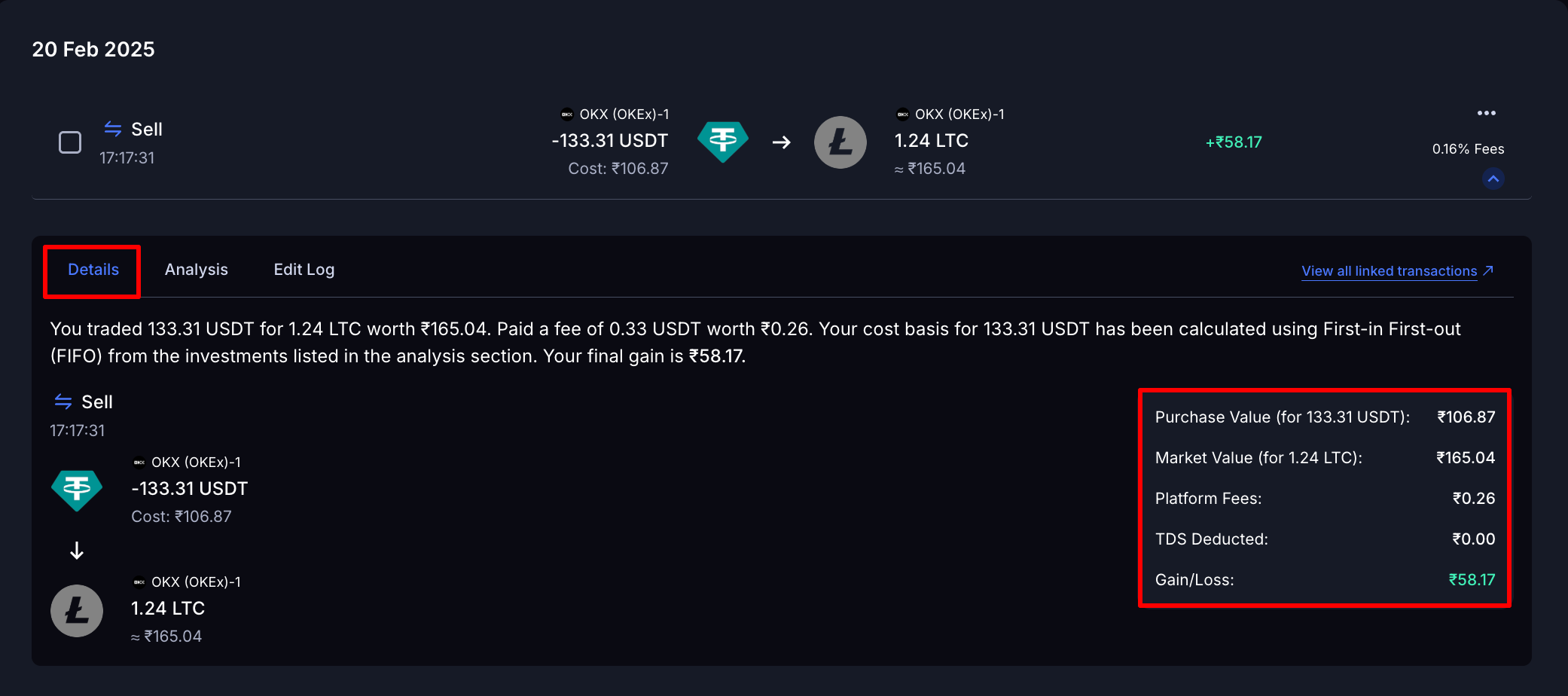
Click any transaction to expand it, then open the **Details tab**. This shows you exactly how KoinX arrived at the number:
| Field | What It Means |
| ------------------ | ------------------------------------------------------------------- |
| **Purchase Value** | The original value of the asset being sold, based on its cost basis |
| **Market Value** | The value of the asset received, based on market price at the time |
| **Platform Fees** | Fees charged by the exchange for the transaction |
| **TDS Deducted** | Tax deducted at source by supported exchanges, if applicable |
| **Gain / Loss** | The final realised profit or loss after cost basis and fees |
***
## How was my gain or loss calculated?
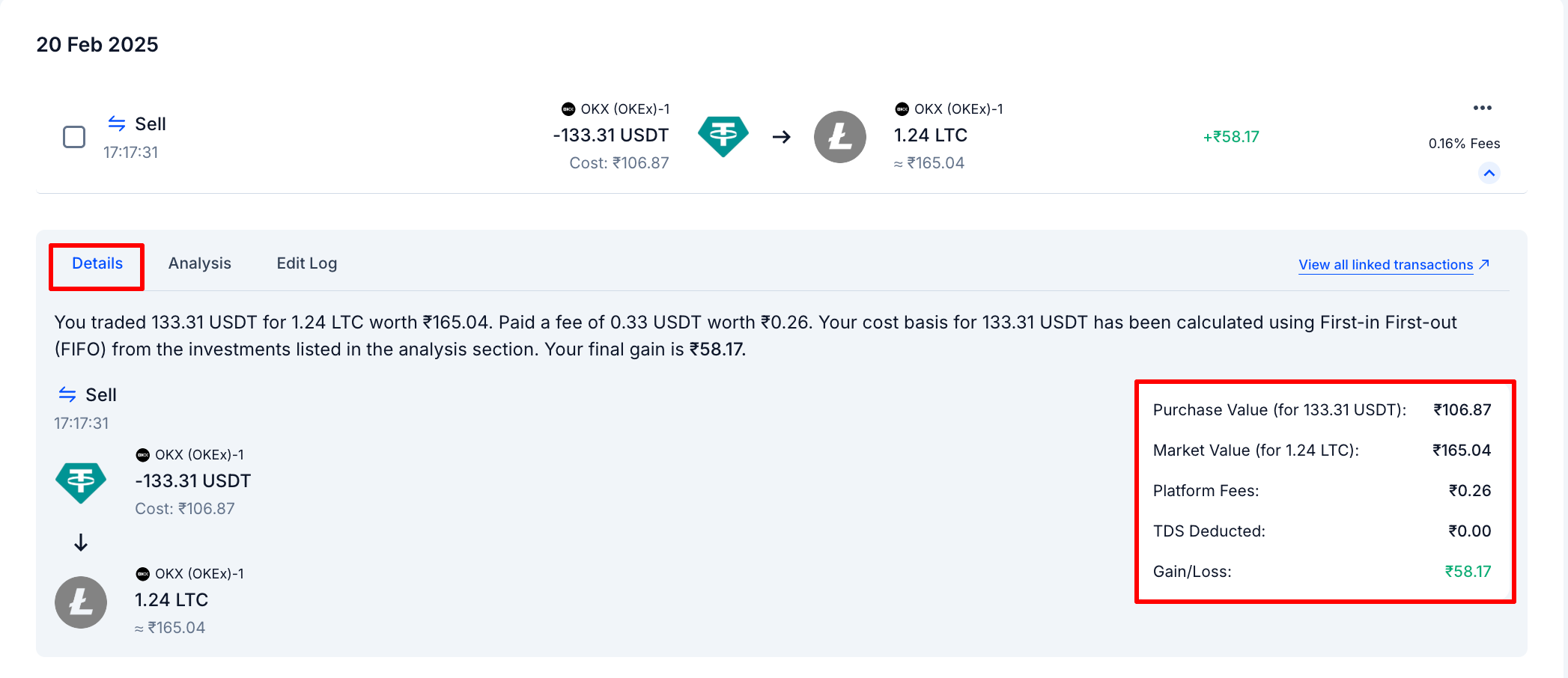
Click any transaction to expand it, then open the **Details tab**. This shows you exactly how KoinX arrived at the number:
| Field | What It Means |
| ------------------ | ------------------------------------------------------------------- |
| **Purchase Value** | The original value of the asset being sold, based on its cost basis |
| **Market Value** | The value of the asset received, based on market price at the time |
| **Platform Fees** | Fees charged by the exchange for the transaction |
| **TDS Deducted** | Tax deducted at source by supported exchanges, if applicable |
| **Gain / Loss** | The final realised profit or loss after cost basis and fees |
 ***
## Why does my gain show a specific number — which purchase did KoinX use?
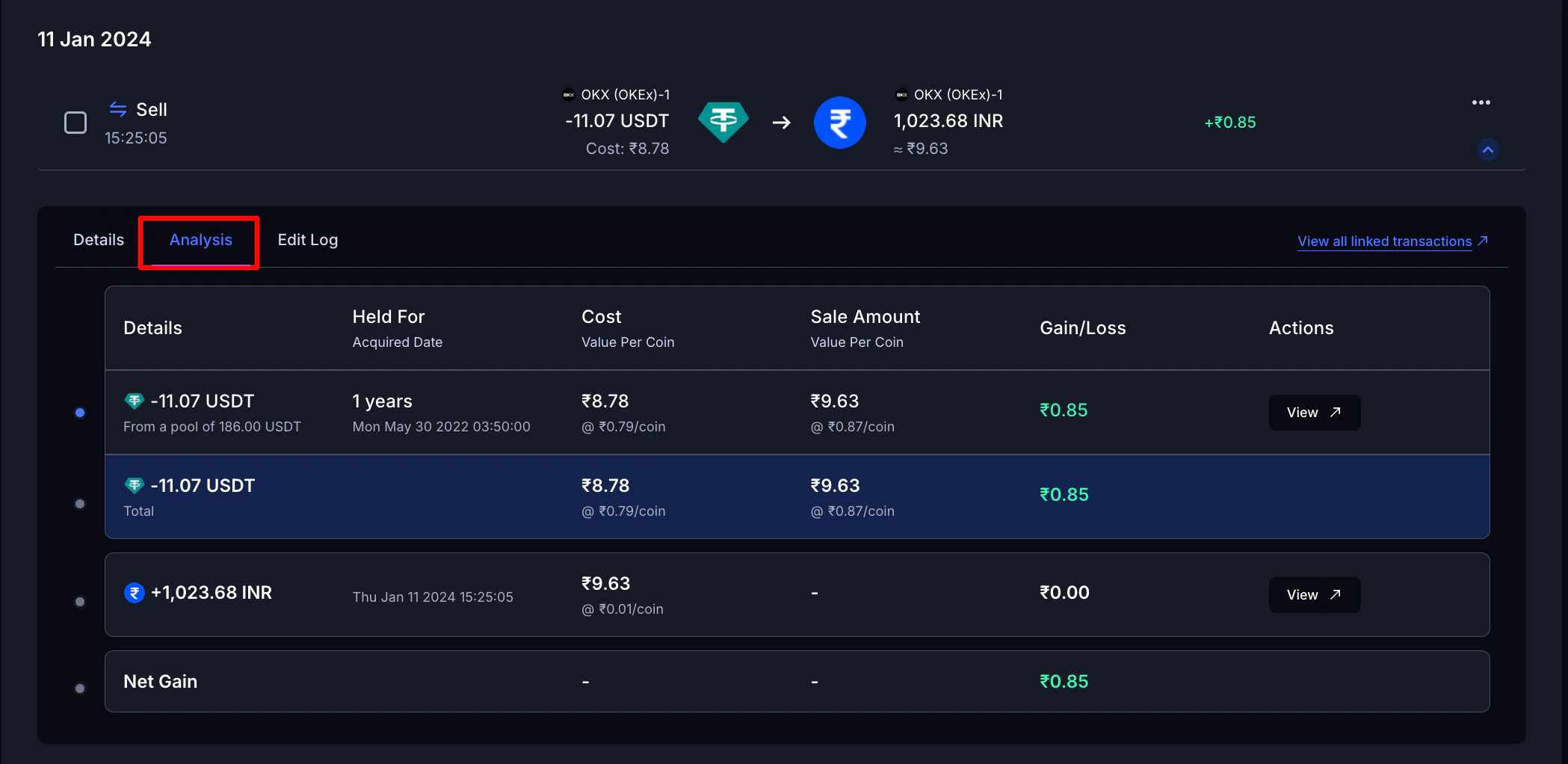
Open the **Analysis tab** on any transaction. This is where KoinX shows which previous purchase lots it matched against this disposal, based on your selected accounting method (FIFO, LIFO, etc.).
| Field | What It Means |
| -------------------------------- | ----------------------------------------------------- |
| **Held For** | How long the asset was held before disposal |
| **Cost (Value Per Coin)** | The original purchase price per unit |
| **Sale Amount (Value Per Coin)** | The selling price per unit at time of transaction |
| **Gain / Loss** | Profit or loss from each matched purchase lot |
| **Net Gain** | Total profit or loss after combining all matched lots |
***
## Why does my gain show a specific number — which purchase did KoinX use?
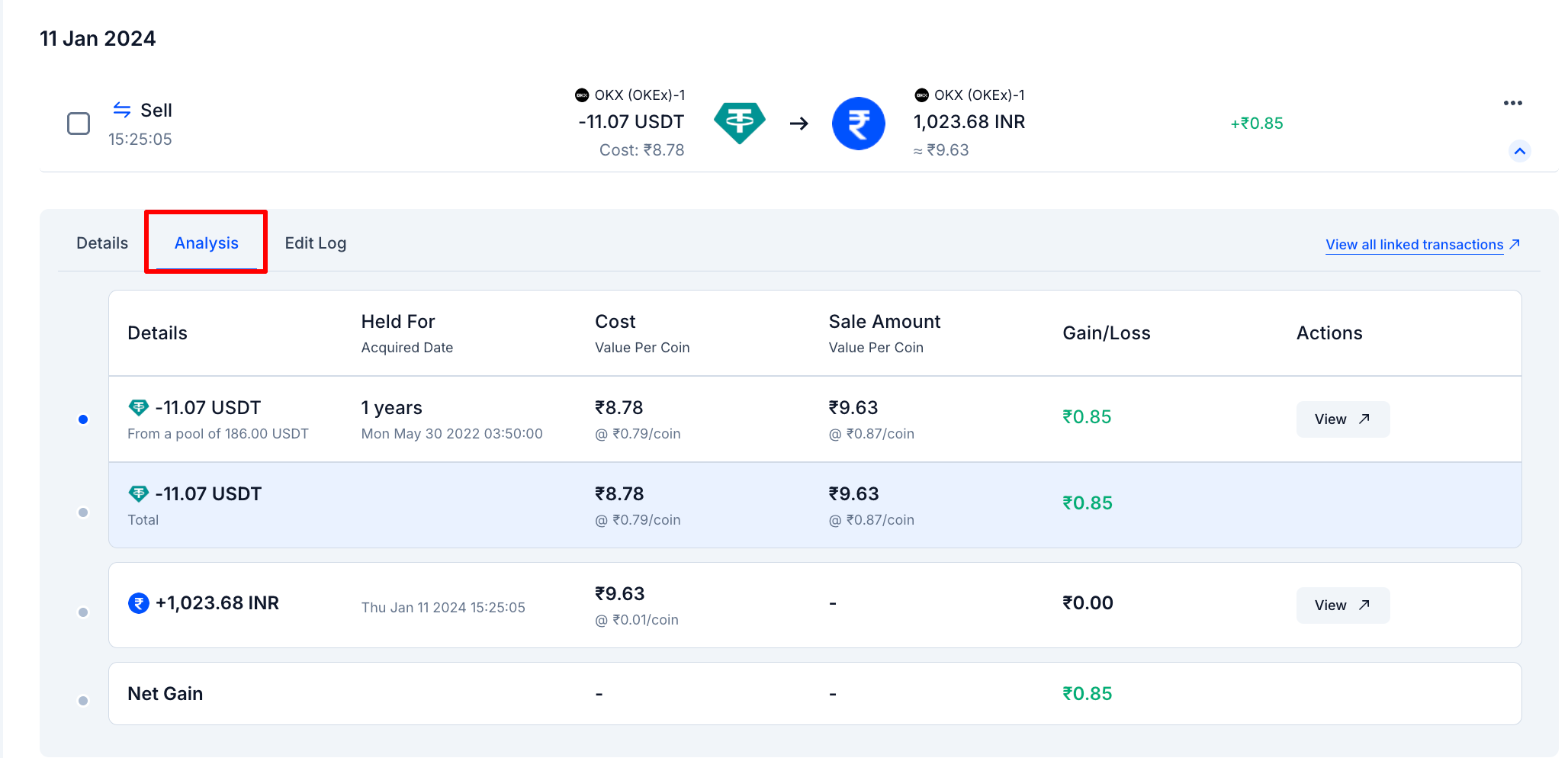
Open the **Analysis tab** on any transaction. This is where KoinX shows which previous purchase lots it matched against this disposal, based on your selected accounting method (FIFO, LIFO, etc.).
| Field | What It Means |
| -------------------------------- | ----------------------------------------------------- |
| **Held For** | How long the asset was held before disposal |
| **Cost (Value Per Coin)** | The original purchase price per unit |
| **Sale Amount (Value Per Coin)** | The selling price per unit at time of transaction |
| **Gain / Loss** | Profit or loss from each matched purchase lot |
| **Net Gain** | Total profit or loss after combining all matched lots |
 ### What is "Held For" and why does it matter?
Held For shows how long you held an asset from acquisition to disposal. In many jurisdictions, the holding period affects how your gains are taxed — KoinX calculates this automatically.
If you bought the same coin across multiple purchases at different prices, KoinX uses your accounting method — FIFO, LIFO, Average Cost, or HIFO — to determine which specific lot is being sold, and therefore which purchase date and price applies.
[Learn how your accounting method affects these numbers](/guides/tax-settings/cost-basis-accounting-methods)
### What is "Acquisition Cost"?
Acquisition Cost is your **cost basis** — what you originally paid for the asset, excluding fees paid at the time of purchase.
**Example:**
* You bought ETH at ₹1,50,000 and paid a fee of ₹500
* Your Acquisition Cost = ₹1,50,500
***
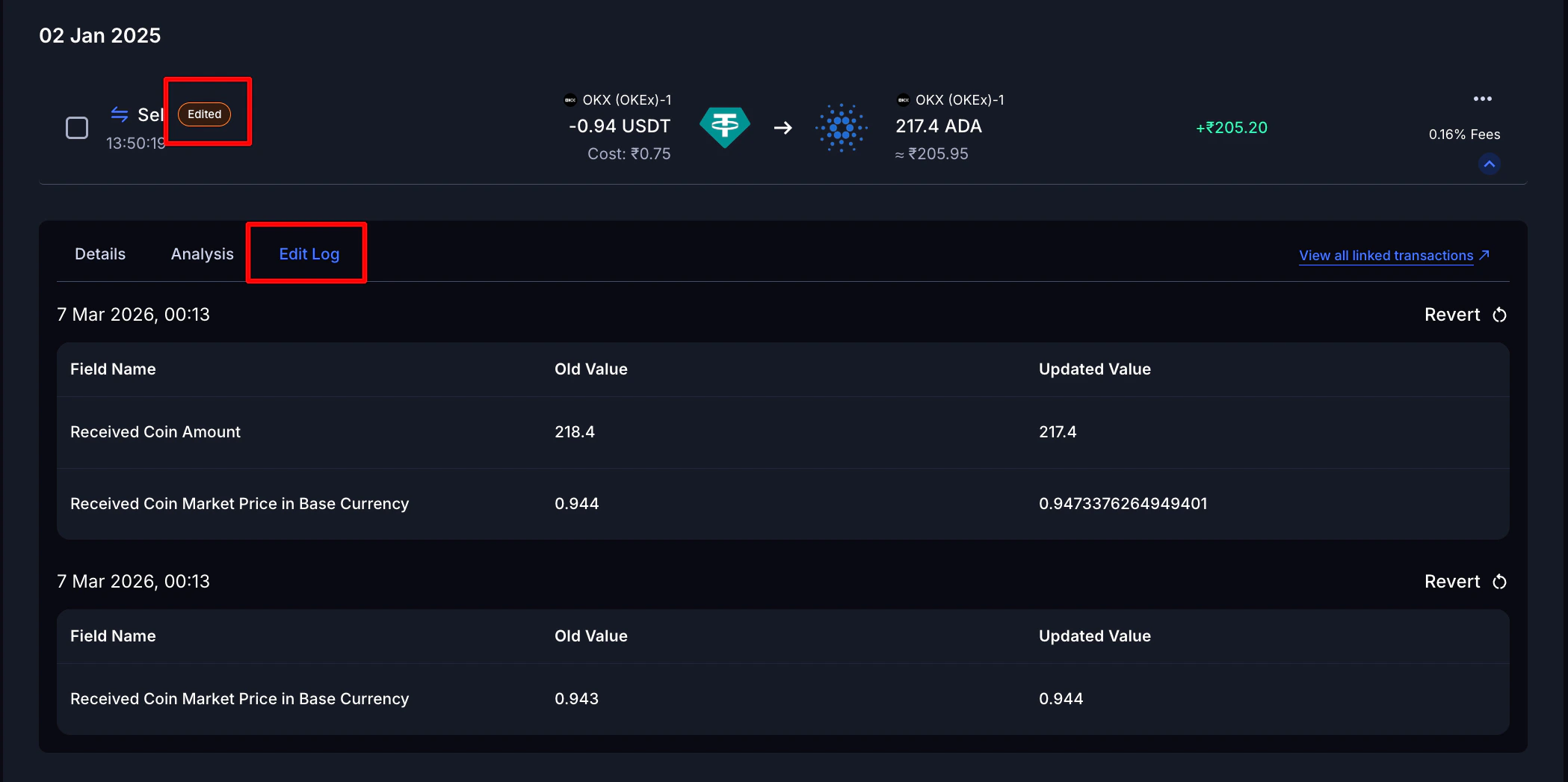
## Did someone edit this transaction? What changed?
Open the **Edit Log tab**. Every manual change made to a transaction is recorded here:
| Field | What It Means |
| ----------------- | ---------------------------------------------- |
| **Field Name** | Which field was changed |
| **Old Value** | What it was before |
| **Updated Value** | What it is now |
| **Timestamp** | When the change was made |
| **Revert** | Undo the change and restore the original value |
### What is "Held For" and why does it matter?
Held For shows how long you held an asset from acquisition to disposal. In many jurisdictions, the holding period affects how your gains are taxed — KoinX calculates this automatically.
If you bought the same coin across multiple purchases at different prices, KoinX uses your accounting method — FIFO, LIFO, Average Cost, or HIFO — to determine which specific lot is being sold, and therefore which purchase date and price applies.
[Learn how your accounting method affects these numbers](/guides/tax-settings/cost-basis-accounting-methods)
### What is "Acquisition Cost"?
Acquisition Cost is your **cost basis** — what you originally paid for the asset, excluding fees paid at the time of purchase.
**Example:**
* You bought ETH at ₹1,50,000 and paid a fee of ₹500
* Your Acquisition Cost = ₹1,50,500
***
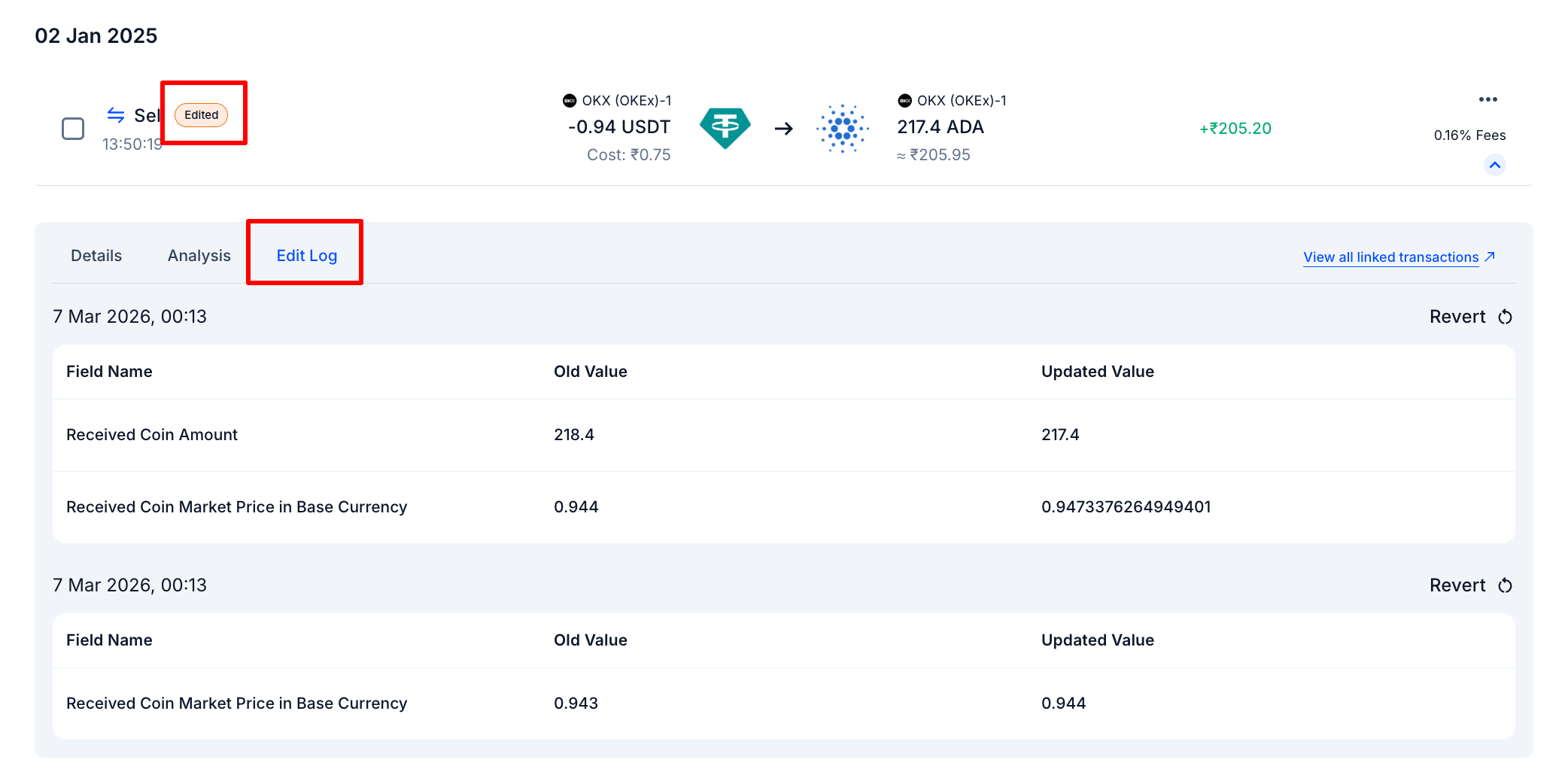
## Did someone edit this transaction? What changed?
Open the **Edit Log tab**. Every manual change made to a transaction is recorded here:
| Field | What It Means |
| ----------------- | ---------------------------------------------- |
| **Field Name** | Which field was changed |
| **Old Value** | What it was before |
| **Updated Value** | What it is now |
| **Timestamp** | When the change was made |
| **Revert** | Undo the change and restore the original value |
 ***
## I want to look up a specific transaction — how do I find it fast?
Use the **filter bar** at the top of the Transactions page. You can filter by:
* **Wallets** — show only transactions from a specific exchange or wallet
* **Types** — Deposit, Withdrawal, Trade (Buy/Sell)
* **Labels** — Staking Interest, Airdrop, Funding Fees, etc.
* **Coins** — a specific cryptocurrency
* **Date Range** — custom period, e.g. April 1 – March 31 for a financial year
* **Warnings** — only transactions with issues flagged by KoinX
* **Transaction Hash** — find a specific on-chain transaction by its hash
* **From / To Addresses** — track where assets were sent or received
* **Spam** — show or hide tokens flagged as potential spam
* **Tags** — Edited, Manual, Merged, Split
* **Sort By** — Cost, Fees, Highest Gains, Highest Losses, Most Recent, Oldest
***
## I want to look up a specific transaction — how do I find it fast?
Use the **filter bar** at the top of the Transactions page. You can filter by:
* **Wallets** — show only transactions from a specific exchange or wallet
* **Types** — Deposit, Withdrawal, Trade (Buy/Sell)
* **Labels** — Staking Interest, Airdrop, Funding Fees, etc.
* **Coins** — a specific cryptocurrency
* **Date Range** — custom period, e.g. April 1 – March 31 for a financial year
* **Warnings** — only transactions with issues flagged by KoinX
* **Transaction Hash** — find a specific on-chain transaction by its hash
* **From / To Addresses** — track where assets were sent or received
* **Spam** — show or hide tokens flagged as potential spam
* **Tags** — Edited, Manual, Merged, Split
* **Sort By** — Cost, Fees, Highest Gains, Highest Losses, Most Recent, Oldest

 ### **Start with Warnings**
At the start of every tax season, filter to **Warnings** first. Fixing flagged transactions before generating your report saves a lot of back-and-forth.
***
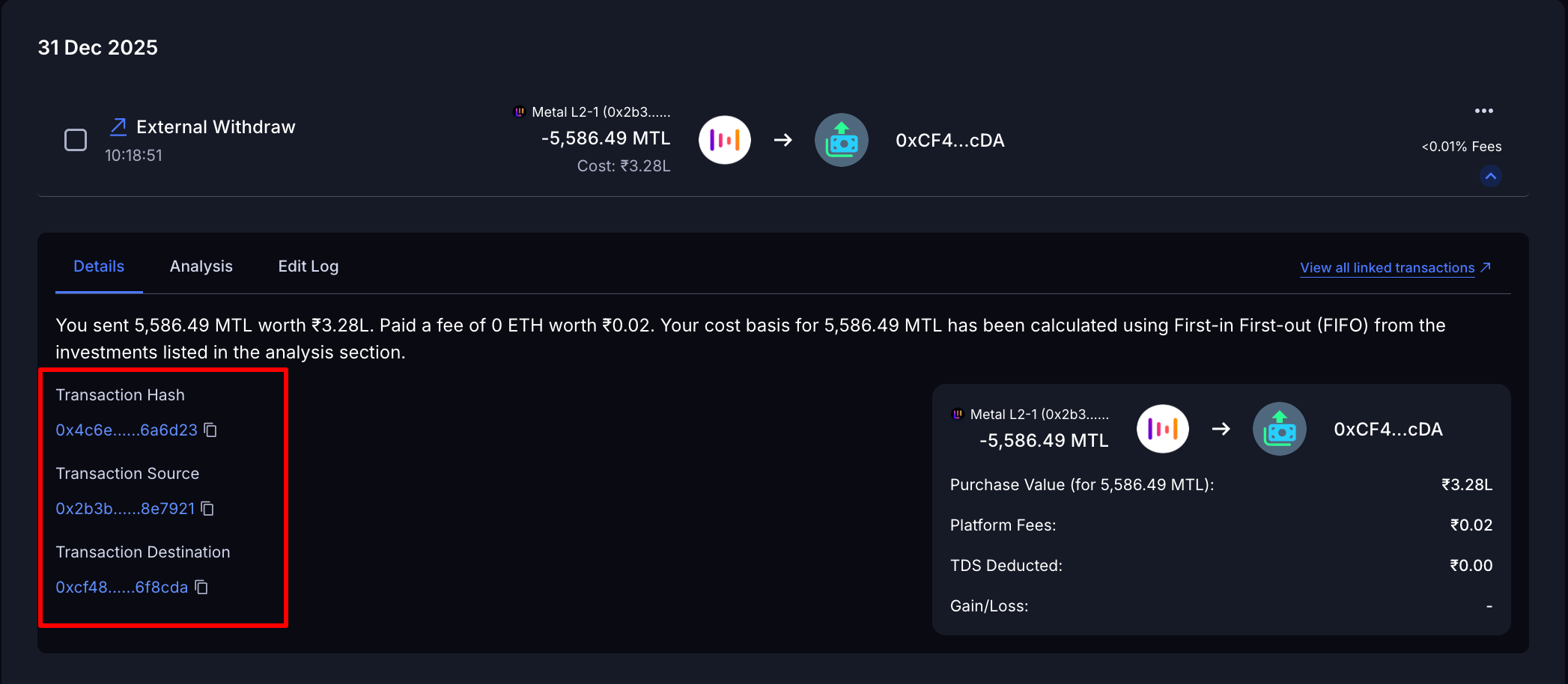
## I see a blockchain transaction — where do I find the on-chain details?
Click any blockchain transaction to expand it and open the **Details tab**. You'll see:
* **Transaction Hash** — the on-chain ID
* **Transaction Source** — where it came from
* **Transaction Destination** — where it went
* **Market and Purchase Value, Platform Fees, TDS Deducted** (if applicable), **Gain/Loss**
### **Start with Warnings**
At the start of every tax season, filter to **Warnings** first. Fixing flagged transactions before generating your report saves a lot of back-and-forth.
***
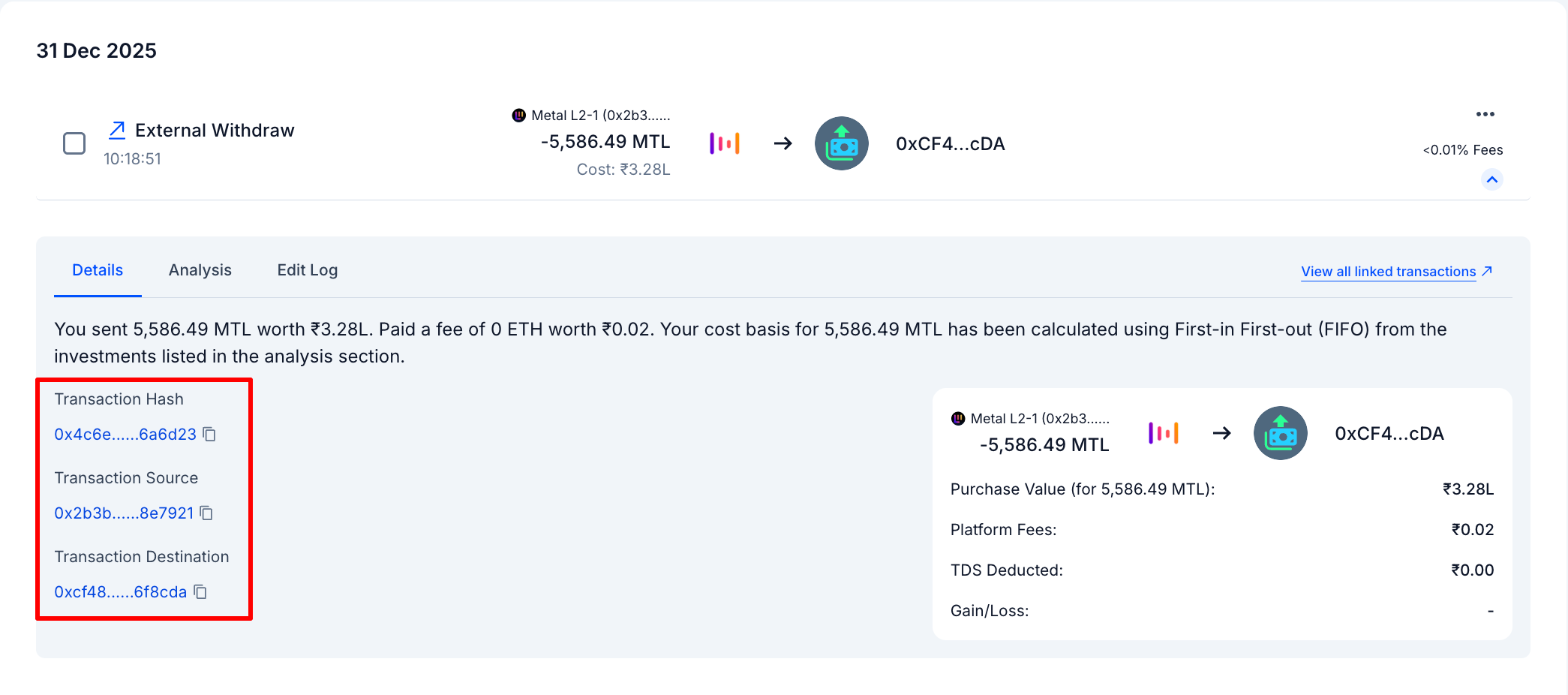
## I see a blockchain transaction — where do I find the on-chain details?
Click any blockchain transaction to expand it and open the **Details tab**. You'll see:
* **Transaction Hash** — the on-chain ID
* **Transaction Source** — where it came from
* **Transaction Destination** — where it went
* **Market and Purchase Value, Platform Fees, TDS Deducted** (if applicable), **Gain/Loss**
 ***
## How do I change my accounting method?
Your **accounting method** controls which purchase lots KoinX treats as sold first — which directly affects your cost basis and tax numbers.
* **FIFO (First In, First Out)** — Earliest coins acquired are sold first. **Default for Indian users.**
* **LIFO (Last In, First Out)** — Most recently acquired coins are sold first.
* **HIFO (Highest In, First Out)** — Coins with the highest purchase price are sold first, which can reduce taxable gains.
* **Average Cost** — Cost basis is the average purchase price of all units of that asset in your portfolio.
To check or change your method: go to [**Tax Settings**](https://app.koinx.com/settings/tax-and-transactions) → **Accounting Method**
***
## How do I change my accounting method?
Your **accounting method** controls which purchase lots KoinX treats as sold first — which directly affects your cost basis and tax numbers.
* **FIFO (First In, First Out)** — Earliest coins acquired are sold first. **Default for Indian users.**
* **LIFO (Last In, First Out)** — Most recently acquired coins are sold first.
* **HIFO (Highest In, First Out)** — Coins with the highest purchase price are sold first, which can reduce taxable gains.
* **Average Cost** — Cost basis is the average purchase price of all units of that asset in your portfolio.
To check or change your method: go to [**Tax Settings**](https://app.koinx.com/settings/tax-and-transactions) → **Accounting Method**
.png?fit=max&auto=format&n=u994I4-aHavE_1C7&q=85&s=d0591da28867a1d314f1afd52d777af0) Changing your accounting method recalculates your entire transaction history. Don't switch methods after you've already reviewed your transactions without first talking to your CA — it can shift your tax numbers significantly.
***
## Common Issues / Edge Cases
This usually means the exchange API has a limited lookback period (often 90–180 days) and older transactions didn't come through. Fix: import a CSV from your exchange covering the missing period.
If you've bought the same coin multiple times, the Held For value reflects which specific lot is being sold based on your accounting method — not necessarily when you first bought the coin. This is correct behaviour.
This usually means KoinX couldn't find the original acquisition for this asset, so the cost basis defaults to ₹0. See the article on **Fixing Transaction Issues** for how to resolve this.
[Understand how cost basis works](/guides/tax-settings/cost-basis-accounting-methods)
Your timezone is set in Tax Settings. If transactions are showing the wrong date or falling in the wrong financial year, check your timezone setting there.
***
## Frequently Asked Questions
For API-connected exchanges, you need to trigger a manual sync each time. Go to **Integrations**, find your exchange, and click **Sync Now**. CSV uploads are a one-time import — you'll need to re-upload if new transactions need to be added.
It's what you originally paid — the purchase price. KoinX uses this to calculate your actual profit or loss when you sell. If it's ₹0, your entire sale proceeds will count as a gain.
Go to **Tax Settings**. Your current method is shown under **Accounting Method**.
This usually means the acquisition cost is wrong or missing. If KoinX doesn't know what you originally paid, it may calculate a gain that doesn't reflect reality. Check the **Acquisition Cost** field in the Analysis tab on that transaction and fix it if needed.
Changing your accounting method recalculates your entire transaction history. Don't switch methods after you've already reviewed your transactions without first talking to your CA — it can shift your tax numbers significantly.
***
## Common Issues / Edge Cases
This usually means the exchange API has a limited lookback period (often 90–180 days) and older transactions didn't come through. Fix: import a CSV from your exchange covering the missing period.
If you've bought the same coin multiple times, the Held For value reflects which specific lot is being sold based on your accounting method — not necessarily when you first bought the coin. This is correct behaviour.
This usually means KoinX couldn't find the original acquisition for this asset, so the cost basis defaults to ₹0. See the article on **Fixing Transaction Issues** for how to resolve this.
[Understand how cost basis works](/guides/tax-settings/cost-basis-accounting-methods)
Your timezone is set in Tax Settings. If transactions are showing the wrong date or falling in the wrong financial year, check your timezone setting there.
***
## Frequently Asked Questions
For API-connected exchanges, you need to trigger a manual sync each time. Go to **Integrations**, find your exchange, and click **Sync Now**. CSV uploads are a one-time import — you'll need to re-upload if new transactions need to be added.
It's what you originally paid — the purchase price. KoinX uses this to calculate your actual profit or loss when you sell. If it's ₹0, your entire sale proceeds will count as a gain.
Go to **Tax Settings**. Your current method is shown under **Accounting Method**.
This usually means the acquisition cost is wrong or missing. If KoinX doesn't know what you originally paid, it may calculate a gain that doesn't reflect reality. Check the **Acquisition Cost** field in the Analysis tab on that transaction and fix it if needed.