
Finding the Insights Page
1
Open Insights from the sidebar
Click Insights in the left sidebar. This is your tax dashboard — everything lives here.
2
Select the right Financial Year
At the top of the page, make sure the correct Financial Year is selected. Insights is FY-specific — wrong year, wrong data.
3
Choose your view mode
Top right, you’ll see a toggle between Percentages and Numbers. Percentages are free for everyone. Actual ₹ values require an active plan.
.png?fit=max&auto=format&n=i_0FLR3BPkRKmu_n&q=85&s=ba1928fce8cf550aa0a23189fca8682f "Image(7)")
.png?fit=max&auto=format&n=i_0FLR3BPkRKmu_n&q=85&s=4efb6338f2d41a752cb6526aa6121f57 "Image(7)")
Monthly Realised Gains & Losses
Simple concept, powerful data.- Monthly Realised Gains — profits from selling or swapping crypto, broken down by month
- Monthly Realised Losses — losses from the same, month by month
“Realised” is the key word here. The data only show gains and losses you’ve locked in by selling or swapping. If you’re still holding ETH and it’s up 40%, that unrealised gain won’t appear — only what you’ve actually disposed of counts.
Why this matters for tax planning
- Spot high-activity months — when were you most active? High-gain months mean higher tax liability for that period.
- Find loss clusters — if your losses piled up in Q3, that’s useful context for loss harvesting next year.
- Understand your behavior — sometimes seeing this data is the wake-up call you didn’t know you needed.
Realised Gains & Losses by Coins
This section breaks down which coins actually drove your gains and losses.
Knowing your winners and losers by coin isn’t just satisfying — it tells you exactly where your tax liability is coming from and which positions might be worth reviewing before the financial year closes.
Realised Gains & Losses by Category
Not all gains are taxed the same. This breakdown groups your trades by type:- Capital Gains — regular buy/sell trades on exchanges
- Derivatives Gains — futures, options, margin trades
- Others Gains — staking rewards, airdrops, and other miscellaneous categories
Realised Gains & Losses by Wallets
Same concept, different lens — this one breaks down gains and losses by exchange or wallet.
Use this view to:
- Cross-check completeness — if an exchange is missing from the list, your data might be incomplete
- Reconcile against exchange statements — compare the figures with what your exchange shows in its own reports
- Identify your most profitable platforms — and your least
Crypto Tax Summary
The headline number section. Here you’ll see:- Capital Gains % — from regular disposals
- Derivatives Gains % — from futures and options
- Other Gains % — miscellaneous income
- Total Taxable Gains — the full picture (shown as actual ₹ value only on a paid plan)
TDS Summary
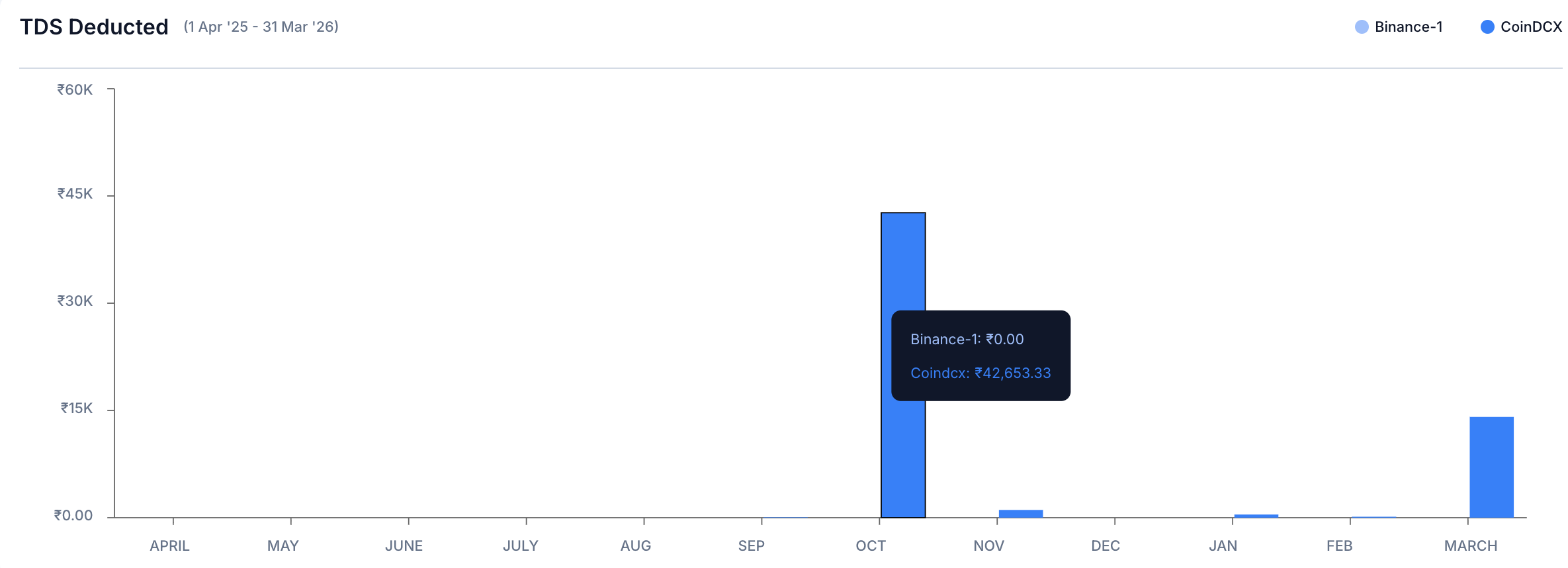
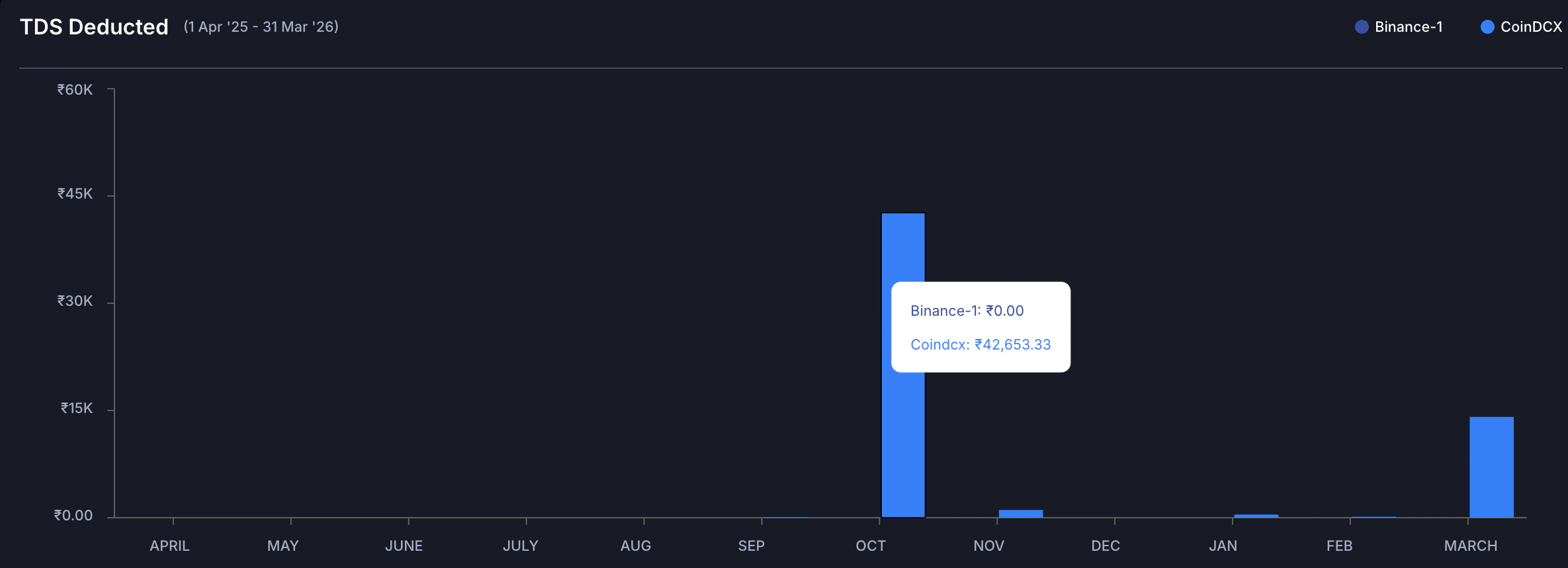
This is the section most people underuse. The TDS Summary shows how much Tax Deducted at Source was withheld by each exchange: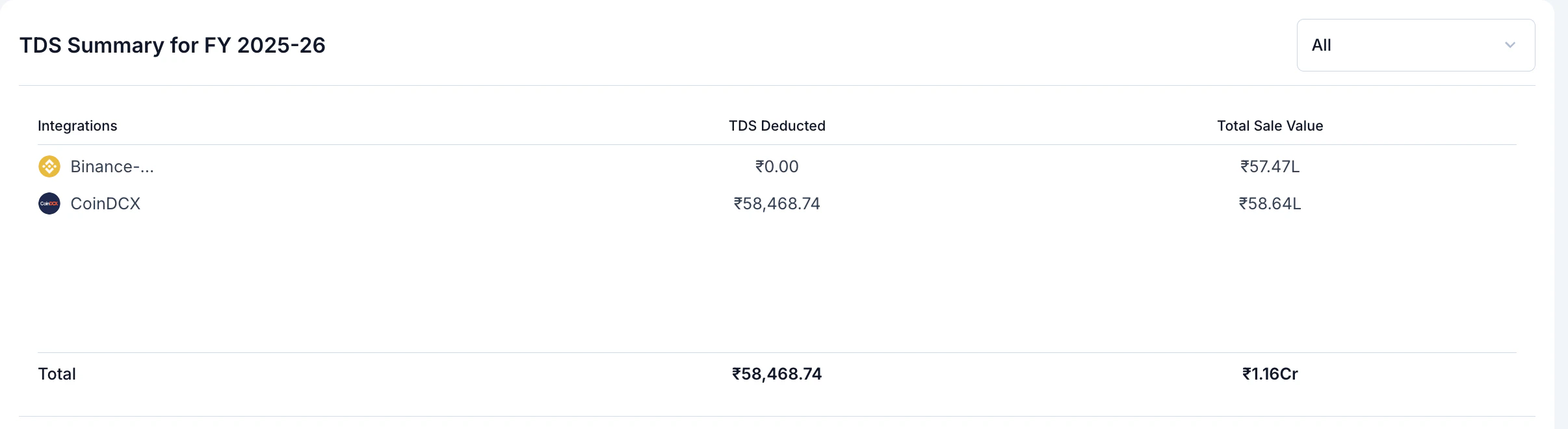
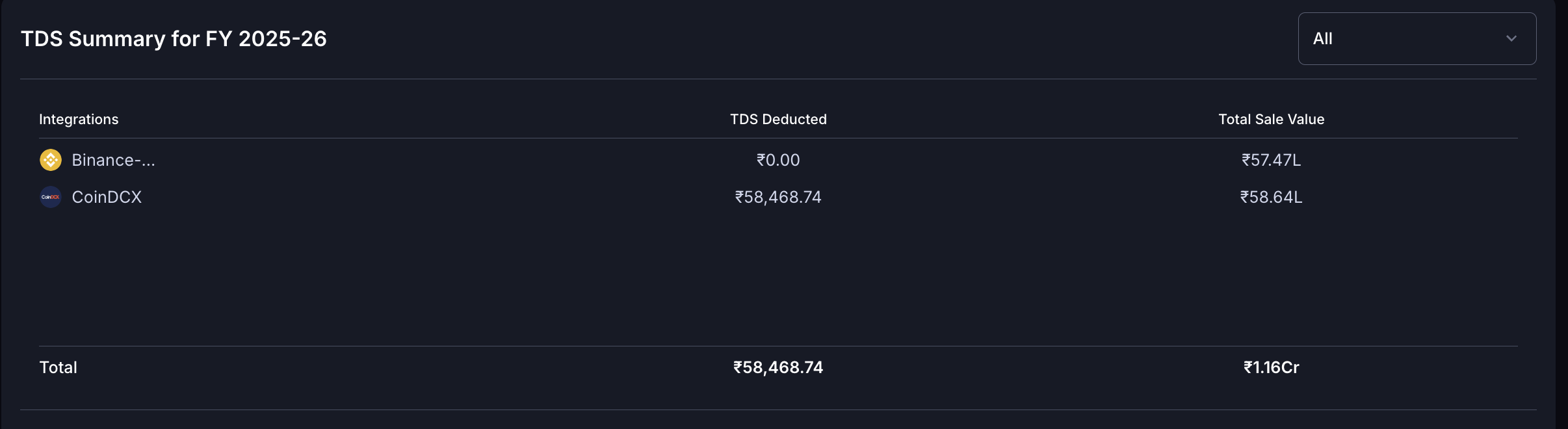
Binance and other international exchanges show ₹0 TDS — that’s expected. International platforms don’t deduct Indian TDS under Section 194S. You’re still liable for tax on those trades; you’ll just pay it at filing time rather than having it withheld upfront. Always cross-check your TDS summary against Form 26AS before filing.
Numbers vs Percentages Toggle
- Percentages (Free)
- Numbers (Paid Plan Required)
Available to all users, no plan required. Shows proportional breakdowns across all sections — useful for understanding ratios and relative performance, even if you don’t have the exact ₹ figures yet.
Using Insights for Tax Planning
Before year-end
- Review monthly gain patterns — high-gain months mean tax due, and you may be able to offset with losses
- Check coin-wise performance — any coins sitting at a loss that you could harvest?
- Verify TDS is accumulating correctly across your Indian exchanges
Before filing
- Confirm your total gains match what you expect
- Cross-check TDS Summary figures against your Form 26AS
- Review category breakdown (Spot vs Derivatives) — your CA will need this for Schedule VDA
After filing
- Keep Insights as a reference record for that FY
- Use it to compare year-over-year trends when the next FY data comes in
Frequently Asked Questions
What's the difference between 'Realised' and 'Unrealised' gains?
What's the difference between 'Realised' and 'Unrealised' gains?
Realised gains are locked in — you sold or swapped the asset, and the profit is confirmed. Unrealised gains are on assets you still hold. The Insights page only shows realised gains and losses. That ETH you’re HODLing won’t show up here until you sell it.
Why does TDS show ₹0 for Binance?
Why does TDS show ₹0 for Binance?
Binance is an international exchange and doesn’t deduct Indian TDS under Section 194S. Only Indian-regulated exchanges like WazirX and CoinDCX withhold TDS. You’re still liable for tax on Binance trades — just no TDS was withheld at source. You’ll pay it when filing your ITR.
Why do I only see percentages and not actual amounts?
Why do I only see percentages and not actual amounts?
Actual ₹ values require a purchased plan for that financial year. Free users see proportional breakdowns. To unlock numbers, purchase a plan and then toggle to Numbers at the top right of the Insights page.
Why is my Insights page showing no data?
Why is my Insights page showing no data?
Three likely causes: no transactions have been imported for the selected FY, your exchanges or wallets aren’t connected yet, or the wrong financial year is selected. Check the FY selector at the top and verify your integrations are active under Integrations in the sidebar.
Can I export Insights data for my CA?
Can I export Insights data for my CA?
The Insights page itself isn’t exportable directly, but all this data flows into your tax reports. Generate your Complete Tax Report or Transaction History report — those are CA-ready and downloadable as PDFs.