
AI Summary
- A ₹0 cost basis means KoinX couldn’t find your original purchase — and that inflates your tax bill significantly
- Duplicate transactions usually happen when both API and CSV are active for the same exchange
- P&L differences between the Transactions tab and Tax Report are expected — the Tax Report is always the source of truth as it follows taxation rules
- Fewer transactions in KoinX than your exchange usually means an API lookback limit — fix it with a CSV import
My cost basis is showing ₹0 — what’s happening?
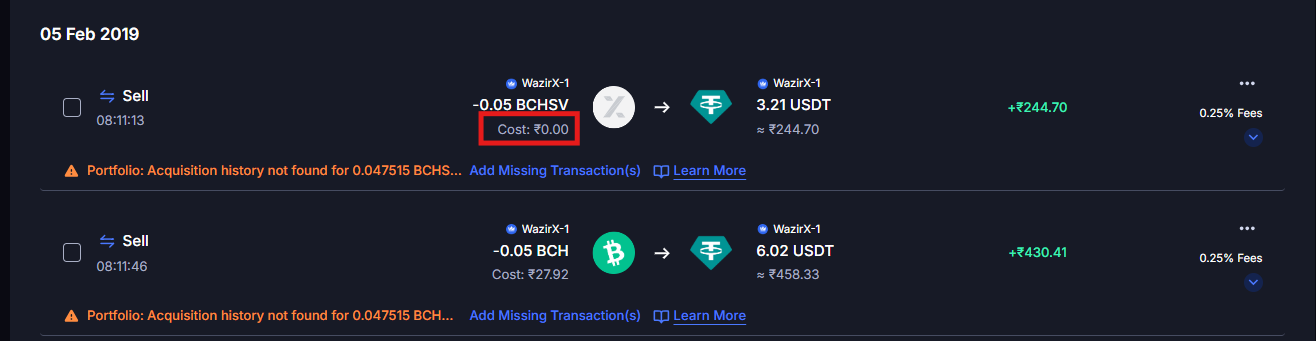
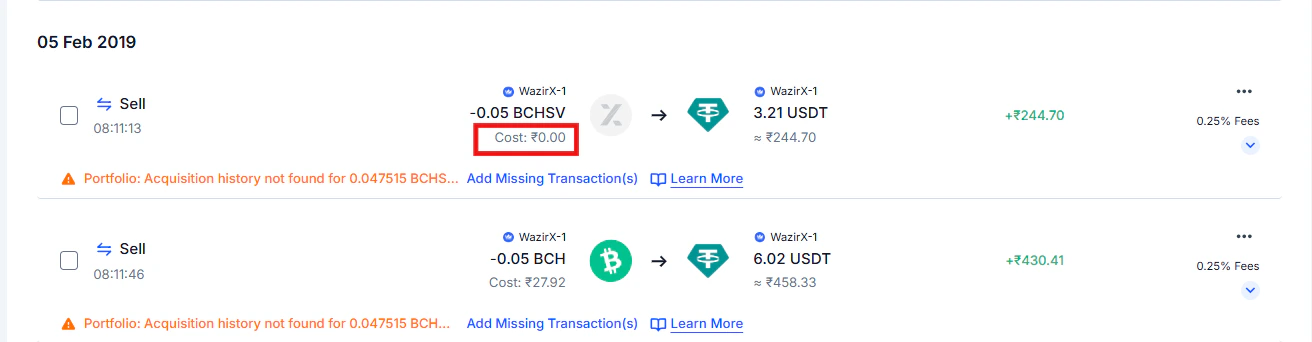
A ₹0 cost basis means KoinX found a disposal — a sale, trade, or transfer out — but couldn’t find the original purchase for that asset.Why this matters
When the acquisition cost is ₹0, KoinX treats your entire sale proceeds as taxable gain. Example:- You sold ETH worth ₹5,00,000
- Acquisition cost = ₹0 (missing)
- KoinX calculates your gain as ₹5,00,000
Why it happens
- You haven’t imported historical data from the exchange where you originally bought the asset — so KoinX has the sale but not the purchase
- The exchange API only provides the last 90–180 days of data, so older purchases didn’t come through
- The asset was acquired before you set up KoinX and that history was never imported
How to fix it
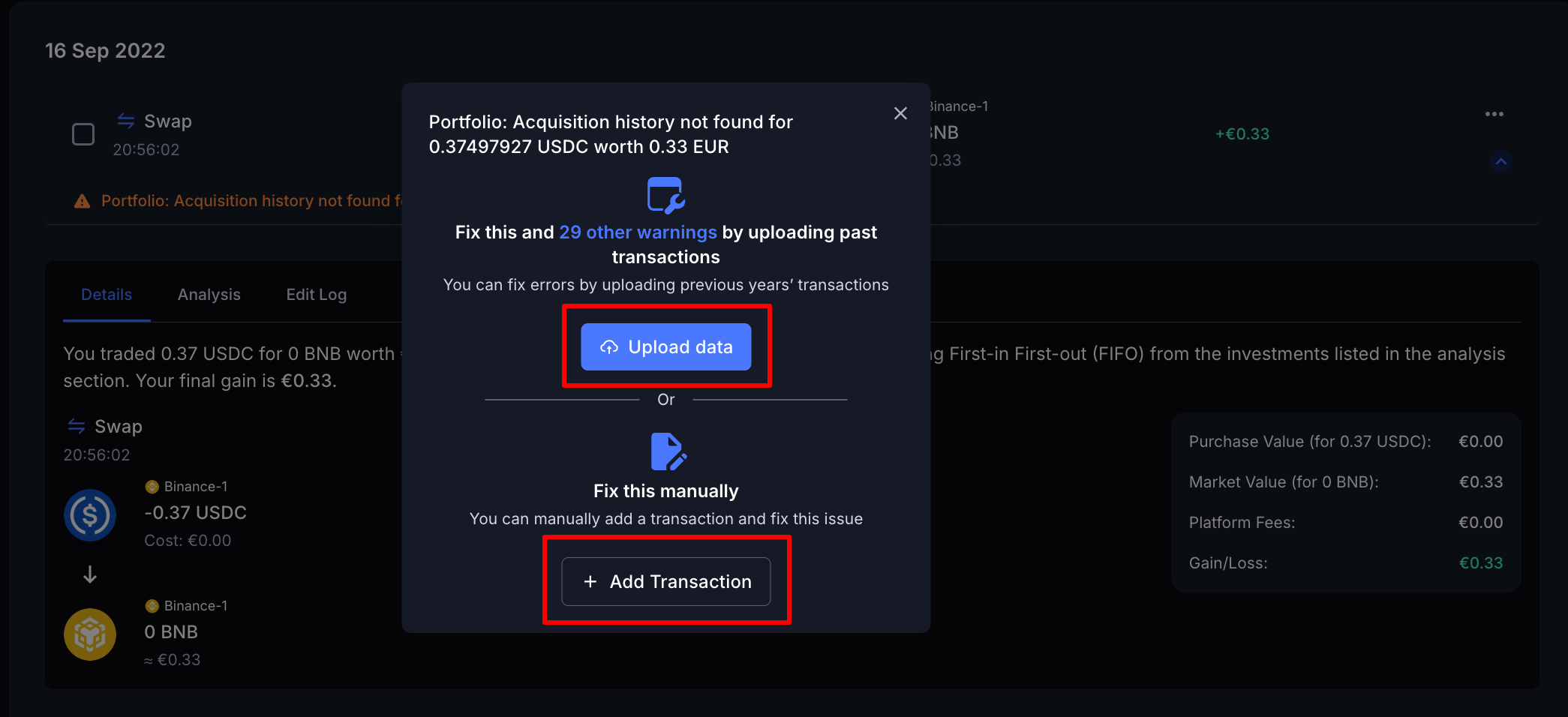
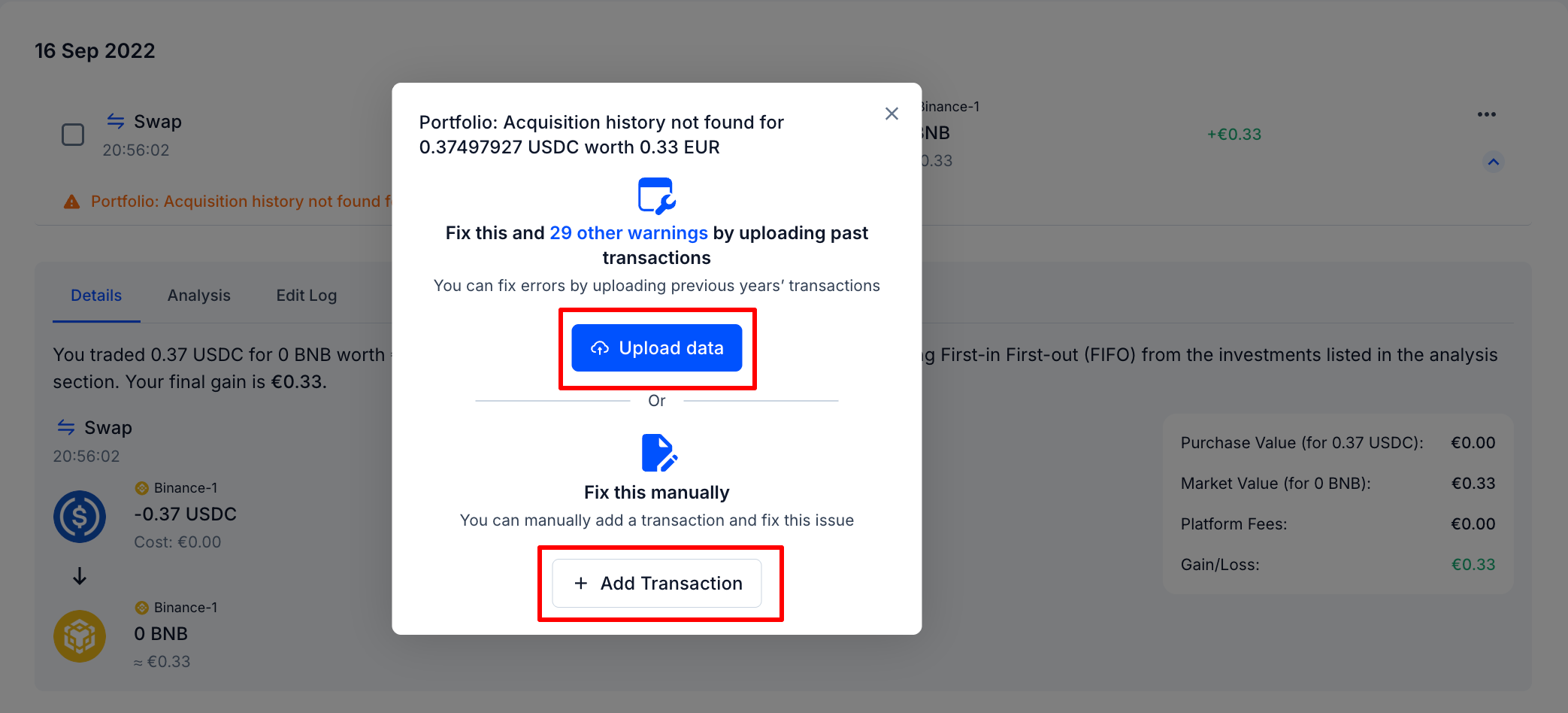
Click Add Missing Transaction(s) on the warning message.
Choose how you want to add the missing data.
I’m seeing duplicate transactions — how do I clean them up?
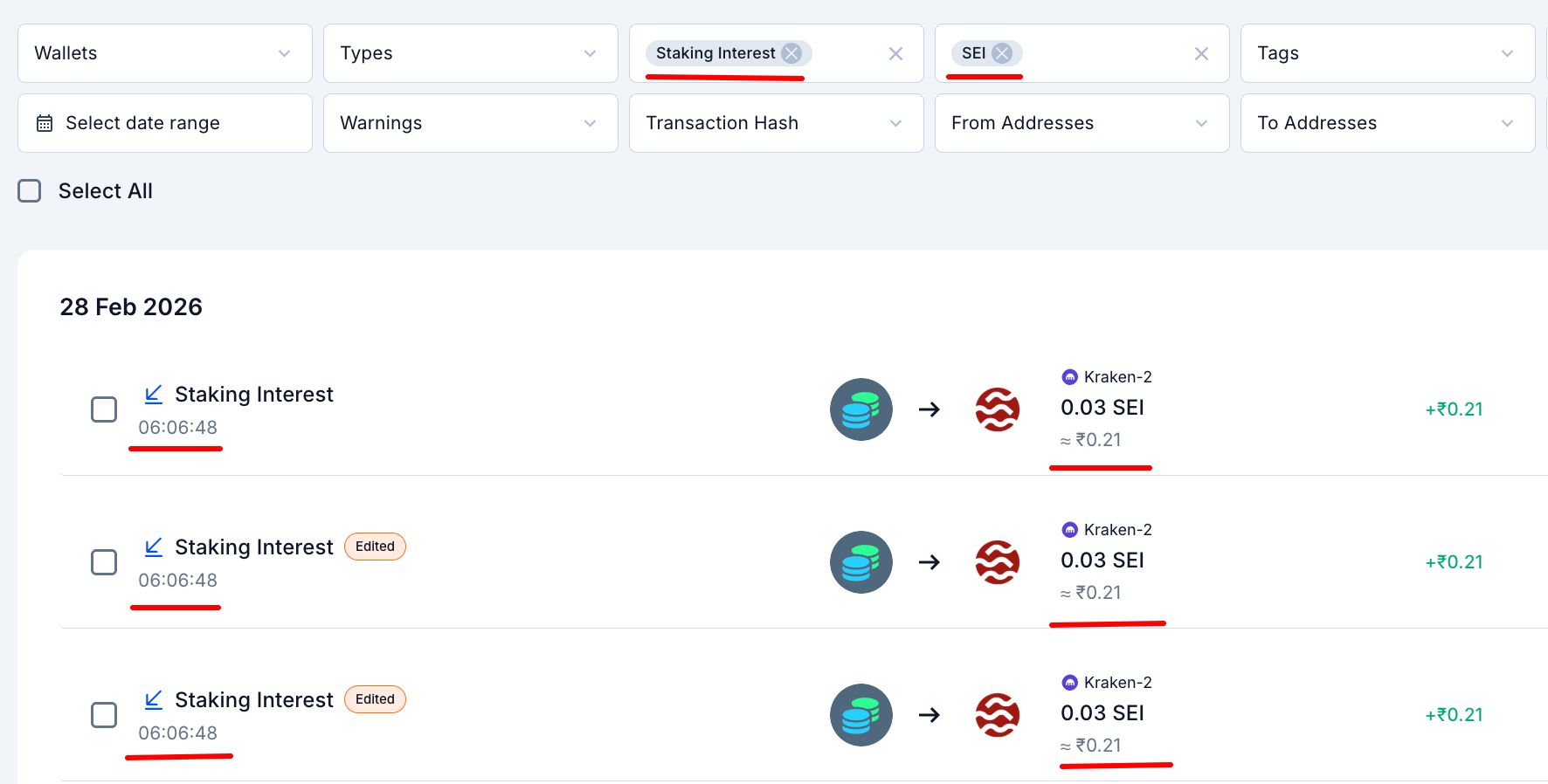
The same transaction is appearing twice — same asset, same amount, same or very similar timestamp.Why it happens
The most common cause: you’ve connected both an API integration and uploaded a CSV export for the same exchange, and they overlap on dates. Both sources import the same trades, creating doubles.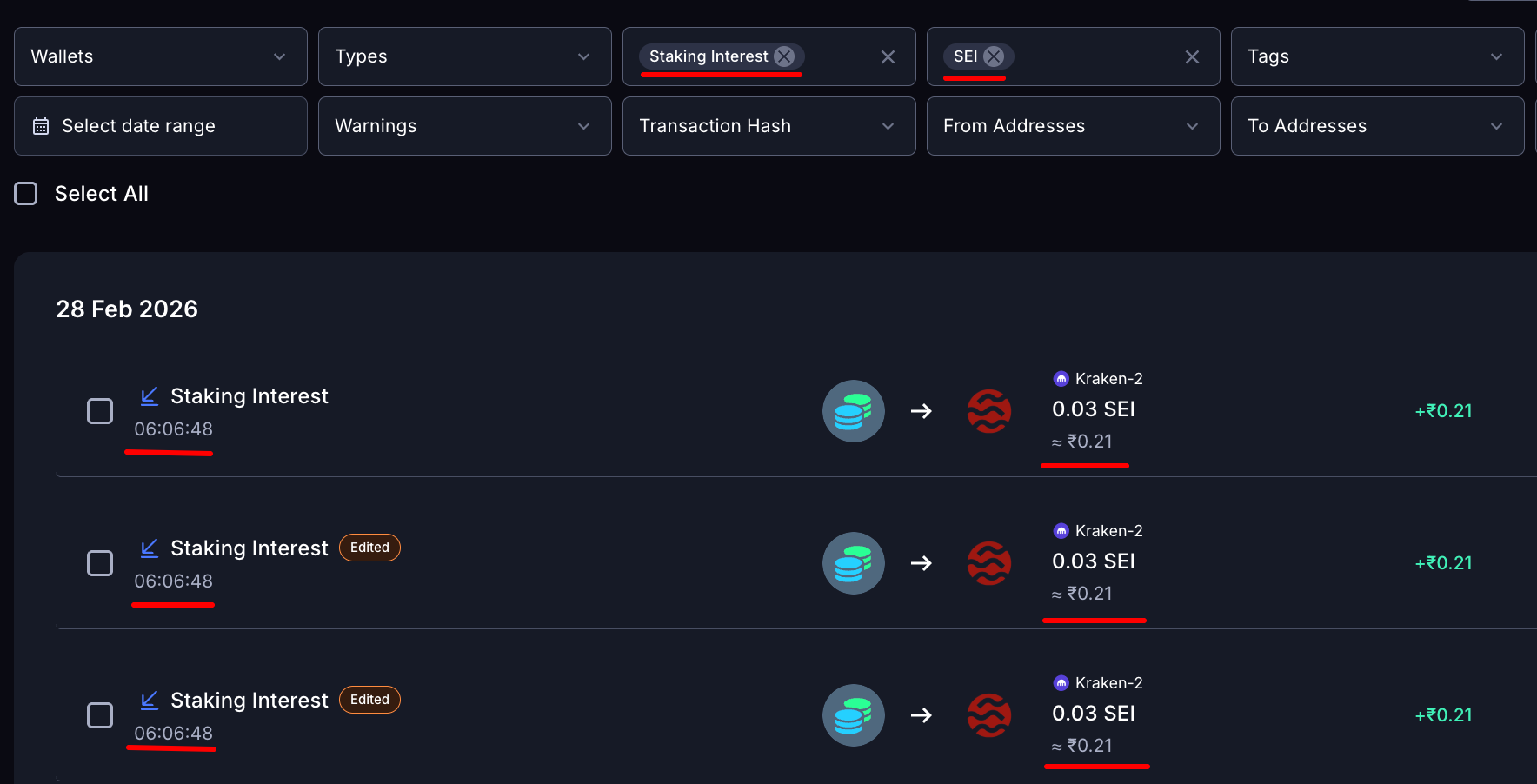
How to identify them
Filter by Coins and a specific Date Range or Label.
Look for two entries with identical assets, identical amounts, and the same timestamp.
Click into each to compare the Transaction Hash — same hash means it's definitely the same event.
How to fix them
Identify the duplicate pair.
Click the three-dot menu (···) on one of them and select Delete.
Confirm deletion.
Prevent duplicates going forward
Choose one import method per exchange — either API or CSV — and stick with it. Only mix both if you’re backfilling a specific older period the API can’t reach, and keep the date ranges clean so they don’t overlap.The P&L on my Transactions page doesn’t match my Tax Report — which one is right?
The gain/loss shown on individual transaction cards differs from what your Tax Report shows for the same period. This is expected in many cases — the Tax Report is always the source of truth.Why the numbers differ
- Accounting method mismatch — if the accounting method used when generating the Tax Report differs from what’s applied in the Transactions tab, the calculated gains will vary
- Loss offset treatment — the Transactions tab may show P&L where losses are offset against gains; some jurisdictions don’t allow this, so the Tax Report reflects jurisdiction-compliant calculations
- Data changes before report generation — if transactions were edited, added, or deleted before generating the report, the final report reflects those updated calculations
What to do
Check your accounting method in Tax Settings and confirm it matches your intended method (FIFO/LIFO/HIFO).
Resolve any open warnings on your Transactions page.
Regenerate your Tax Report.
KoinX shows fewer transactions than my exchange — what’s missing?
You check your exchange’s own history and see more trades than what’s in KoinX.Why it happens
This is almost always an API limitation, not a KoinX bug:- Many exchange APIs only expose the last 90 or 180 days of history
- Some exchanges have API rate limits that cause partial syncs
- Certain transaction types — funding fees, staking distributions, P2P trades — may not be exposed through the API at all
- KoinX may not yet support certain transaction types for newly launched exchange features
How to close the gap
Log into your exchange and download your complete transaction history as a CSV.
Check where your KoinX data stops.
Go to Integrations → [Your Exchange] → Import CSV and upload the file covering the missing period.
Common Issues / Edge Cases
Cost basis is correct for some transactions but wrong for others from the same exchange
Cost basis is correct for some transactions but wrong for others from the same exchange
I imported a CSV but the prices still look wrong
I imported a CSV but the prices still look wrong
Frequently Asked Questions
Why are some transactions not captured in KoinX at all?
Why are some transactions not captured in KoinX at all?
How do I fix an incorrect acquisition cost?
How do I fix an incorrect acquisition cost?
Why does the acquisition cost show ₹0?
Why does the acquisition cost show ₹0?
Why was the token price not fetched?
Why was the token price not fetched?
My transaction count is close but not exact — should I worry?
My transaction count is close but not exact — should I worry?
Can I re-sync an exchange after importing a CSV to check for newer transactions?
Can I re-sync an exchange after importing a CSV to check for newer transactions?