
AI Summary
- Your Transactions page shows every trade, transfer, airdrop, and income event KoinX has pulled from your integrated accounts
- Each transaction card tells you the transaction label, date, source, amount, gain/loss, and cost basis
- Use filters to find specific transactions fast — by wallet, coin, date, warning status, and more
- “Held For” and “Acquisition Cost” are the two most important fields for your tax calculation
What am I looking at?
Each row on your Transactions page is a transaction card. At a glance, it tells you:- What happened — the type and label (trade, deposit, withdrawal, airdrop, etc.)
- When it happened — date and time in your configured timezone
- Where it came from — the exchange or wallet it was pulled from
- What moved — the asset disposed and the asset received
- What it cost — the cost basis of the asset based on your accounting method
- What you made or lost — the realised gain or loss
- What fees were charged — platform fees from the exchange


How was my gain or loss calculated?
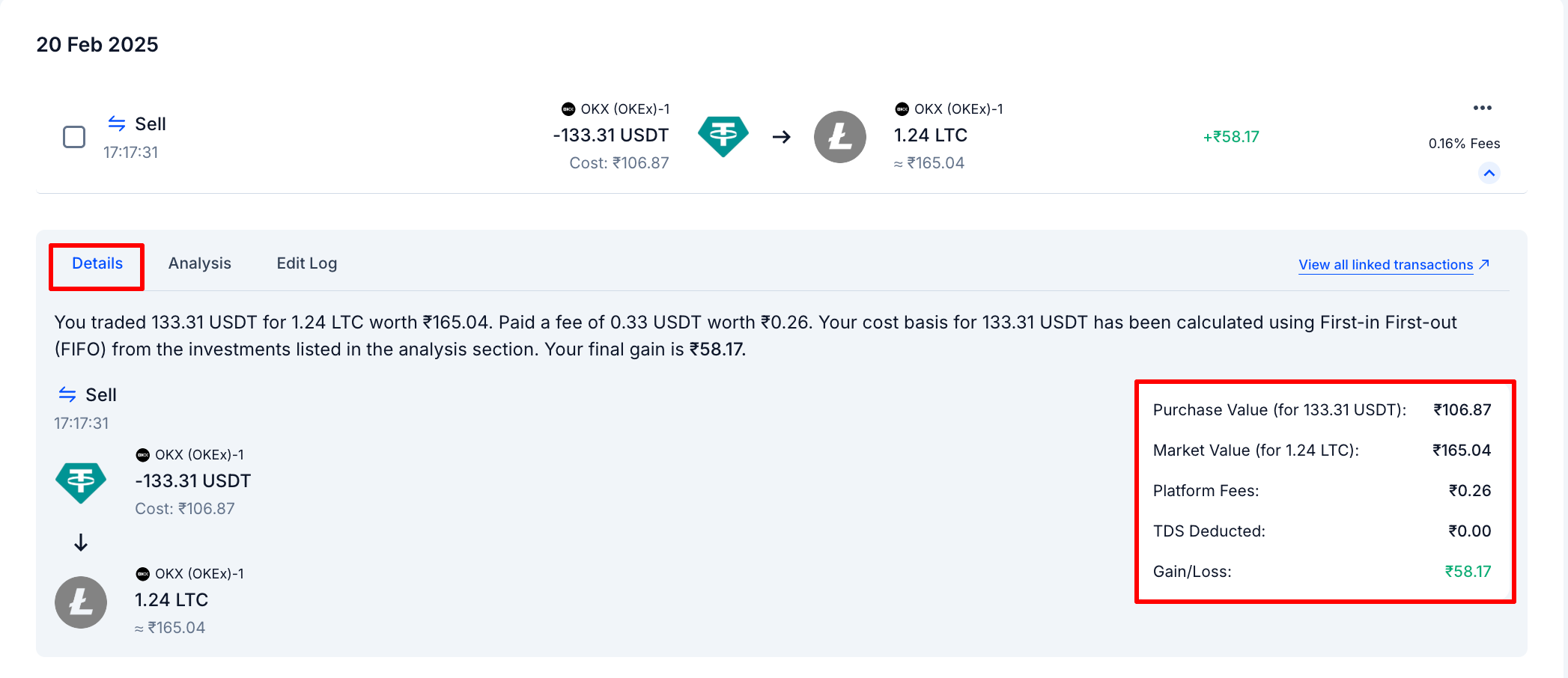
Click any transaction to expand it, then open the Details tab. This shows you exactly how KoinX arrived at the number: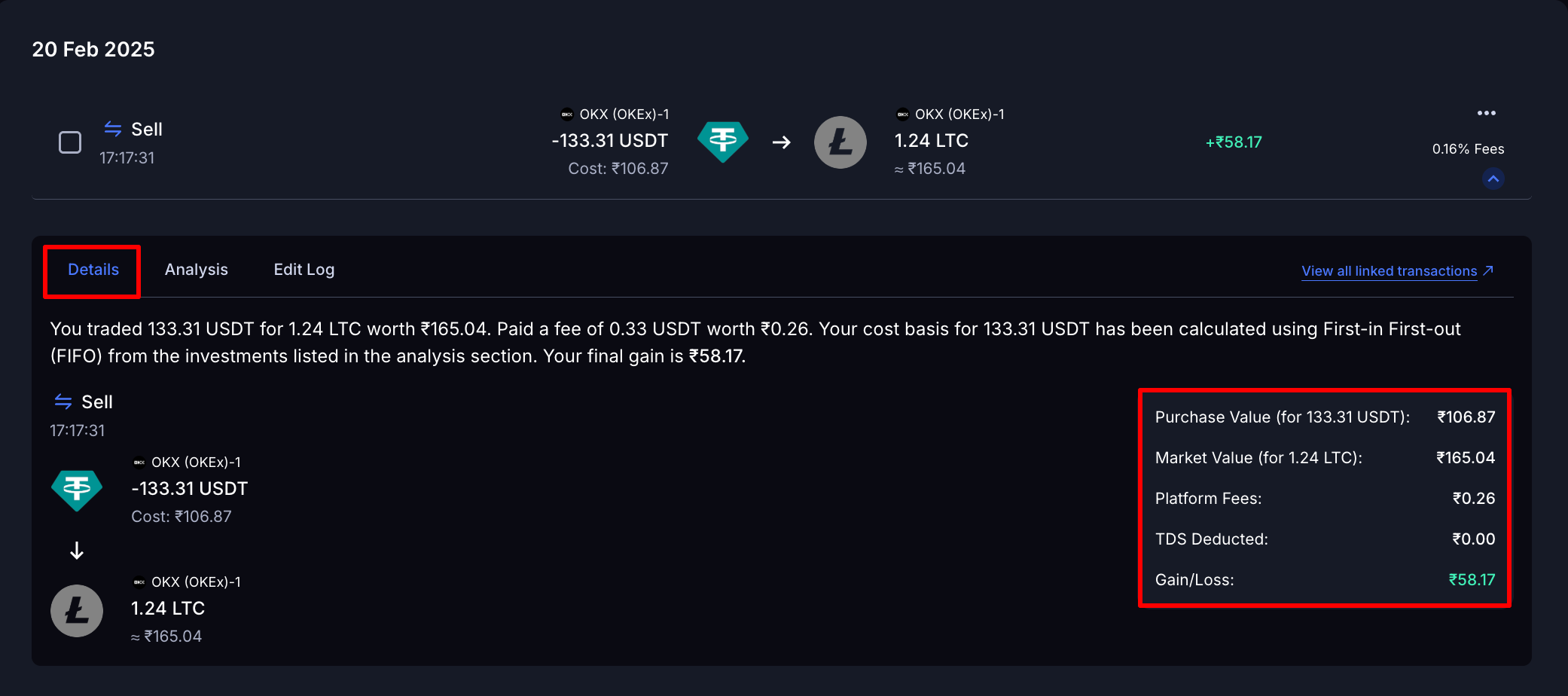
Why does my gain show a specific number — which purchase did KoinX use?
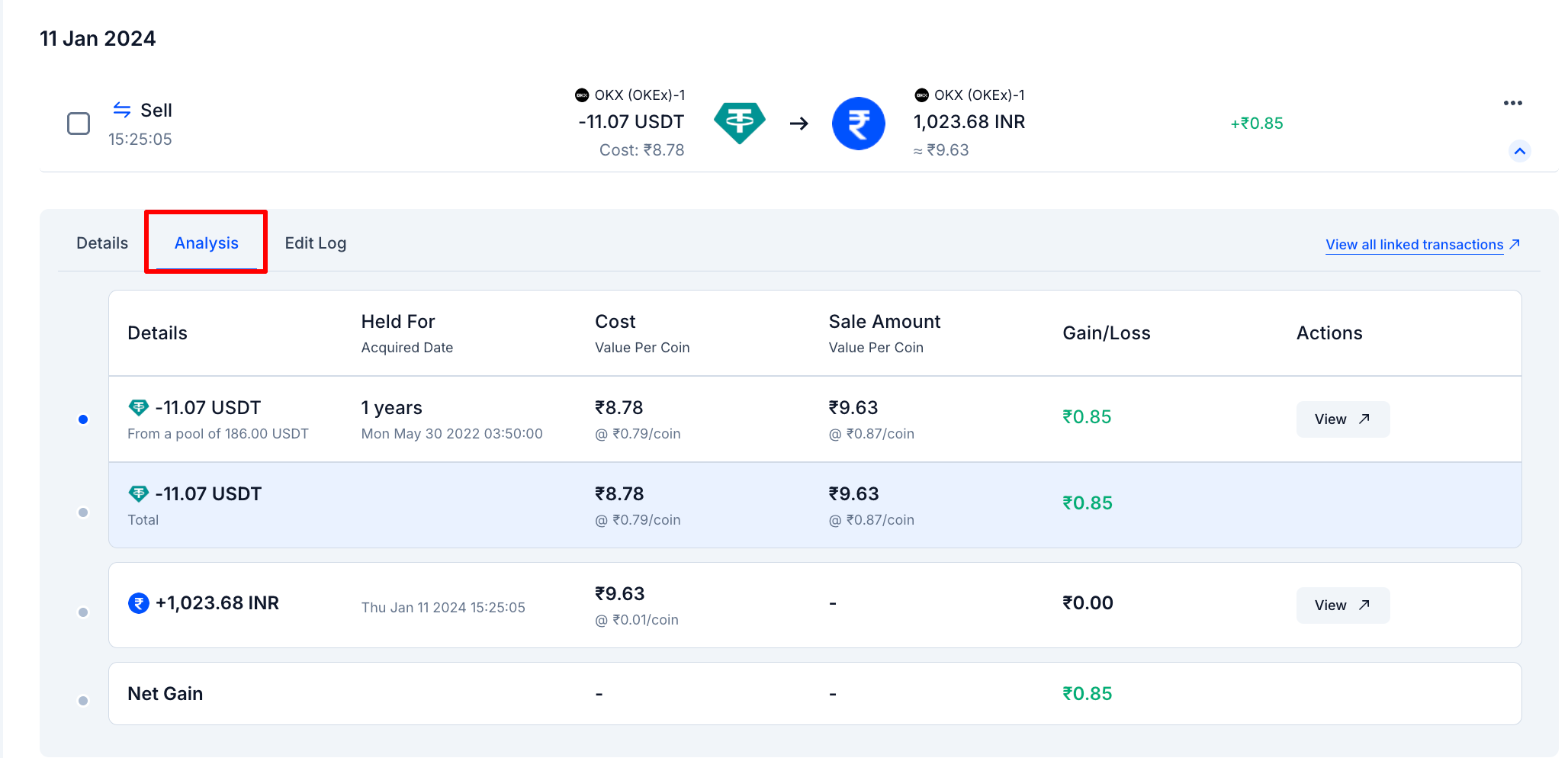
Open the Analysis tab on any transaction. This is where KoinX shows which previous purchase lots it matched against this disposal, based on your selected accounting method (FIFO, LIFO, etc.).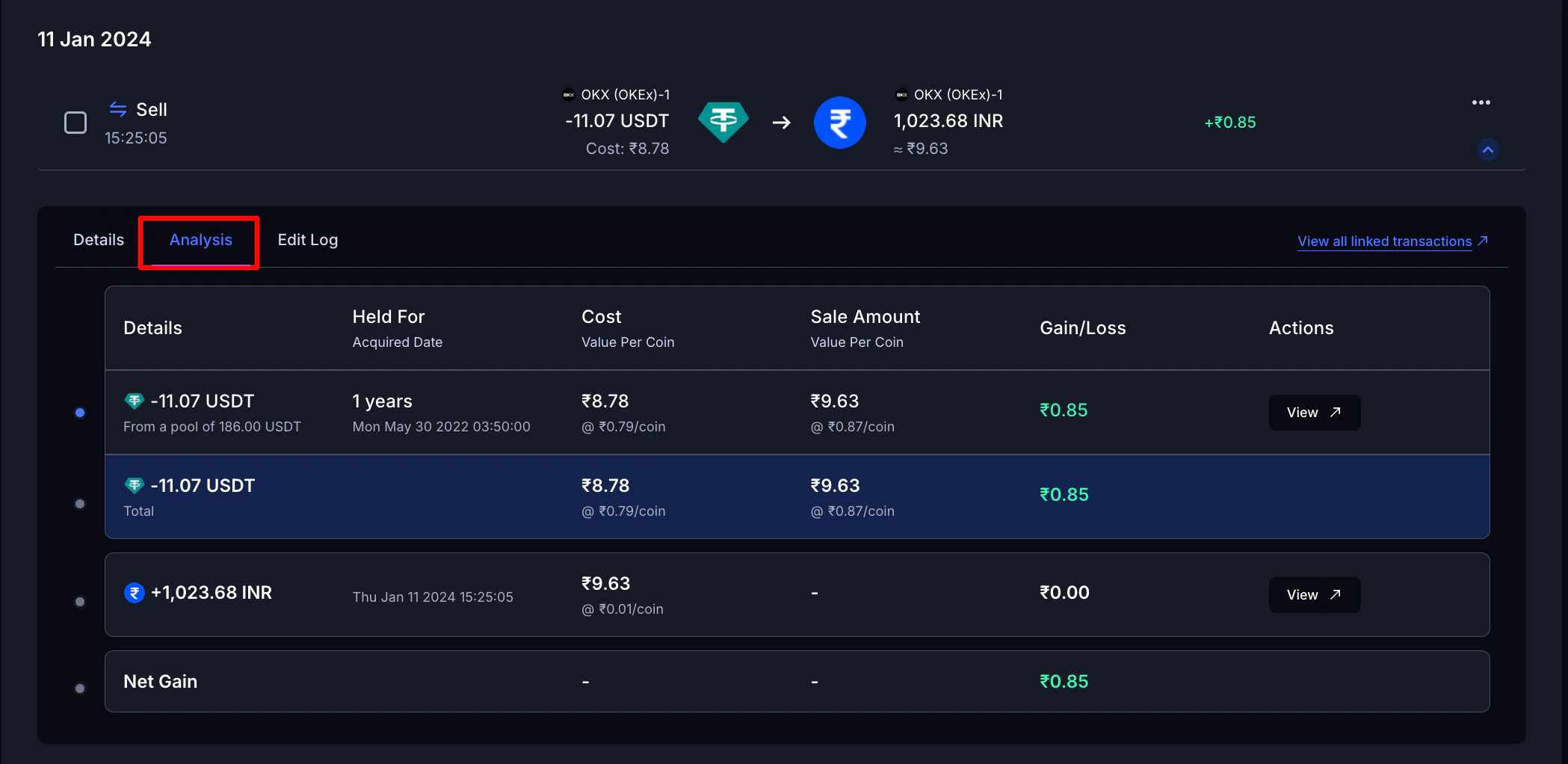
What is “Held For” and why does it matter?
Held For shows how long you held an asset from acquisition to disposal. In many jurisdictions, the holding period affects how your gains are taxed — KoinX calculates this automatically. If you bought the same coin across multiple purchases at different prices, KoinX uses your accounting method — FIFO, LIFO, Average Cost, or HIFO — to determine which specific lot is being sold, and therefore which purchase date and price applies. Learn how your accounting method affects these numbersWhat is “Acquisition Cost”?
Acquisition Cost is your cost basis — what you originally paid for the asset, excluding fees paid at the time of purchase. Example:- You bought ETH at ₹1,50,000 and paid a fee of ₹500
- Your Acquisition Cost = ₹1,50,500
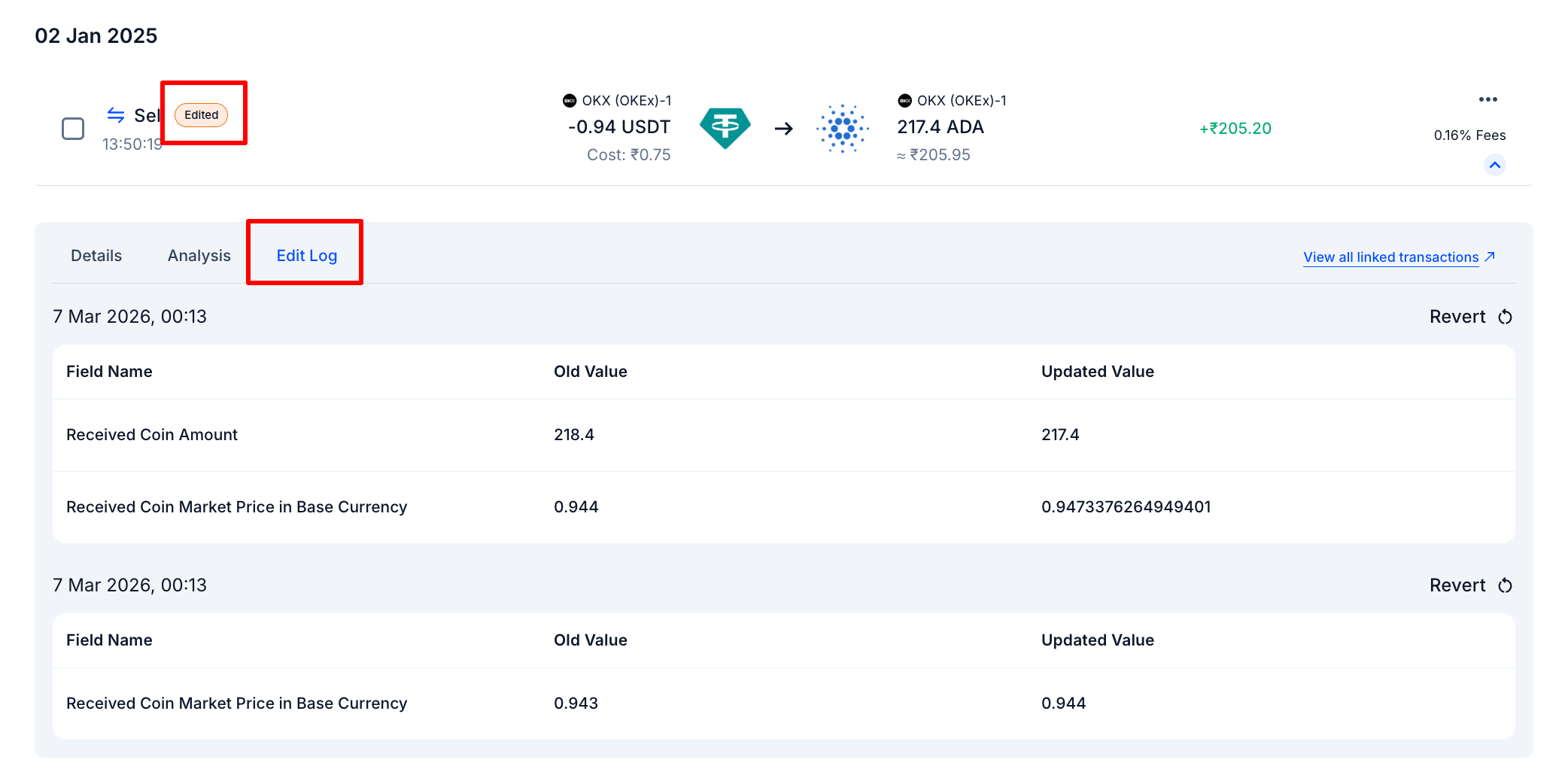
Did someone edit this transaction? What changed?
Open the Edit Log tab. Every manual change made to a transaction is recorded here: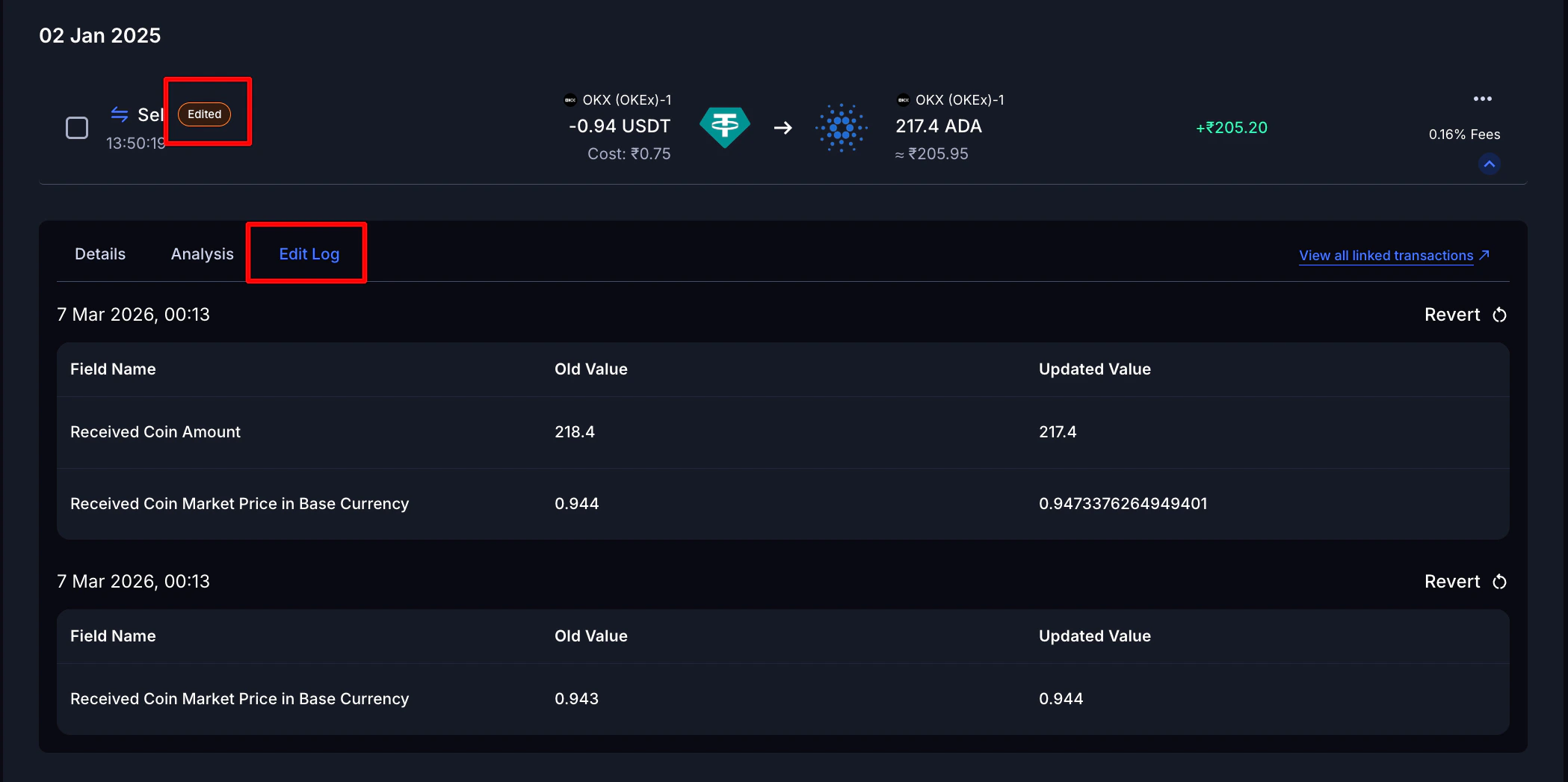
I want to look up a specific transaction — how do I find it fast?
Use the filter bar at the top of the Transactions page. You can filter by:- Wallets — show only transactions from a specific exchange or wallet
- Types — Deposit, Withdrawal, Trade (Buy/Sell)
- Labels — Staking Interest, Airdrop, Funding Fees, etc.
- Coins — a specific cryptocurrency
- Date Range — custom period, e.g. April 1 – March 31 for a financial year
- Warnings — only transactions with issues flagged by KoinX
- Transaction Hash — find a specific on-chain transaction by its hash
- From / To Addresses — track where assets were sent or received
- Spam — show or hide tokens flagged as potential spam
- Tags — Edited, Manual, Merged, Split
- Sort By — Cost, Fees, Highest Gains, Highest Losses, Most Recent, Oldest


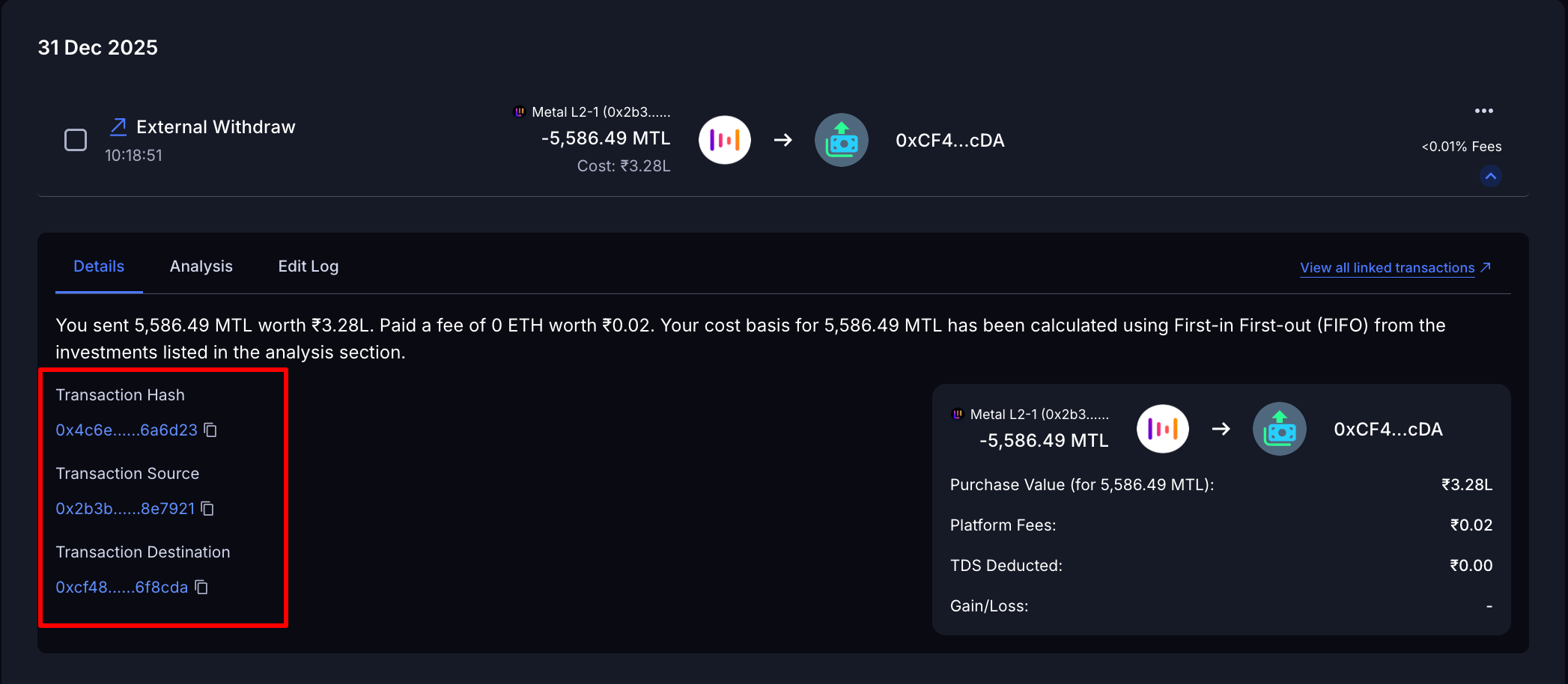
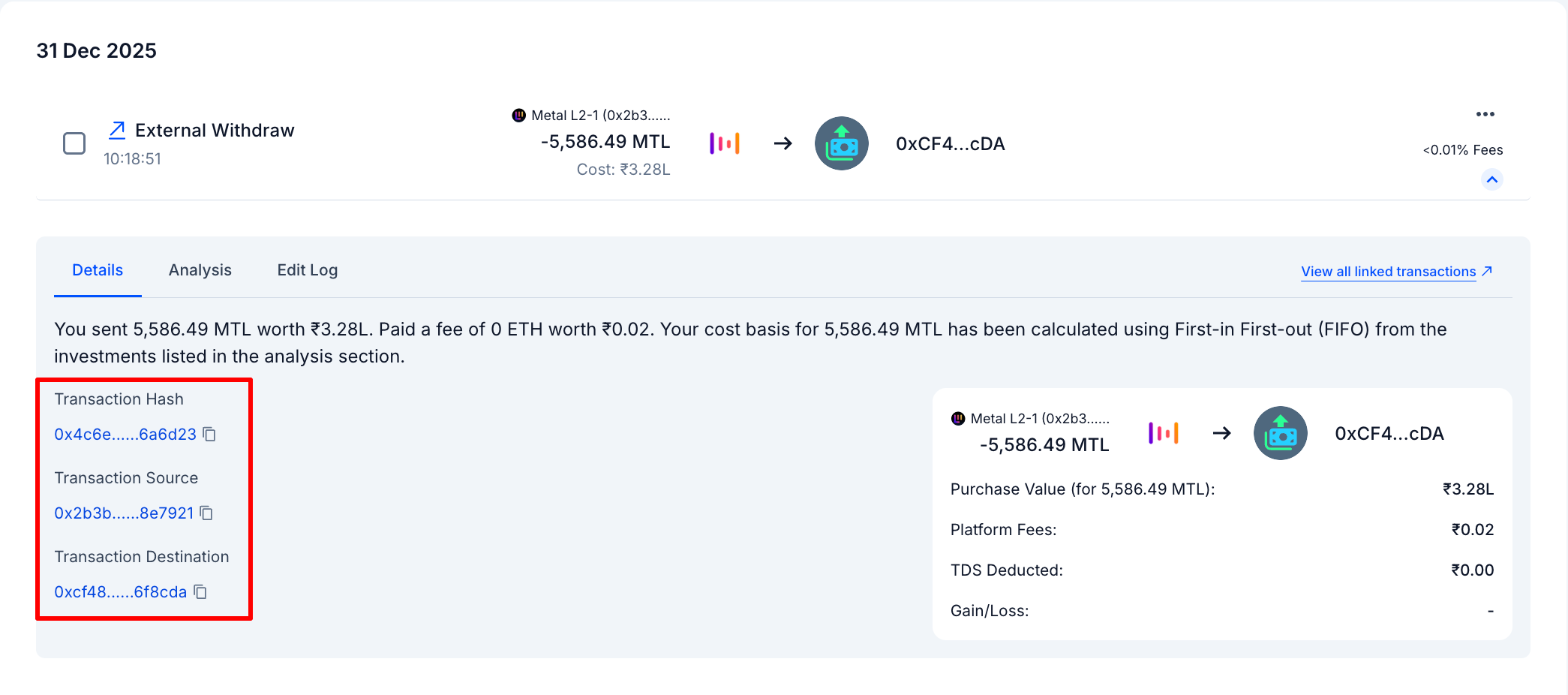
I see a blockchain transaction — where do I find the on-chain details?
Click any blockchain transaction to expand it and open the Details tab. You’ll see:- Transaction Hash — the on-chain ID
- Transaction Source — where it came from
- Transaction Destination — where it went
- Market and Purchase Value, Platform Fees, TDS Deducted (if applicable), Gain/Loss
How do I change my accounting method?
Your accounting method controls which purchase lots KoinX treats as sold first — which directly affects your cost basis and tax numbers.- FIFO (First In, First Out) — Earliest coins acquired are sold first. Default for Indian users.
- LIFO (Last In, First Out) — Most recently acquired coins are sold first.
- HIFO (Highest In, First Out) — Coins with the highest purchase price are sold first, which can reduce taxable gains.
- Average Cost — Cost basis is the average purchase price of all units of that asset in your portfolio.
.png?fit=max&auto=format&n=u994I4-aHavE_1C7&q=85&s=d0591da28867a1d314f1afd52d777af0)
Common Issues / Edge Cases
Transactions are missing from the list
Transactions are missing from the list
This usually means the exchange API has a limited lookback period (often 90–180 days) and older transactions didn’t come through. Fix: import a CSV from your exchange covering the missing period.
Held For shows an unexpected value
Held For shows an unexpected value
If you’ve bought the same coin multiple times, the Held For value reflects which specific lot is being sold based on your accounting method — not necessarily when you first bought the coin. This is correct behaviour.
Acquisition cost shows ₹0
Acquisition cost shows ₹0
This usually means KoinX couldn’t find the original acquisition for this asset, so the cost basis defaults to ₹0. See the article on Fixing Transaction Issues for how to resolve this.Understand how cost basis works
Timezone looks wrong on a transaction
Timezone looks wrong on a transaction
Your timezone is set in Tax Settings. If transactions are showing the wrong date or falling in the wrong financial year, check your timezone setting there.
Frequently Asked Questions
How often does KoinX sync my transaction data?
How often does KoinX sync my transaction data?
For API-connected exchanges, you need to trigger a manual sync each time. Go to Integrations, find your exchange, and click Sync Now. CSV uploads are a one-time import — you’ll need to re-upload if new transactions need to be added.
What does 'acquisition cost' mean in plain English?
What does 'acquisition cost' mean in plain English?
It’s what you originally paid — the purchase price. KoinX uses this to calculate your actual profit or loss when you sell. If it’s ₹0, your entire sale proceeds will count as a gain.
How do I check which accounting method I'm using?
How do I check which accounting method I'm using?
Go to Tax Settings. Your current method is shown under Accounting Method.
Why does a transaction show a gain even though I lost money?
Why does a transaction show a gain even though I lost money?
This usually means the acquisition cost is wrong or missing. If KoinX doesn’t know what you originally paid, it may calculate a gain that doesn’t reflect reality. Check the Acquisition Cost field in the Analysis tab on that transaction and fix it if needed.
Can I see transactions from a specific financial year only?
Can I see transactions from a specific financial year only?