
Finding Tax Settings
1
Open Tax Settings
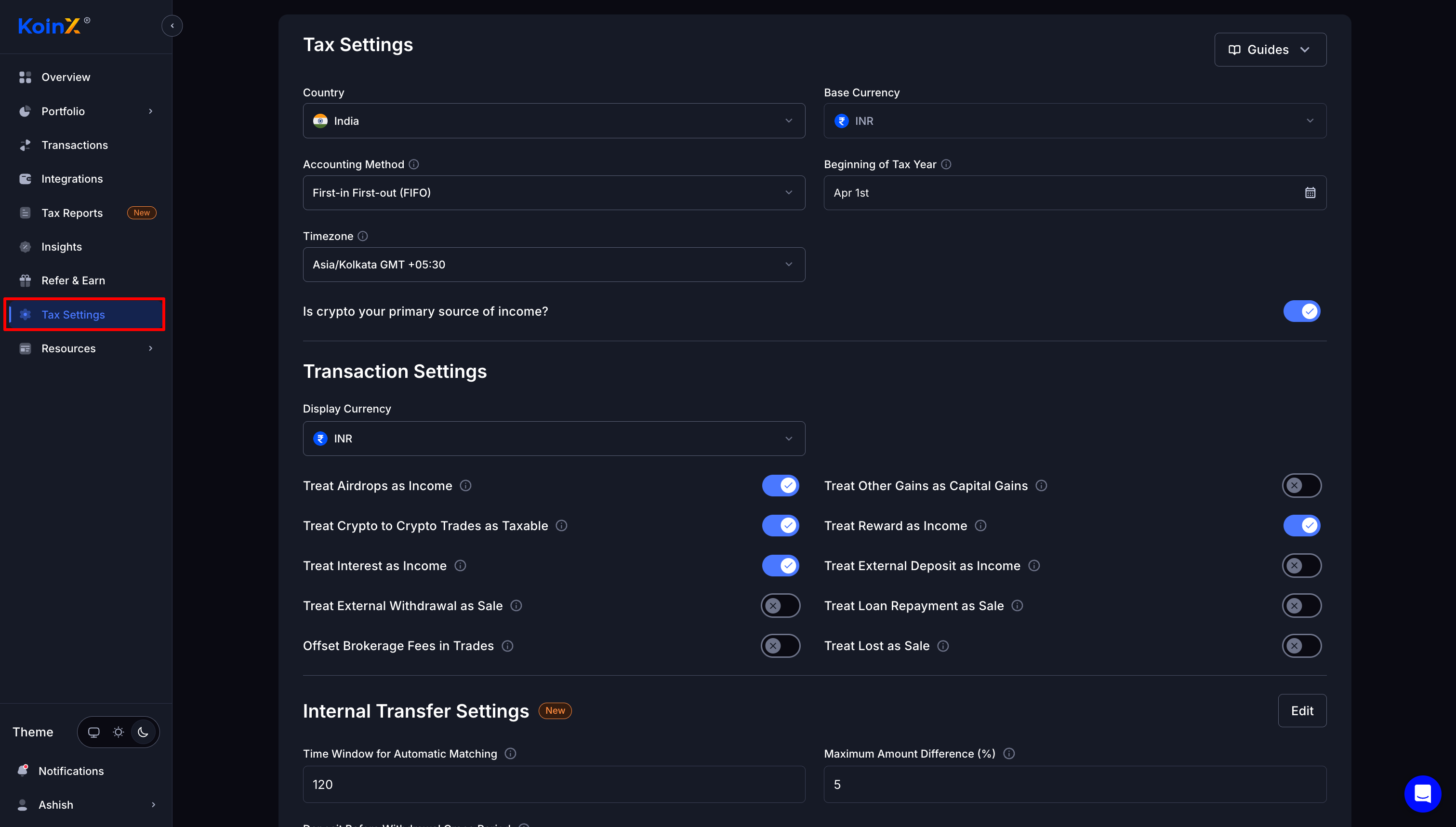
Click Tax Settings in the left sidebar.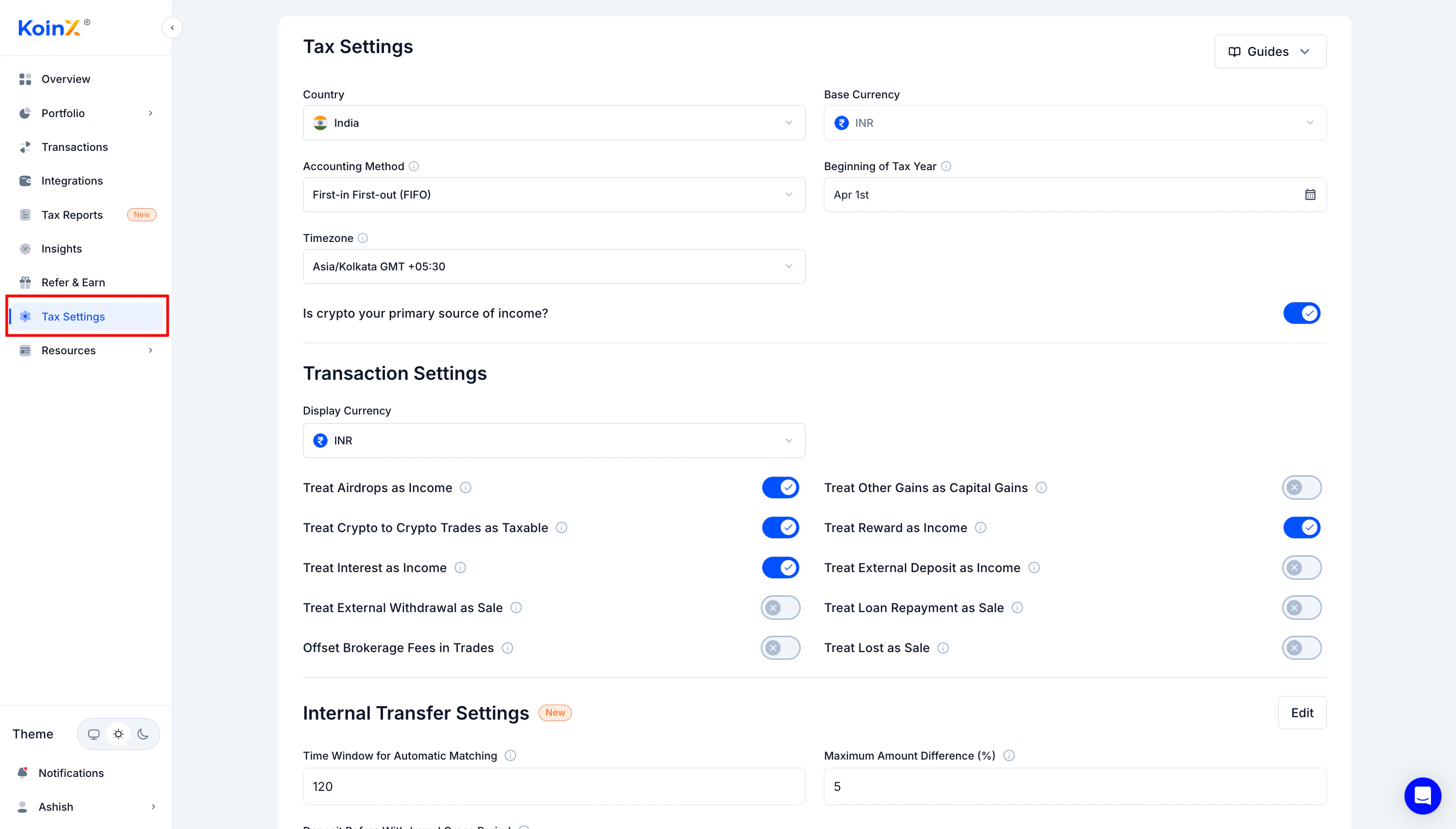
2
Review available sections
You will see sections for Country, Base Currency, Display Currency, Timezone, Accounting Method, and Transaction Settings.
Country Setting
What it controls
- Report format (Schedule VDA for India, Form 8949 for USA, etc.)
- Tax rules applied to calculations
- Field labels and structure of reports
- Beginning of tax year (April 1 for India, January 1 for USA)
How to change
1
Go to Tax Settings
Open Tax Settings from the sidebar.
2
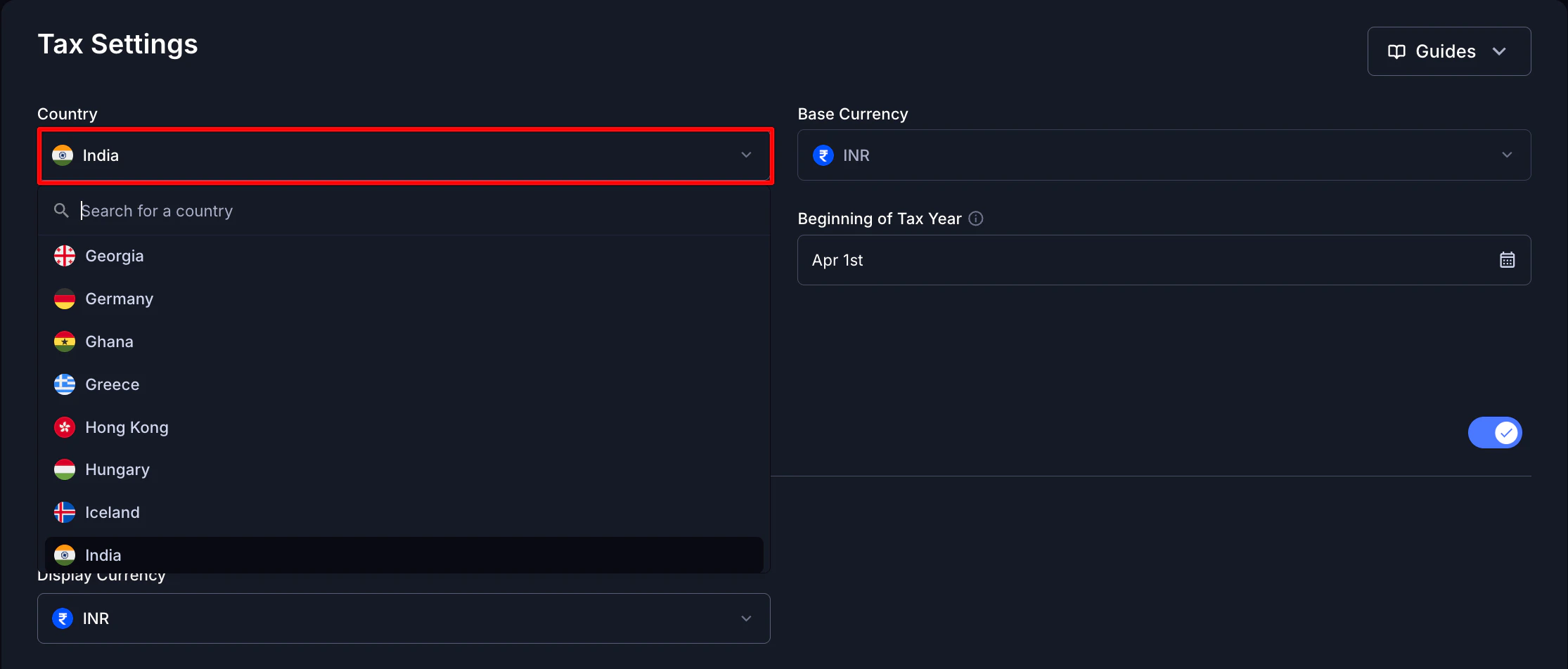
Select your country
Find the Country dropdown and select your country.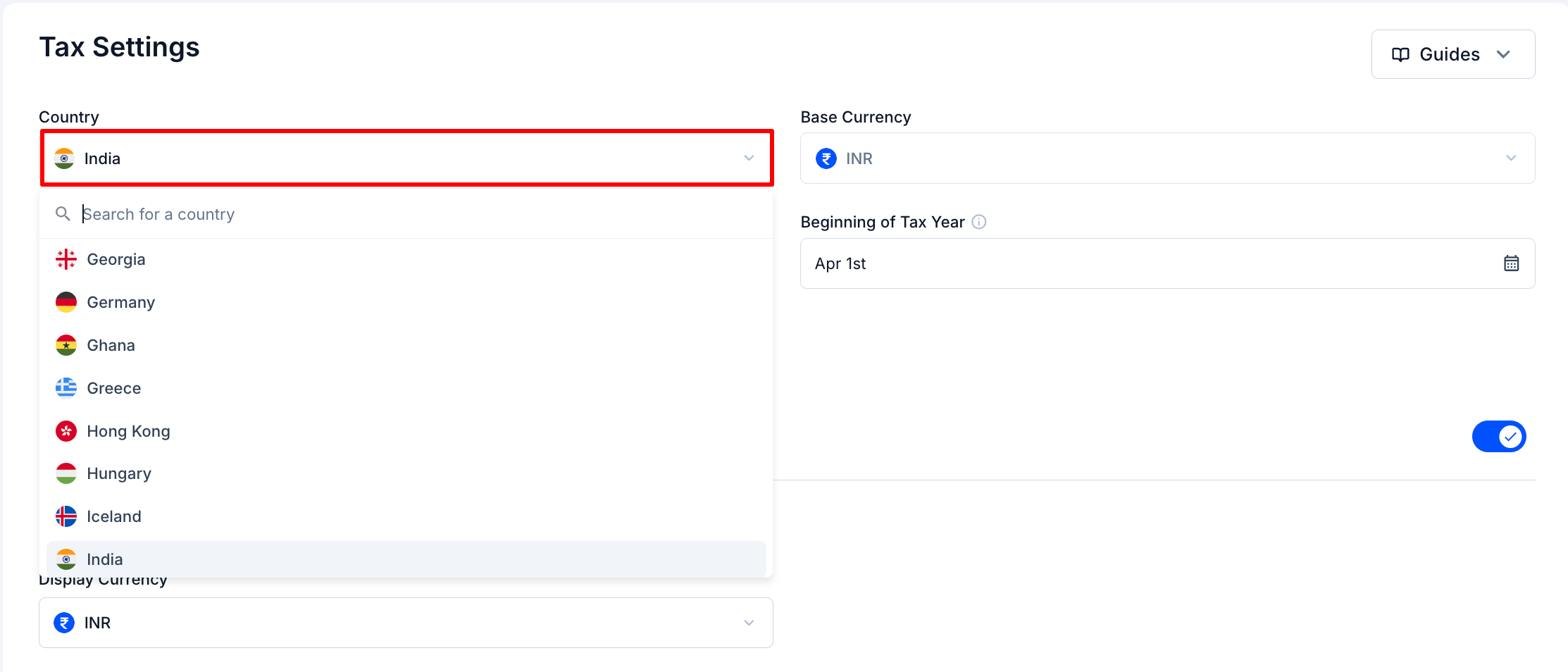
3
Save changes
Save your changes.
Available countries
India, USA, UK, Germany, Japan, Australia, Canada, Italy, and Default (for all other countries).Base Currency
What it is
The currency used for all tax calculations. This is automatically set by KoinX based on the country you select.Base currency cannot be changed. KoinX sets it automatically when you select your country to ensure your reports remain compliant with your tax jurisdiction.
What it controls
- Currency for cost basis calculations
- Currency for gain/loss computation
- Currency shown in tax reports
Example
If you are filing taxes in India (base currency INR), all transactions are calculated in INR, with historical exchange rates used to convert values where needed.Display Currency
What it is
A convenience setting that controls how values appear in the KoinX interface. It does not affect your tax calculations.Example
Base Currency = INR, Display Currency = USD: all calculations happen in INR, but the dashboard shows approximate USD values for convenience. Reports are still generated in INR.How to change
1
Go to Tax Settings
Open Tax Settings from the sidebar.
2
Change display currency
Find Display Currency and select your preference.
3
Save
Save your changes.
Timezone Setting
What it controls
The timezone setting determines which timestamp is used for tax calculations and report generation. It helps KoinX decide which transactions fall within your selected tax period.What it does not control
Changing this setting does not change the transaction times shown in the Transactions tab. Those are displayed based on your system or local time. The timezone setting is used only for tax reporting purposes.How to change
1
Go to Tax Settings
Open Tax Settings from the sidebar.
2
Select timezone
Find Timezone and select the appropriate option.
3
Save
Save your changes.
Why this matters
If the timezone is set incorrectly, transactions near the end or start of a financial year may fall into the wrong tax period, affecting your final calculations.Beginning of Tax Year
The first day of your financial year. This is automatically set based on your country selection:- India: April 1st
- USA: January 1st
- UK: April 6th
- Others: Varies by jurisdiction
What Happens When You Change Settings
Do I need to re-sync exchanges after changing settings?
No. Settings changes do not affect your imported transaction data. Just regenerate reports to apply the new settings.Will already generated reports change?
No. Reports you have already downloaded remain unchanged. To get updated reports, regenerate them after saving your new settings.Frequently Asked Questions
How do I change my country?
How do I change my country?
Go to Tax Settings, find the Country dropdown, select your country, and save. This updates your report format, tax year boundaries, and base currency.
Can I change my base currency?
Can I change my base currency?
No. Base currency is automatically set by KoinX based on the country you select and cannot be changed independently. This ensures your reports stay compliant with your tax jurisdiction.
Can I change my display currency?
Can I change my display currency?
Yes. Display Currency in Tax Settings lets you view values in a different currency without affecting your tax calculations or reports.
What is the difference between base currency and display currency?
What is the difference between base currency and display currency?
Base currency is used for all calculations (cost basis, gains, losses) and cannot be changed. Display currency only affects how values appear in the interface and has no impact on your tax reports.
What happens if my base currency is INR but display currency is USD?
What happens if my base currency is INR but display currency is USD?
All calculations still happen in INR. The interface shows approximate USD values for convenience. Reports are generated in INR, which is what you need for Indian tax filing. For most users, keeping both as INR is simplest.
Can I change my timezone?
Can I change my timezone?
Yes. Go to Tax Settings and select your timezone. This determines how transaction timestamps are interpreted when generating tax reports and ensures transactions fall into the correct financial year.
Does changing timezone affect transaction timestamps in my transaction list?
Does changing timezone affect transaction timestamps in my transaction list?
No. Timestamps shown in the Transactions tab are based on your system or local time and are not affected by the timezone setting. The timezone setting only applies to how KoinX places transactions within a tax year when generating reports.
Do I need to re-sync my exchanges after changing settings?
Do I need to re-sync my exchanges after changing settings?
No. Settings changes do not affect your imported data. You do not need to re-sync. Just regenerate reports to see the updated figures.
Will changing these settings affect reports I already downloaded?
Will changing these settings affect reports I already downloaded?
No. Already downloaded reports remain unchanged. To get reports reflecting your new settings, regenerate them after saving.