
AI Summary
- After purchasing a plan, the Complete Tax Report is automatically sent to your registered email address
- Additional reports can be generated from the Tax Reports section and are also sent via email
- All generated reports are stored on the platform in Previously Generated Reports for download any time
- Email download links are valid for 7 days, but reports remain permanently accessible from the platform
- If your transaction count later exceeds your plan limit, you can upgrade by paying only the difference amount
How to Generate and Download a Tax Report
1
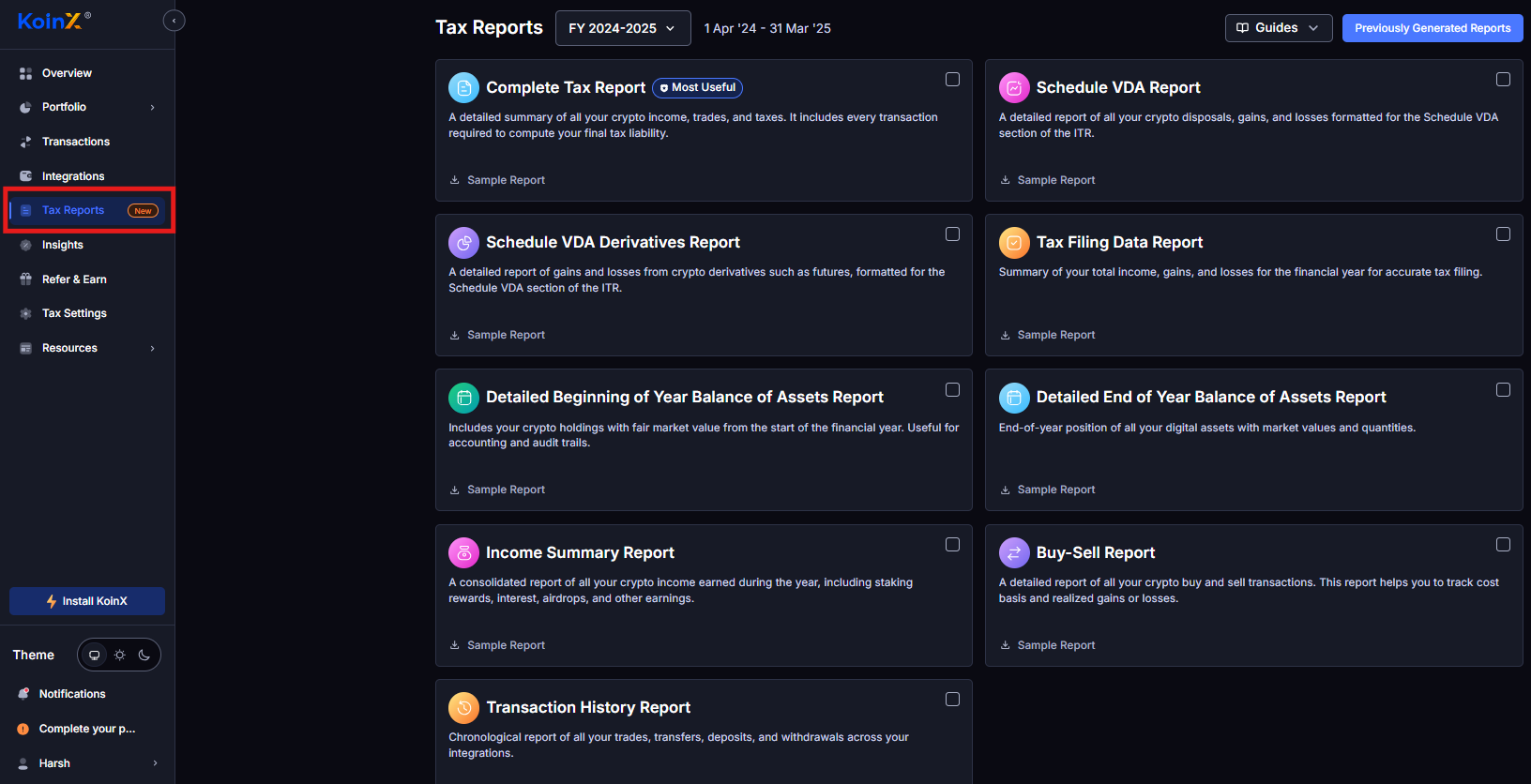
Go to Tax Reports
Click Tax Reports in the left sidebar.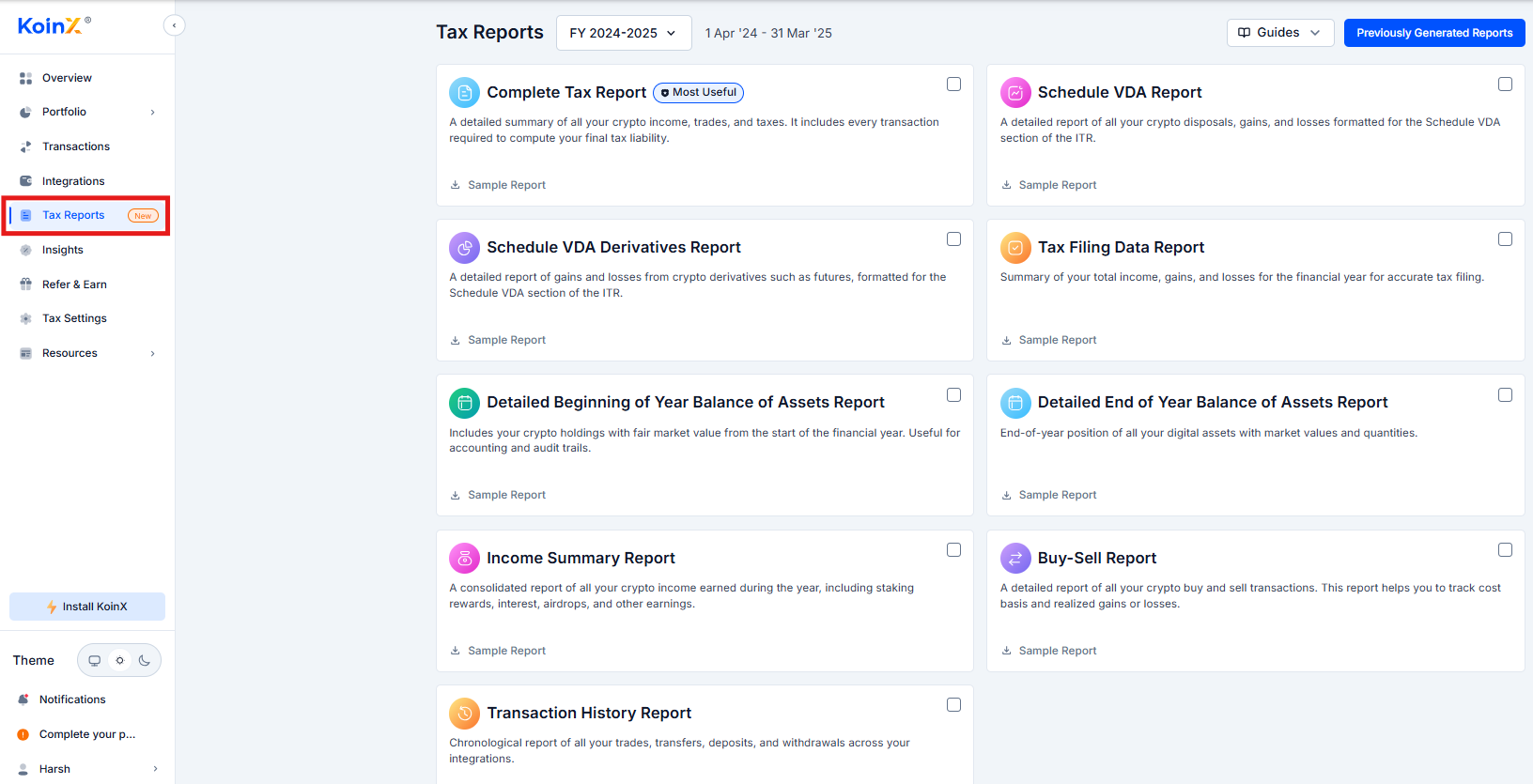
2
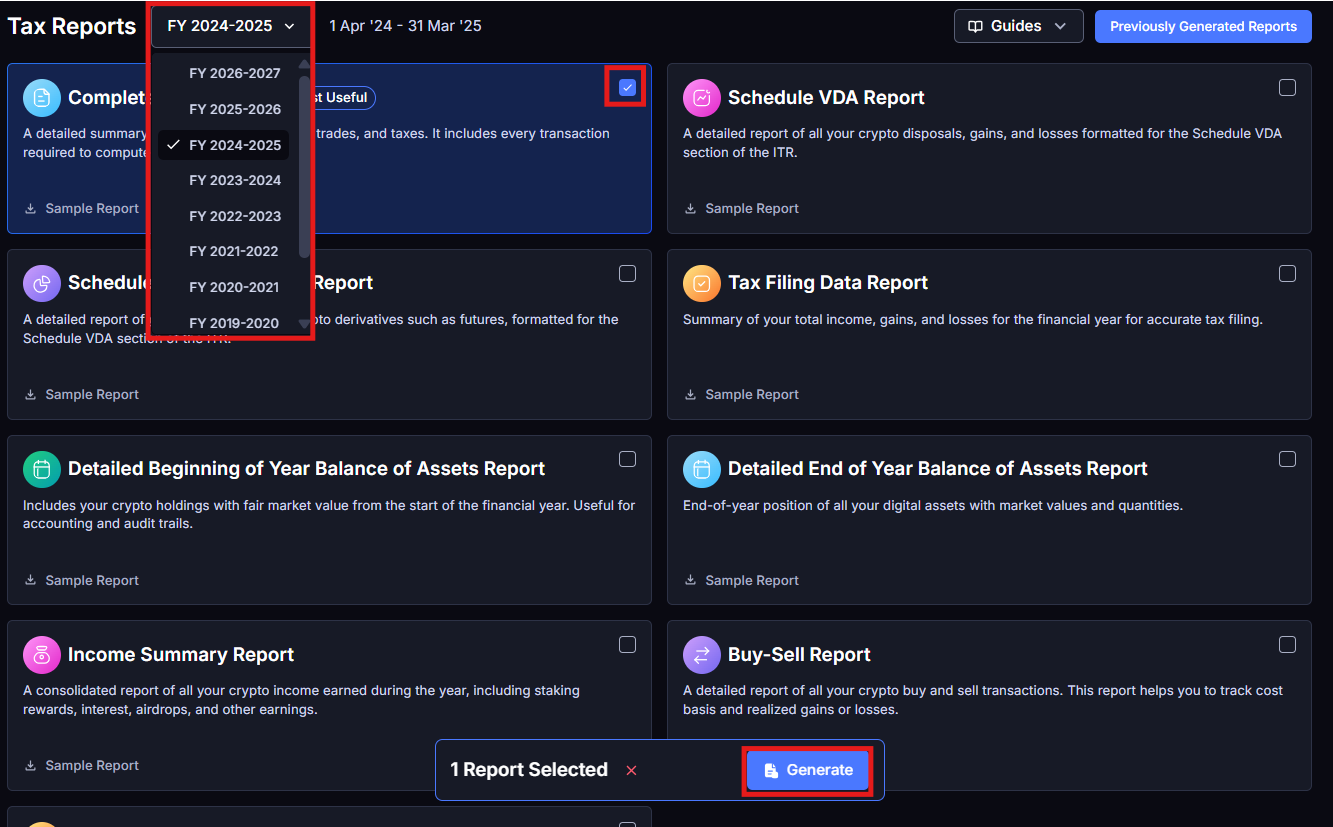
Select the financial year
Use the dropdown at the top to select the correct financial year (e.g., FY 2025-26).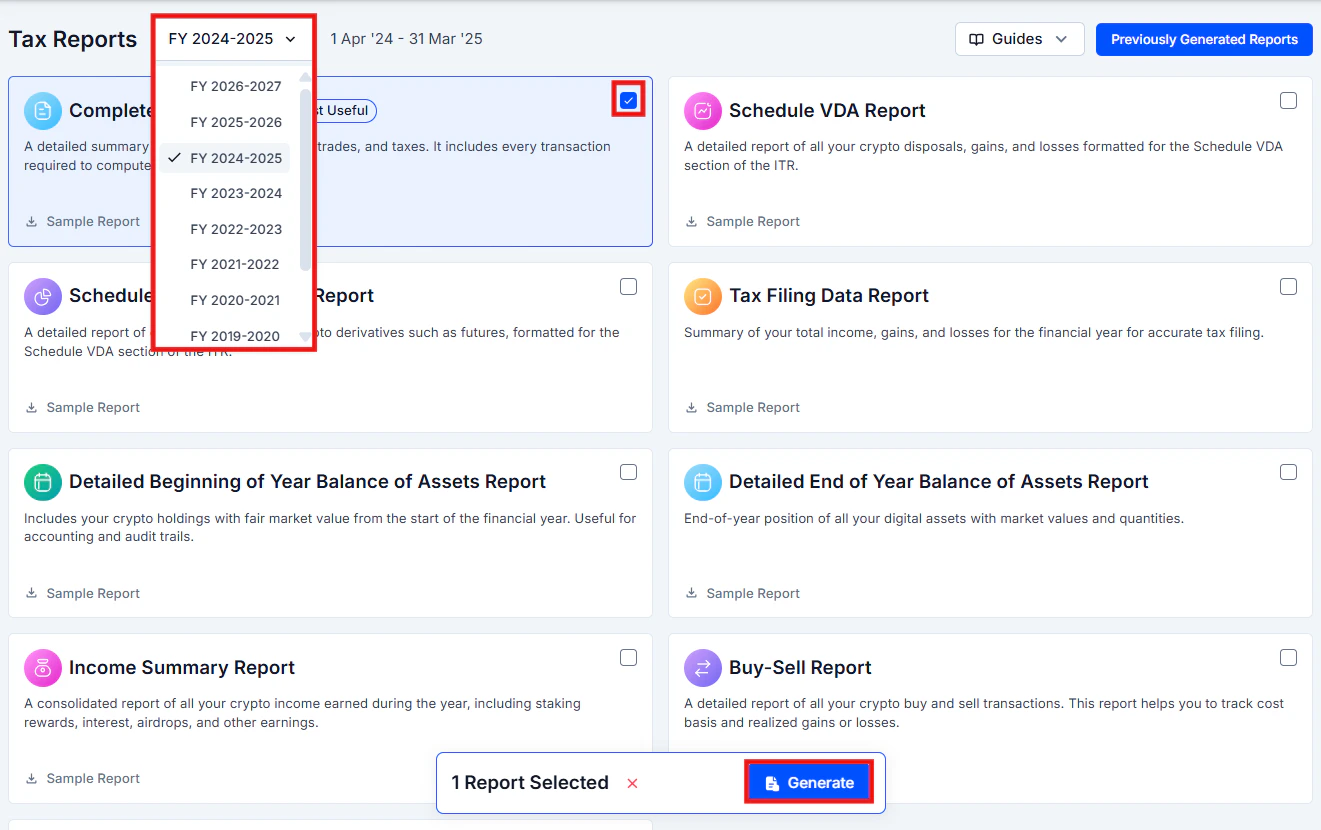
3
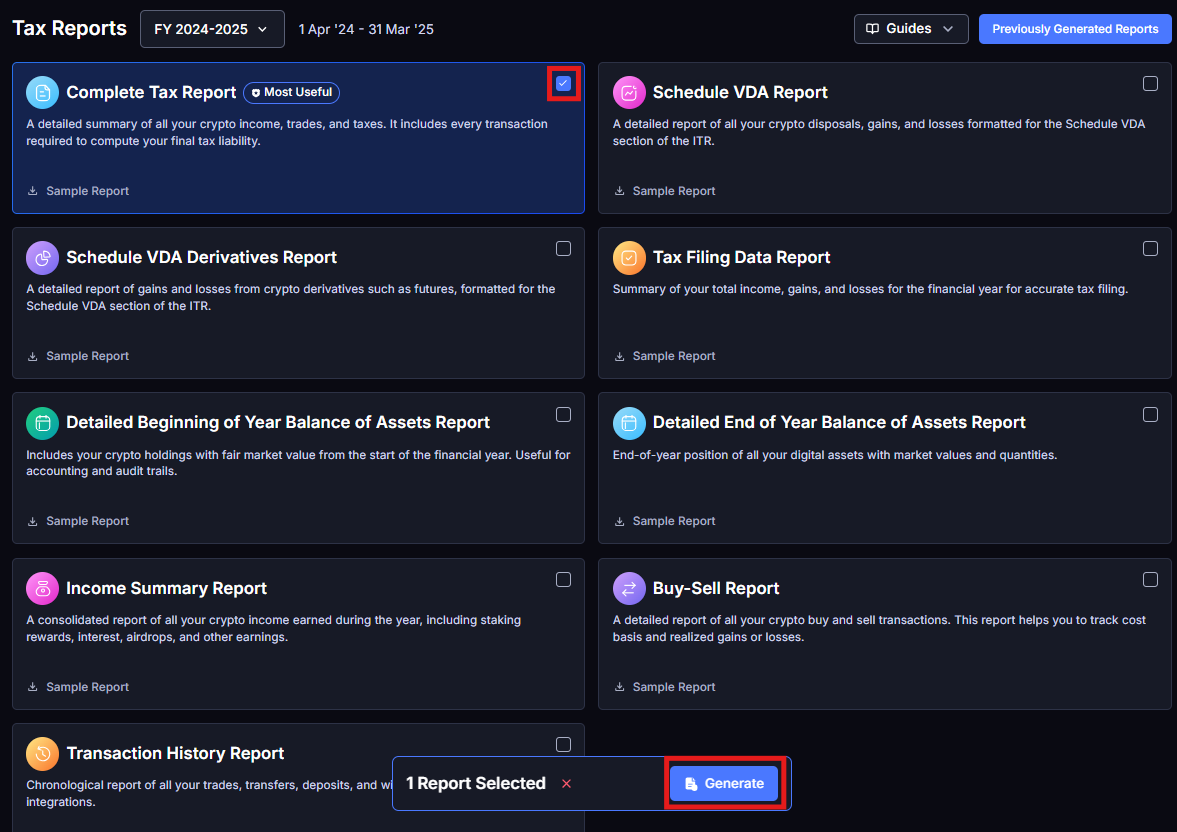
Choose your reports
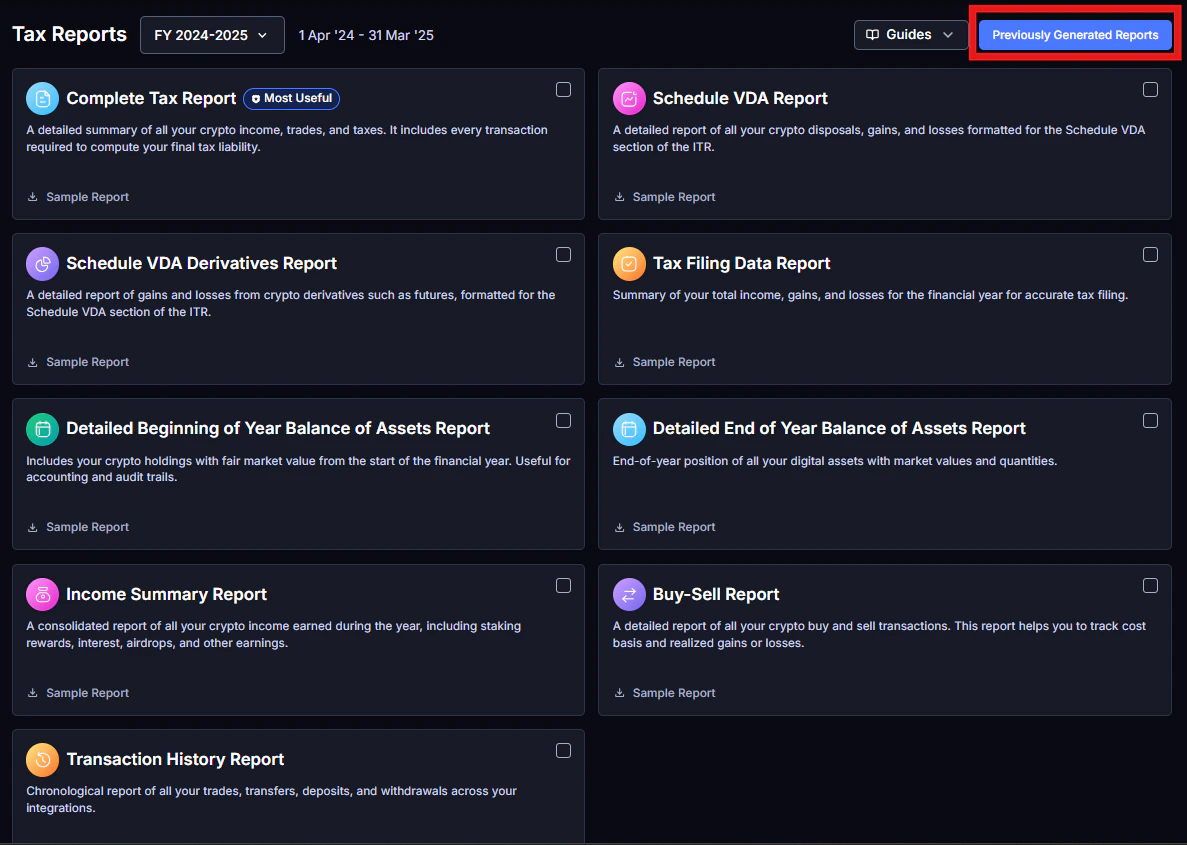
You will see a list of available reports with checkboxes. Each card shows a brief description and a Sample Report link. Select the checkbox next to each report you want to generate.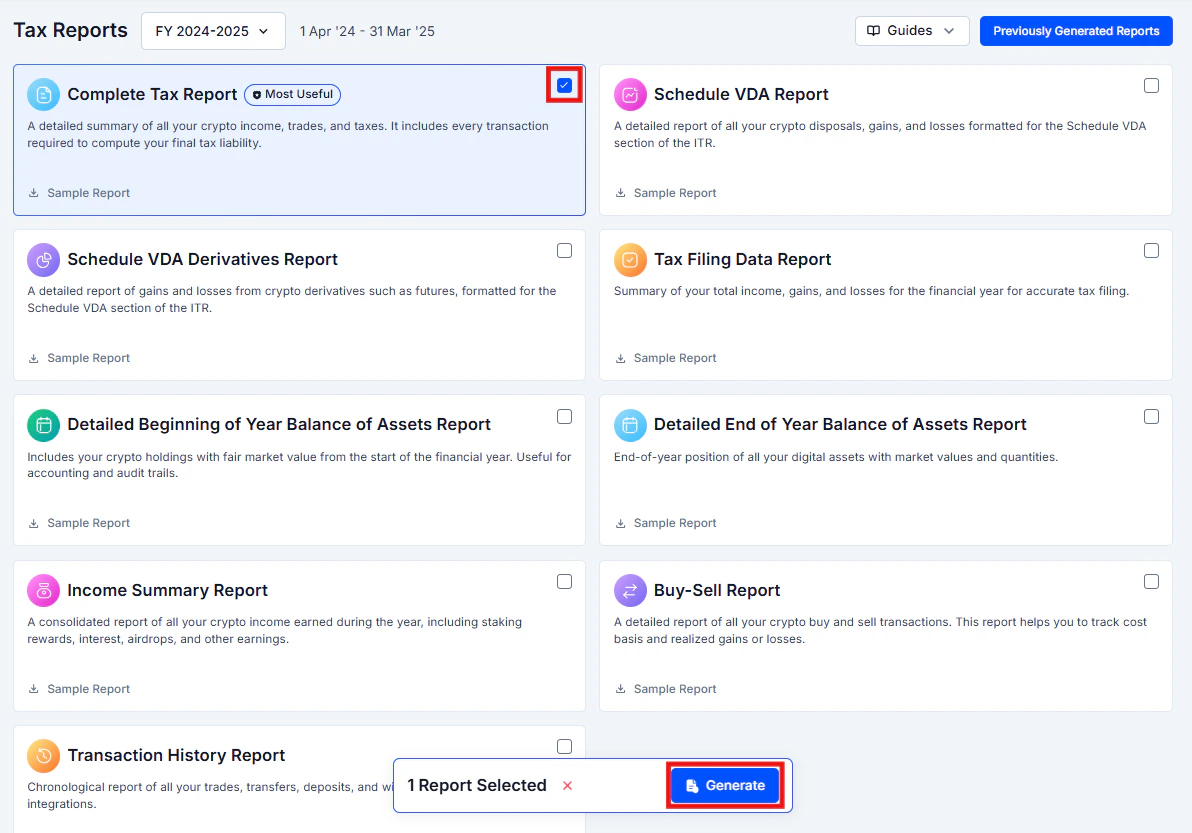
4
Click Generate Report
Click Generate Report. KoinX processes your transactions and creates the report. This usually takes a few seconds to a couple of minutes depending on transaction volume.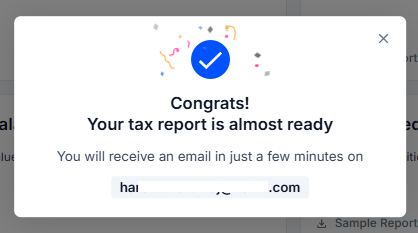
5
Access your report
Once generated, the report is sent to your registered email address and saved in Previously Generated Reports for download from the platform.
Available Report Formats
Most reports download as PDF and Excel, ready to share with your CA or upload to a tax portal.Finding Previously Generated Reports
Every report you generate is saved automatically. To access them:1
Go to Tax Reports
Click Tax Reports in the left sidebar.
2
Open Previously Generated Reports
Click the Previously Generated Reports button in the top-right corner of the page.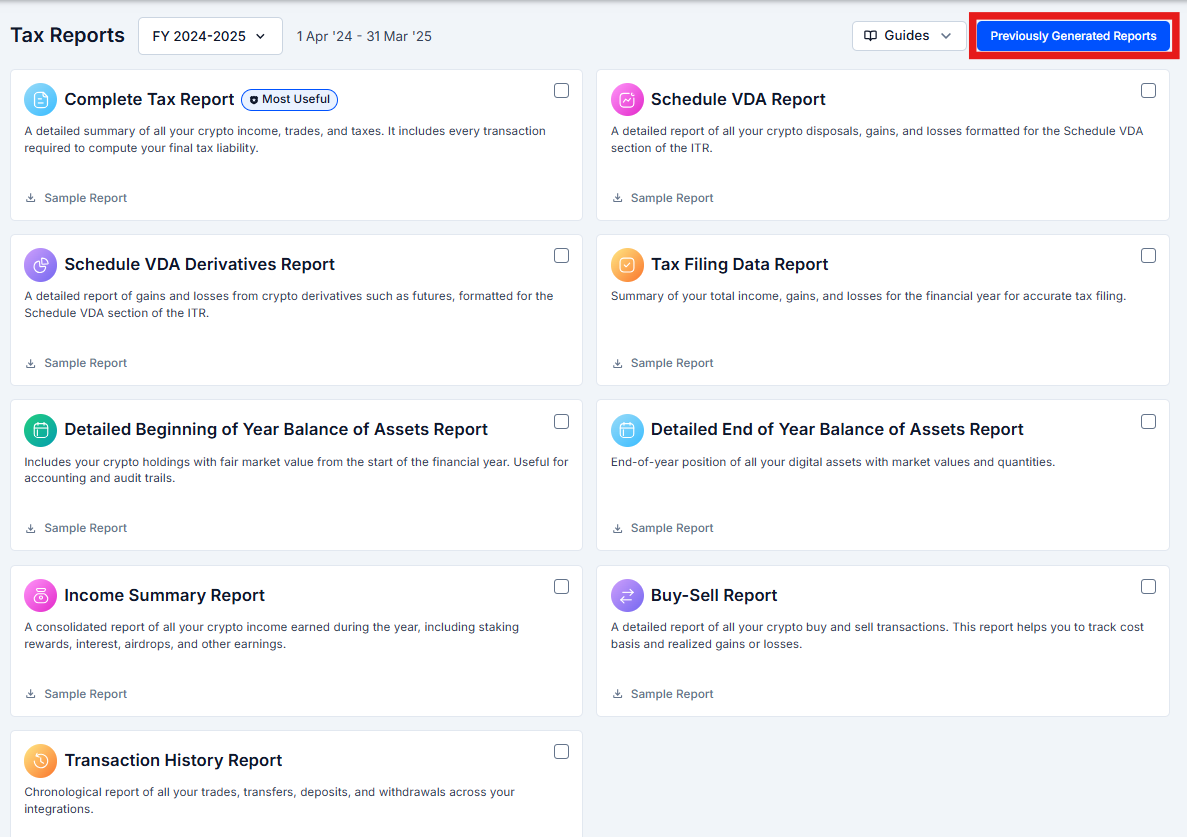
3
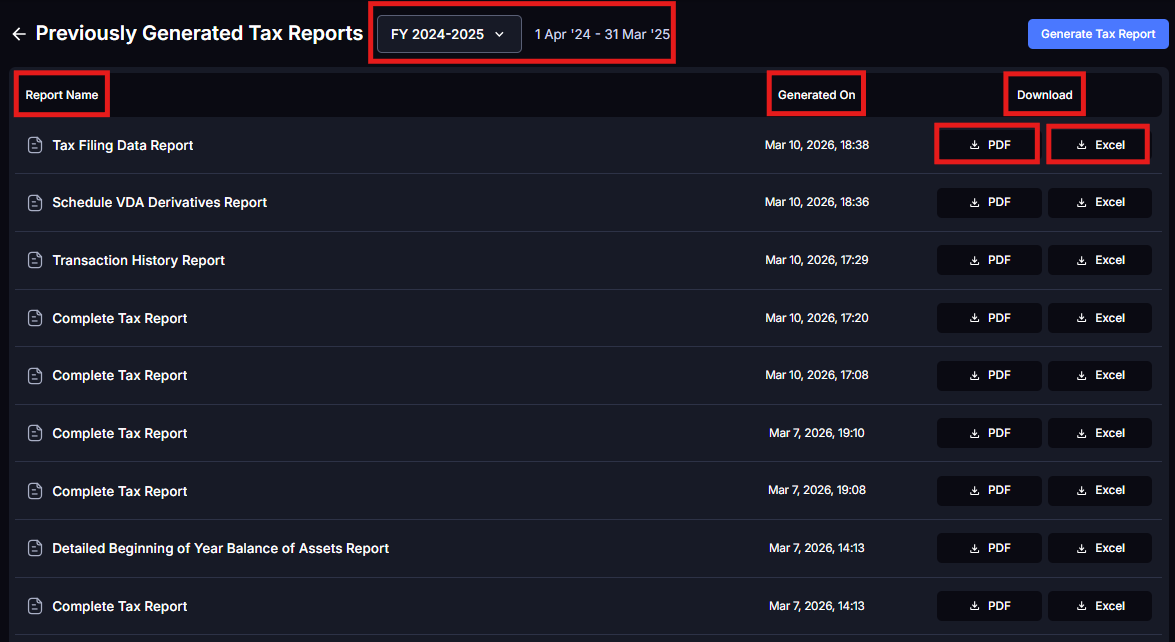
Find your report
You will see all reports you have generated, sorted by date. Each entry shows the report name, financial year, and generation date.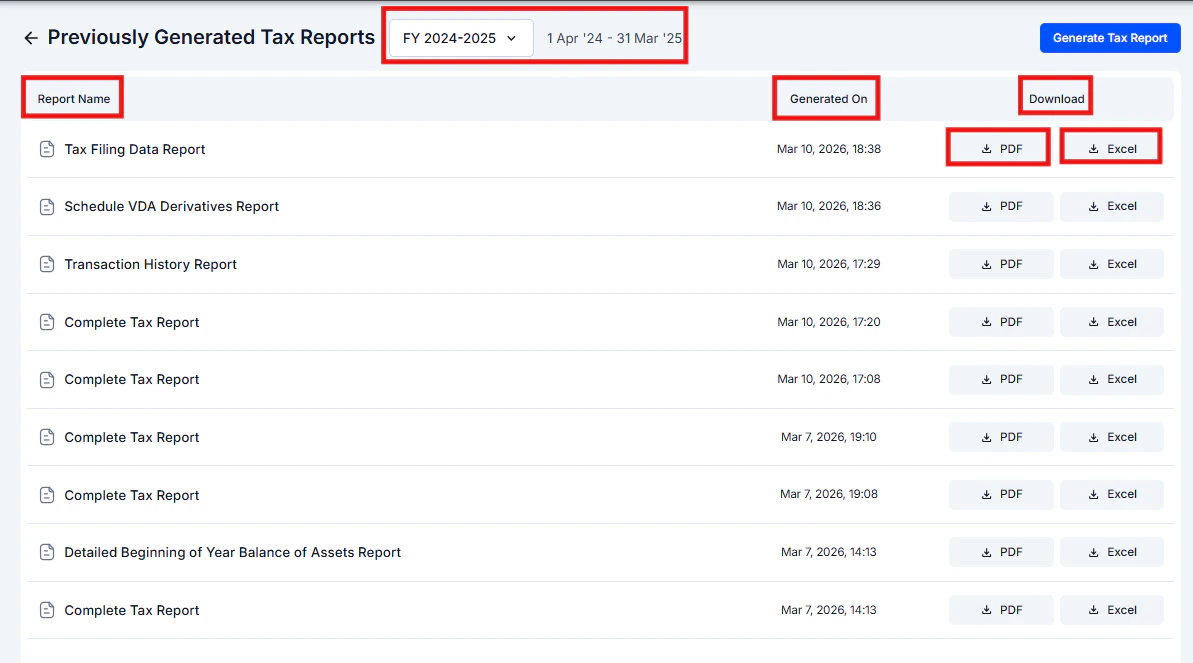
4
Download
Click the download icon next to any report to re-download it.
Report Delivery: Email and Platform Access
After purchase
Once you purchase a plan, the Complete Tax Report is automatically generated and sent to your registered email address. You do not need to manually generate it for the first time.Additional reports
All other reports you generate (Transaction History, Income Summary, Buy-Sell, Schedule VDA, Balance Reports) are also sent to your registered email after generation, in addition to being saved on the platform.Accessing from the platform
Go to Tax Reports → Previously Generated Reports at any time to view, download, or compare all reports you have generated, including older versions.What If My Email Link Expired?
Download links sent via email are valid for 7 days. If the link has expired, your report is not lost. Option 1: Download from the platform Go to Tax Reports, click Previously Generated Reports, find the report, and click the download icon. Option 2: Regenerate the report Generate the report again from the Tax Reports page. This is free and unlimited with an active plan. Regenerating also sends a new download link to your email.Unable to Generate Reports After Purchasing?
Troubleshooting Report Downloads
Report generation is stuck or taking too long
Report generation is stuck or taking too long
Large transaction volumes can take a few minutes to process. If it has been more than 5 minutes, refresh the page and try generating again. If the issue persists, contact support.
Downloaded file is corrupted or won't open
Downloaded file is corrupted or won't open
Try downloading again since network issues can cause incomplete downloads. For PDF files, ensure you have a PDF reader installed. For Excel files, open with Microsoft Excel or Google Sheets.
Report shows 'No data' or is blank
Report shows 'No data' or is blank
Verify you selected the correct financial year. Check that your integrations are synced and transactions exist within that year. If all your transactions are outside the selected date range, the report will be empty.
I paid but cannot generate reports
I paid but cannot generate reports
Your plan may be for a different financial year than the one selected. Refresh the page and try again. If the issue persists after 15 minutes, contact support with your payment confirmation.
Frequently Asked Questions
How long does report generation take?
How long does report generation take?
Usually a few seconds to 2 minutes depending on your transaction volume. Accounts with very high transaction counts may take slightly longer.
Can I download all reports in a single click?
Can I download all reports in a single click?
You can generate multiple reports together by selecting several checkboxes, but each report downloads as a separate file.
I paid but my report isn't in Previously Generated Reports. What do I do?
I paid but my report isn't in Previously Generated Reports. What do I do?
Purchasing a plan unlocks the ability to generate reports. Reports are not all automatically generated at the time of purchase. The only exception is the Complete Tax Report, which is automatically generated and sent via email. All other reports need to be generated manually from the Tax Reports page.
Can I regenerate a report after editing my transactions?
Can I regenerate a report after editing my transactions?
Yes. Once you have upgraded for a financial year, you can regenerate reports as many times as needed at no extra charge.
Do reports auto-update when I add new transactions?
Do reports auto-update when I add new transactions?
No. Reports are point-in-time snapshots. If you add or edit transactions after generating a report, you need to regenerate it to reflect the updated data.
How do I check when a report was generated?
How do I check when a report was generated?