
AI Summary
- Change the financial year from the dropdown on the Tax Reports page
- Your accounting method (FIFO, LIFO, HIFO, or Average Cost) determines how cost basis is calculated
- Tax behaviour settings determine how transactions like airdrops, rewards, or loan repayments are classified
- Internal Transfer Settings help KoinX automatically detect transfers between your wallets
- Changing settings will change the numbers in your reports, always regenerate after changing
- Each financial year requires a separate plan purchase
Changing the Financial Year
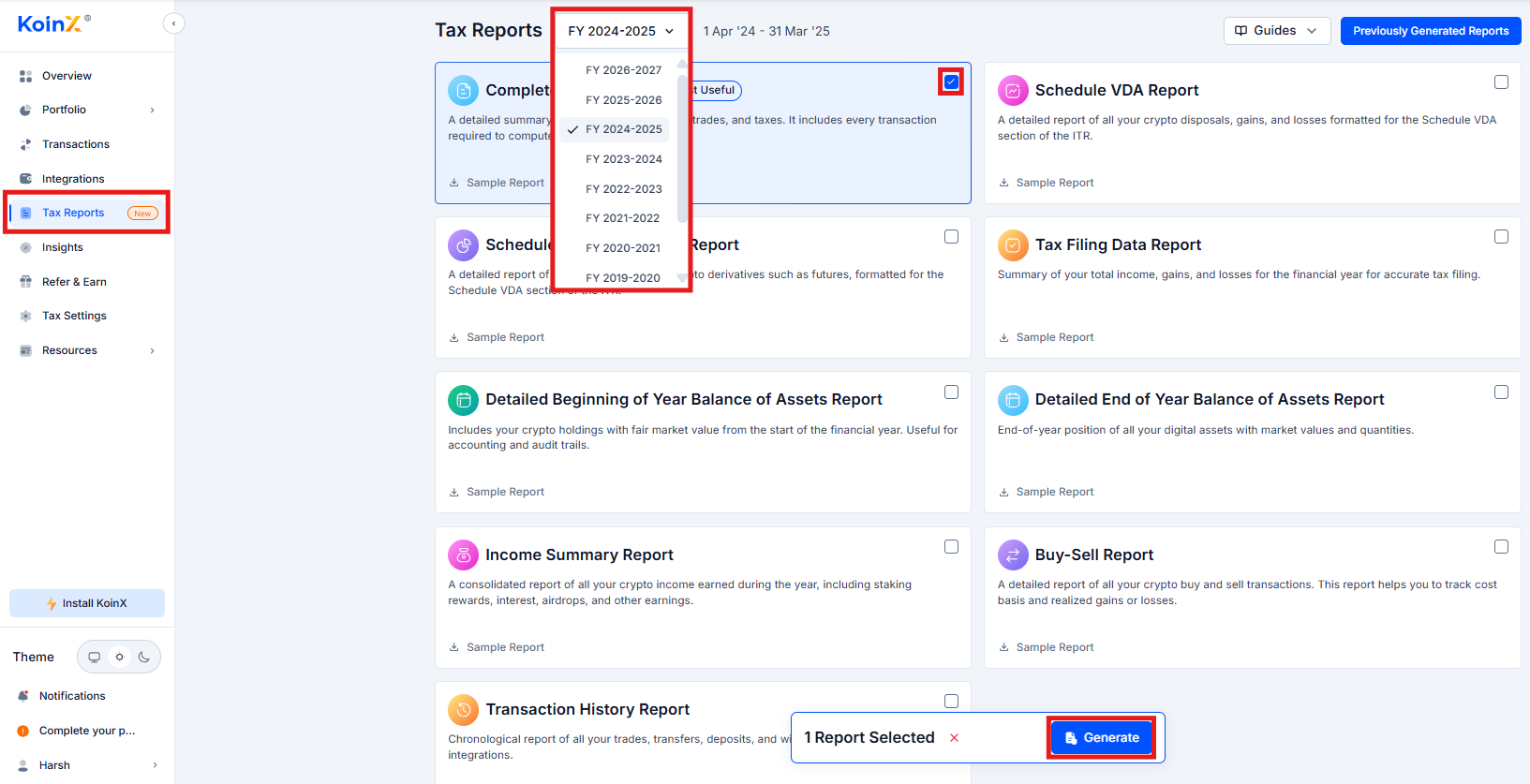
The financial year selector appears at the top of the Tax Reports page.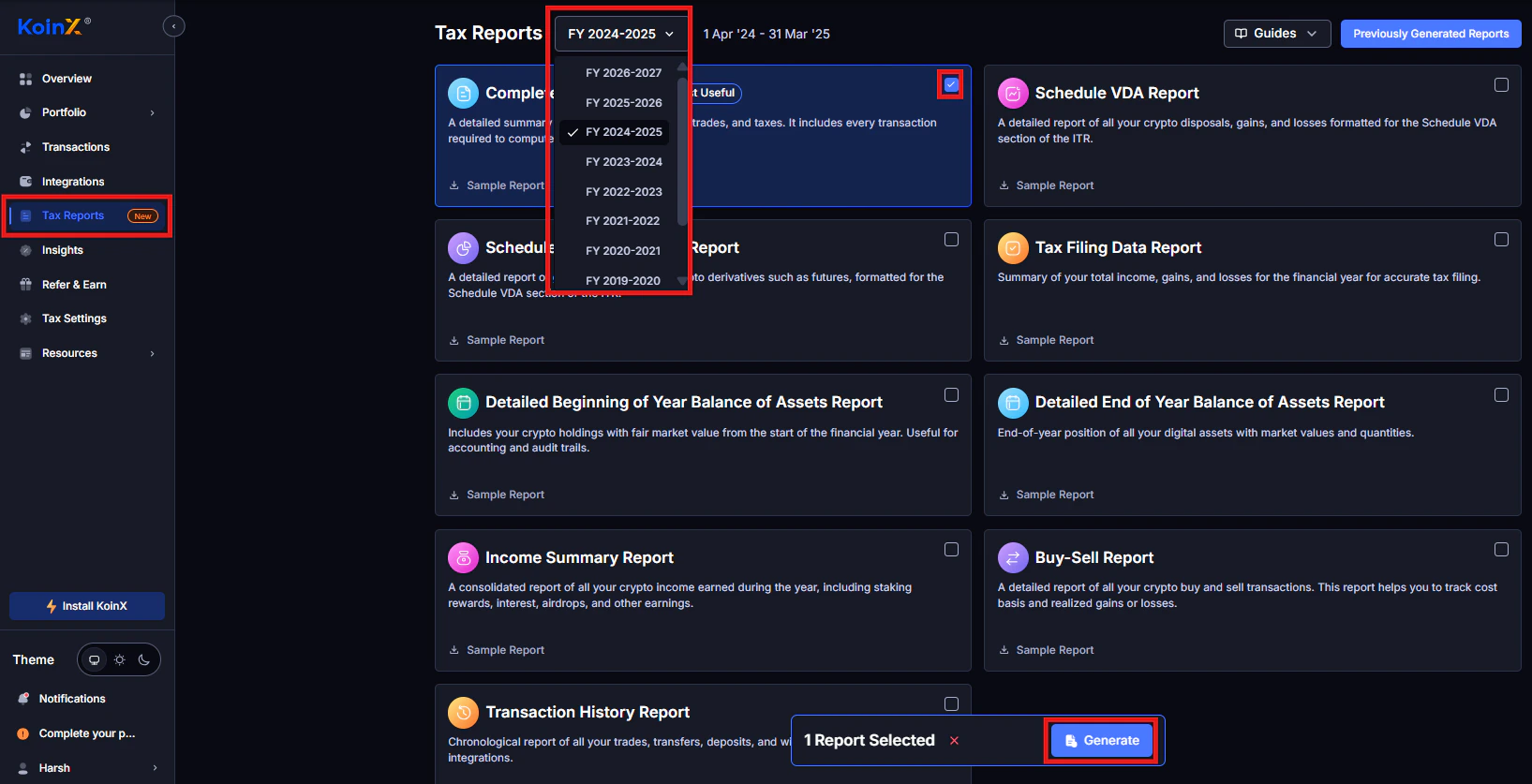
1
Go to Tax Reports
Click Tax Reports in the left sidebar.
2
Select the financial year
Click the Financial Year dropdown and select the year you need.
3
Generate reports
Generate the reports for that year.
Each financial year requires a separate plan purchase. Once purchased, reports for that year can be regenerated unlimited times.
Changing Your Accounting Method
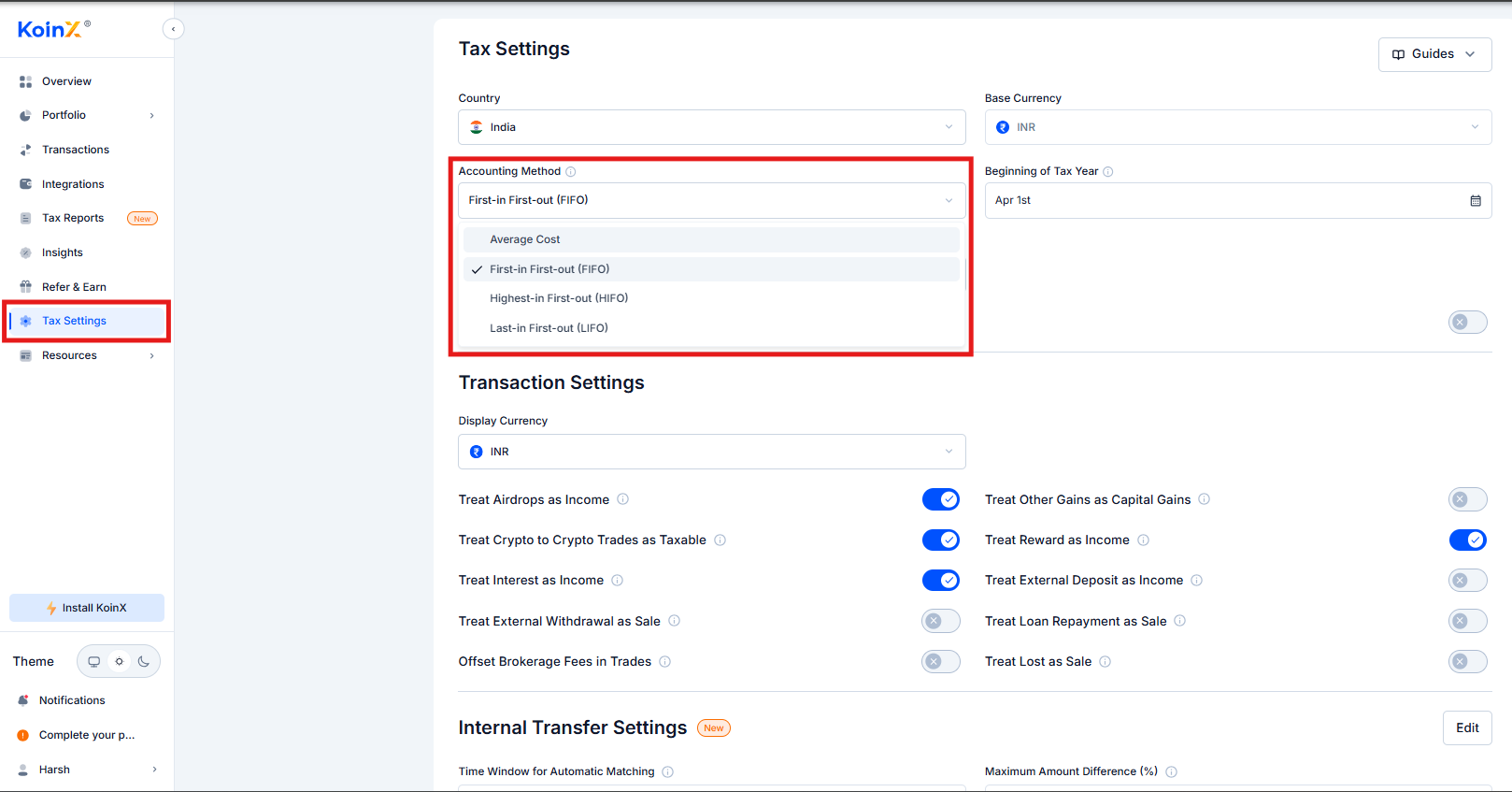
Your accounting method determines how KoinX calculates cost basis when crypto is sold, which directly affects your capital gains calculation.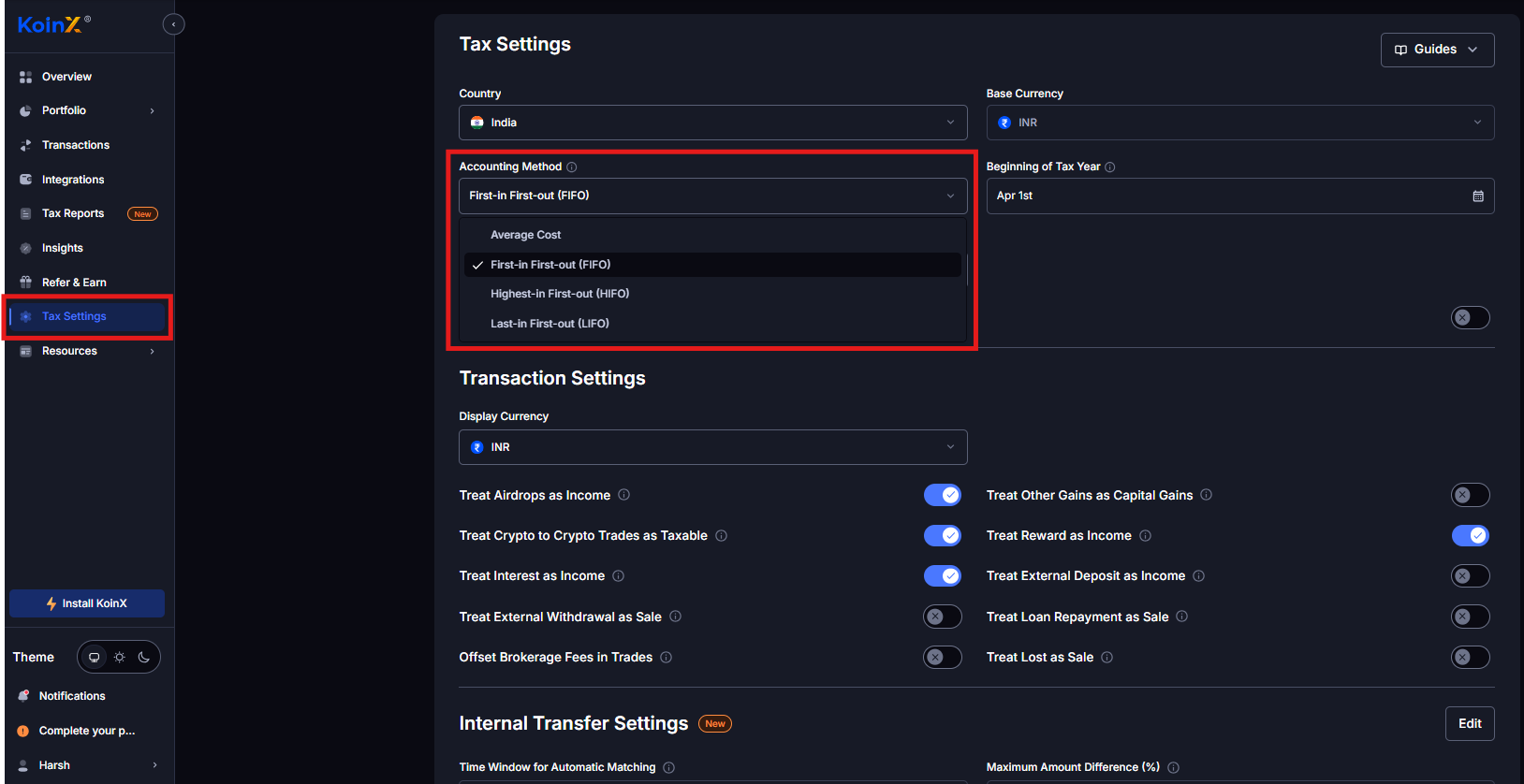
Deep dive: how each method affects your cost basis calculation
1
Go to Tax Settings
Open Tax Settings from the left sidebar.
2
Find Accounting Method
Locate the Accounting Method dropdown.
3
Select your method
Choose FIFO, LIFO, HIFO, or Average Cost.
4
Regenerate reports
Save and regenerate your reports to apply the new calculation.
VDA Income Classification (India)
Indian users can classify crypto gains as Capital Gains or Business Income. Both are taxed at 30% under current Indian VDA rules. The difference is how the income appears in your ITR:
Most individual investors use Capital Gains. Business Income applies if you file under ITR 3 and your CA advises reporting crypto activity as business income.
Transaction Settings That Affect Reports
These toggles in Tax Settings control how specific transaction types are classified in your reports. Changing them will affect your calculations after you regenerate.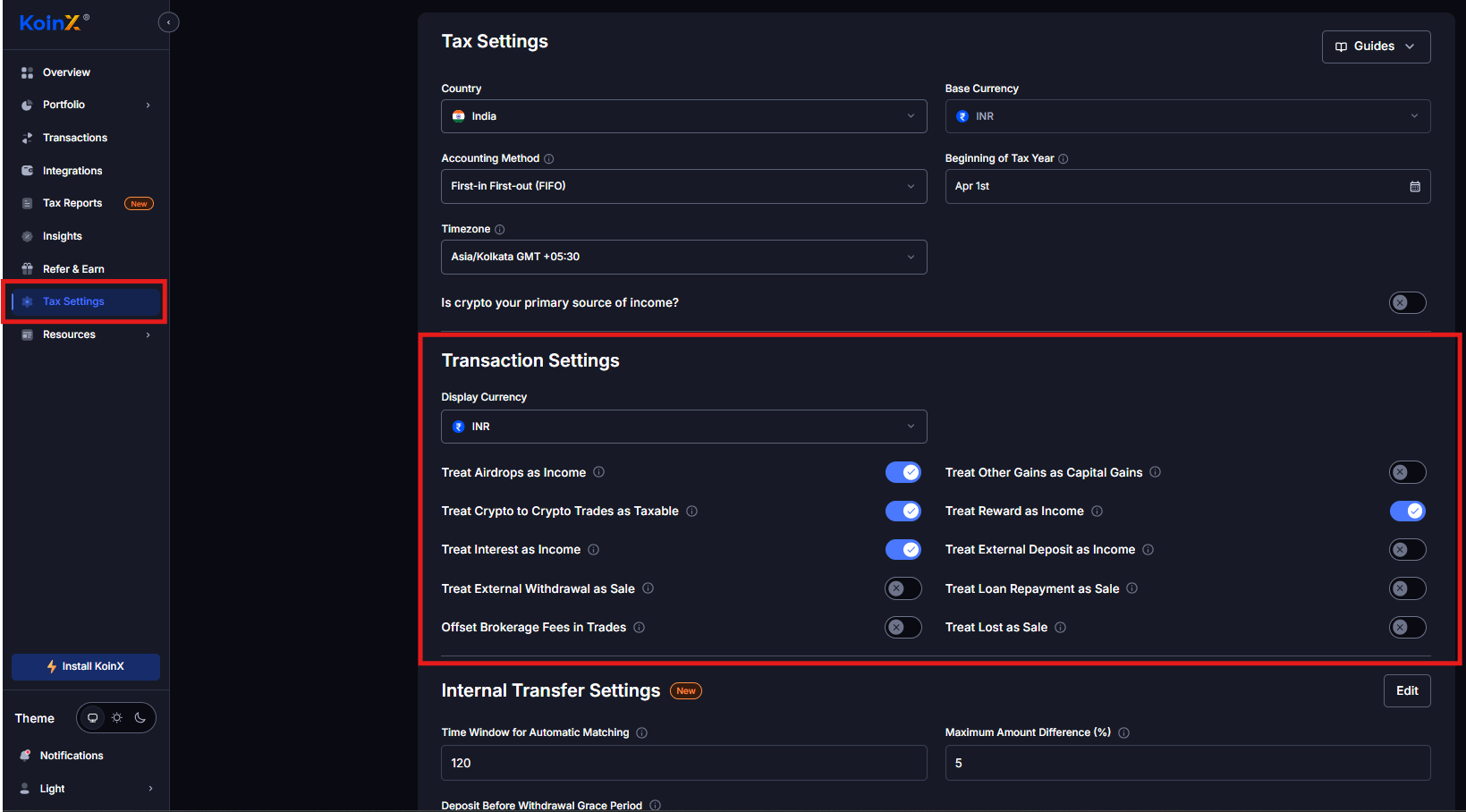
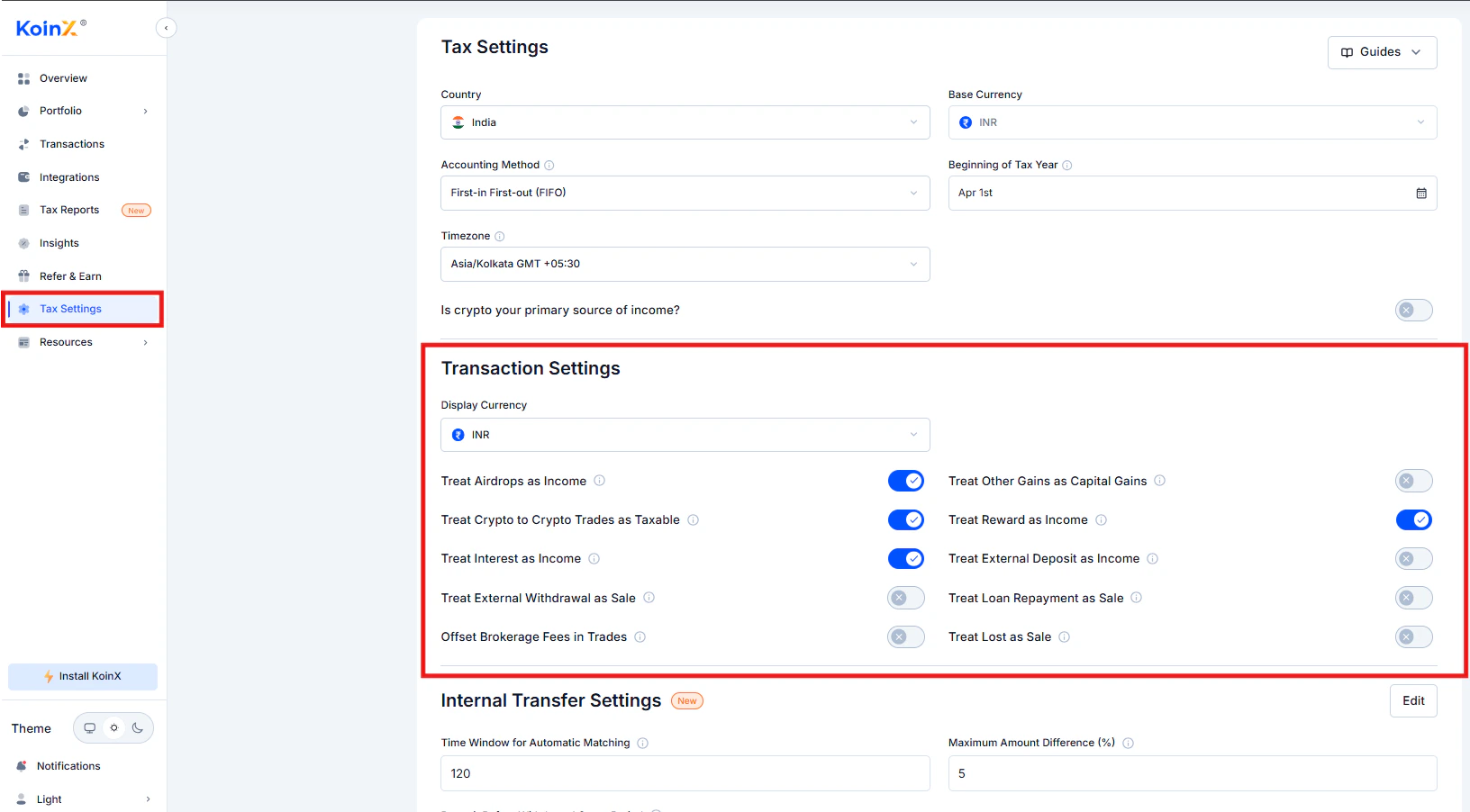
Full explanation of each Transaction Settings toggle
These settings exist because tax treatment varies by jurisdiction and individual circumstances. The defaults are broadly aligned with Indian VDA rules but you can adjust them based on your CA’s guidance.
Internal Transfer Settings
These settings help KoinX correctly classify movements between your own wallets and exchanges as internal transfers rather than taxable events.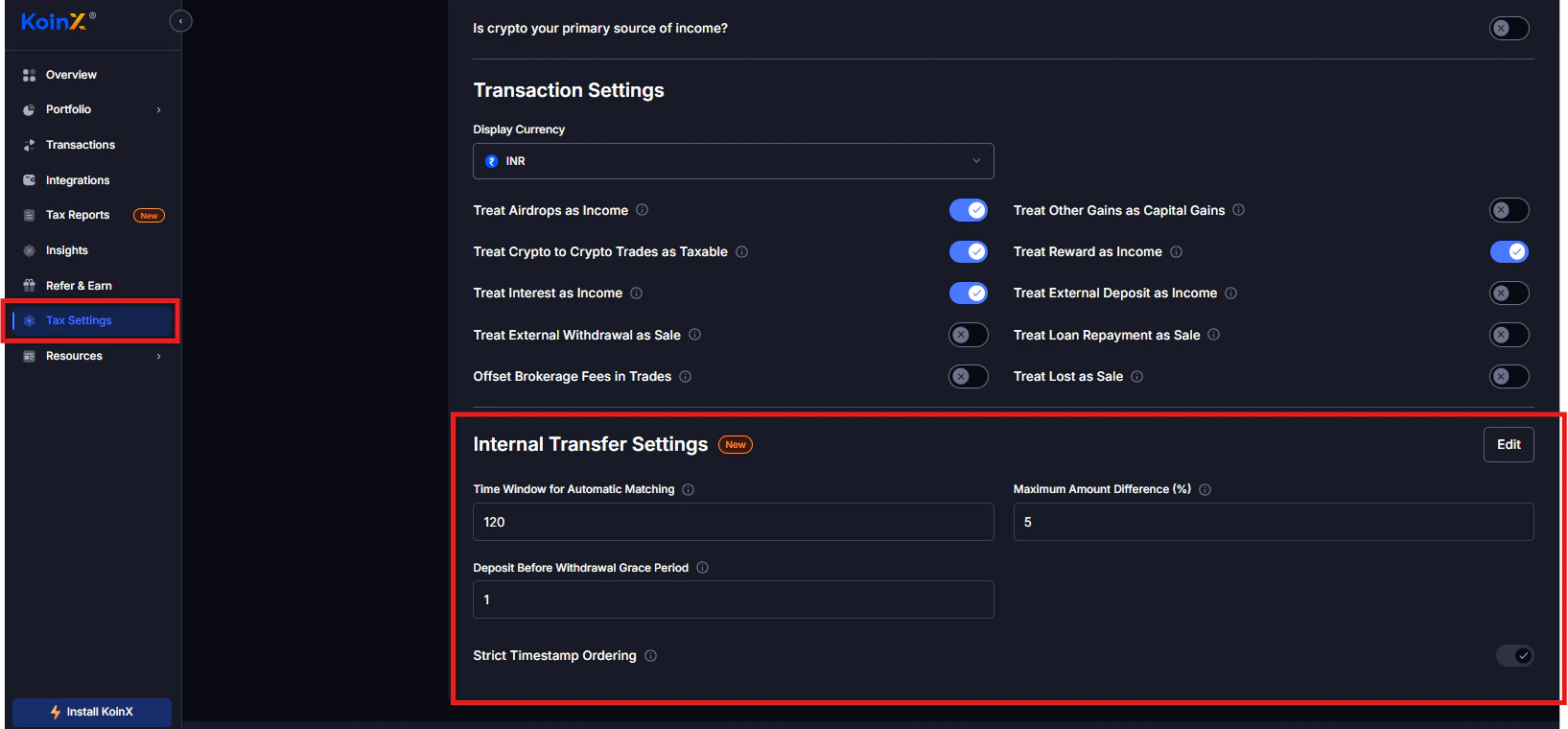
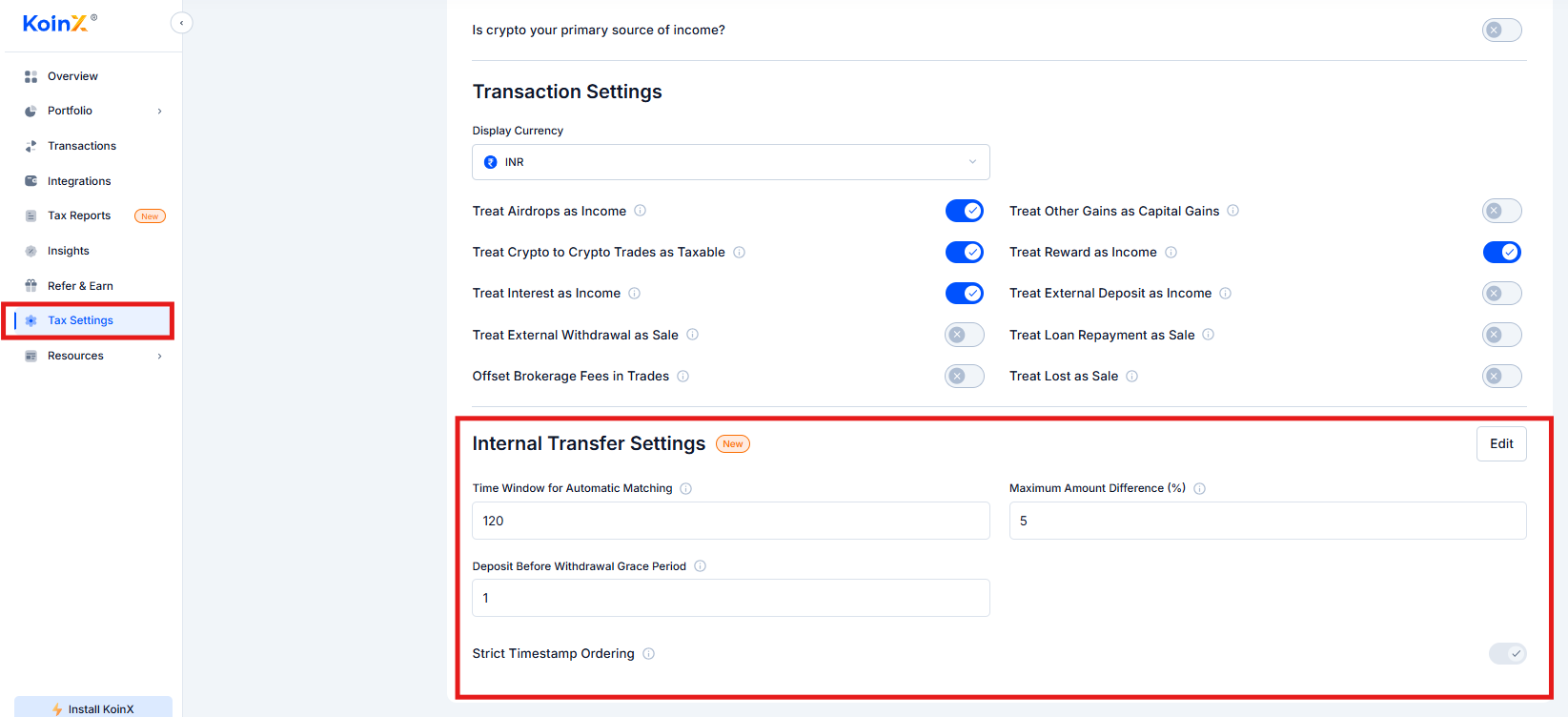
Time Window for Automatic Matching
The maximum time difference in minutes between a withdrawal and a deposit for them to be automatically matched as an internal transfer. Default: 120 minutes. Example: You withdraw BTC from Binance and deposit to Coinbase within 120 minutes. KoinX automatically marks this as an internal transfer. Transactions outside the window may need manual review.Maximum Amount Difference (%)
The maximum percentage difference allowed between withdrawal and deposit amounts. Default: 5%. This accounts for network fees and exchange deductions. For example, withdrawing 1 BTC and receiving 0.995 BTC (a 0.5% difference) would still be matched as a transfer.Deposit Before Withdrawal Grace Period
The maximum time in minutes that a deposit timestamp can appear before the withdrawal timestamp and still be matched as a transfer. Default: 1 minute. This handles small timestamp discrepancies between exchanges and blockchains.Strict Timestamp Ordering
When enabled, the withdrawal must occur before the deposit for them to be matched as an internal transfer. When disabled, deposits that appear slightly before the withdrawal (within the grace period) are still eligible for matching.What Does “Changed from Default” Mean?
If you see “Changed from Default” in your reports, it means one or more Tax Settings were modified from the default configuration. This is not an error. It simply informs your CA that custom settings were applied when generating the report.Can I Change My Country to Get a Different Report?
Technically yes, but not recommended. Your country determines the tax rules applied, the report format, and the capital gains calculations. Changing from India to USA, for example, would give you Form 8949 instead of Schedule VDA, which is not usable for Indian ITR filing. Only change your country if your actual tax residency has changed.Frequently Asked Questions
Can I generate reports for multiple financial years?
Can I generate reports for multiple financial years?
Yes. Use the financial year dropdown to switch between years and generate reports for each. Each financial year requires a separate plan purchase.
What does 'Changed from Default' mean in my report?
What does 'Changed from Default' mean in my report?
It indicates that one or more Tax Settings were modified from their default values. It is not an error. It simply notes that custom settings were used for that report generation.
Does KoinX offset brokerage fees automatically?
Does KoinX offset brokerage fees automatically?
No. You need to enable Offset Brokerage Fees in Trades in Tax Settings. It is disabled by default.
Can I change my country to generate another country's report?
Can I change my country to generate another country's report?
Technically yes, but it is not recommended unless your tax residency has actually changed. Changing country changes the report format and tax calculation logic, which may produce a report that does not comply with your actual jurisdiction’s requirements.
If I change my accounting method, do I need to pay again?
If I change my accounting method, do I need to pay again?
No. Once you have purchased a plan for a financial year, you can change settings and regenerate reports unlimited times at no additional cost.