
AI Summary
- You can edit transactions, split them into multiple entries, migrate incorrect coins, bulk delete or add missing transactions in KoinX
- Every edit directly affects your portfolio balances and tax calculations, so always double-check before saving
- Split helps when one imported transaction actually represents multiple events
- Coin Migration lets you replace incorrectly mapped coins across one or more transactions
- The Edit Log tab records every change made to a transaction for full transparency
Editing a Transaction Price
When you need this
Use Edit Transaction when a transaction exists but some of its details need correction. Common examples include:- Incorrect received or sent amounts
- Missing or incorrect market price
- Incorrect fees or TDS values
- Updating the transaction label
- Adding additional details like transaction hash, wallet addresses, or description
How to edit a transaction
Go to Transactions and locate the transaction you want to modify
Click the three-dot menu (···) beside the transaction and select Edit
Update the required fields such as received or sent assets, price, fees, TDS, transaction date, or additional metadata
Click Save to apply the changes
Splitting a Transaction
When you need this
Sometimes one imported transaction actually represents multiple separate events. Examples include:- A trade that should be recorded as separate entries
- A transaction where fees need to be separated from the main trade
How to split a transaction
Find the transaction you want to split and open the three-dot menu (···)
Select Split. The system first displays the original transaction so you can confirm the entry
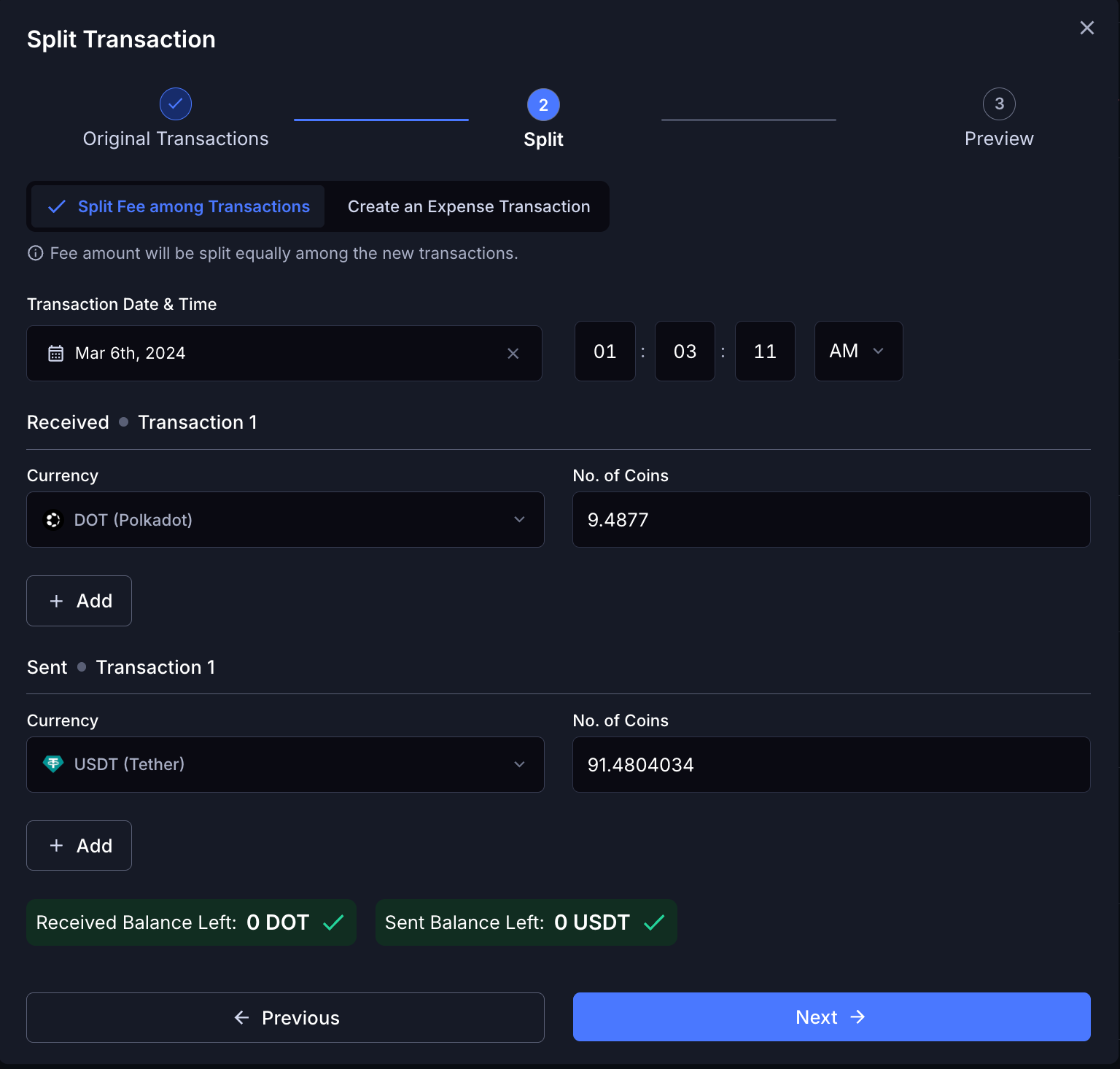
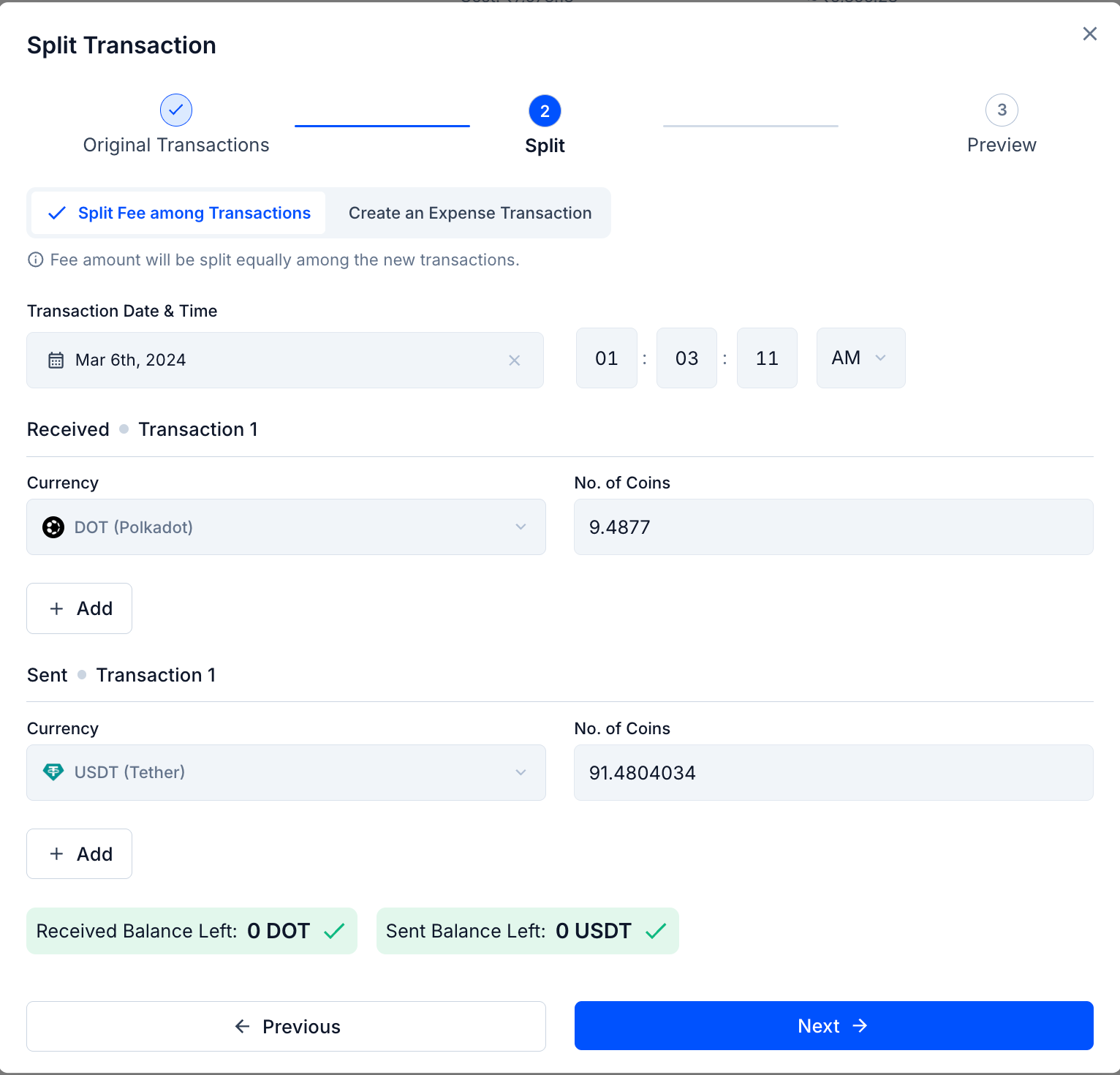
Define how the transaction should be divided
- Choose how fees should be handled: Split Fee among Transactions or Create an Expense Transaction
- Split Fee among Transactions: the fee is distributed across the resulting transactions
- Create an Expense Transaction: the fee is recorded as a separate expense entry
- Adjust the Sent and Received amounts by using ”+” Add to create additional entries if needed
Review the preview of the resulting transactions, then click Submit
Coin Migration
When you need this
Use Coin Migration when a transaction shows the wrong token or asset mapping. This can happen when:- A token was incorrectly mapped during import
- A token contract changed or migrated
- A transaction displays the wrong coin symbol
How to migrate a coin
Locate the transaction and open the three-dot menu (···)
Select Migrate Coin(s)
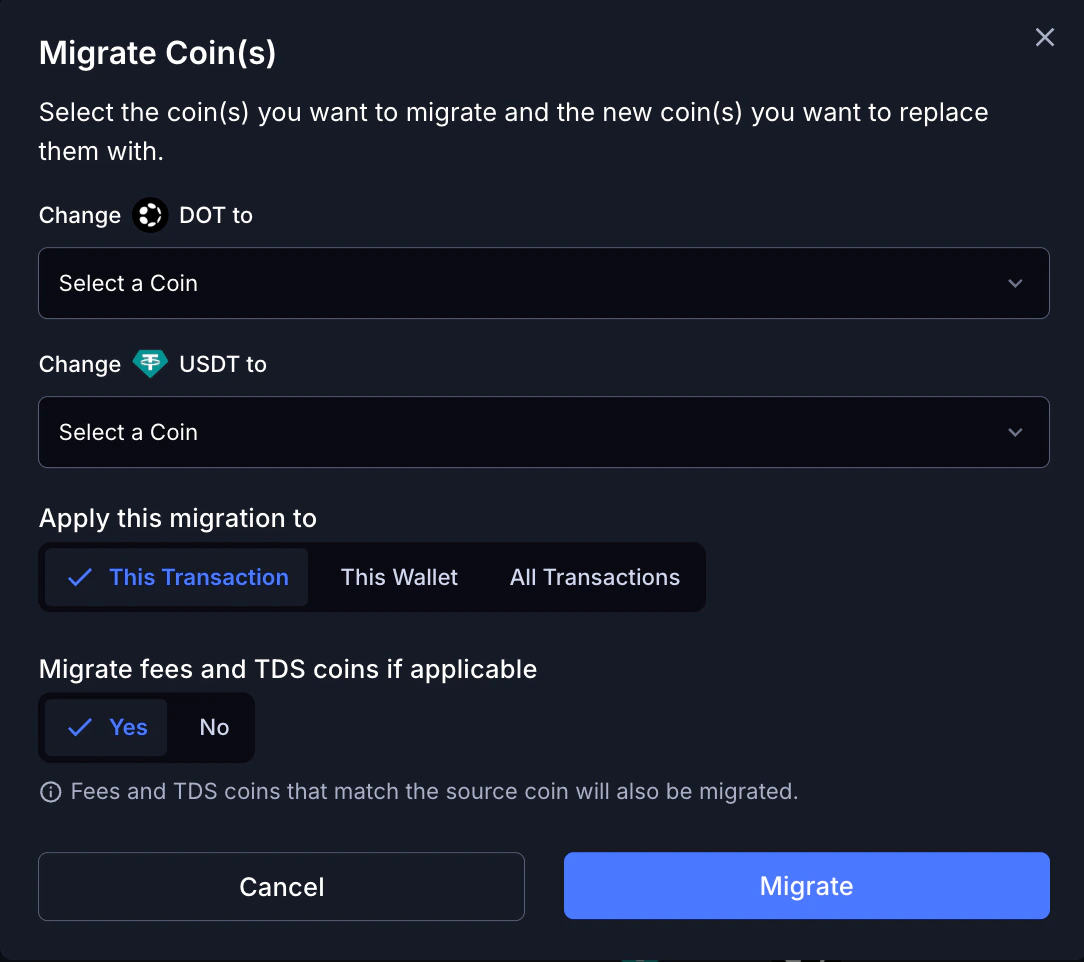
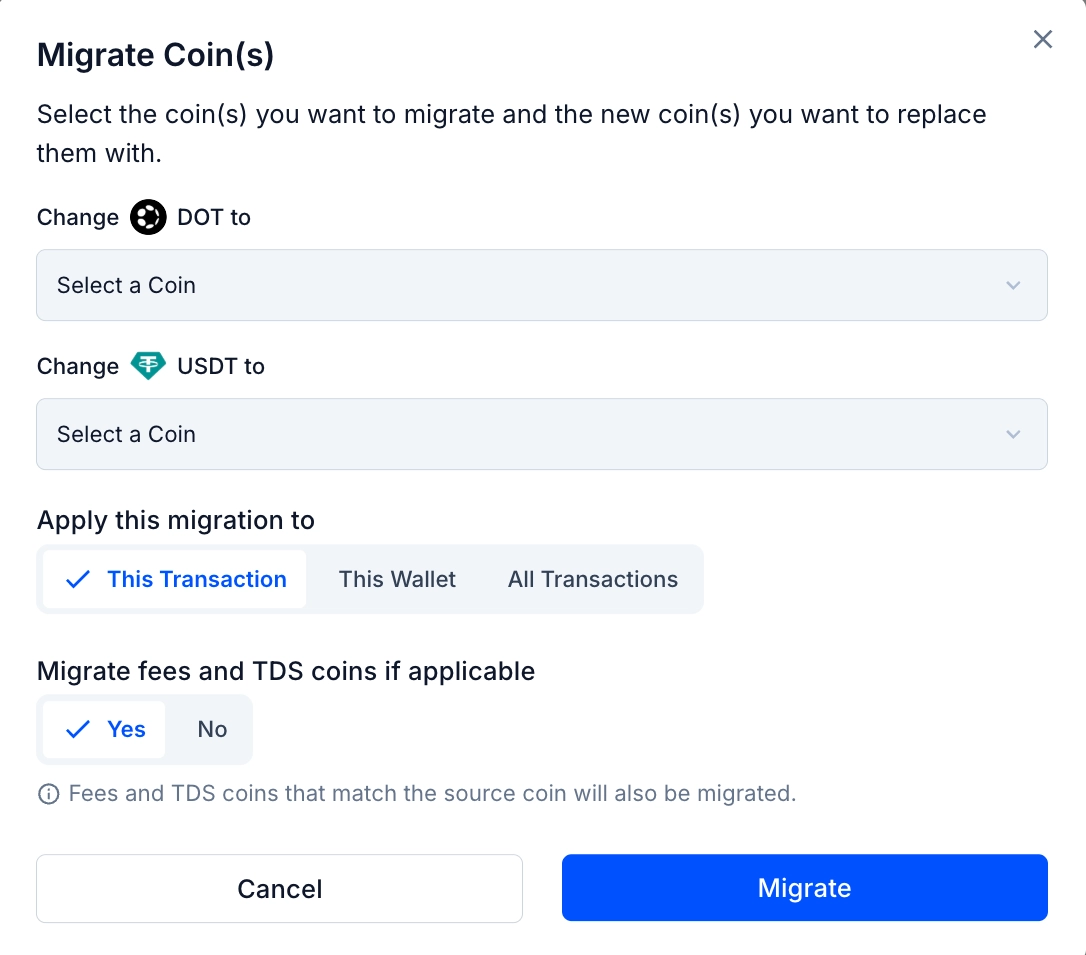
Choose the correct coin that should replace the existing asset
Select where the migration should apply
- This Transaction: only the selected transaction
- This Wallet: all matching transactions in the same wallet
- All Transactions: all transactions across your portfolio
Choose whether fees and TDS coins (if applicable) should also be migrated, then click Migrate
Bulk Deleting Transactions
When you need this
- You have dozens of spam token airdrop entries cluttering your list
- You imported a CSV and it created duplicates
- You want to remove a batch of incorrectly synced transactions to reimport them cleanly
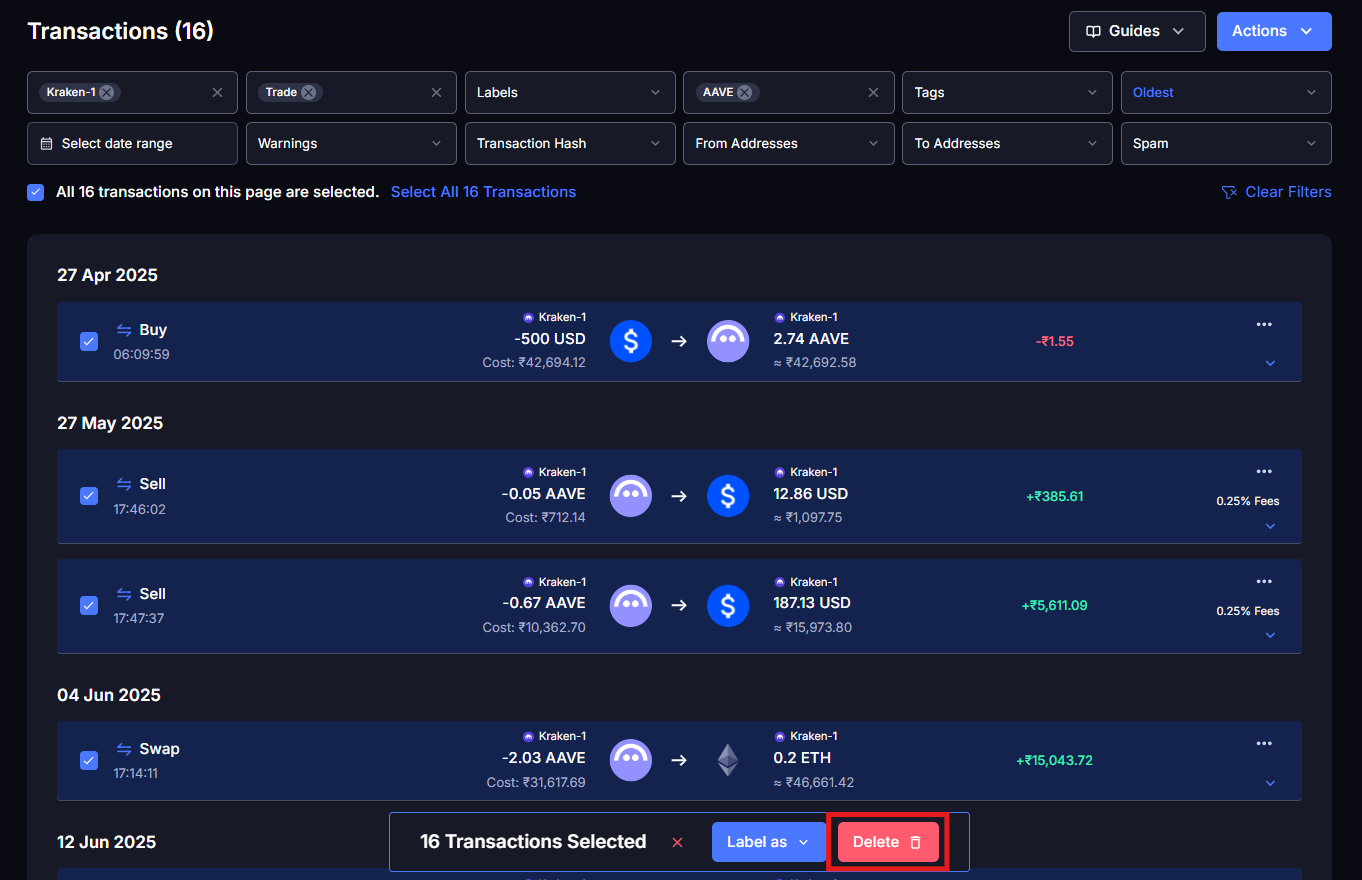
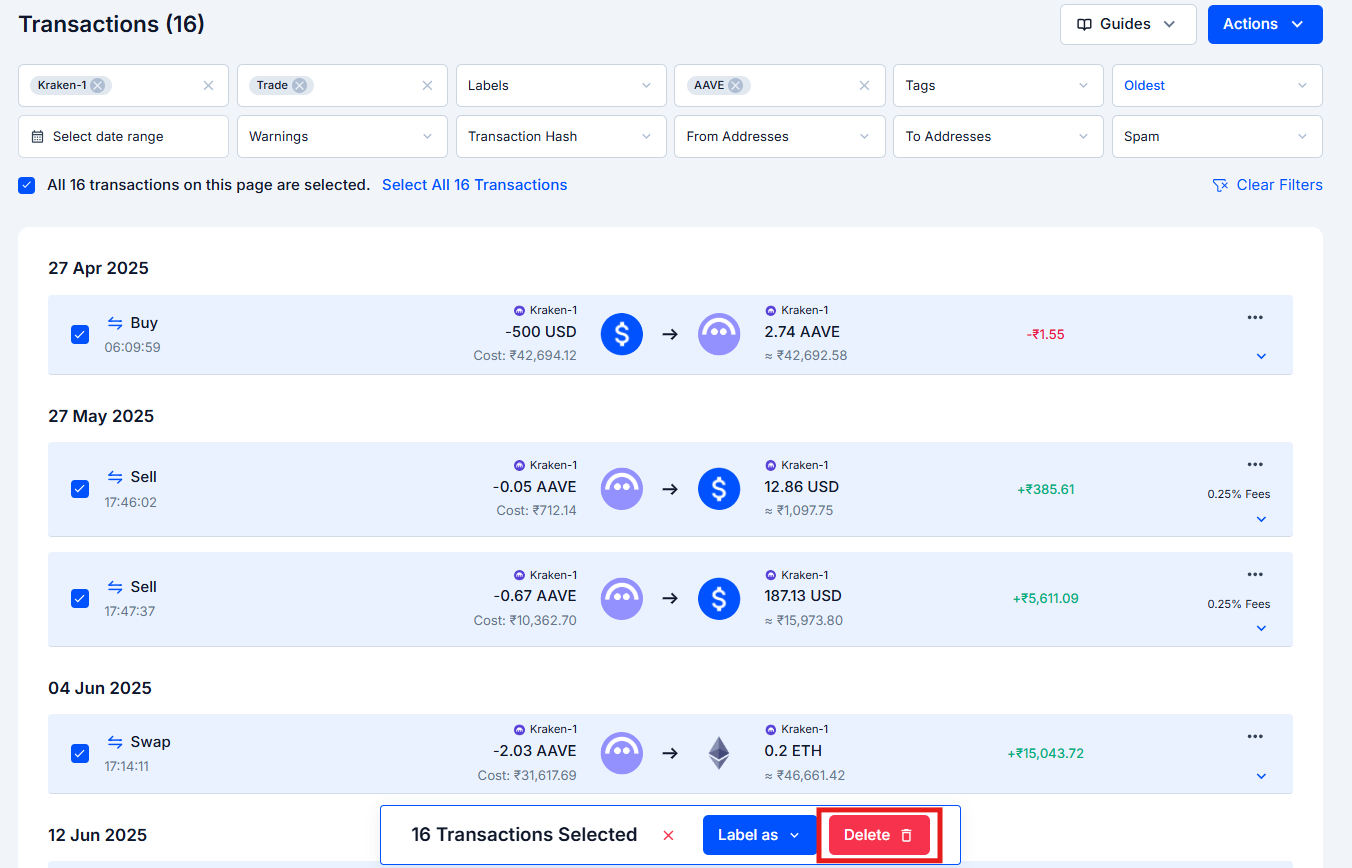
How to bulk delete
Use the filters to narrow down to the transactions you want to delete
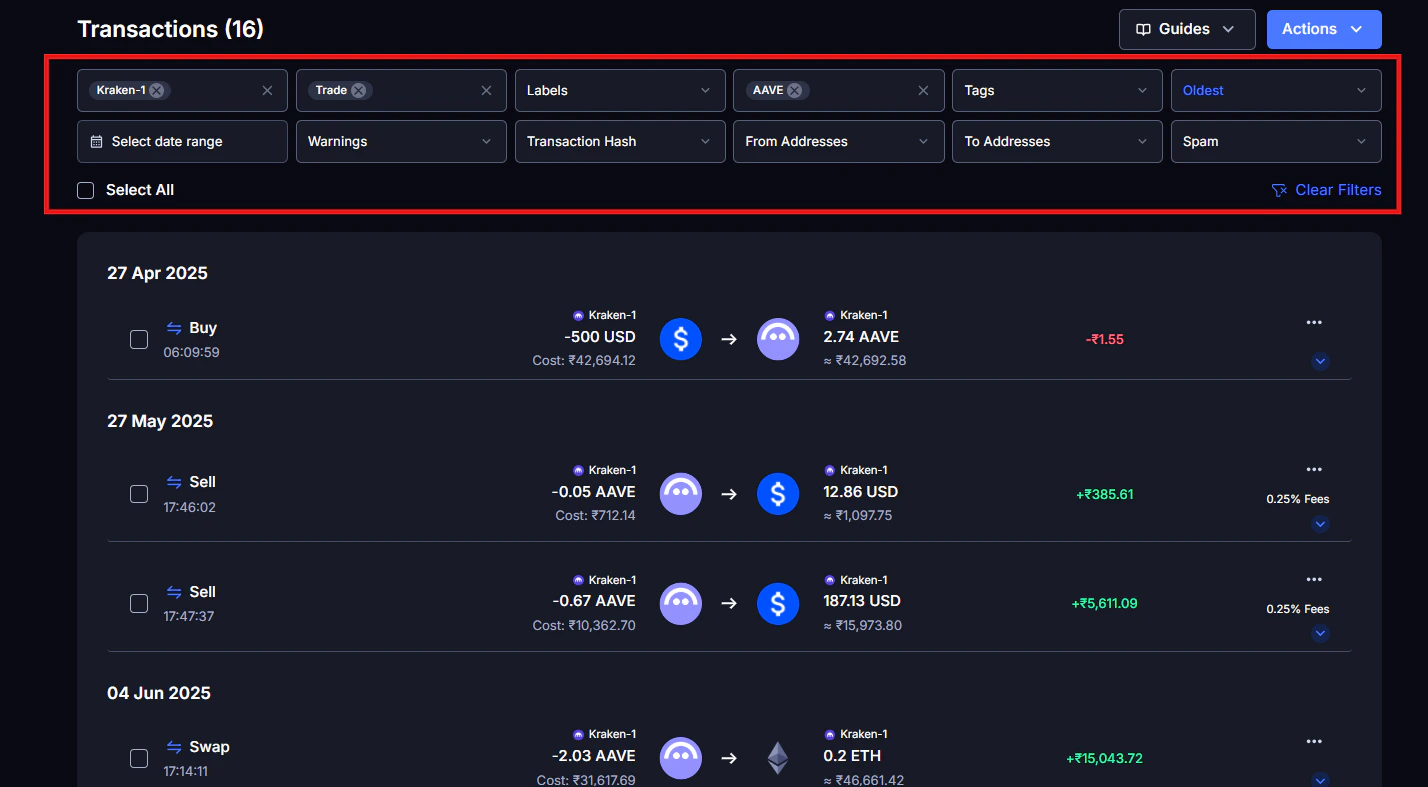
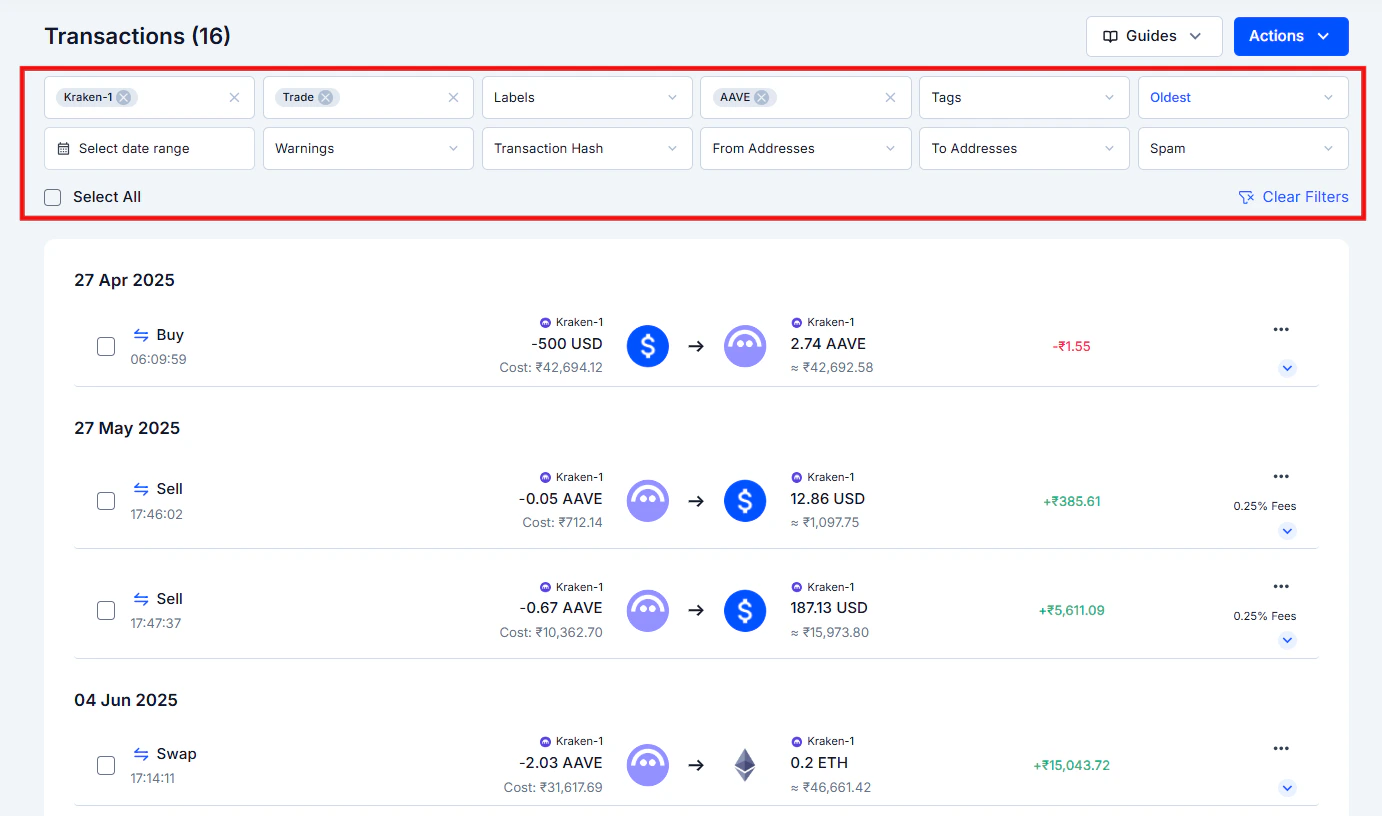
Check the selection boxes on the left side of each transaction
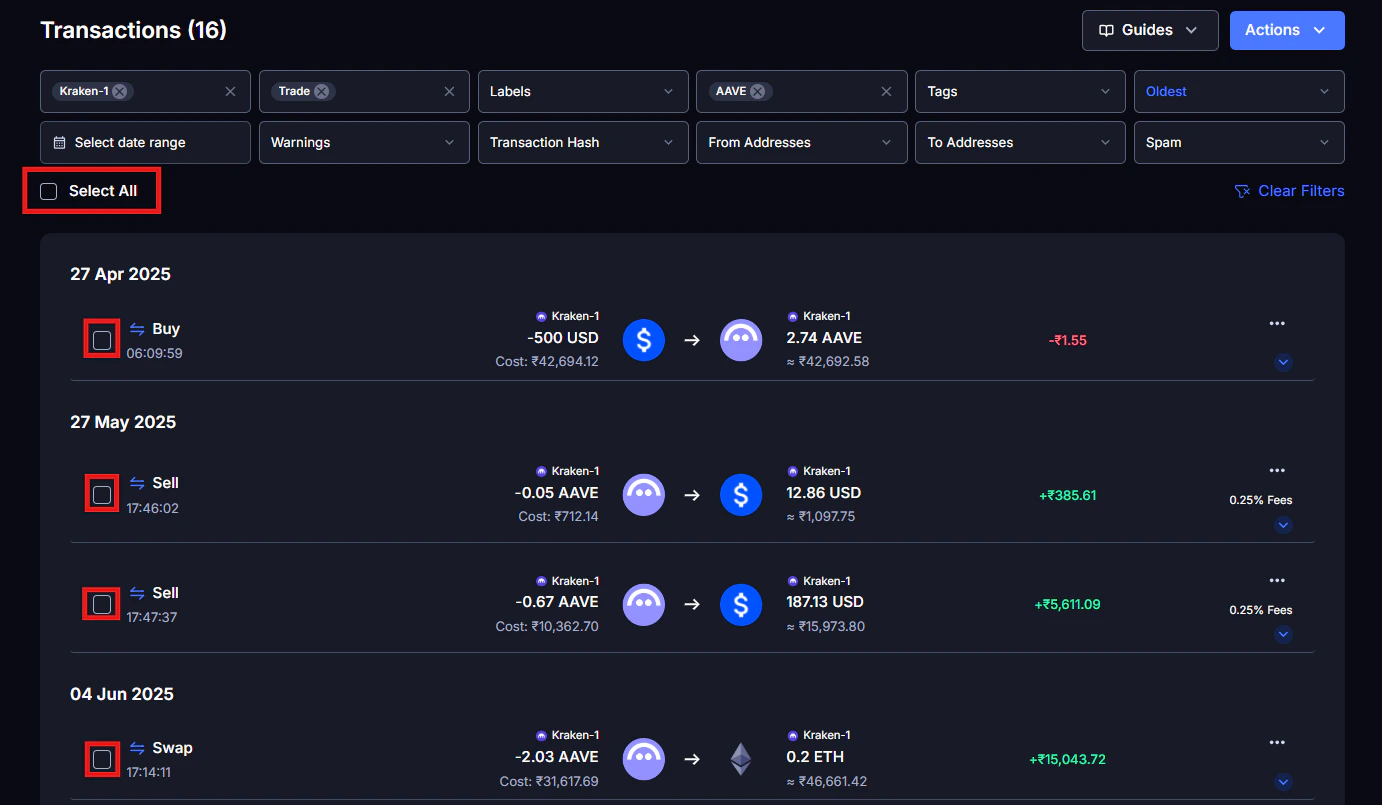
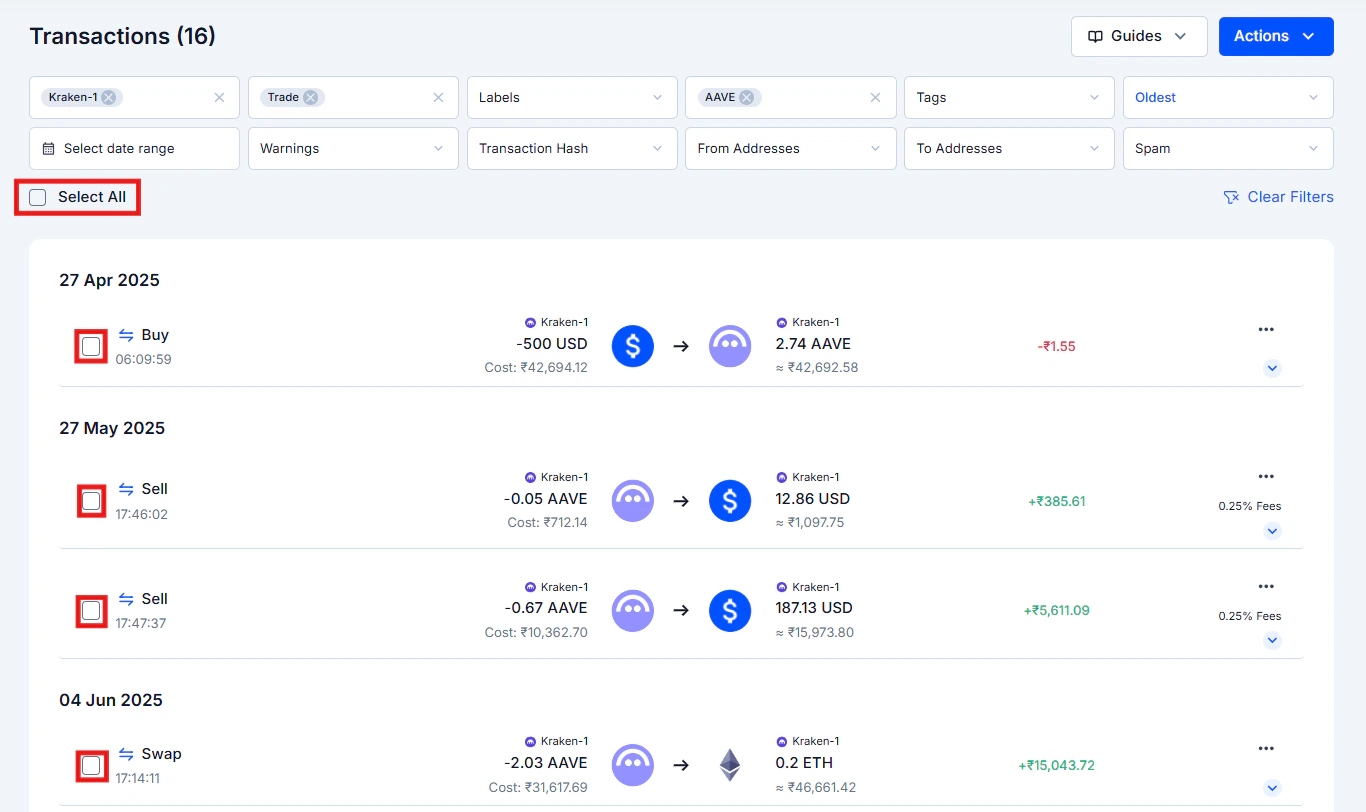
Click the Actions button in the top right corner
Select Delete Selected from the dropdown
Confirm the deletion
Before you bulk delete, read this
What Can and Can’t Be Undone
Common Issues / Edge Cases
The price I entered looks correct but the gain/loss still seems wrong
The price I entered looks correct but the gain/loss still seems wrong
I am trying to split a transaction but cannot proceed after entering the amounts
I am trying to split a transaction but cannot proceed after entering the amounts
I accidentally deleted a real transaction, can I restore it back?
I accidentally deleted a real transaction, can I restore it back?
Frequently Asked Questions
How do I add a note or memo to a transaction?
How do I add a note or memo to a transaction?
I edited a transaction by mistake and can't remember the original value, what do I do?
I edited a transaction by mistake and can't remember the original value, what do I do?
Will deleting a transaction lower my tax liability?
Will deleting a transaction lower my tax liability?
Can I undo a bulk delete if I made a mistake?
Can I undo a bulk delete if I made a mistake?
Does editing a transaction immediately update my tax report?
Does editing a transaction immediately update my tax report?