
AI Summary
- KoinX auto-categorises transactions using exchange API data, on-chain patterns, and your Tax Settings
- Getting categories right is the single most important thing you can do before generating your tax report
- Use the Label Transaction option to fix any miscategorised entry in seconds
How KoinX Decides a Transaction’s Category
KoinX uses three signals to auto-categorise every transaction: 1. The exchange API label Most exchanges tag their own transaction data: buy, sell, deposit, withdrawal, expense. This label is sent directly to KoinX. When this data is present, KoinX trusts it. 2. On-chain data patterns For blockchain wallets (MetaMask, Ledger, Phantom, etc.), KoinX reads the smart contract interaction to figure out what happened. A Uniswap swap looks different from a simple ETH transfer at the contract level. 3. Your Tax Settings The global toggles you’ve set, like “Treat Airdrops as Income” or “Treat Reward as Income”, tell KoinX how to handle entire categories of transactions across all your accounts.Transaction Types and Labels: What Each One Means
KoinX uses two distinct concepts: Transaction Type and Label. The Type is the broad category (set by the exchange or blockchain data). The Label is a more specific tag you apply to give it meaning. Labels available change depending on the Type. The 6 transaction types in KoinX are:How to Change a Transaction’s Category
Go to Transactions and use the Types or Labels filter to find miscategorised entries
Click the three-dot menu (···) on the transaction
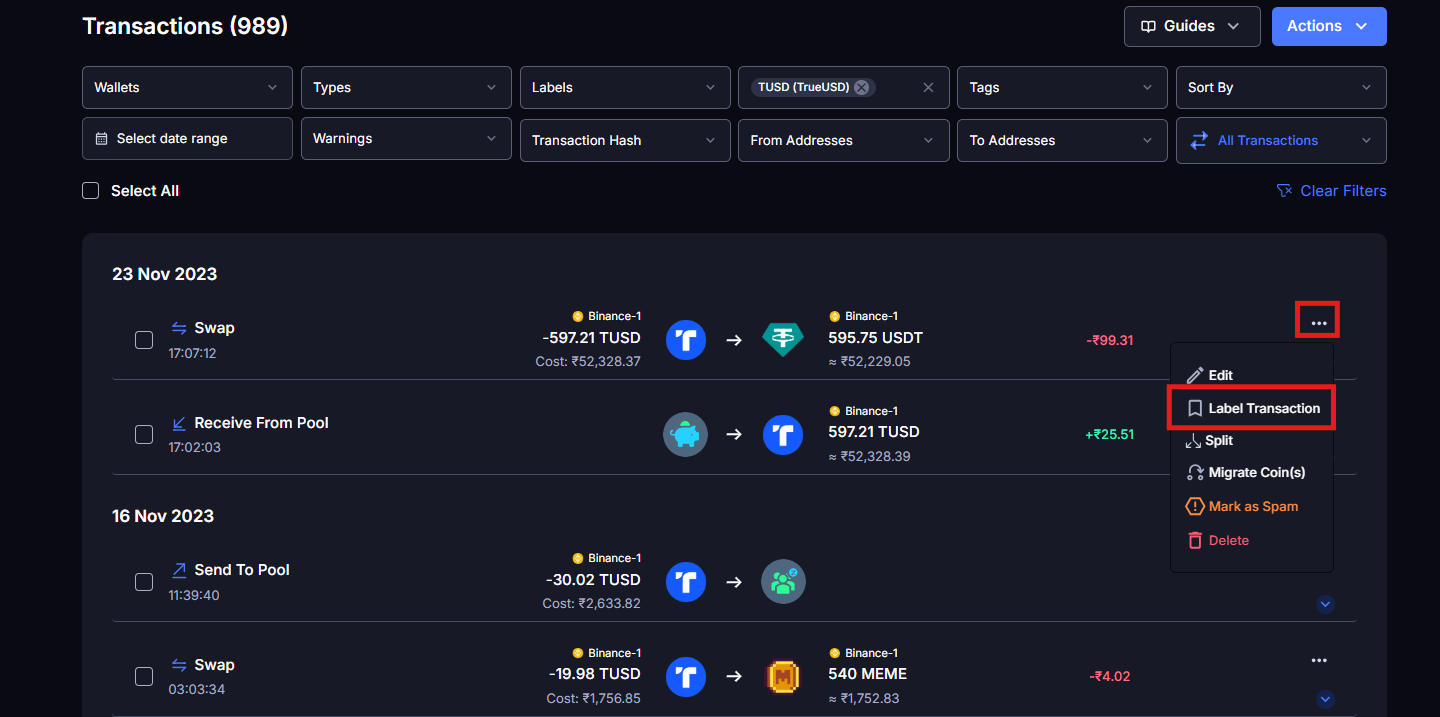
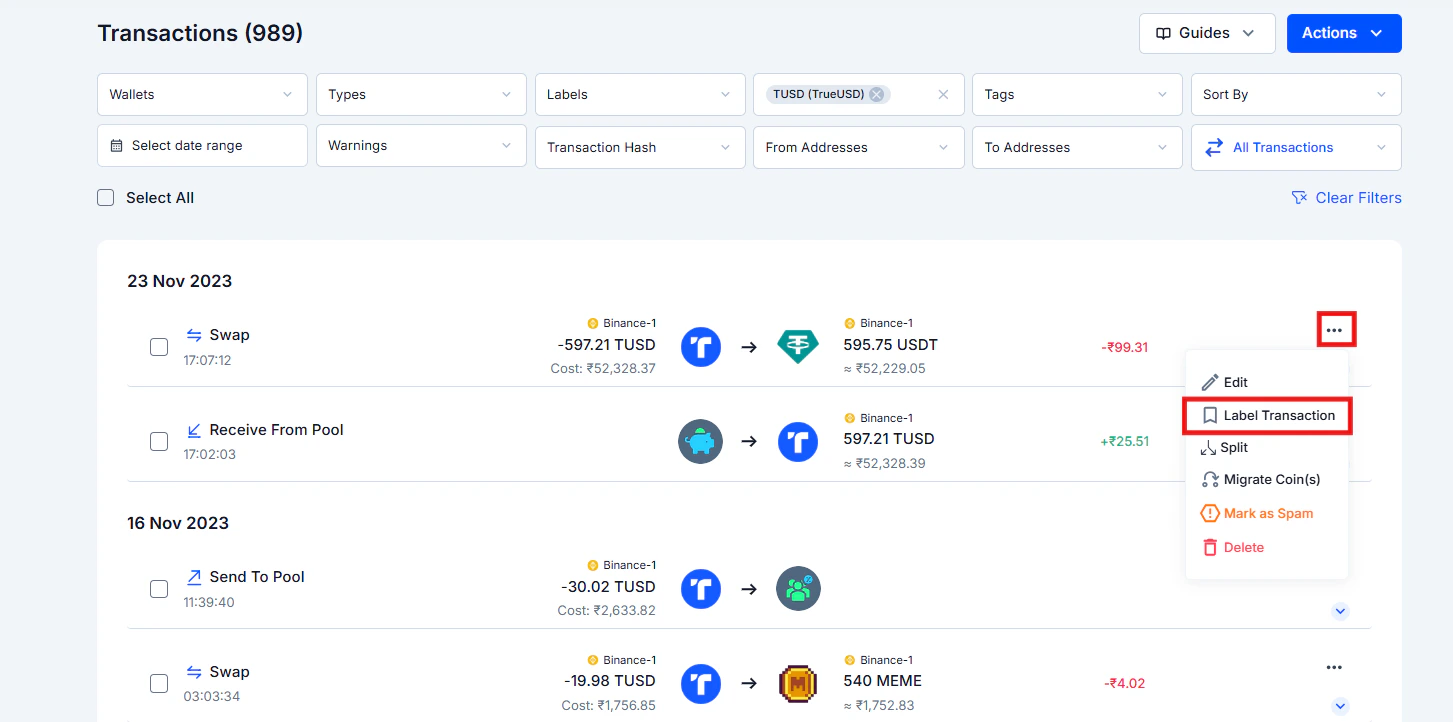
Select Label Transaction
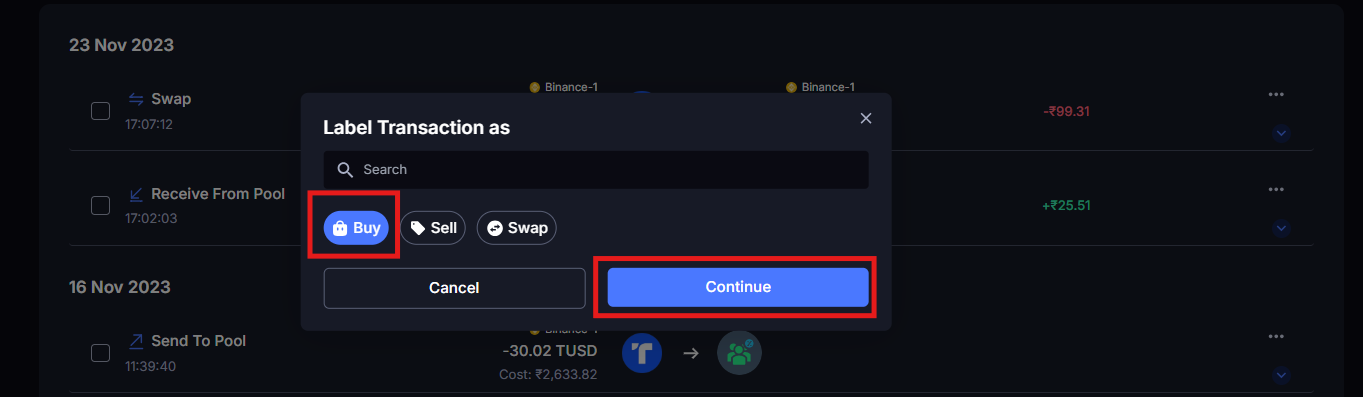
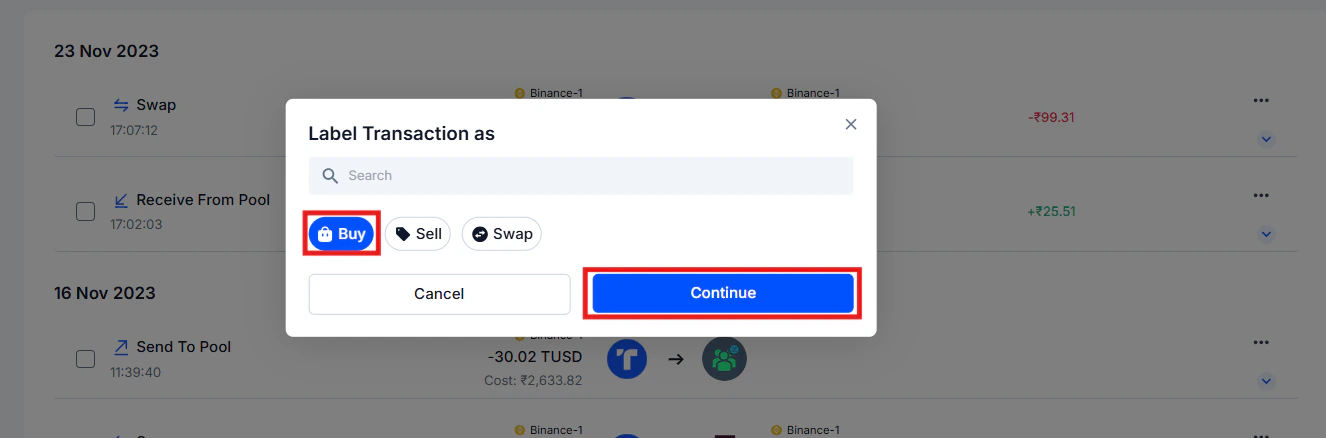
Pick the correct category from the list
The transaction updates immediately and the system reconciles your data instantly
Internal Transfers: The Most Common Source of Confusion
Moving crypto from your Binance account to your MetaMask wallet is a Transfer: not a sale. Nothing was sold. No taxable event happened. You’re just moving your own assets. But KoinX sometimes misclassifies this because it needs to see both sides of the transfer to confirm it’s an internal move:- The withdrawal from Binance (your exchange)
- The deposit into MetaMask (your wallet)
- Time Window for Automatic Matching: The maximum time gap (in minutes) between a withdrawal and deposit for KoinX to consider them a matched pair. Default is 120 minutes. Example: withdrawal at 2:00 PM and deposit at 4:00 PM, matched if the window is 120 minutes.
- Maximum Amount Difference (%): The allowed percentage difference between the withdrawal and deposit amounts, to account for gas fees or slippage. Default is 5%. Example: 100 MATIC withdrawn, 96 MATIC deposited, valid at 5% threshold. 100 withdrawn, 85 deposited. Not valid, exceeds limit.
- Strict Timestamp Ordering: When enabled, the withdrawal must occur before the deposit for KoinX to match them. Example: withdrawal at 2:00 PM → deposit at 2:30 PM = valid. Deposit at 2:00 PM → withdrawal at 2:10 PM = not valid.
- Reverse Timestamp Threshold: Only active when strict ordering is disabled. Defines how many minutes a deposit can appear before a withdrawal and still be matched. Example: deposit at 1:58 PM → withdrawal at 2:00 PM = valid if the reverse limit is 5 minutes.
The 4 Most Common Miscategorisation Scenarios
Scenario 1: Airdrop not labelled correctly
What happened: Tokens were airdropped into your wallet. KoinX correctly records this as a Deposit (which is the right transaction type for any incoming crypto). But the Label may not have been set to Airdrop, which matters for tax treatment. Why it matters: An airdrop is taxable income in most jurisdictions at the time of receipt. Without the Airdrop label, it won’t be treated correctly in your income report. How to fix it:Find the transaction (it will show as a Deposit)
Three-dot menu → Label Transaction → select Airdrop as the label
Check Tax Settings → Treat Airdrops as Income, make sure this toggle is on so future airdrops are labelled correctly
Scenario 2: Staking reward showing as a Deposit without the right label
What happened: Your staking reward arrived in your wallet and KoinX logged it as a Deposit, which is technically correct for the type, but the label may not reflect that it’s a staking reward. Why it matters: Staking rewards are taxable income at the time they’re received. Without the right label, the reward won’t appear in your income report correctly. How to fix it:Find the staking reward transaction
Three-dot menu → Label Transaction → select Staking as the label
Check Tax Settings → Treat Reward as Income, should be toggled on
Scenario 3: Staking and Unstaking
Staking involves two separate transactions: locking your crypto into a pool, and getting it back later. KoinX has specific labels for both:- Sent to Pool: apply this to the original transaction where you staked (sent crypto into the staking protocol)
- Received From Pool: apply this to the transaction where you received your assets back on unstaking
Find the transaction where you originally staked your crypto
Three-dot menu → Label Transaction → select Sent to Pool
Find the transaction where you received your assets back
Three-dot menu → Label Transaction → select Received From Pool
Scenario 4: P2P trade showing as a Deposit
What happened: You bought crypto from someone directly (peer-to-peer) and the coins just appeared in your wallet. KoinX has no exchange record of the purchase, so it logs the incoming crypto as a deposit. Why it matters: A deposit has no cost basis attached to it. A buy creates a cost basis, which you’ll need when you eventually sell. How to fix it:Find the incoming P2P transaction
Three-dot menu → Label Transaction → select Buy
Then use Edit to enter the price you paid for the crypto at the time of the P2P trade
Common Issues / Edge Cases
Changing the label doesn't clear the warning
Changing the label doesn't clear the warning
I relabelled a staking reward but it's not showing in my income report
I relabelled a staking reward but it's not showing in my income report
Frequently Asked Questions
Why is my airdrop being taxed as income?
Why is my airdrop being taxed as income?
I received crypto as a refund, how do I categorise it?
I received crypto as a refund, how do I categorise it?
A transaction is showing as Income but it was a loan I received, how to fix?
A transaction is showing as Income but it was a loan I received, how to fix?
If I change a label, does it affect my already-generated tax report?
If I change a label, does it affect my already-generated tax report?
My entire exchange is sending the wrong transaction types, is there a bulk fix?
My entire exchange is sending the wrong transaction types, is there a bulk fix?