
AI Summary
- Formatted specifically for TurboTax’s CSV import feature, so you can skip manual transaction entry
- Covers all capital gains and losses from crypto disposals, both short-term and long-term
- Upload the CSV directly into TurboTax under Investment Income to populate Schedule D automatically
- Use this report instead of the Form 8949 report when filing through TurboTax
- Staking rewards and airdrops are income events, not capital gains, and must be entered separately in TurboTax
What Does the TurboTax Gain-Loss Report Contain?
The report includes the transaction details required for TurboTax to calculate your capital gains.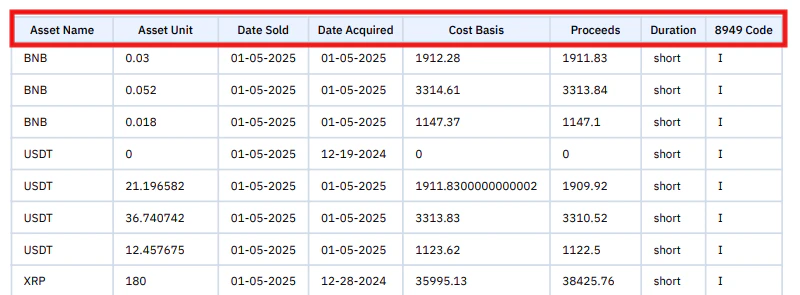
TurboTax uses this data to automatically calculate short-term capital gains, long-term capital gains, and total gains and losses.
Example From the Report
How Is This Different from Form 8949?
The data is identical; only the format differs.
How to Import into TurboTax
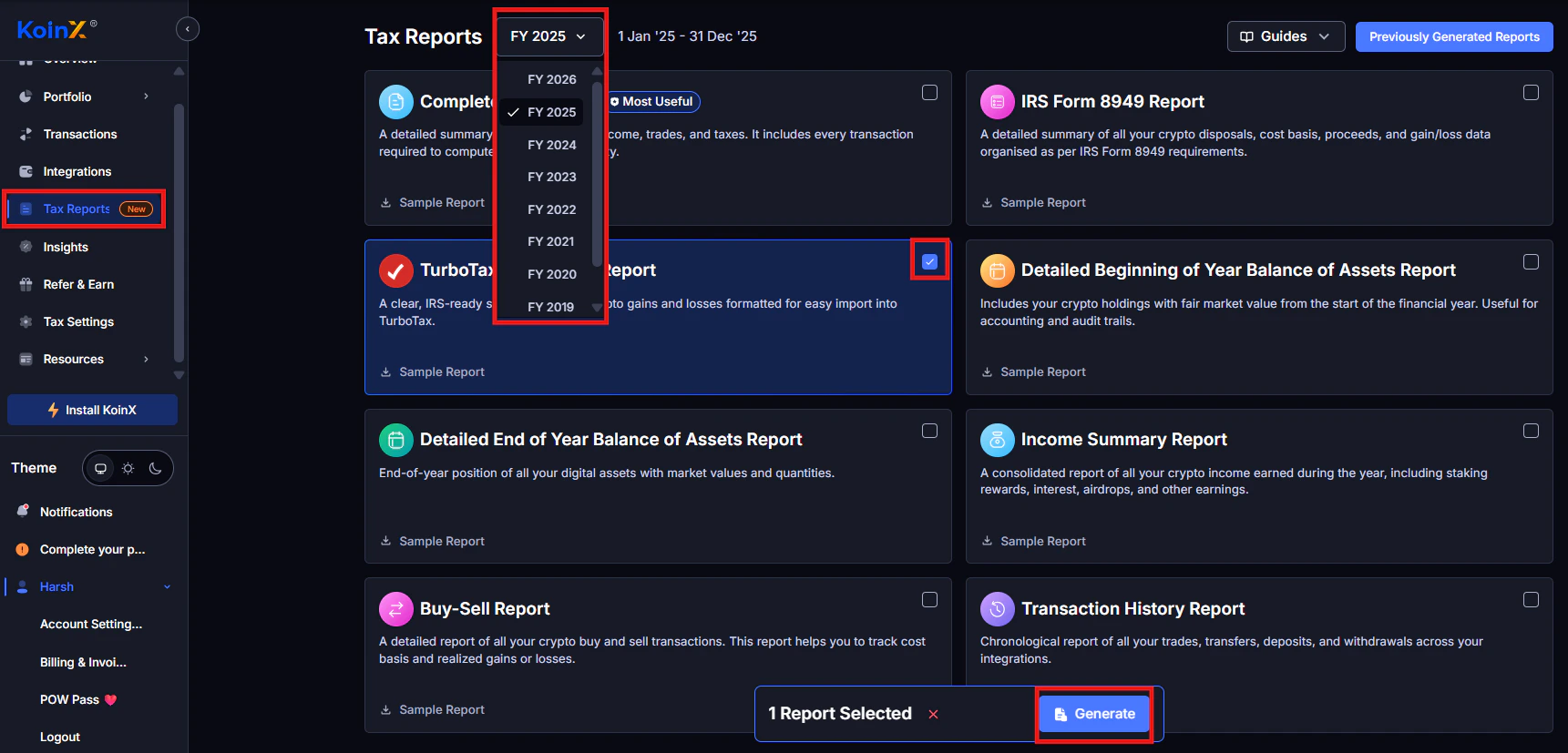
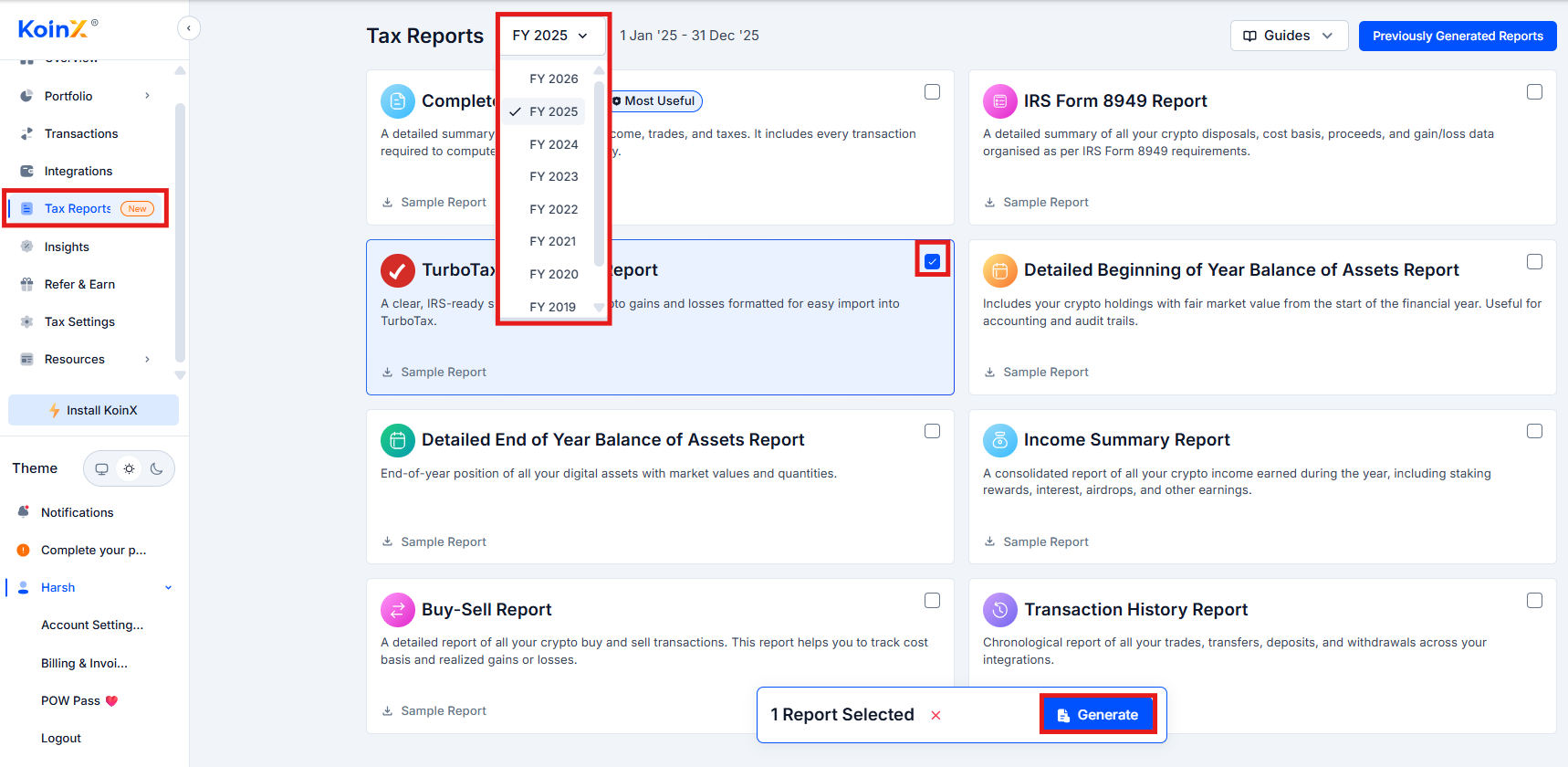
1
Download the report from KoinX
Go to Tax Reports, select the correct tax year, locate the TurboTax Gain-Loss Report, click Generate, and download the CSV file.
2
Upload to TurboTax
Open TurboTax and navigate to Investment Income. Select Stocks, Cryptocurrency, Mutual Funds, Bonds, Other. Choose Upload CSV or Import from file, then upload the KoinX CSV file.
3
Confirm import
TurboTax will import and categorise the transactions, then automatically populate Schedule D.
What Transactions Are Included?
The report includes capital gains events only.
Income events must be reported separately in TurboTax’s income section.
Does KoinX Directly Integrate With TurboTax?
No live API connection exists. The workflow is: KoinX calculates gains and losses, you download the TurboTax CSV, and TurboTax imports the file. This is the standard workflow used by most crypto tax platforms.Common TurboTax Import Issues
File format not recognised: Make sure you downloaded the TurboTax Gain-Loss Report, not the Form 8949 PDF. Date format error: Do not edit the CSV in Excel before importing. Re-download the original file if formatting changed. Missing transactions: This can occur if some exchanges were not integrated, transaction data is incomplete, or your TurboTax version has import limits.TurboTax Version Requirements
Crypto imports may require TurboTax Premier or TurboTax Self-Employed. Basic versions may not support large transaction imports.Frequently Asked Questions
Do I need Form 8949 if I use the TurboTax report?
Do I need Form 8949 if I use the TurboTax report?
No. TurboTax generates Form 8949 automatically after importing the CSV.
What if I have thousands of transactions?
What if I have thousands of transactions?
Some TurboTax versions have import limits. If you exceed them, consider using TurboTax Premier or Self-Employed.
Are staking rewards included?
Are staking rewards included?
No. Staking rewards and airdrops are income events, not capital gains. These must be entered separately in TurboTax.